Variables
Arcweave uses variables to store data during play. These are the mechanism through which the game can "remember" what happens and progress accordingly.
Variables are used in branches, as well as in arcscript segments within elements and labels.
Common use cases
You can use variables in the following ways.
Assign values
Assigning a value to a variable stores that value for later use in the game. You can assign values using any of arcscript's assignment statements.
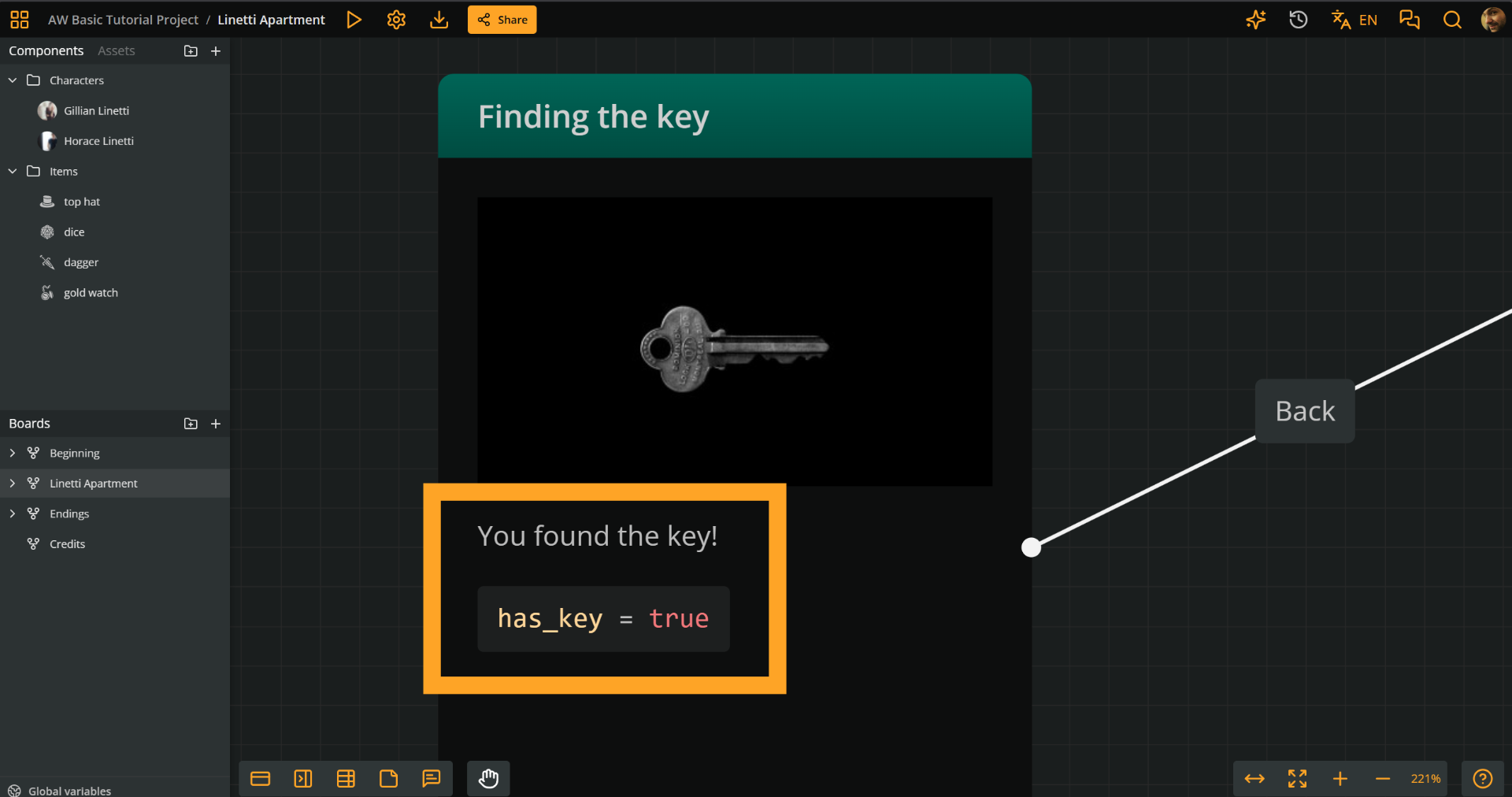
For example, if the player finds a key, you can store this information in a boolean variable named has_key (see variable types, below), assigning it the value true in an arcscript segment.
Then, the game will remember that the player has found the key.
Evaluate in branches
Evaluating a variable allows the game to read and use its value. Branches can evaluate variables using if/elseif/else conditions and direct the story flow accordingly.
ℹ️ For a full guide on arcscript conditions and their syntax, see Arcscript > Conditional statements.
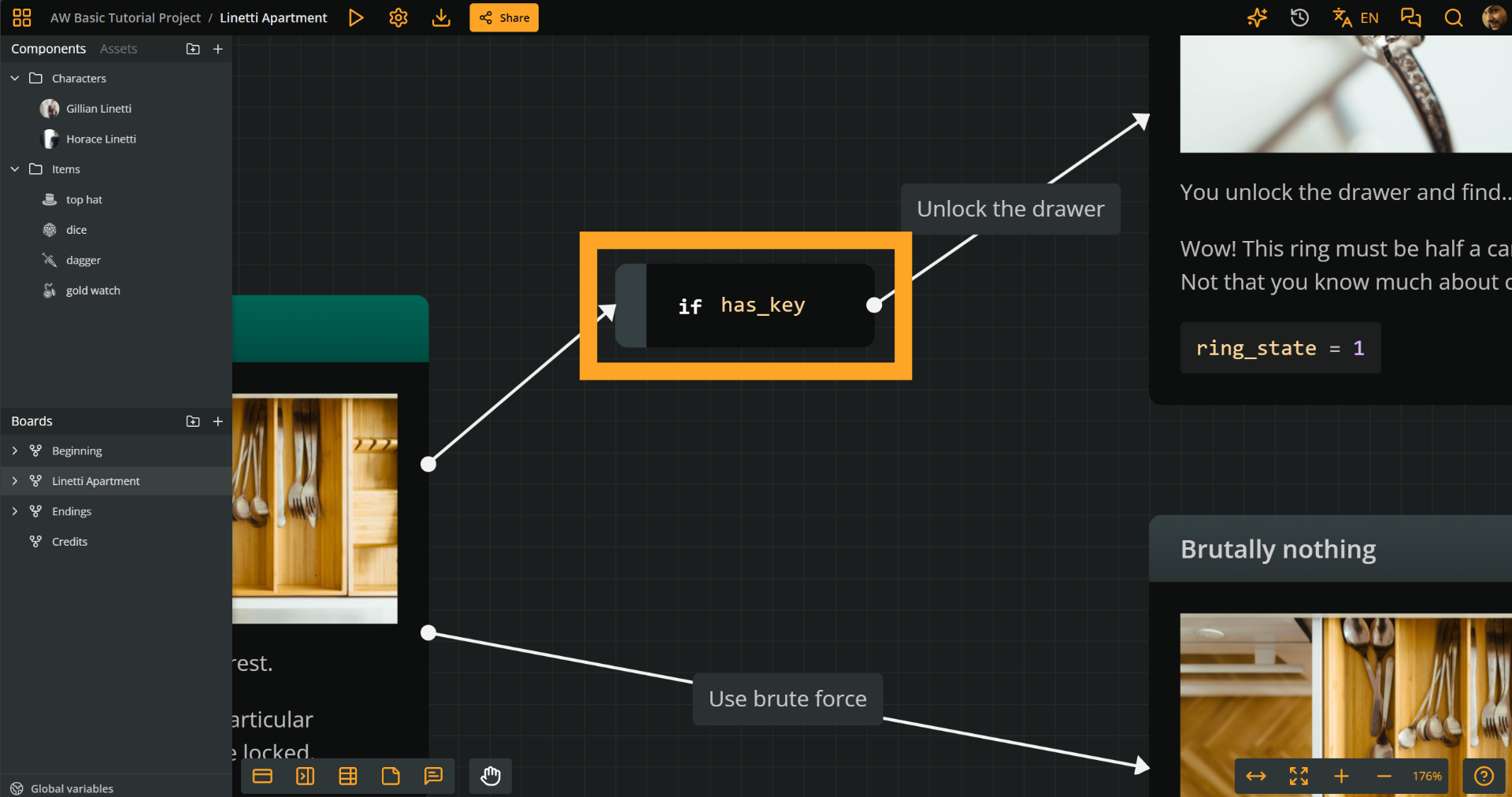
In the same example as above, when the player finds the locked drawer, a branch can decide whether they can open it, by evaluating the variable has_key in an if statement.
Display dynamic text
Another common use of variables is to display dynamic text content in elements and labels. In other words, the player gets to see different text output depending on the variables' values.
Dynamic text using conditional statements
One way of creating dynamic text output is by using conditional statements that output different text.
For example, by using the integer day (see Variable types), we can display a different message to the player as the weekend approaches. (Week starts from 1 = Monday.)
if day >= 6
  It's weekend! You stretch out in bed. No alarm, no rush. Bliss.
elseif day >= 5
  Weekend is almost here. You hum your favourite song all the way to work.
else
  The week is still young. Lots of things to do.
endif
ℹ️ For a full guide on arcscript conditions and their syntax, see Arcscript > Conditional statements.
Dynamic text using the show function
Another way to display dynamic text in elements and labels is by using the show function, which renders its arguments as text content.
The following example uses the coins integer (see Variable types) to store the player's riches:
show("You have ", coins, " gold coins.")ℹ️ See Arcscript >
showfor more on the function's syntax and uses.
Variable types
The supported variable types are:
- Boolean:
Atrue/falsevalue, useful for tracking flags, e.g.has_keyormet_daisy. - String:
A sequence of characters, used for names or any other text value, e.g.happyorJohn Smith. - Integer:
A whole number, ideal for stats or counters, e.g.dexterityorscore. - Float:
A number with a decimal point, suited for precise measurements, e.g.speedortemperature.
⚠️ Arcscript does not enforce strict type checking. When type conversion occurs, it follows JavaScript's type coercion rules.
For board and component variables, the String type appears as String Field in the attributes menu.
Every variable has an initial value. Play Mode starts with these values, and restarting Play Mode restores them for global, board, and component variables.
Variable scope
Arcweave supports one global variable category and two scoped variable categories:
| Category | Stored and managed in | Arcscript reference |
|---|---|---|
| Global variable | The Global variable dialog | score |
| Board variable | The Board attributes dialog | castle.drawbridge_open |
| Component variable | The component editor | hero.health |
All three categories can be read and changed from anywhere in the project. For board and component variables, the scope qualifies the variable's name; it does not restrict where the variable is available. A component variable belongs to the component itself, so attaching that component to multiple elements does not create separate copies of its value.
Board and component variables use the same underlying mechanism. A String Field, Boolean, Integer, or Float attribute becomes a scoped variable when both the attribute and its owning board or component have custom IDs. Rich Text, Component List, and Asset List attributes remain metadata and cannot be used as Arcscript variables.
The owner's custom ID is the scope and the attribute's custom ID is the variable name. The attribute label is only a human-readable description and does not affect the Arcscript reference. Unqualified names such as health resolve global variables only, so health, castle.health, and hero.health can coexist as three distinct variables.
Variable names and custom IDs
Variable names and custom IDs must be valid Arcscript identifiers and cannot be Arcscript keywords or built-in function names.
- A global variable name must start with a letter,
_, or$and must be unique among global variables. - A board or component custom ID must start with a letter or
$and must be unique across all regular boards and components. - A variable attribute custom ID must start with a letter,
_, or$and must be unique among the attributes of its owner. - After the first character, these identifiers can contain letters, numbers, and underscores.
A global variable name may match a board or component custom ID because unqualified and scoped references are distinct. For example, the global variable hero and the component variable hero.health can coexist.
Arcweave generates a custom ID when you create a regular board or component. When you name a variable attribute, Arcweave generates its custom ID from its label. Renaming an owner or attribute custom ID updates existing Arcscript references automatically.
Variables in Debugger
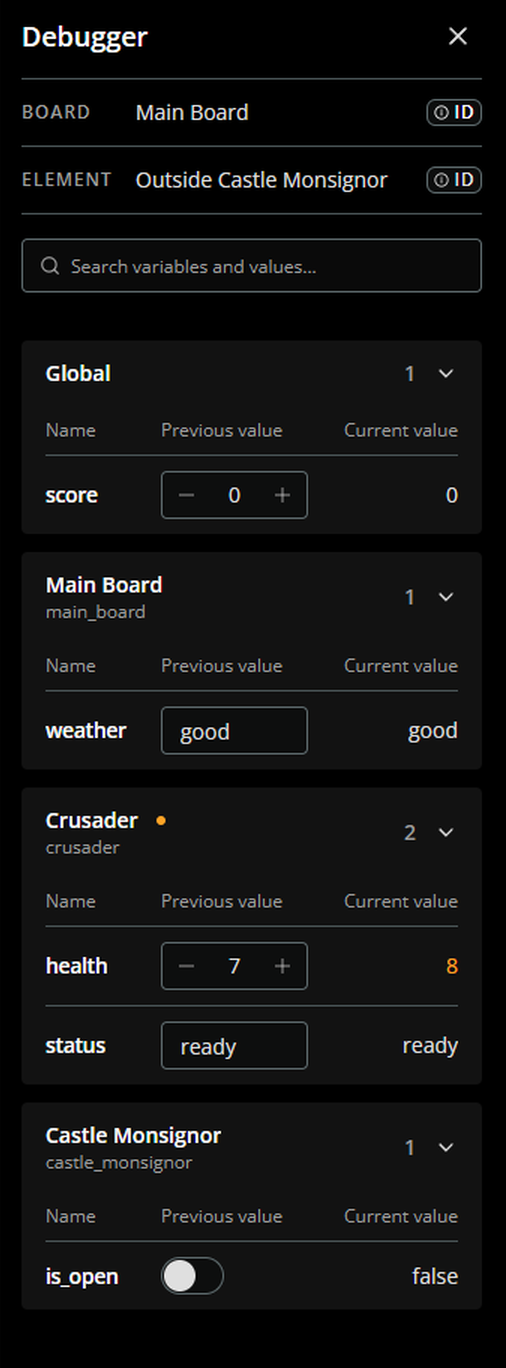
When in Play Mode, you can monitor the variables and their values in the Debugger.