Workspace plans
Arcweave accounts are free. An Arcweave account can be associated with any number and combination of workspaces.
Workspace comparison
A workspace can be one of the following types:
- Basic: Free workspace with content and feature limitations.
- Pro: Removes most limitations and increases the upload size limit.
- Team: Unlocks all features and further increases the upload size limit.
Feature comparison table
The 3 workspace types have important differences in project limits, item capacity, and billing behavior, as shown in the table below.
| Feature | Basic | Pro | Team |
|---|---|---|---|
| Number of members: | ✅ Unlimited | ✅ Unlimited | ✅ Unlimited |
| Project limits: | ⚠️ Up to 3 projects | ✅ Unlimited | ✅ Unlimited |
| Item limits (per project): | ⚠️ Up to 200 items | ✅ Unlimited | ✅ Unlimited |
| Assets upload limit (per file): | 5 MB | 100 MB | 100 MB |
| Assets upload limit (per project): | 50 MB | 1 GB | 10 GB |
| History access: | ❌ Not available | ❌ Not available | ✅ Available |
| Web API access: | ❌ Not available | ❌ Not available | ✅ Available |
| Custom roles: | ❌ Not available | ❌ Not available | ✅ Available |
These differences are designed to help individuals and teams scale their use of Arcweave, from lightweight solo work to complex multi-member collaboration, without sacrificing flexibility or continuity.
Additional information
Along with the table above, consider the following information:
- Unlimited members: In Basic workspaces, members and guests can be added at no cost. In Pro and Team workspaces, adding or removing members and guests affects billing.
- Project limits: If a Pro or Team workspace is downgraded to Basic, it keeps all existing projects, but cannot add new ones if the limit is exceeded.
- Item limits:
- The 200-item per project limit in Basic workspaces applies only to elements, jumpers, branches, components, and comments.
- Your projects can include an unlimited number of connections, notes, assets, and variables.
- When downgrading to Basic, existing projects keep all their items, but cannot grow beyond 200 counted items.
ℹ️ For a complete feature comparison, visit the Pricing page on Arcweave's website.
Seats
In Basic workspaces, you can add any number of members or guests for free.
In Pro and Team workspaces, workspace members and guest editors are billable. Each billable user occupies a seat.
Seats are slots that billable users occupy and they determine your subscription cost. Adding a billable user adds a seat; removing one frees a seat.
✅ A freed seat remains active until its billing period ends.
ℹ️ For details on adding and removing seats and how this affects your billing, see Change number of seats, below.
Billing calculation
Each Pro or Team workspace is billed independently, based on:
- Selected plan (Pro / Team)
- Billing cycle (monthly / yearly)
- Number of billable seats (members + guest editors)
This page includes detailed instructions and billing examples on plan upgrades, downgrades, prorated charges, and seat management, to help you understand how your subscription costs are calculated.
Upgrade workspace plan
Upgrade Basic
A Basic workspace suits early exploration and limited projects. As the size and complexity of your work increases, upgrading to Pro or Team removes content limitations and unlocks additional workflow features.
To upgrade your Basic workspace to Pro or Team, follow the steps below:
1. Review existing seats
Before upgrading, review your current members and guest editors.
- Remove users who should not remain on the workspace.
- Decide whether additional collaborators must be invited before upgrading.
⚠️ You will be billed for all billable roles (members + guest editors) immediately after upgrading, regardless of how active those users are.
✅ Best practice: If choosing a yearly plan, finalize your team before upgrading. Any seats added later use monthly billing at the monthly rate.
To make seat changes before upgrading, close the Upgrade modal and follow the instructions to invite or remove users:
2. Open the upgrade modal
You can upgrade a Basic workspace from two locations:
a. From the upgrade prompt: Located at the bottom left corner of your workspace environment. (Exit any open project first.)
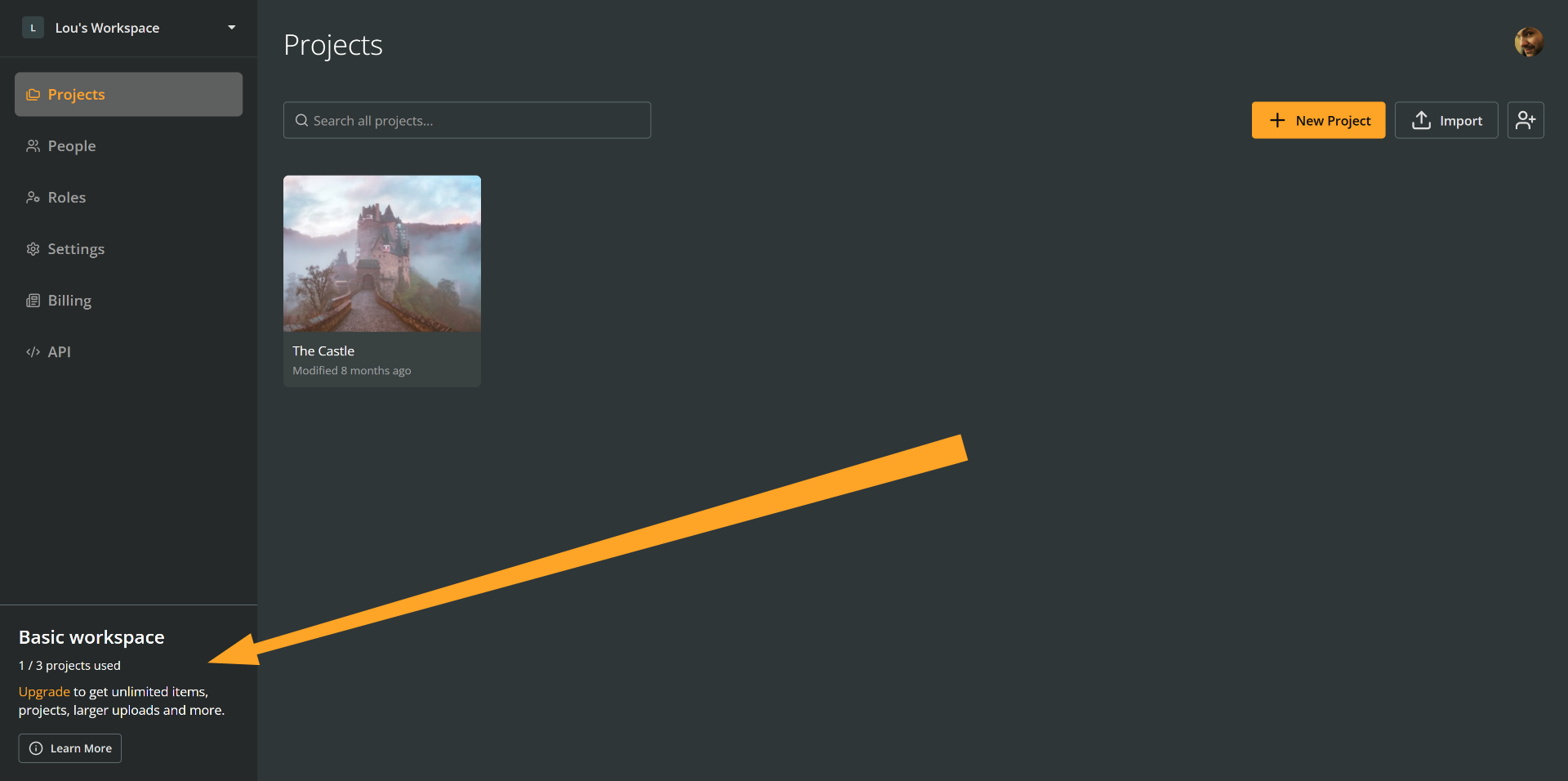
Click Upgrade to open the upgrade modal.
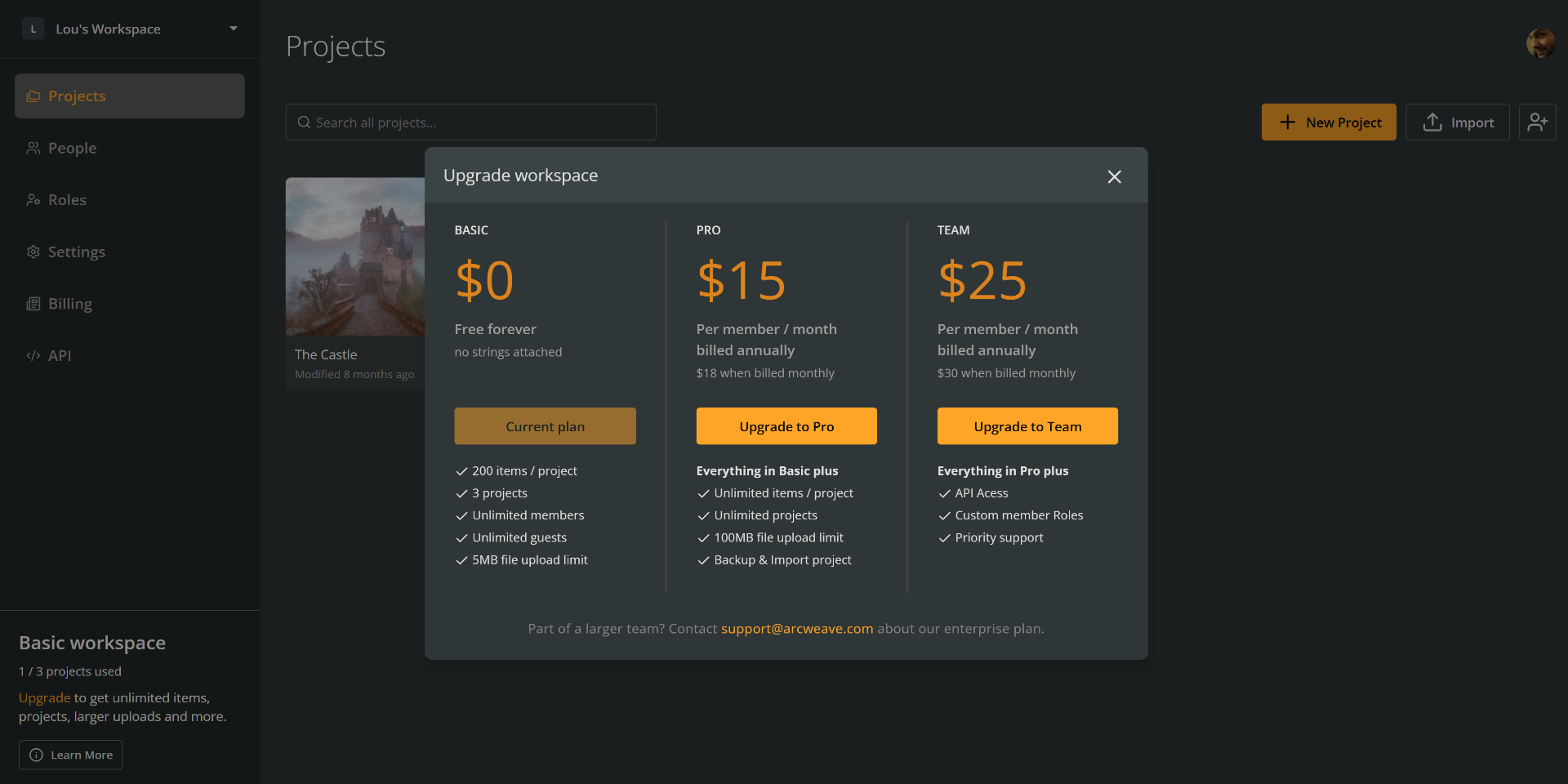
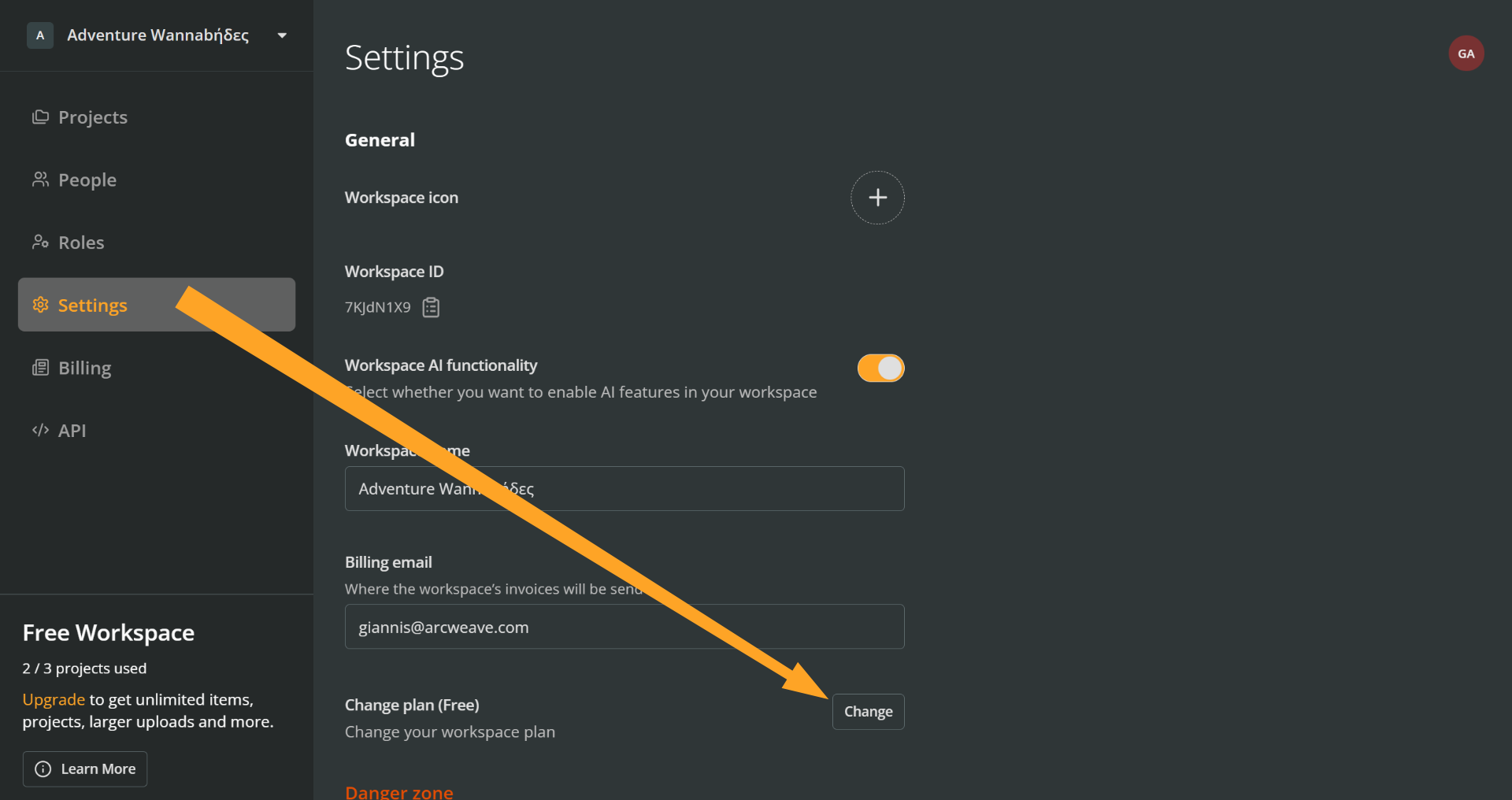
b. From the Settings section: Go to your workspace Settings > Change plan and press Change, to open the upgrade modal.
3. Choose Pro or Team
Select Upgrade to Pro or Upgrade to Team based on feature needs and team size.
✅ Need help selecting a plan? Contact us.
4. Choose billing cycle
Choose Monthly or Yearly as the workspace's billing cycle.
- Existing billable seats follow the workspace billing cycle.
- Seats added later are prorated until the next billing date.
5. Enter payment details
Provide payment information and (optionally) business details for invoicing.
6. Confirm upgrade
Press Upgrade workspace to complete the upgrade.
After upgrading
The new plan takes effect immediately. Your card is charged and your workspace upgrades to Pro or Team.
Upgrade Pro to Team
To upgrade a Pro workspace to Team:
- Open the upgrade modal.
- Choose monthly or yearly billing cycle. The modal displays the prorated cost for the remainder of the billing cycle.
- Click Change plan. Your card is charged instantly and access to Team-only features begins immediately.
Change number of seats
Seats determine how many users hold billable roles at the same time.
Add seats
A new seat is added to a workspace when you do one of the following:
Add a workspace member in the workspace's People section. See: People > Add members
Add a project editor to a project. See: Roles > Invite guests
✅ Project commenters can be added for free and do not occupy seats.
Monthly-billed workspaces
When adding new seats in monthly-billed workspaces, consider the following:
- New seats are prorated for the remainder of the current billing cycle.
- From the next billing date onward, the seat appears in the regular monthly invoice, aligned with the workspace's billing cycle.
✅ See an example of adding a seat to a monthly-billed workspace under Examples, below.
Yearly-billed workspaces
When adding new seats in yearly-billed workspaces, consider the following:
- Seats added to yearly plans are always billed monthly, at monthly seat rates.
- New seats are prorated for the remainder of the current billing cycle.
- From the next billing date onward, the seat appears in the regular monthly invoice, aligned with the workspace's billing cycle.
✅ See an example of adding a seat to a yearly-billed workspace under Examples, below.
Remove seats
Seats are billable slots that workspace members or billable guests occupy.
- To remove a seat, you must remove the user occupying it (a workspace member or a project editor).
- Removing a user frees their seat, but the seat itself remains active until its billing period ends.
- During this time, you may invite another user to occupy the same seat.
- If left unfilled, a seat expires at the next renewal date.
To remove users:
- Remove workspace members: See People > Remove members
- Remove project editors: See Roles > Remove guests
✅ See examples of removing a seat from a monthly and a yearly plan under Examples, below.
Downgrade workspace plan
Downgrade Team to Pro
To downgrade a Team workspace to Pro:
- Go to Settings > Change plan and press Change.
- Select Go to Pro.
- Select a monthly or yearly billing cycle. The modal displays the prorated credit for the remainder of the billing cycle.
- Click Change plan. The change takes effect immediately. Billing adjusts at the next renewal.
✅ Any prorated credit is saved in your account and automatically applied to your next invoice.
✅ See examples of downgrading Team to Pro under Examples, below.
Downgrade to Basic
To cancel a workspace's Pro or Team subscription, you need to downgrade it to Basic.
To downgrade a Pro or Team workspace to Basic:
- Go to Settings > Change plan and click Change.
- Click Downgrade.
- Click Continue.
Your paid plan remains active and you continue enjoying its benefits until the end of the current billing period.
⚠️ If you have a yearly plan, the subscription remains active until the end of the yearly cycle. During this time, you continue getting billed on any associated monthly seat subscriptions.
Proration
Proration is the way Arcweave adjusts charges when:
- You add seats to a Pro or Team plan.
- You upgrade or downgrade between Pro and Team plans.
For such cases, Arcweave calculates a partial cost or credit based on the exact number of days left in the current billing period. This ensures you pay only for the portion of the service you actually use.
For example, if you add a new seat halfway through a monthly cycle, you're billed for just half of that seat's price for the current month.
Similarly, upgrading or downgrading between Pro and Team triggers a prorated charge or credit that reflects the remaining unused days on your current plan. In yearly workspaces, newly added seats are always billed monthly, but their first charge is still prorated so it aligns with the workspace's next renewal date.
Examples
Upgrade Basic to Pro
Let's say you have a Basic workspace with the following seats:
- 1 member
- 1 guest editor
- several guest commenters (who are non-billable)
ℹ️ Members and guest editors count as one seat each.
Pro Monthly
A Pro workspace seat costs $18.00 / month when charged monthly. This is how billing will be calculated for a Pro Monthly plan:
| Workspace Seats | Amount |
|---|---|
| 2 @ $18.00 / month | $36.00 |
| Months: | x 1 |
| Invoice Total: | $36.00 |
Therefore, on the day of the upgrade, and on the same day of every month after that, you will be charged and invoiced for $36.00.
Pro Yearly
A Pro workspace seat costs $15.00 / month when charged yearly. This is how billing will be calculated for a Pro Yearly plan:
| Workspace Seats | Amount |
|---|---|
| 2 @ $15.00 / month | $30.00 |
| Months: | x 12 |
| Invoice Total: | $360.00 |
On the day of purchase, you will be charged and invoiced for $360.00.
Upgrade Basic to Team
Let's now say you have a Basic workspace with the same number of seats as in the previous example:
- 1 member
- 1 guest editor
- several guest commenters (who are non-billable)
Team Monthly
A Team workspace seat costs $30.00 / month when charged monthly. This is how billing will be calculated for a Team Monthly plan:
| Workspace Seats | Amount |
|---|---|
| 2 @ $30.00 / month | $60.00 |
| Months: | x 1 |
| Invoice Total: | $60.00 |
On the day of purchase, and on the same day of every month after that, you will be charged and invoiced for $60.00.
Team Yearly
A Team workspace seat costs $25.00 / month when charged yearly. This is how billing will be calculated for a Team Yearly plan:
| Workspace Seats | Amount |
|---|---|
| 2 @ $25.00 | $50.00 |
| Months: | x 12 |
| Invoice Total: | $600.00 |
On the day of purchase, you will be charged and invoiced for $600.00.
Upgrade Pro to Team
Similarly to the previous examples, let's say you have a Pro workspace with 2 billable seats. When upgrading it to Team, Arcweave will prorate the cost of your invoice as described below.
Upgrade Pro Monthly to Team Monthly
Five days after your subscription's start, you decide that you need API access and custom workspace roles, so you switch to Team.
First, you need to calculate the cost of both Pro Monthly and Team Monthly, for your workspace's number of seats. As seen in the previous examples, for 2 seats, you pay $36.00 for Pro Monthly, while the Team Monthly costs $60.00.
You have already consumed 5 days of your Pro subscription. Immediately after the upgrade and until the end of your monthly subscription, you will enjoy 25 days of Team subscription.
Therefore, on the day of your plan switch, you will be charged the cost of 25 days of Team Monthly (which will immediately be available to use) minus the 25 days of Pro Monthly (which you will not be using):
| Workspace Seats | Amount |
|---|---|
| 25 days x Team Monthly ($60.00) / 30 | $50.00 |
| - 25 x Pro Monthly ($36.00) / 30 | - $30.00 |
| Invoice Total: | $20.00 |
After the current month, on the day of your subscription's renewal, your Team Monthly subscription will be normally renewed, with a charge of $60.00.
Upgrade Pro Yearly to Team Yearly
Five months after your subscription's start, you decide that you need API access and custom workspace roles, so you switch to Team.
First, you need to calculate the cost of both Pro Yearly and Team Yearly, for your workspace's number of seats. As seen in the previous examples, for 2 seats, you pay $360.00 for Pro Yearly, while the Team Yearly costs $600.00.
You have already consumed 5 months of your Pro subscription. Immediately after the upgrade and until the end of your Yearly subscription, you will enjoy 7 months of Team subscription.
Therefore, on the day of your plan switch, you will be charged the cost of 7 months of Team Yearly (which will immediately be available to use) minus the 7 months of Pro Yearly (which you will not be using):
| Workspace Seats | Amount |
|---|---|
| 7 months x Team Yearly ($600.00) / 12 | $350.00 |
| - 7 months x Pro Yearly ($360.00) / 12 | - $210.00 |
| Invoice Total: | $140.00 |
After the 7 months, on the day of your subscription's renewal, your Team Yearly subscription will be normally renewed, with a charge of $350.00.
Add seats (Monthly plan)
Let's now say you have a Pro Monthly workspace with 2 seats and some days after your subscription's last invoice date, you decide to add 1 more workspace editor, so you invite them to your workspace.
ℹ️ Members and guest editors count as one seat each, while guest commenters are non-billable.
When the new user accepts the invite (let's say this happens 11 days after the workspace's regular billing date), a new invoice gets issued, with the new seat prorated as follows:
- Proration period: 19 days
Out of the 30 days of the monthly subscription, 11 days have passed as usual and 19 days will pass including the new seat. - Proration amount per seat: $11.40
We get the daily cost of the $18-per-month-seat and multiply it by 19 days:
19 * 18 / 30 = 11.40
When your Pro Monthly subscription gets renewed on its regular day, the extra seat will be incorporated into your regular invoice. You will then be paying:
| Workspace Seats | Amount |
|---|---|
| 3 @ $18.00 / month | $54 / month |
Add seats (Yearly plan)
Let's say you have a Pro Yearly workspace with 2 seats renewing on January 5th. On July 14, you decide to add 1 more workspace editor, so you invite them to your workspace.
ℹ️ Members and guest editors count as one seat each, while guest commenters are non-billable.
⚠️ Seats added after the subscription's initial date are charged and invoiced monthly, at the monthly rate of your plan.
When the new user accepts the invite (let's say this happens on the same date they're invited), a new invoice gets issued immediately, with the following prorated costs.
- Proration period: 21 days
Out of the 30 days of the new seat's monthly subscription (on the 5th of every month), 14 - 5 = 9 days have passed as usual and 30 - 9 = 21 days will pass including the new seat. - Proration amount per seat: $12.40
We get the daily cost of the $18-per-month seat and multiply it by 21 days:
21 * 18 / 30 = 12.40
The new seat will then align with the 5th of every month and will have their own monthly invoices. Your workspace will then have one yearly and one monthly billing cycles, as shown in the following table:
| Workspace seats | Monthly rate | Billed monthly | Billed yearly |
|---|---|---|---|
| 2 seats | $15.00 x 2 | $360.00 | |
| 1 seat | $18.00 x 1 | $18.00 |
Remove seats (Monthly plan)
A workspace renews on the 5th of every month. The owner removes an editor on the 18th.
The empty seat remains available until the 5th of the next month. Inviting another member or guest editor before that date, will fill the existing seat.
⚠️ Available seats that do not get occupied by new members get removed at the end of their billing cycle (the 5th of the next month, in this example).
Remove seats (Yearly plan)
When seats are removed from a Yearly plan:
- If the seat is billed monthly:
The seat gets removed first, before the yearly seats. Monthly-billed seats in a Yearly plan are the ones added after the subscription's initial date. When empty, they remain available until the end of their monthly cycle. - If the seat is billed yearly:
The seat remains available until the end of the workspace's Yearly billing cycle.
Downgrade Team to Pro
Downgrading from Team to Pro is similar to the upgrading from Pro to Team example, but a credit is prorated instead of an additional cost.