Project left sidebar
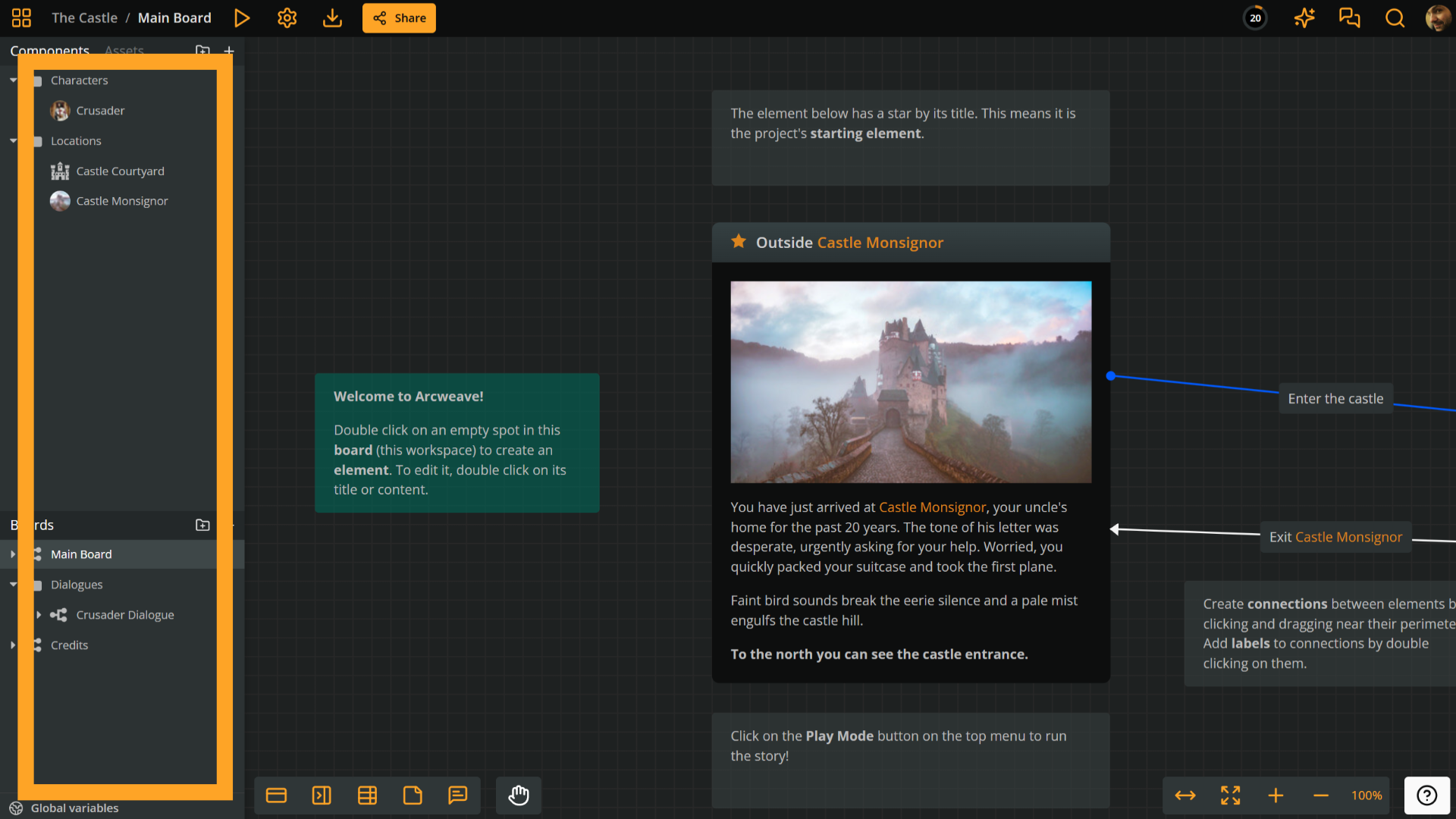
The sidebar on the left side of your Arcweave workspace gives you quick access to essential project items. It is divided into two main sections: the top part for reusable items and the bottom part for structural navigation and data.
Sidebar top
The upper half of the left sidebar contains two tabs:
Components
The Components tab displays a list of all components in your project, organized in folders.
Right-click a component and select Copy link to share a link to its dialog. See Copy a component link.
Assets
The Assets tab lists all imported media files, such as images, audio, and videos. Use this area to upload, generate, replace, organize in folders, preview, and manage references for your assets before attaching them to elements or components.
Sidebar bottom
The lower half of the sidebar helps you navigate and organize your project's boards and global variables:
Boards
This section shows all the boards in your project organized in folders. Expand a board to see an outline of its contents.
Right-click a board or an element listed beneath it and select Copy link to share that destination. Board folders do not have this action. See Share an item or board position for link behavior and access requirements.
Board contents
Under each board, items are listed in this order:
- Elements, in the board's element order. You can still drag elements to reorder them. Under each element are its outgoing connections, in output order: the order its choices appear in Play Mode.
- Branches. Under each branch are the connections leaving its conditions, tagged
if,elseif, orelse. Conditions without an output connection are not listed. - Jumpers.
- Notes.
Rows are named as follows:
- Connections show their label. An unlabelled connection shows the name of its target, in grey.
- Branches show their
ifcondition, or Empty condition. - Jumpers show the name of the element they point to, or Empty jumper.
- Notes show their first line of text, or Empty note.
- Elements show their title, or the start of their content if they have no title, or Empty element.
Click a row, or focus it and press Enter or Space, to zoom the board to that item. A connection row zooms to the connection's label.
Elements and branches with connections have a chevron for showing or hiding their connections. They start collapsed. As with boards and folders, collapse state is saved for each user, so expanding an item doesn't change what your collaborators see.
When you work in a language other than the main one, elements and labelled connections show their translation status. Right-click a labelled connection to set its status.
Global variables
At the very bottom of the sidebar, you'll find the Global variables button. Clicking it opens the Global variable dialog.
Sidebar on small screens
At viewport widths of 768 pixels or less, the sidebar starts collapsed over the board. Use the chevron tab on the left edge to open or close it. Its Components, Assets, Boards, and Global variables sections work the same as in the desktop layout.