Basic Arcweave tutorial | Part 11: Branches
Learn how to use branches with if / elseif / else statements to direct your story's flow.
In the previous tutorial, we created a variable to track whether the player has the key, and learned how to set it from false to true when the player discovers it.
Now we'll use Arcweave's branches to give the player different outcomes based on that variable's value.
Video tutorial
Watch this tutorial as a video:
⚠️ This video does not reflect the latest updates to Arcweave's UI.
✅ You can play the finished version of the Tutorial Project here and explore its diagrams and structure here.
Create a branch
To create a branch, either:
- Right-click on the board and choose Create > Branch, or
- Drag the branch icon from the toolbar into the board.
The new branch already has an if statement waiting to be filled in.
The if part
Write the if condition
An if statement checks whether a condition is true or false. Double-click the branch's if condition and type has_key == true. The branch already displays the if keyword, so type only the expression after it. The condition then reads:
if has_key == trueNote: Do not confuse
=with==:
=: Assigns a value to a variable, e.g.has_key = trueassigns thetruevalue to thehas_keyvariable.==: Signals comparison, i.e. checks whether two things are equal, as in the above case.
There are alternative ways to write the same condition in Arcscript, for example by typing has_key is true:
if has_key is trueOr, since has_key is a boolean that can only be true or false, you can omit the last part entirely and type only has_key:
if has_keyWhen the variable is true, the whole condition is true and the if statement fires.
Connect the if output
Draw a connection from the branch's if output to the element Bathroom mirrors – has key (created in Part 10). This is where the player will be sent when they already have the key.
The else part
Add an else condition
Right-click the branch and choose Add else.
else conditions cannot be edited. They are implicitly defined as the alternative that applies when none of the preceding conditions are met.
Connect the else output
Connect the else output to the Bathroom mirrors – first time element.
Finish connections
Connect the branch's input
Update the Examine the mirrors connection from the Bathroom element so that it now leads to the branch: drag its arrowhead from the mirrors element onto the branch.
Create returns
Make sure both outcomes include an option to return to the main bathroom element.
Review the logic
The full flow looks like this:
- Player reaches the bathroom and chooses to examine the mirrors.
- The branch checks the value of
has_key. - If the player has the key → they see the "having the key" description, then can go back.
- If the player does not have the key → they see the hiding place, can examine it, find the key, then go back.
Another branch: the kitchen
Let's apply the same logic to the kitchen.
Here, the goal is different: if the player has the key, an extra choice appears: Unlock the drawer. If they don't have the key, that choice doesn't appear at all.
- Create a new element for the outcome of unlocking the drawer and title it Find the diamond ring.
- Connect the Searching cabinets element (from Part 10) to a new branch whose
ifcondition ishas_key, and connect the branch'sifoutput to the Find the diamond ring element. - Label that output connection: Unlock the drawer.
There is no else expression here. If the if condition is not satisfied, the option to unlock the drawer doesn't appear to the player at all.
Understand the two branch patterns
You've now used branches in two distinct ways and it's worth understanding the difference:
if/else(bathroom): The branch always diverts the flow somewhere: either theifpath or theelsepath.ifonly (kitchen): If the condition is not met, nothing happens; the choice associated with the branch doesn't appear to the player.
Choose the pattern that fits the experience you want to create.
Test the game
Run the project in Play Mode from the beginning to verify both branches work correctly:
- Bathroom (no key): Examine the mirrors → see the hiding spot → examine the corner → find the key.
- Bathroom (with key): Examine the mirrors again → the hiding spot option is gone.
- Kitchen (no key): Search the cabinets → no option to unlock the drawer appears.
- Kitchen (with key): Search the cabinets → the Unlock the drawer option appears → find the ring.
Deeper dive into branches
In the following section of this page, we'll explore elseif statements and additional logic variants you can use to build more complex branching structures.
Add alternative drawer action
In the sections above, we added the ability to unlock a drawer if the player carries a key. Now we'll add an alternative action, using brute force, for players who don't have the key.
There are two approaches to this, and which one you choose depends on the experience you want to create.
Only if without key
In this approach, players who have the key can only unlock the drawer and players without the key can only attempt to force it open.
- Add a new element to your board and give it the title Brutally nothing.
- Connect the Searching cabinets element to a branch that checks whether the player carries the key:
if has_key. - Add an
elsestatement to that branch and connect it to the Brutally nothing element. - Update your labels so the
ifpath reads Unlock the drawer and theelsepath reads Use brute force.
Brute force always available
In this approach, brute force is always available to the player, but unlocking the drawer is only shown if they have the key.
Assuming you've first taken the previous steps:
- Connect the Brutally nothing element directly from Searching cabinets, bypassing the key-checking branch entirely.
- Remove the
elsestatement from the branch. (Right-click the branch and select "Remove else.")
✅ It depends on the player experience you want to create: think about what you want the player to be able to do at each point in the story and place your branches accordingly.
State machine
Now that the player can find a ring by unlocking the drawer, we need to track whether they've found it, otherwise they'll be able to keep searching and finding it indefinitely.
Instead of a simple boolean (has_ring, true or false), we'll use an integer, so the ring can have multiple meaningful states.
- Go to Global variables and click + New variable.
- Name it
ring_state. - Set the type to Integer.
- Set the initial value to
0.
Use the following values to represent each state:
| Value | State |
|---|---|
0 | The ring has not been found yet |
1 | The player has taken the ring |
2 | The player has given the ring to someone |
✅ You can keep this list of states on a note on your board, to remind your future self or other collaborators what each value means.
Set ring state
When the player finds the ring, you need to update ring_state to 1:
- Select the element where the player discovers the ring.
- Add an Arcscript segment using the Arcscript icon in the formatting menu (or press Ctrl/Cmd+Shift+C).
- Type the following:
ring_state = 1.
Your element may look like this:
You unlock the drawer and find...

Wow! This ring must be half a carat... Not that you know much about carats.

ring_state = 1
Handle all ring states
Rather than simply blocking the search option once the ring is found, we can keep it available but have it return a different response depending on the ring state.
We can do this with an elseif statement:
- Connect the Kitchen element to a new branch and label the connection Search the cabinets.
- Set up the following conditions:
- If
ring_state == 0
→ Proceed normally. The player searches and may find the ring. - Else if
ring_state == 1
→ Show a response like: "You are already carrying the ring." Then return to the kitchen. - Else (covers
ring_state == 2) → Show a response like: "You've given the ring away." Then return to the kitchen.
- If
This branch covers all possible outcomes (0, 1, or 2), so the Search the cabinets option is always visible to the player. It is the response that changes based on what has already happened in the story.
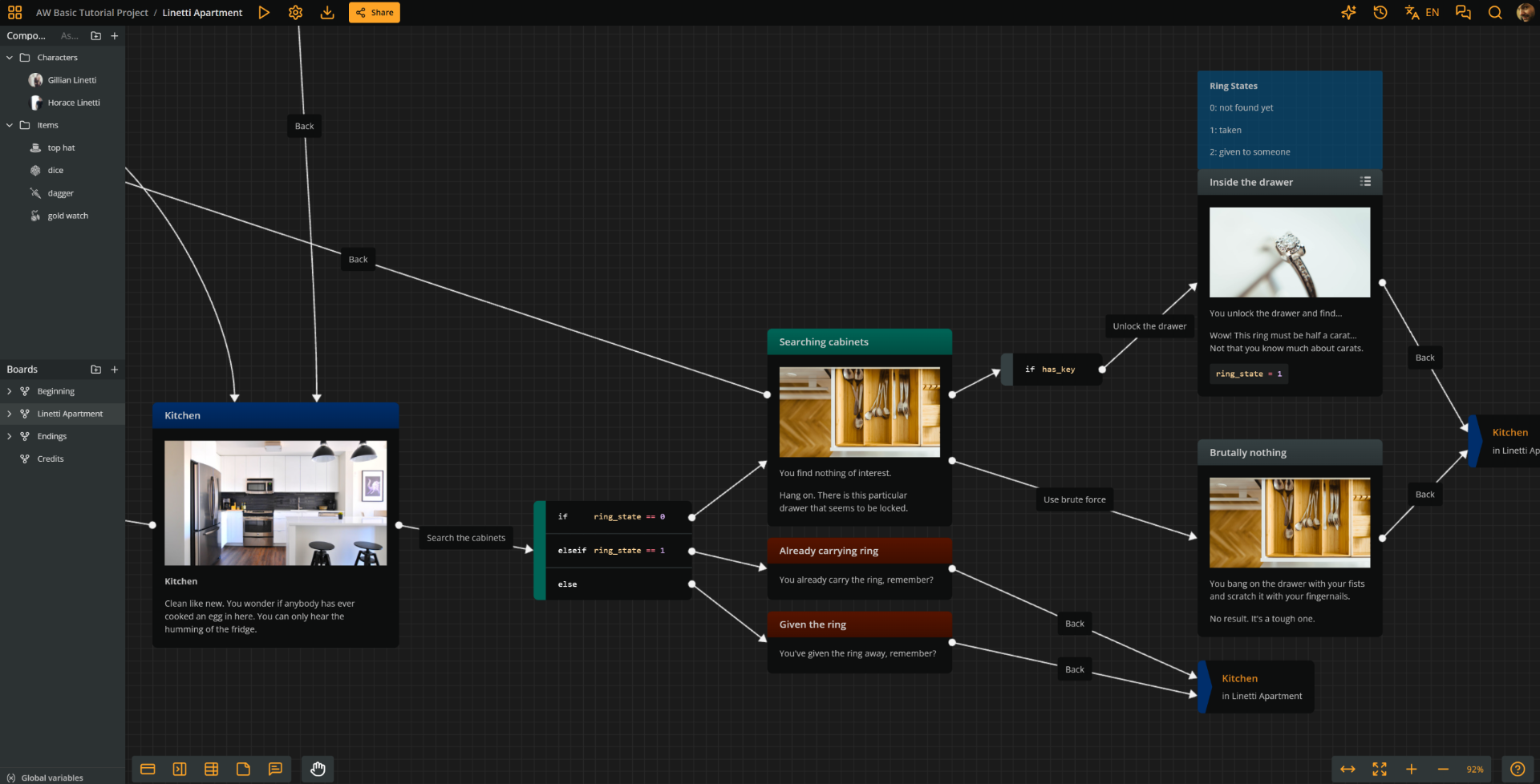
✅ Color-code your elements to make the flow easier to read at a glance: mark the outcomes of already have ring and ring given away in red, since they block action and don't advance the plot.
Create ring-giving scene
Now let's set up a scene where the player can give the ring to a character. This switches the ring state to 2.
Create ring-giving element
- Create a new element next to the Living room element: Horace takes the ring.
- Add Horace's picture as the element cover if you have one.
- Add an Arcscript segment:
ring_state = 2
The element can have content similar to the following:
Horace clears his throat, startling you. You didn't see him standing by the curtain.

"Um... Did you by any chance find my grandmother's ring?"

"I did," you reply and you give him the ancient heirloom.

He pockets it. "Thanks. Stick around for as long as you like," he says generously, "But do leave, eventually."

ring_state = 2
Scene conditions
The scene where the player gives the ring to Horace should only appear when the player is carrying the ring (i.e., ring_state == 1) and travels from the kitchen to the living room.
- Add a branch on the path that goes from the kitchen to the living room.
- Set up the conditions as follows:
if ring_state == 1: Connect to the Horace takes the ring element.else: Connect directly to Living room.
- Add an output connection from Horace takes the ring to Living room.
Test the full flow
Run the project from the beginning. Keep the Debugger open and verify the following:
- Without the key, only the brute force option appears when searching the cabinets.
- After finding the key, you get the option that you expect, based on your choice between the suggestions above.
- After unlocking the drawer and taking the ring,
ring_statebecomes1. - Searching the cabinets again returns the "already carrying the ring" message.
- Returning to the living room with the ring triggers the scene where Horace takes the ring, while
ring_statebecomes2. - Searching the cabinets after giving the ring away returns the "you've given the ring away" message.
What's next
You've now built a multi-state story variable with elseif logic that responds to everything the player has done.
In the next tutorial, you'll explore how to manipulate text responses with logic directly, without needing to create separate branches for each outcome.