Basic Arcweave tutorial | Part 18: Comments
Learn how to use comments in Arcweave projects, to collaborate with your team.
Video tutorial
Watch this tutorial as a video:
⚠️ This video does not reflect the latest updates to Arcweave's UI.
✅ You can play the finished version of the Tutorial Project here and explore its diagrams and structure here.
Create a comment
There are two ways to create a comment:
- Right-click anywhere on a board and choose Create > Comment.
- Drag the comment icon (which looks like a speech balloon) from the bottom toolbar into anywhere inside your board.
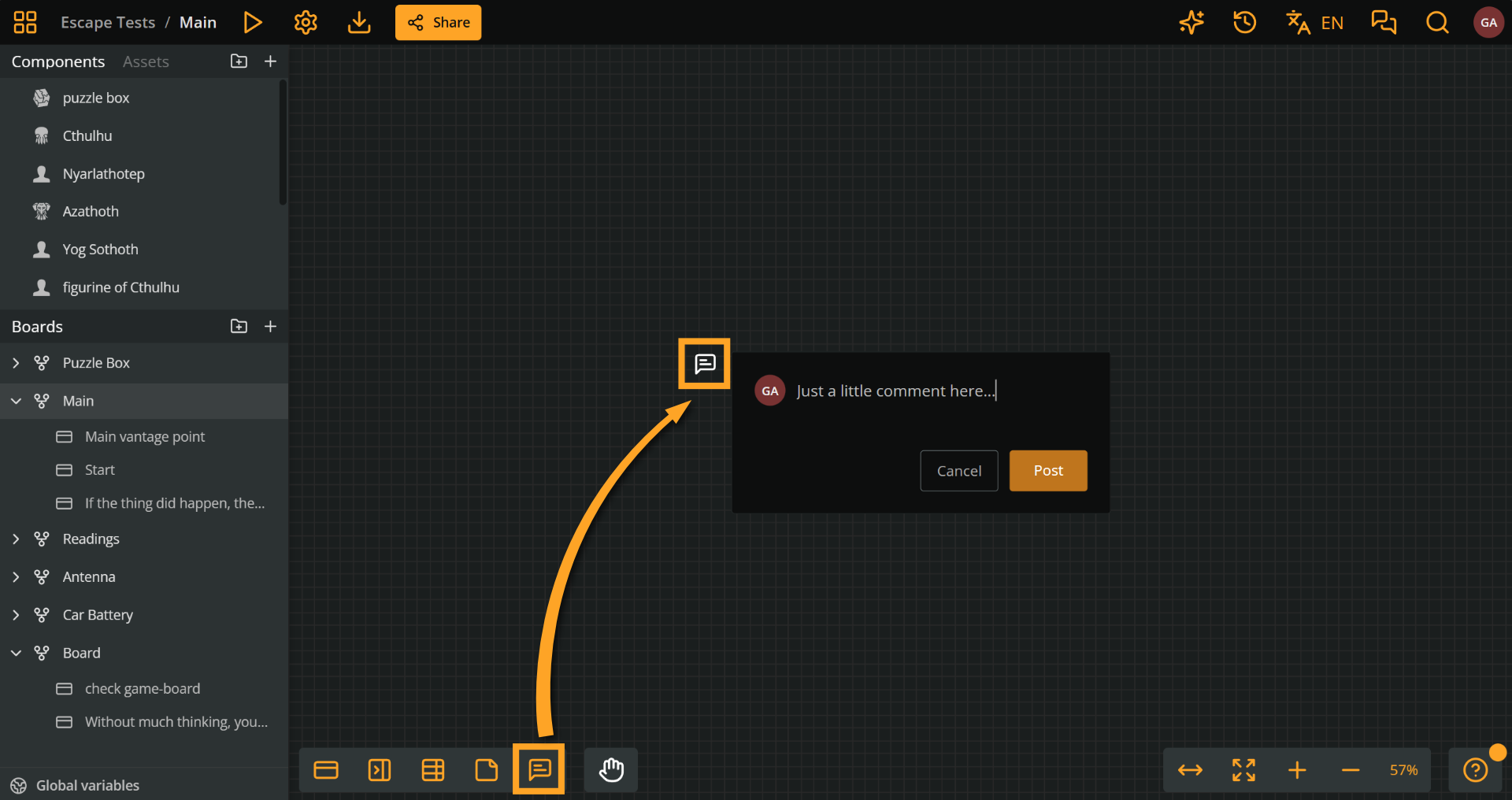
Once created, you can start typing your comment right away. When you're done, either click Post, or press Ctrl+Enter (Windows) / Cmd+Enter (Mac).
Manage comments
Comments are flexible and can be managed directly on the board:
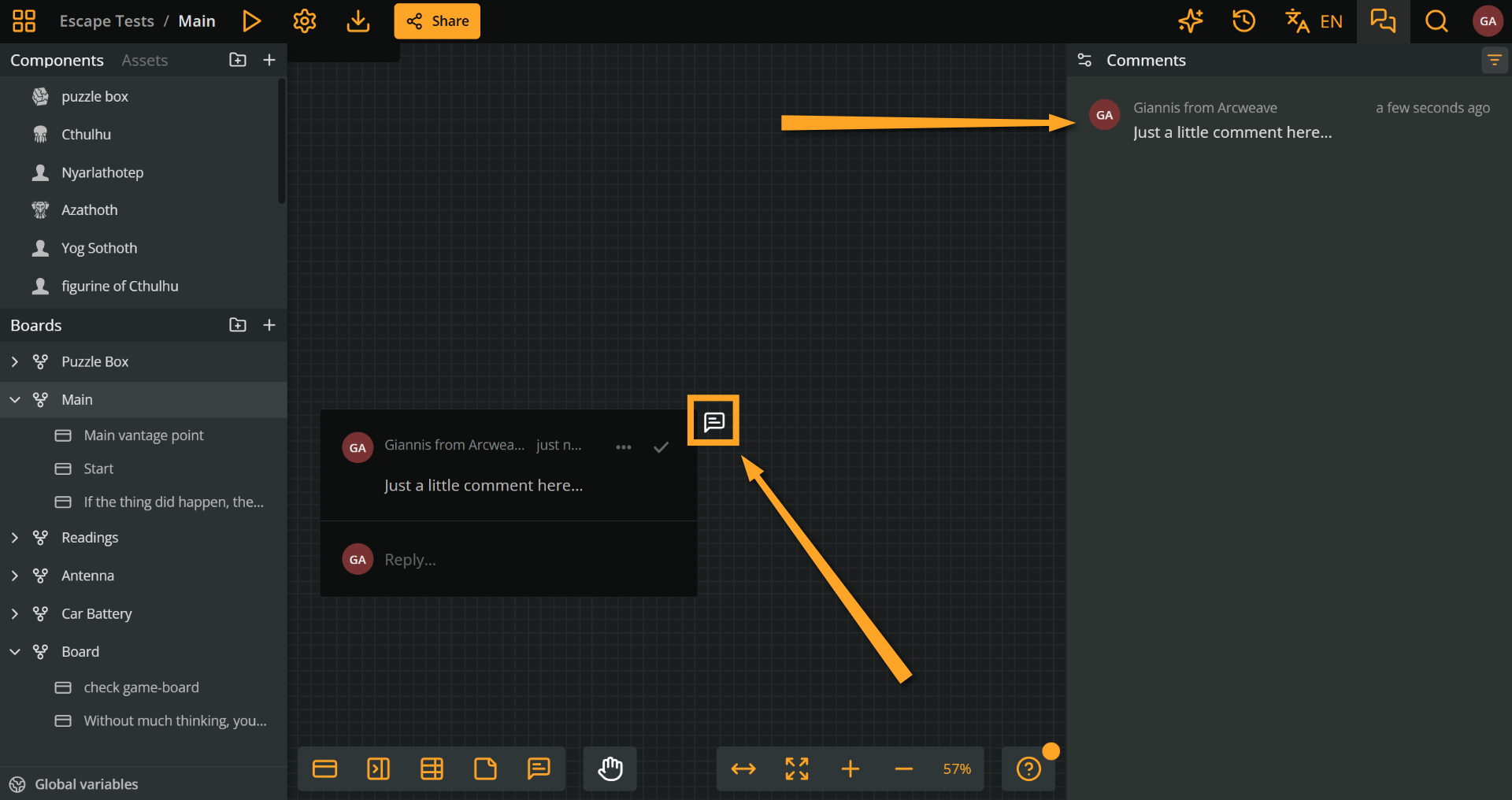
- Open a comment by clicking it on the board or the Comments list.
- Move a comment by dragging it around the board.
- Select a comment with a rectangle selection. (Clicking opens it.)
- Cut and paste a comment to relocate it.
- Reply to a comment to keep a conversation going.
- Edit a comment or a reply at any time.
- Delete a reply, or an entire comment thread.
Resolving a thread
Once a thread of comments has been addressed, you can mark it as resolved by ticking the Resolve thread icon. A checkmark will then appear on the comment's icon to indicate its resolved status.
Comments list
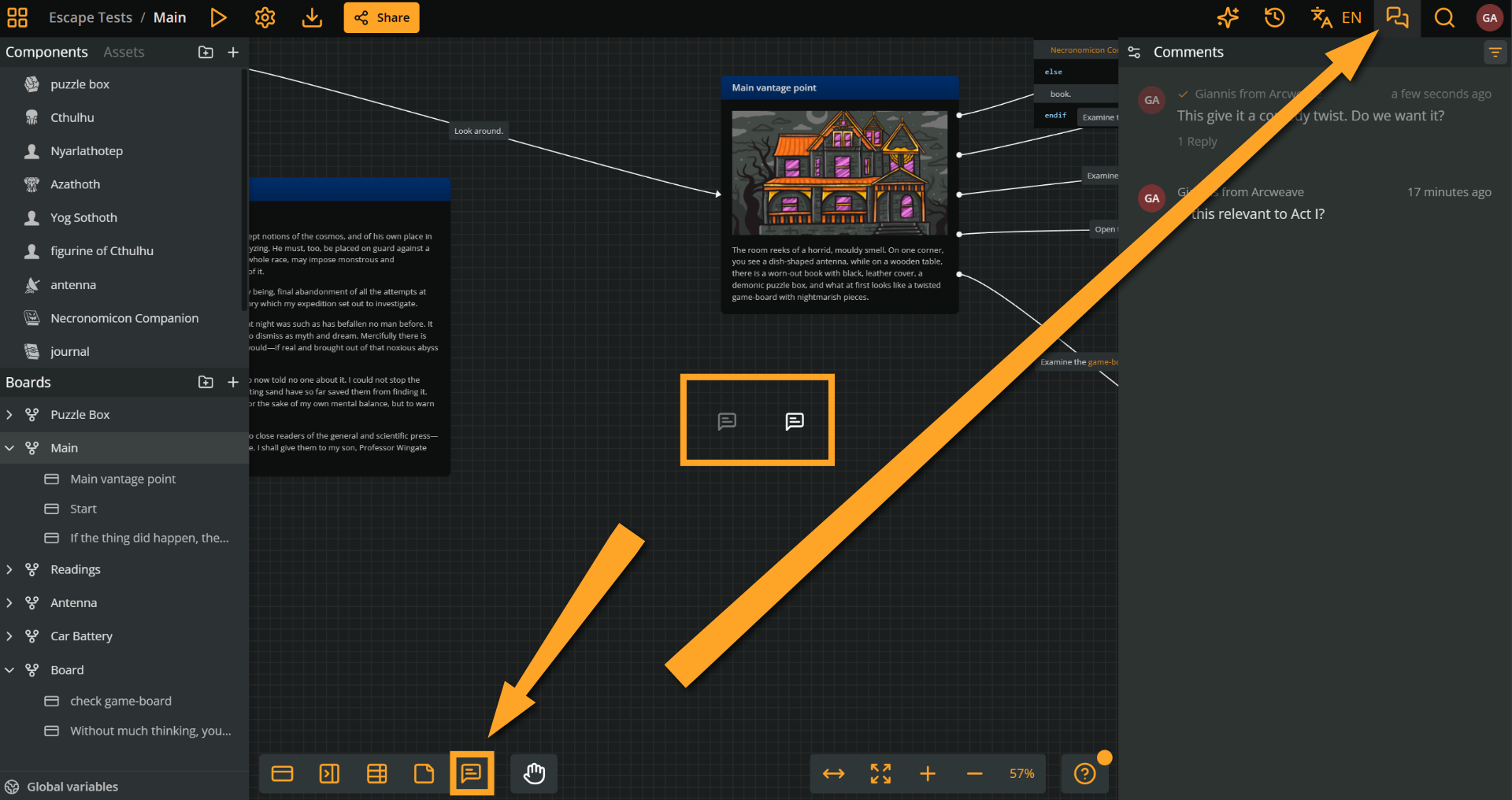
You can find a list of all the project's comments by clicking the comment icon in the top-right menu. Any comment you create will appear here.
Clicking on a comment from the list takes you directly to that comment's position on the board.
Resolved comments are marked with a tick symbol in the list as well. If you'd like to omit resolved comments from the list without deleting them:
- Click the Filters button in the Comments panel (top right).
- Untick Show resolved comments.
This setting also hides resolved comments on the board itself.
Email notifications
The Comment notifications icon, at the top left of the Comments panel, manages your email notifications. Choose All comments to receive an email whenever a collaborator posts a comment or a reply, Mentions and replies only, or None.
ℹ️ You can mention collaborators in comments. See the Comments for details.
What's next
After getting a taste of collaborating through comments, in the next part of the tutorial you will learn about visits, a function that counts how many times the player has visited an element during play.