Visual novel CSS tutorial
Visual novels are one of the most popular storytelling formats in interactive fiction. With their full-screen backgrounds, character sprites, and dialogue boxes, they create an immersive reading experience that draws players into your story.
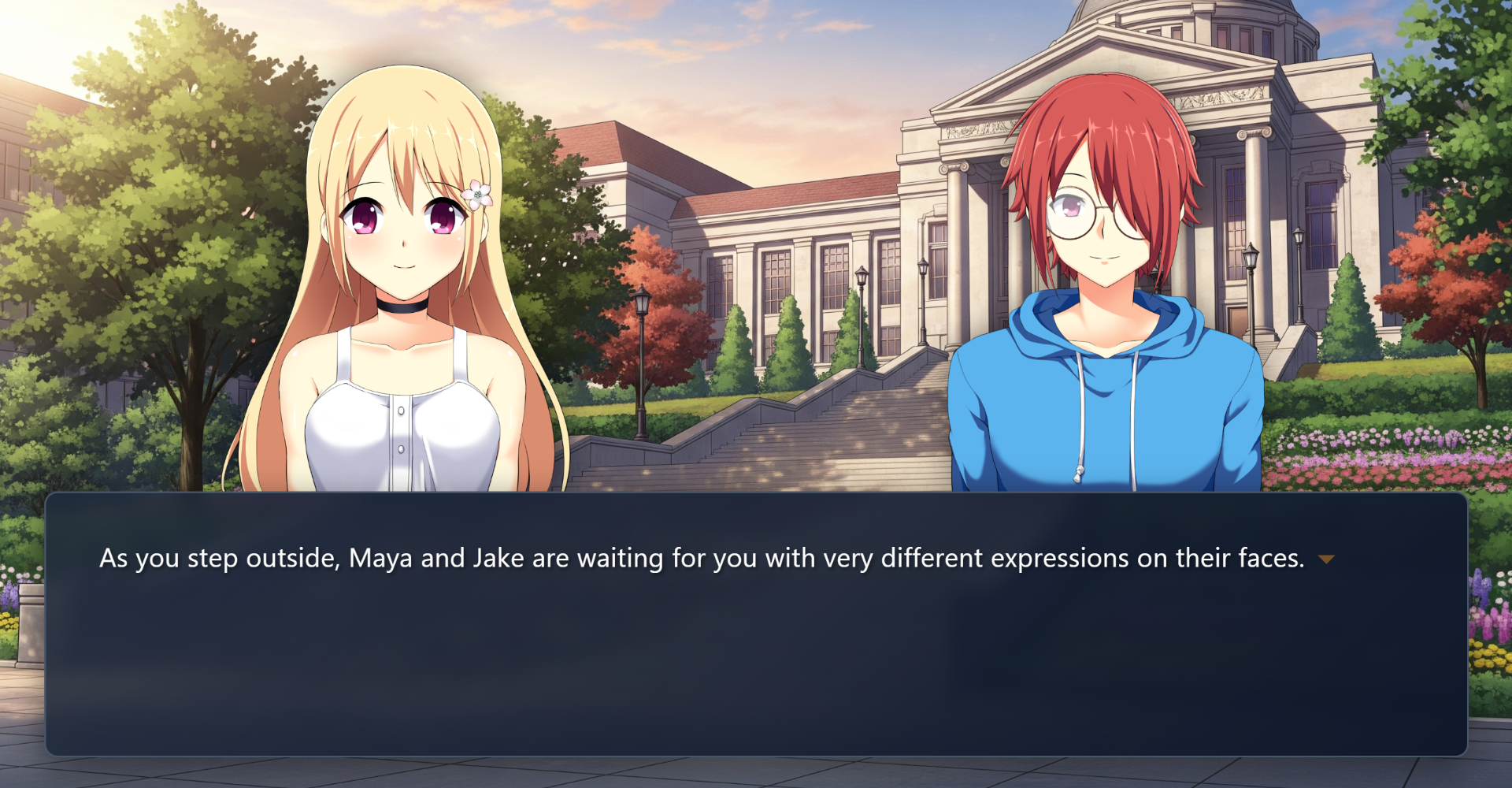
This tutorial helps you achieve this polished look in Arcweave's Play Mode using the Style Editor and some advanced CSS. It teaches you how to:
- Set up your project with element covers and character components
- Access the Style Editor
- Turn your element covers into full-screen background images for each scene
- Create character components and position them as sprites at the bottom of the screen
- Create a stylish dialogue box with scrollable text
- Style choice buttons and place them above your dialogue
- Make everything responsive for mobile devices
- Style specific words and paragraphs for emphasis
- Style specific options
- Experiment further with advanced tips
- Troubleshoot common problems
Set up your project
The visual novel interface has specific visual parts. Before diving into CSS, you must first set your Arcweave project up in a way that these parts get represented as follows:
- Scene backgrounds: The scenic backdrop for each scene, in full screen. In the Arcweave project, these will be represented by element covers.
- Character sprites: The characters that appear or speak in a dialogue scene. They are represented by components and their cover images.
- Dialogue box: The text box where the game's dialogue appears in rich text. If the content is long, a scrollbar appears.
- Option buttons: The player choices. In Arcweave, these are created with connections and labels.
Access the Style Editor
In order to type your CSS code, you first need to access Arcweave's Style Editor.
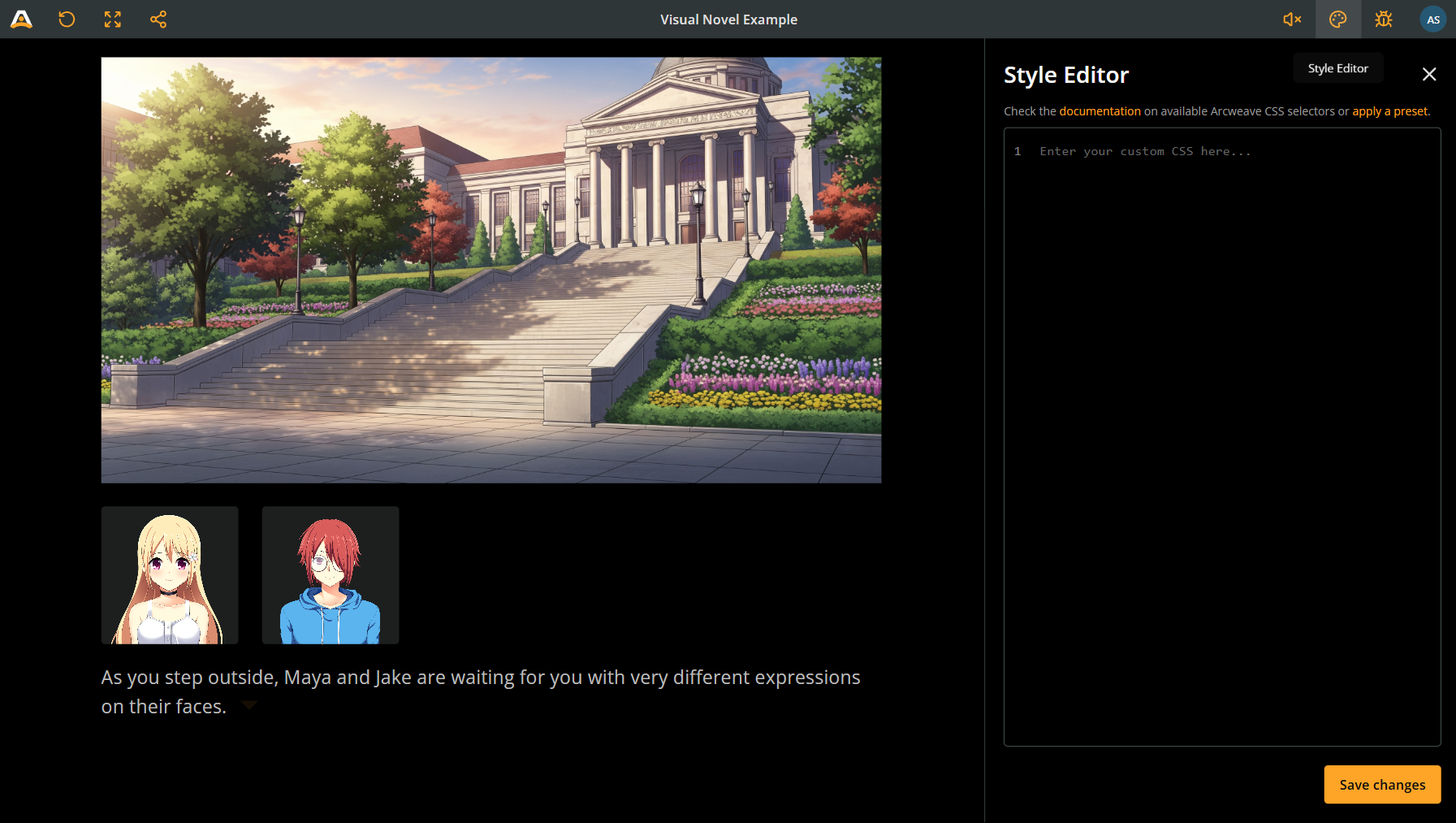
To open the Style Editor:
- Open your project and click the Play Mode button (▶) in the top menu bar. Play Mode opens in a new browser tab.
- In Play Mode, click the Style Editor icon (🎨 palette icon) in the top bar. If the bar has faded out, move the pointer to the top of the window.
The Style Editor is available to project owners and editors.
The Style Editor shows you the current CSS and previews your changes as you type. Save a copy of existing project CSS before replacing it.
The snippets below build one stylesheet in order; the complete code template combines them. This recipe uses image element covers and image component covers. Its selectors stay inside the story root. See the Play Mode styling reference for the rendered structure, other cover types, edit mode differences, and API/MCP styling workflows.
Scene backgrounds
Background assets
As these are the backdrops for your scenes, use high-resolution images that look good in full screen; a width of 1920 pixels is a good baseline.
Feel free to study and replicate the background assets used in the Visual Novel Example project template (sized 2816 x 1536 pixels).
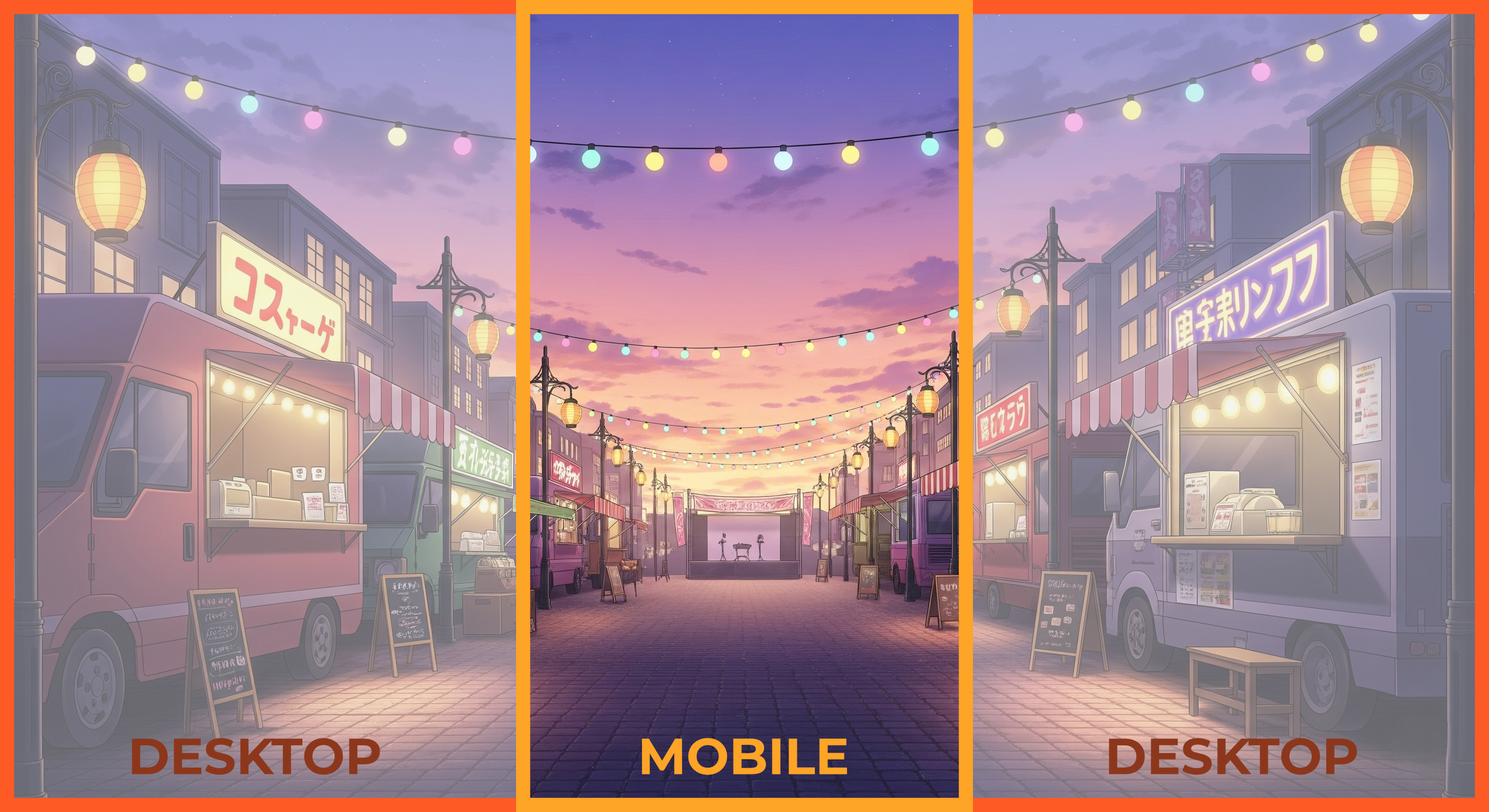
⚠️ Responsiveness: Keep in mind that players who access your game on mobile devices will see only a vertical section of your background. Make sure the essential details are near the center, since players may miss areas on the left and right.
Element covers
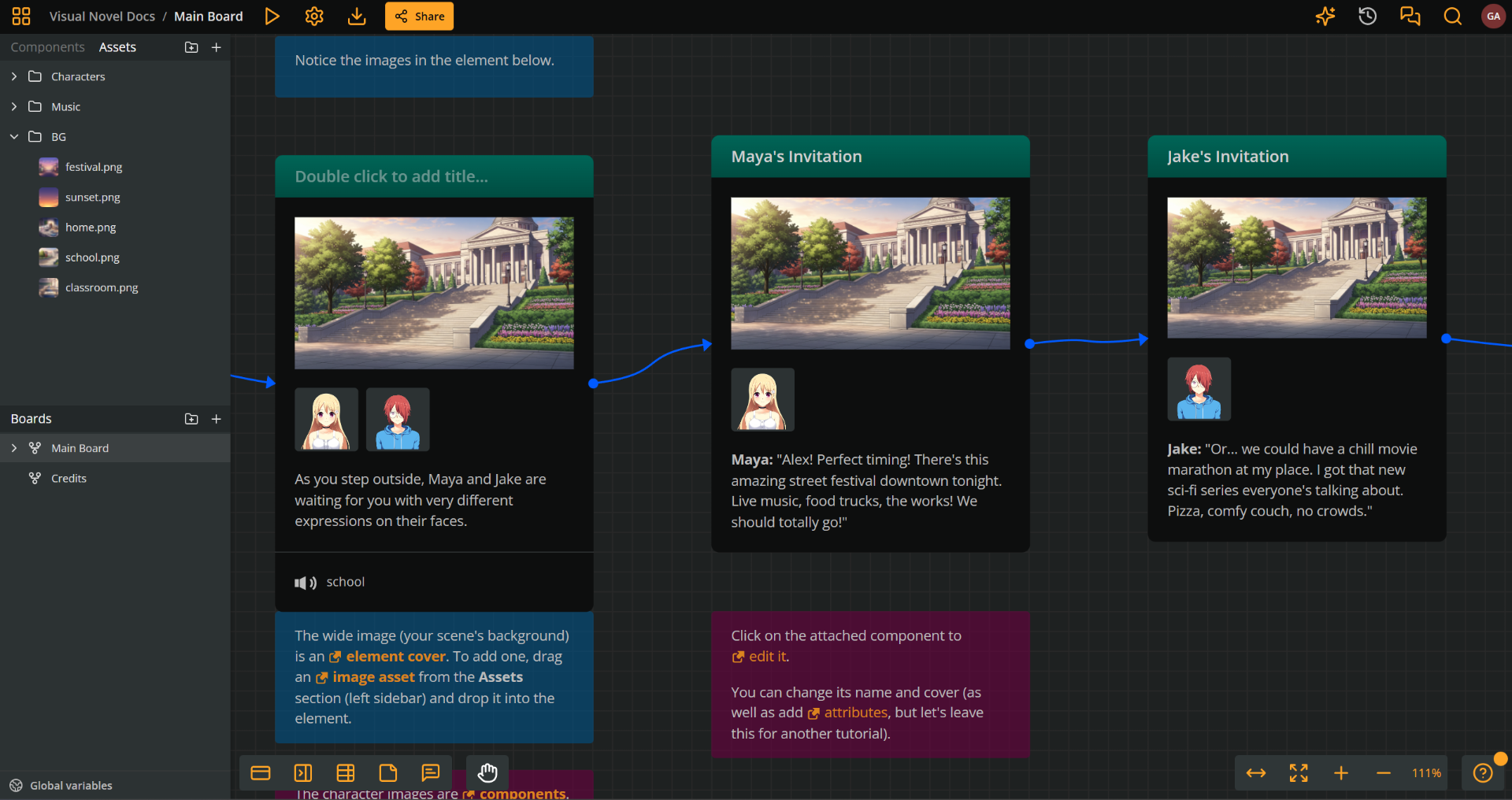
In the Arcweave project, scene backgrounds will be represented by element covers.
Attach the desired background to the elements of your scene as covers.
Background CSS
By default, element covers and attached components render as shown in the picture below.
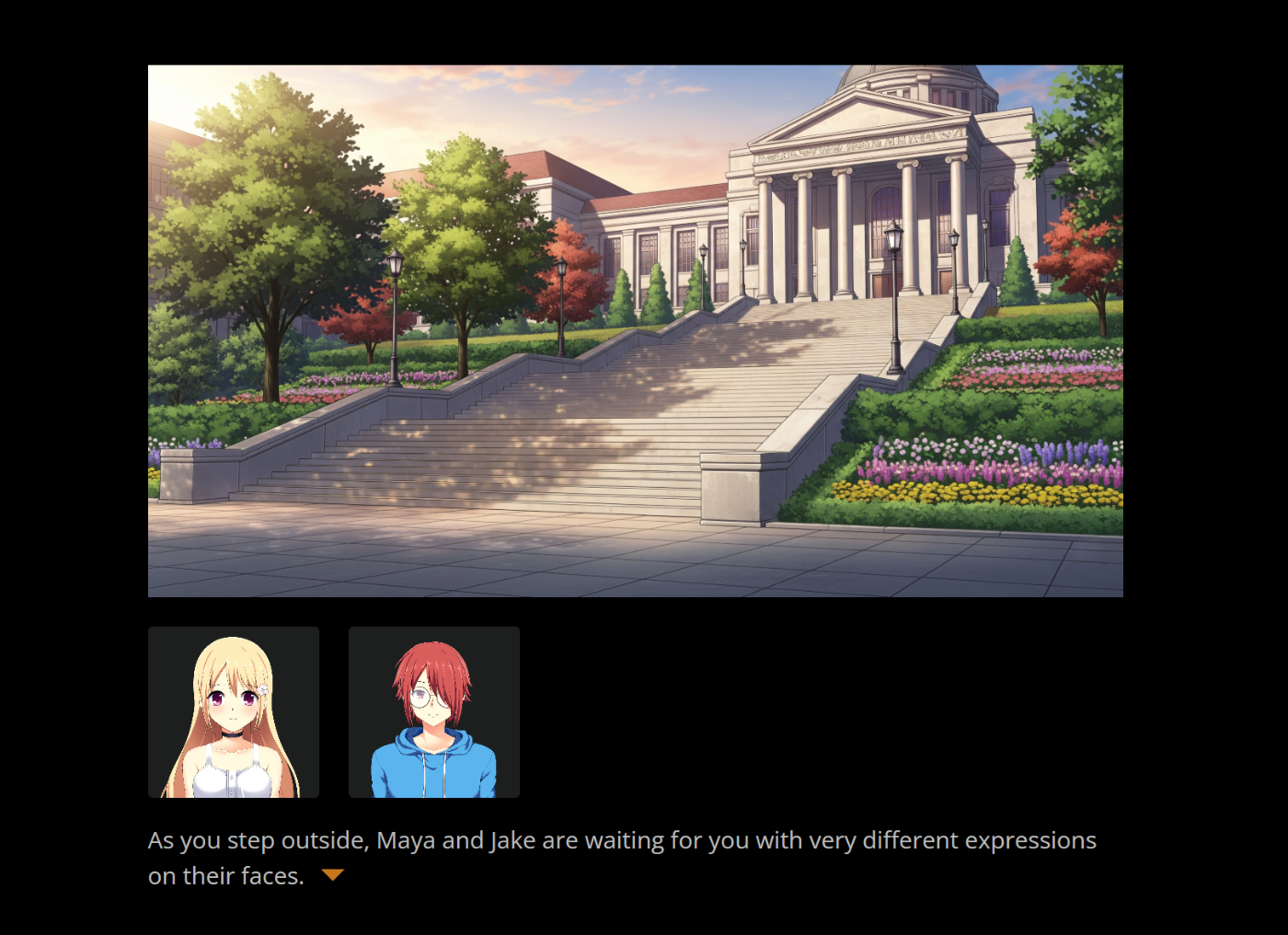
First, create a stage that fills the available Play Mode area. This positions the story inside the player and removes the default content width and padding. The --vn-* variables keep the dialogue, choices, and sprites aligned as the available height changes.
The 56px top allowance keeps choices and sprites below the player toolbar. The background extends behind it. Then stretch image covers over the stage:
Click to expand CSS code extract
/* Define a stage inside the available Play Mode area. */
.prototype__root {
  position: relative;
  --vn-gap: clamp(12px, 2.5vw, 32px);
  --vn-top-clearance: 56px;
  --vn-dialogue-height: min(34%, 300px);
  --vn-dialogue-text: #ffffff;
  --vn-dialogue-shadow: 2px 2px 4px rgba(0, 0, 0, 0.6);
}

.prototype__root .prototype__wrapper {
  padding: 0;
}

.prototype__root .prototype__content {
  position: absolute;
  inset: 0;
  width: 100%;
  max-width: none;
  min-height: 0;
  padding: 0;
  overflow: hidden;
}

.prototype__root .prototype__header {
  display: contents;
}

/* The image fills the stage, including the area behind the dialogue. */
.prototype__root .prototype__media {
  position: absolute;
  inset: 0;
  z-index: 1;
}

.prototype__root .prototype__media img.single {
  width: 100%;
  height: 100%;
  object-fit: cover;
}
Your background images now should fill the whole width and height of the Play Mode window.
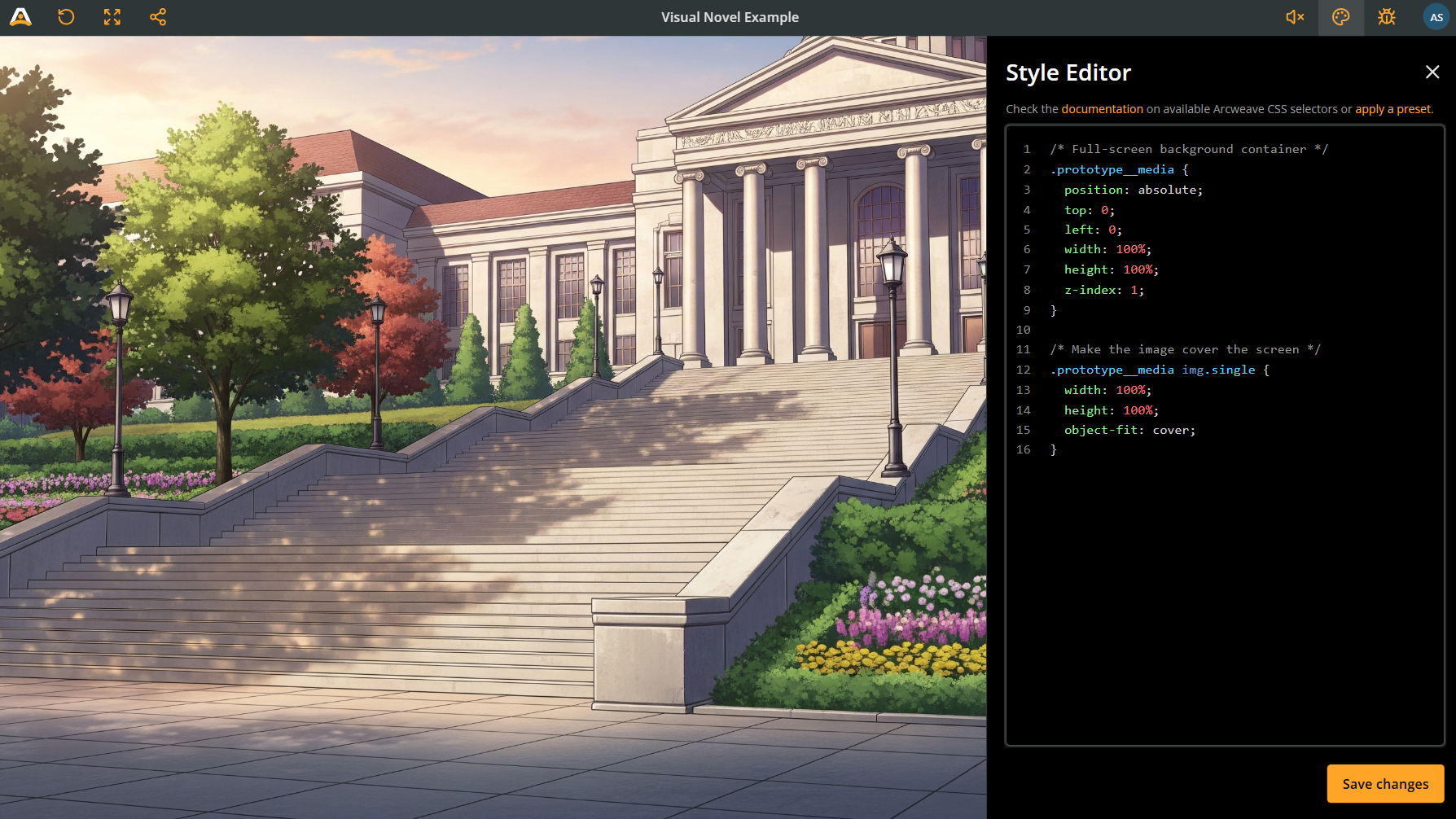
Character sprites
Character assets
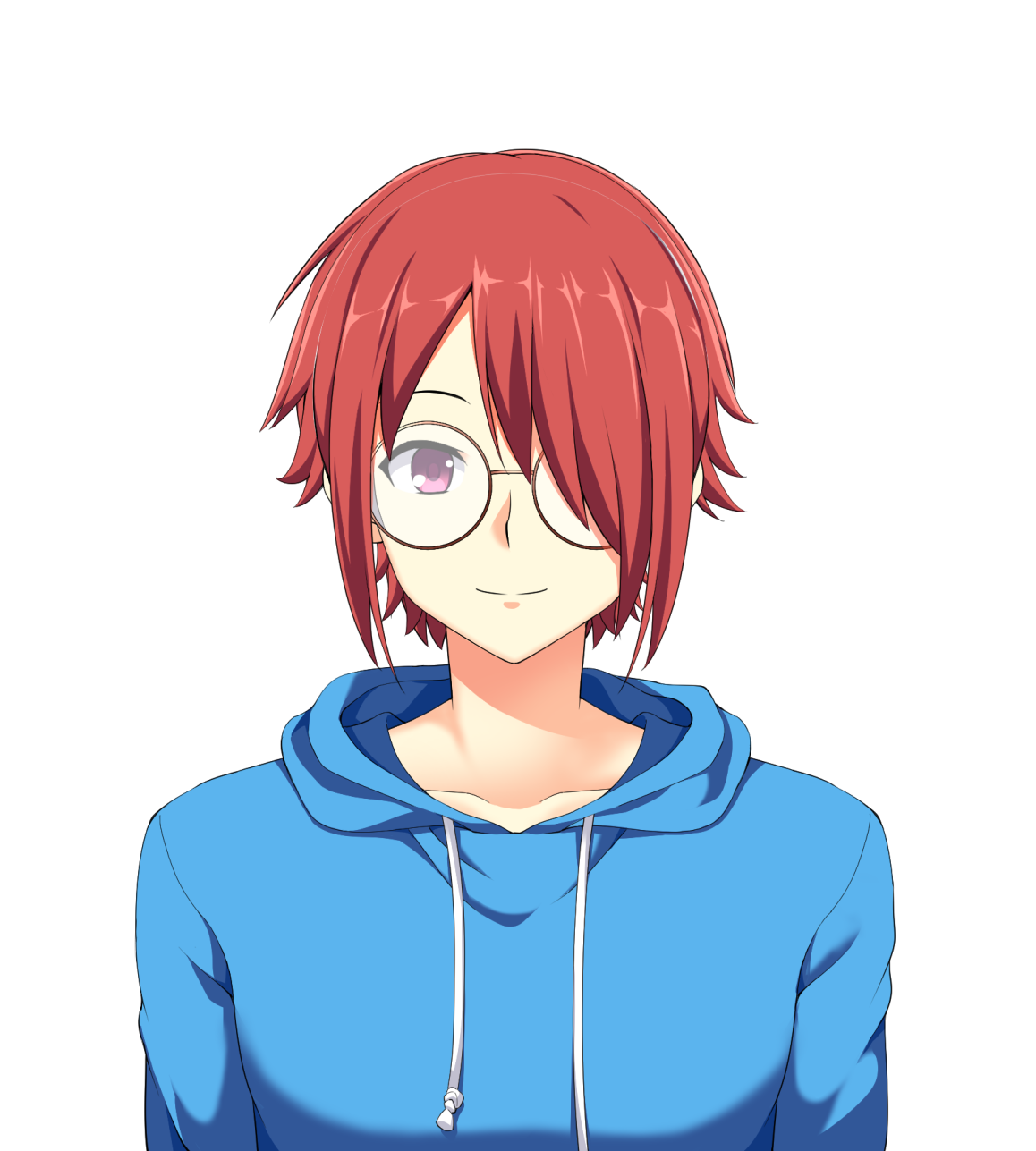
For the character sprites, use PNG portraits with transparent backgrounds. See the character assets of the Visual Novel Example, like the one below.
Character components
Use components to signify dialogue speakers and characters present in a scene. Add covers to those components using the character images you uploaded as project assets.
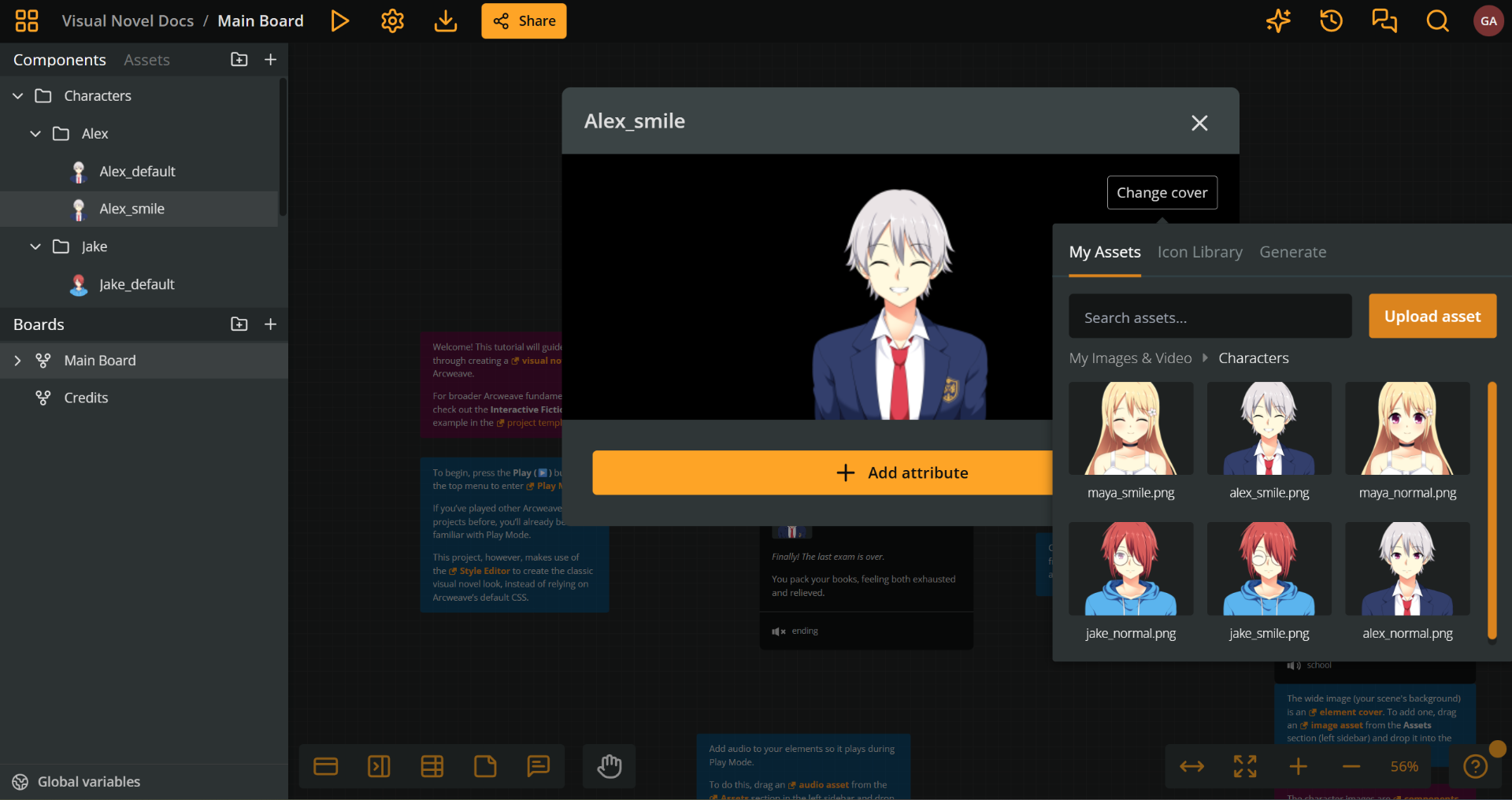
Then, attach the character components to the elements where they appear.
Character emotions
To have a character appear with a variety of facial expressions, you need to do the following:
- Upload a different asset (PNG image) for each facial expression.
- Create a different component for each facial expression.
- Attach the component with the desired expression to each element of the character's scene.
Character CSS
Use the code snippet below to make character sprites appear at the bottom of the screen, standing above the dialogue box:
Click to expand CSS code extract
/* Bound sprites between the toolbar and the dialogue, so they fit. */
.prototype__root .prototype__components {
  position: absolute;
  top: var(--vn-top-clearance);
  bottom: calc(var(--vn-dialogue-height) + var(--vn-gap));
  left: 0;
  right: 0;
  height: auto;
  margin: 0;
  padding: 0 var(--vn-gap);
  box-sizing: border-box;
  display: flex;
  align-items: flex-end;
  justify-content: center;
  gap: 3%;
  z-index: 2;
}

.prototype__root .prototype__components > .comp {
  flex: 1 1 0;
  width: 0;
  min-width: 0;
  height: 100%;
  max-height: 100%;
  /* Component images have an inline aspect-ratio; remove that square box. */
  aspect-ratio: auto !important;
  background: none;
  object-fit: contain;
  object-position: center bottom;
  filter: drop-shadow(0 0 20px rgba(0, 0, 0, 0.5));
}

.prototype__root .prototype__components > .flex-fix {
  display: none;
}
If you attach several image components,
display: flexgives each a share of the available width.object-fit: containkeeps the full image visible in that space. Large transparent margins inside a PNG still reduce the visible character size; crop those margins in the asset itself.
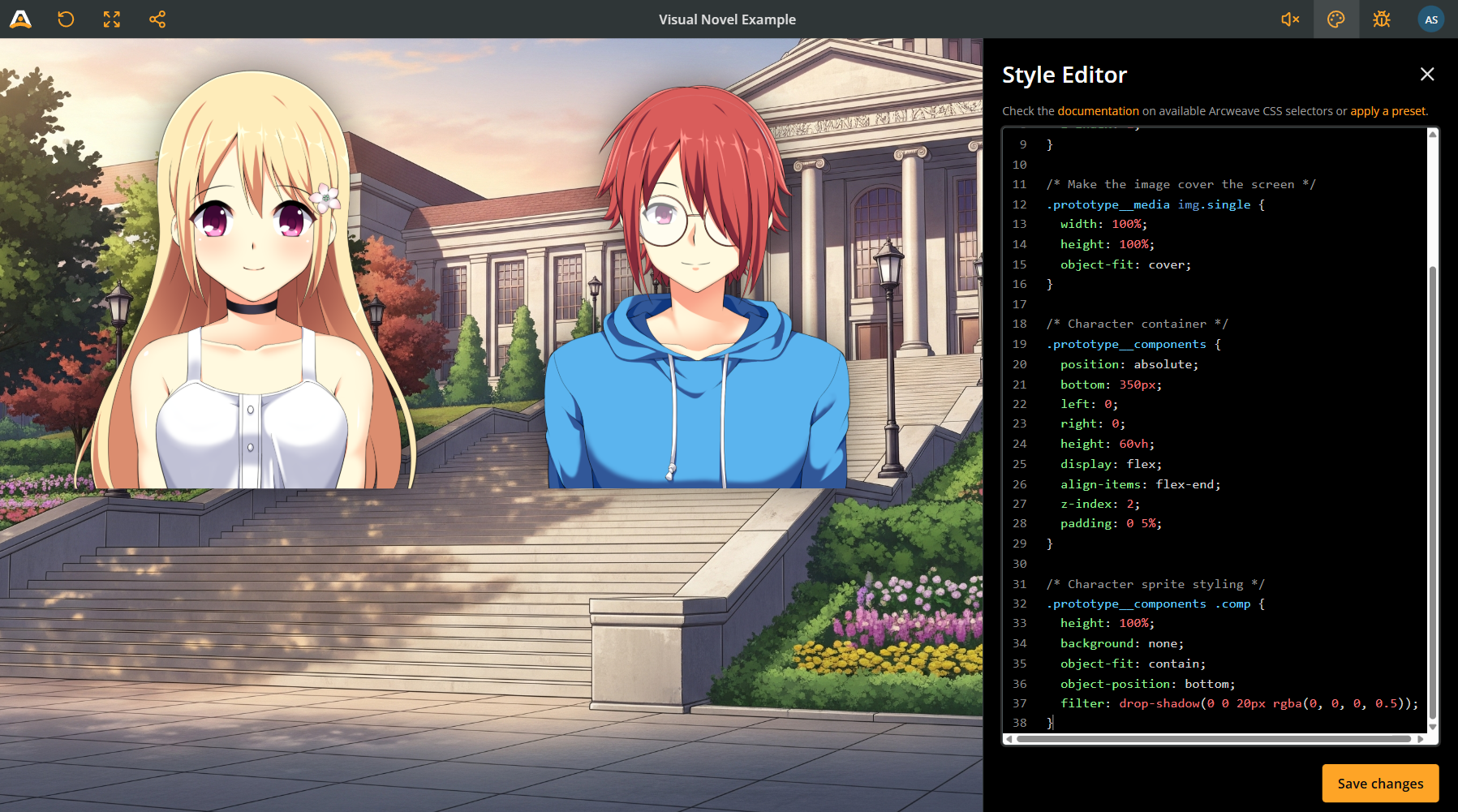
The sprite region has a top and bottom boundary instead of adding a fixed bottom offset to a viewport height. This prevents the sprites from extending above the screen on shorter displays. The targeted !important overrides the inline aspect-ratio on component images; the other declarations use normal specificity.
Dialogue box
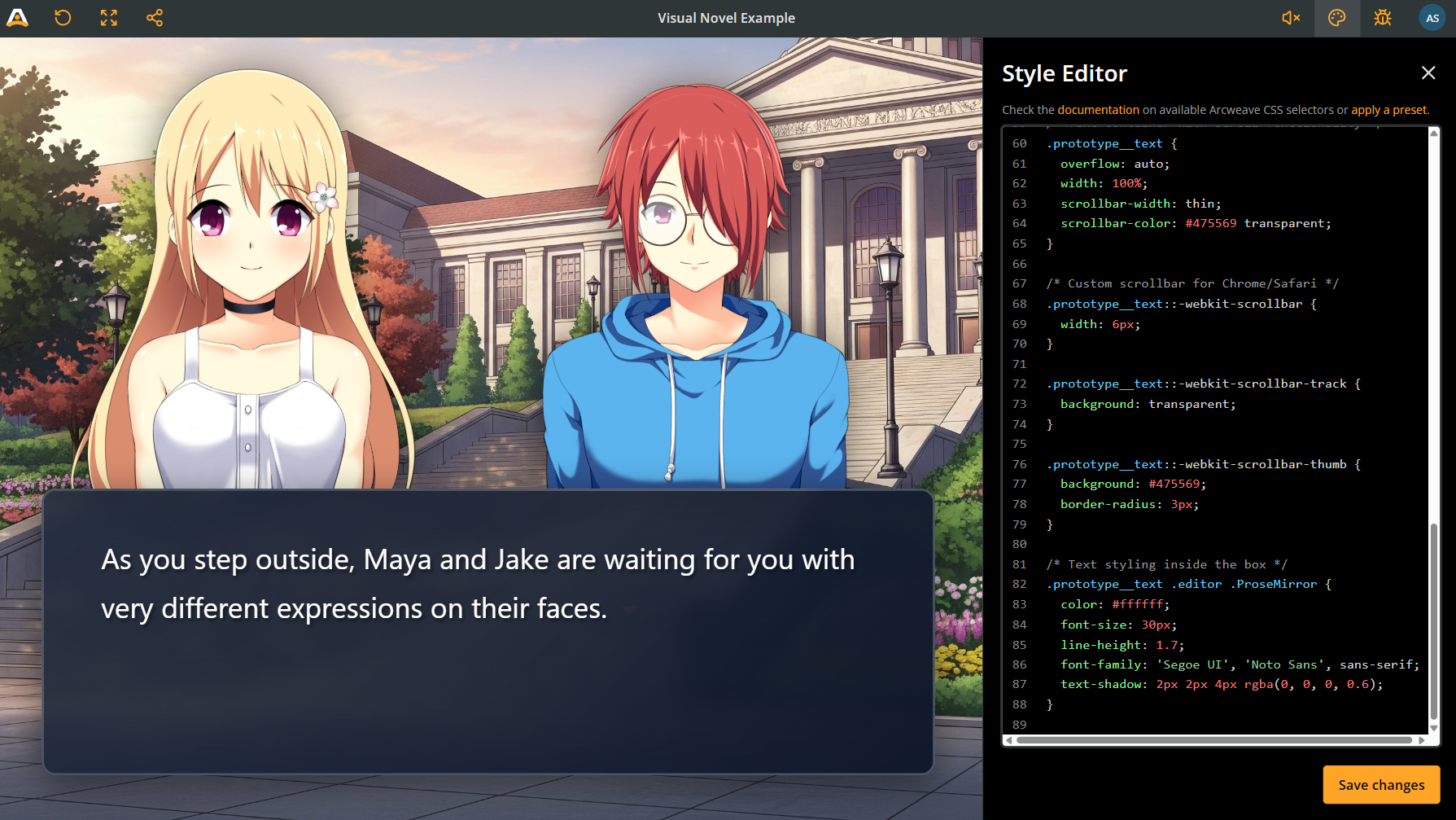
The dialogue box scrolls independently when text is long. .prototype__body contains both the text and the choices, so keep it as a full-stage layer and draw the dialogue panel on .prototype__text. Its height resolves against that layer, and box-sizing: border-box includes the padding and border in that height.
The full-stage layer ignores pointer events in its empty areas. The text and options restore pointer events so reading, scrolling, and choosing still work.
Click to expand CSS code extract
/* The body contains both dialogue and choices. Keep its full stage height. */
.prototype__root .prototype__body {
  position: absolute;
  inset: 0;
  z-index: 3;
  pointer-events: none;
}

/* Put the dialogue panel on the text container, not their shared parent. */
.prototype__root .prototype__text {
  position: absolute;
  bottom: var(--vn-gap);
  left: var(--vn-gap);
  right: var(--vn-gap);
  height: var(--vn-dialogue-height);
  min-height: 0;
  box-sizing: border-box;
  padding: 20px 32px;
  overflow: auto;
  overflow-wrap: anywhere;
  overscroll-behavior: contain;
  pointer-events: auto;
  color: var(--vn-dialogue-text);
  background: linear-gradient(
    135deg,
    rgba(30, 41, 59, 0.9) 0%,
    rgba(15, 23, 42, 0.98) 100%
  );
  border: 2px solid #475569;
  border-radius: 15px;
  backdrop-filter: blur(10px);
  box-shadow: 0 10px 40px rgba(0, 0, 0, 0.5);
  scrollbar-width: thin;
  scrollbar-color: #94a3b8 transparent;
}

.prototype__root .prototype__text .editor .editor-content {
  color: var(--vn-dialogue-text);
  font-size: 28px;
  line-height: 1.6;
  font-family: 'Segoe UI', 'Noto Sans', sans-serif;
  text-shadow: var(--vn-dialogue-shadow);
  padding: 0;
}

/* Match the edit outline to the text's zero padding. */
.prototype__root
  .prototype-content-editor.is-content-editable
  .editor.read-only::after,
.prototype__root
  .prototype-content-editor.is-content-editable
  .editor-input
  .editor::after {
  inset: 0;
}
overflow: auto needs a bounded height to create a useful scroll area. Keep the height and overflow rules together. The more specific .prototype__text .editor .editor-content selector also overrides Arcweave's default text padding and typography without changing choice labels. The final rule removes the default edit-outline inset so the blue outline fits this zero-padding text box, including short text.
Option buttons
According to the classic visual novel style, player choices should appear above the dialogue box.
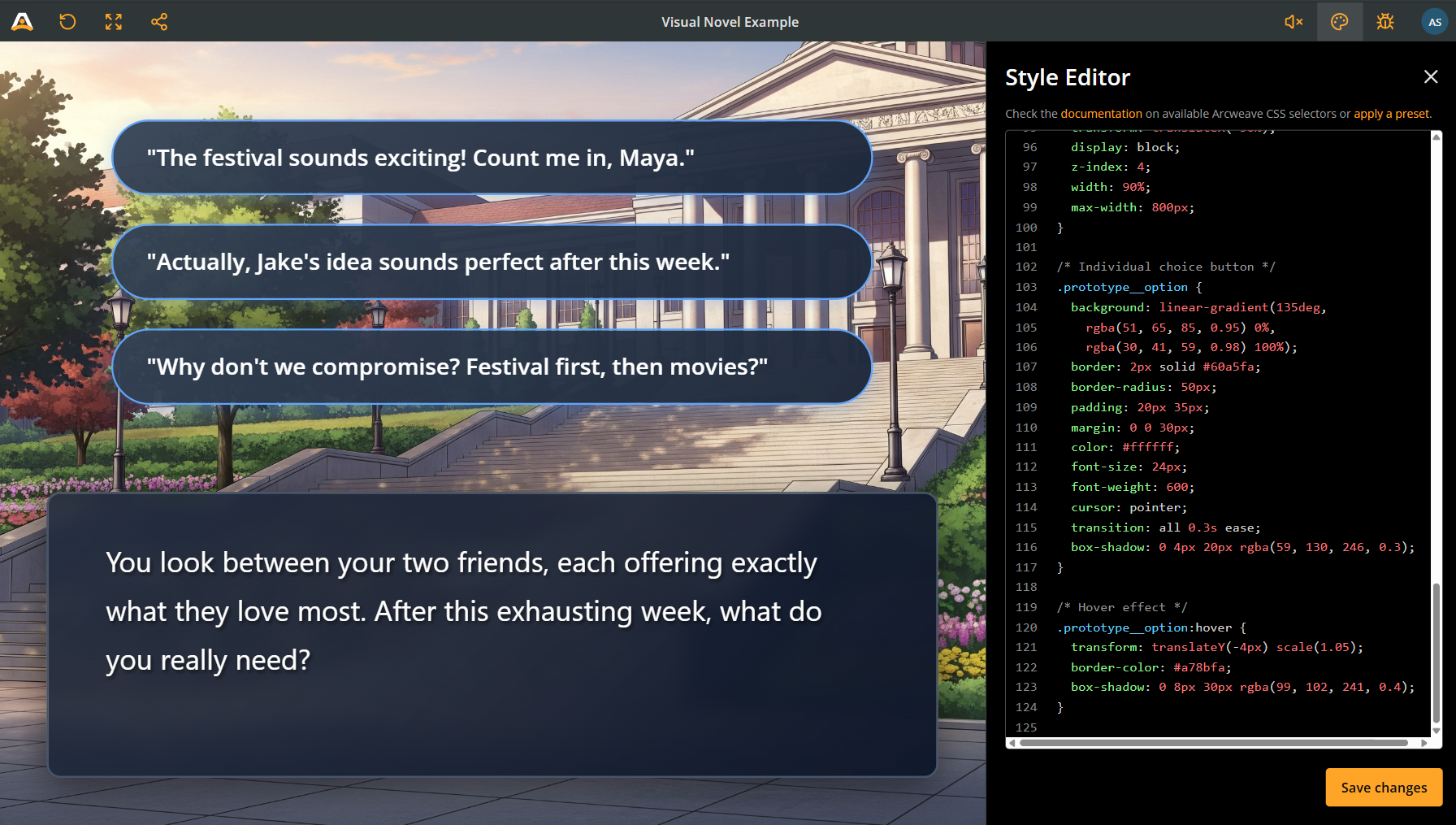
A fixed bottom offset alone is insufficient: five long choices can extend past the top of the screen. Limit the list to the space between the toolbar and dialogue, then let it scroll. The horizontal padding leaves room for edit mode's drag handles. This recipe changes colors on hover without scaling buttons outside the scroll area.
Click to expand CSS code extract
/* A long list scrolls in the space above the dialogue. */
.prototype__root .prototype__options {
  position: absolute;
  bottom: calc(var(--vn-dialogue-height) + 2 * var(--vn-gap));
  left: var(--vn-gap);
  right: var(--vn-gap);
  width: auto;
  max-width: 800px;
  max-height: calc(
    100% - var(--vn-dialogue-height) - 3 * var(--vn-gap) -
      var(--vn-top-clearance)
  );
  margin: 0 auto;
  padding: 8px 28px;
  box-sizing: border-box;
  overflow: auto;
  overscroll-behavior: contain;
  pointer-events: auto;
  scrollbar-width: thin;
  scrollbar-color: #94a3b8 transparent;
}

.prototype__root .prototype__option {
  --prototype-option-background: linear-gradient(135deg, #334155, #1e293b);
  --prototype-option-background-hover: linear-gradient(
    135deg,
    #475569,
    #334155
  );
  background: var(--prototype-option-background);
  border: 2px solid #60a5fa;
  border-radius: 24px;
  padding: 14px 24px;
  margin: 0 0 12px;
  color: #ffffff;
  font-size: 22px;
  line-height: 1.5;
  font-weight: 600;
  overflow-wrap: anywhere;
  cursor: pointer;
  transition:
    background 0.2s,
    border-color 0.2s;
}

.prototype__root .prototype__option:hover {
  background: var(--prototype-option-background-hover);
  border-color: #a78bfa;
}
Mobile responsiveness
The stage-relative heights already adapt to the available player area. Add separate rules for narrow screens and short screens: a phone in landscape may be wider than the portrait breakpoint while having much less vertical space.
Keep these rules after the base styles. Media queries use the browser viewport (or the iframe viewport when embedded), so also test with the Style Editor and Debugger open.
Click to expand CSS code extract
/* Narrow screens, including phones in portrait. */
@media (max-width: 700px) {
  .prototype__root {
    --vn-gap: 12px;
    --vn-dialogue-height: min(36%, 220px);
  }

  .prototype__root .prototype__text {
    padding: 14px 18px;
  }

  .prototype__root .prototype__text .editor .editor-content {
    font-size: 20px;
  }

  .prototype__root .prototype__option {
    font-size: 18px;
    padding: 10px 16px;
  }
}

/* Short screens, including phones in landscape. */
@media (max-height: 500px) {
  .prototype__root {
    --vn-gap: 8px;
    --vn-dialogue-height: 38%;
  }

  .prototype__root .prototype__text {
    padding: 10px 16px;
  }

  .prototype__root .prototype__text .editor .editor-content {
    font-size: 18px;
    line-height: 1.5;
  }

  .prototype__root .prototype__option {
    font-size: 16px;
    padding: 8px 14px;
    margin-bottom: 8px;
  }
}
Style specific text
You can emphasize a character's name with color, highlight clues, or give sound effects their own typography. Arcweave's rich-text formatting provides the HTML tags you can target without adding custom classes.
How it works
When you format text in Arcweave's editor (italic, bold, underline), it generates standard HTML tags:
- Italic creates
<em>tags - Bold creates
<strong>tags - Underline creates
<u>tags
We can target these tags with CSS and override their default appearance. The key is to use the element ID to make sure we only affect specific elements, not every italic word in your entire story.
Find element IDs
Use the element's UUID, not its title. In Play Mode, open the Debugger, click the ID button in the Element row, and copy the UUID. You can also copy it from the element's Properties → Details → Element ID, and API/MCP project data provides the same element UUID.
For example, the UUID cb35db92-3c07-41bf-9c45-580ad6b891b4 becomes the CSS selector #el-cb35db92-3c07-41bf-9c45-580ad6b891b4. The Debugger copies the raw UUID; add #el- once. In the examples below, replace your-element-uuid with that raw UUID.
Step-by-step process
1. Format text in the editor
Go to your element and edit it:
- Highlight the word or phrase you want to style
- Apply a format: Italic, Bold, or Underline
- This creates the HTML tag we'll target with CSS
2. Write the CSS
Now in the Style Editor, target that specific formatted text:
Click to expand CSS code extract
/* Target italic text in a specific element and make it red */
#el-your-element-uuid .prototype__text .editor .editor-content em {
  color: red;
  font-style: normal; /* Remove the default italic effect */
}
Practical examples
Example 1: Character names in color
Make character names appear in their signature color:
In Arcweave: Format "Alice" with italic.
CSS:
Click to expand CSS code extract
#el-your-element-uuid .prototype__text .editor .editor-content em {
  color: #60a5fa; /* Blue for Alice */
  font-style: normal;
  font-weight: bold;
}
Example 2: Important clues
Highlight clues that players should remember:
In Arcweave: Format clue words with bold.
CSS:
Click to expand CSS code extract
#el-your-element-uuid .prototype__text .editor .editor-content strong {
  color: #fbbf24; /* Gold color */
  font-weight: 900;
  text-shadow: 0 0 10px rgba(251, 191, 36, 0.5); /* Glow effect */
}
Example 3: Sound effects
Create stylized sound effects:
In Arcweave: Format "crash" with underline.
CSS:
Click to expand CSS code extract
#el-your-element-uuid .prototype__text .editor .editor-content u {
  text-decoration: none; /* Remove underline */
  color: #ef4444;
  font-family: 'Impact', sans-serif;
  font-size: 1.2em;
  font-style: italic;
  letter-spacing: 2px;
}
Example 4: Targeting specific paragraphs
You can also style entire paragraphs using nth-child:
Click to expand CSS code extract
/* Style the first paragraph differently (maybe it's narration) */
#el-your-element-uuid .prototype__text .editor .editor-content p:first-child {
  color: #a78bfa;
  font-style: italic;
  font-size: 0.9em;
}

/* Style the second paragraph (maybe it's a character speaking) */
#el-your-element-uuid .prototype__text .editor .editor-content p:nth-child(2) {
  color: #60a5fa;
  font-weight: bold;
}
Creative uses
Here are some creative ways to use this technique:
1. Dialogue with different character voices:
Click to expand CSS code extract
/* Character 1 - uses italic */
#el-your-element-uuid .prototype__text .editor .editor-content em {
  color: #60a5fa;
  font-style: normal;
  font-weight: 600;
}

/* Character 2 - uses bold */
#el-your-element-uuid .prototype__text .editor .editor-content strong {
  color: #f472b6;
  font-weight: 700;
}

/* Narrator - uses underline */
#el-your-element-uuid .prototype__text .editor .editor-content u {
  text-decoration: none;
  color: #a78bfa;
  font-style: italic;
}
2. Thoughts vs. spoken dialogue:
Click to expand CSS code extract
/* Inner thoughts in italic */
#el-your-element-uuid .prototype__text .editor .editor-content em {
  color: #94a3b8;
  font-style: italic;
  opacity: 0.8;
}
3. Highlighted decisions in the dialogue:
Click to expand CSS code extract
/* Highlight bold text that introduces a decision */
#el-your-element-uuid .prototype__text .editor .editor-content strong {
  color: #fbbf24;
  font-weight: bold;
  text-decoration: underline;
}
Scope and formatting
Use the element selector when a rule belongs to one scene, and .prototype__text .editor .editor-content to limit it to dialogue. A global selector such as em can also affect the player UI. For intentional story-wide formatting, use .prototype__root .prototype__text .editor .editor-content em.
These examples reuse italic, bold, and underline formatting as three visual conventions. Reusing a format changes its appearance everywhere matched by that rule; keep ordinary emphasis readable and use paragraph selectors where that is more appropriate. Paragraph positions also change if you insert text or render different content with Arcscript.
Style specific options
Use the instructions in the CSS basics guide to style specific options of either all elements or specific elements.
Complete code template
This combines the five layout snippets above. Add scene-specific text rules after it if needed. It replaces the default reading layout with a visual novel stage; check long dialogue and choices before publishing.
Click to expand CSS code extract
/* Define a stage inside the available Play Mode area. */
.prototype__root {
  position: relative;
  --vn-gap: clamp(12px, 2.5vw, 32px);
  --vn-top-clearance: 56px;
  --vn-dialogue-height: min(34%, 300px);
  --vn-dialogue-text: #ffffff;
  --vn-dialogue-shadow: 2px 2px 4px rgba(0, 0, 0, 0.6);
}

.prototype__root .prototype__wrapper {
  padding: 0;
}

.prototype__root .prototype__content {
  position: absolute;
  inset: 0;
  width: 100%;
  max-width: none;
  min-height: 0;
  padding: 0;
  overflow: hidden;
}

.prototype__root .prototype__header {
  display: contents;
}

/* The image fills the stage, including the area behind the dialogue. */
.prototype__root .prototype__media {
  position: absolute;
  inset: 0;
  z-index: 1;
}

.prototype__root .prototype__media img.single {
  width: 100%;
  height: 100%;
  object-fit: cover;
}

/* Bound sprites between the toolbar and the dialogue, so they fit. */
.prototype__root .prototype__components {
  position: absolute;
  top: var(--vn-top-clearance);
  bottom: calc(var(--vn-dialogue-height) + var(--vn-gap));
  left: 0;
  right: 0;
  height: auto;
  margin: 0;
  padding: 0 var(--vn-gap);
  box-sizing: border-box;
  display: flex;
  align-items: flex-end;
  justify-content: center;
  gap: 3%;
  z-index: 2;
}

.prototype__root .prototype__components > .comp {
  flex: 1 1 0;
  width: 0;
  min-width: 0;
  height: 100%;
  max-height: 100%;
  /* Component images have an inline aspect-ratio; remove that square box. */
  aspect-ratio: auto !important;
  background: none;
  object-fit: contain;
  object-position: center bottom;
  filter: drop-shadow(0 0 20px rgba(0, 0, 0, 0.5));
}

.prototype__root .prototype__components > .flex-fix {
  display: none;
}

/* The body contains both dialogue and choices. Keep its full stage height. */
.prototype__root .prototype__body {
  position: absolute;
  inset: 0;
  z-index: 3;
  pointer-events: none;
}

/* Put the dialogue panel on the text container, not their shared parent. */
.prototype__root .prototype__text {
  position: absolute;
  bottom: var(--vn-gap);
  left: var(--vn-gap);
  right: var(--vn-gap);
  height: var(--vn-dialogue-height);
  min-height: 0;
  box-sizing: border-box;
  padding: 20px 32px;
  overflow: auto;
  overflow-wrap: anywhere;
  overscroll-behavior: contain;
  pointer-events: auto;
  color: var(--vn-dialogue-text);
  background: linear-gradient(
    135deg,
    rgba(30, 41, 59, 0.9) 0%,
    rgba(15, 23, 42, 0.98) 100%
  );
  border: 2px solid #475569;
  border-radius: 15px;
  backdrop-filter: blur(10px);
  box-shadow: 0 10px 40px rgba(0, 0, 0, 0.5);
  scrollbar-width: thin;
  scrollbar-color: #94a3b8 transparent;
}

.prototype__root .prototype__text .editor .editor-content {
  color: var(--vn-dialogue-text);
  font-size: 28px;
  line-height: 1.6;
  font-family: 'Segoe UI', 'Noto Sans', sans-serif;
  text-shadow: var(--vn-dialogue-shadow);
  padding: 0;
}

/* Match the edit outline to the text's zero padding. */
.prototype__root
  .prototype-content-editor.is-content-editable
  .editor.read-only::after,
.prototype__root
  .prototype-content-editor.is-content-editable
  .editor-input
  .editor::after {
  inset: 0;
}

/* A long list scrolls in the space above the dialogue. */
.prototype__root .prototype__options {
  position: absolute;
  bottom: calc(var(--vn-dialogue-height) + 2 * var(--vn-gap));
  left: var(--vn-gap);
  right: var(--vn-gap);
  width: auto;
  max-width: 800px;
  max-height: calc(
    100% - var(--vn-dialogue-height) - 3 * var(--vn-gap) -
      var(--vn-top-clearance)
  );
  margin: 0 auto;
  padding: 8px 28px;
  box-sizing: border-box;
  overflow: auto;
  overscroll-behavior: contain;
  pointer-events: auto;
  scrollbar-width: thin;
  scrollbar-color: #94a3b8 transparent;
}

.prototype__root .prototype__option {
  --prototype-option-background: linear-gradient(135deg, #334155, #1e293b);
  --prototype-option-background-hover: linear-gradient(
    135deg,
    #475569,
    #334155
  );
  background: var(--prototype-option-background);
  border: 2px solid #60a5fa;
  border-radius: 24px;
  padding: 14px 24px;
  margin: 0 0 12px;
  color: #ffffff;
  font-size: 22px;
  line-height: 1.5;
  font-weight: 600;
  overflow-wrap: anywhere;
  cursor: pointer;
  transition:
    background 0.2s,
    border-color 0.2s;
}

.prototype__root .prototype__option:hover {
  background: var(--prototype-option-background-hover);
  border-color: #a78bfa;
}

/* Narrow screens, including phones in portrait. */
@media (max-width: 700px) {
  .prototype__root {
    --vn-gap: 12px;
    --vn-dialogue-height: min(36%, 220px);
  }

  .prototype__root .prototype__text {
    padding: 14px 18px;
  }

  .prototype__root .prototype__text .editor .editor-content {
    font-size: 20px;
  }

  .prototype__root .prototype__option {
    font-size: 18px;
    padding: 10px 16px;
  }
}

/* Short screens, including phones in landscape. */
@media (max-height: 500px) {
  .prototype__root {
    --vn-gap: 8px;
    --vn-dialogue-height: 38%;
  }

  .prototype__root .prototype__text {
    padding: 10px 16px;
  }

  .prototype__root .prototype__text .editor .editor-content {
    font-size: 18px;
    line-height: 1.5;
  }

  .prototype__root .prototype__option {
    font-size: 16px;
    padding: 8px 14px;
    margin-bottom: 8px;
  }
}
Quick customization guide
| To change | Target | Property |
|---|---|---|
| Dialogue height and sprite baseline | .prototype__root | --vn-dialogue-height |
| Space around and between panels | .prototype__root | --vn-gap |
| Space reserved below the toolbar | .prototype__root | --vn-top-clearance |
| Dialogue text size | .prototype__root .prototype__text .editor .editor-content | font-size |
| Dialogue text color | .prototype__root | --vn-dialogue-text |
| Dialogue panel background | .prototype__root .prototype__text | background |
| Scrollbar color | .prototype__root .prototype__text and .prototype__root .prototype__options | scrollbar-color |
| Choice colors | .prototype__root .prototype__option | --prototype-option-background, --prototype-option-background-hover, color |
| Choice shape | .prototype__root .prototype__option | border-radius |
Changing the shared layout variables moves the related parts together. Avoid replacing them with independent pixel offsets that can overlap on small screens.
Styling tips
Color themes
Add these overrides after the template. Change the dialogue background on .prototype__text; .prototype__body spans the entire stage.
Dark & mysterious theme
.prototype__root .prototype__text {
  background: linear-gradient(
    135deg,
    rgba(15, 15, 25, 0.9) 0%,
    rgba(5, 5, 15, 0.95) 100%
  );
}
Light & airy theme
Change the text and remove its dark shadow together with the background. If you added scene-specific emphasis colors, choose darker versions of those colors for this theme too.
.prototype__root {
  --vn-dialogue-text: #172033;
  --vn-dialogue-shadow: none;
}

.prototype__root .prototype__text {
  background: linear-gradient(
    135deg,
    rgba(240, 240, 250, 0.85) 0%,
    rgba(220, 220, 240, 0.95) 100%
  );
}
Custom fonts
Want a different font? Add a valid Google Fonts import at the top:
@import url('https://fonts.googleapis.com/css2?family=Lora&display=swap');

.prototype__root .prototype__text .editor .editor-content {
  font-family: 'Lora', serif;
}
Scrollbar
Use a contrasting thumb color for both scroll areas:
.prototype__root .prototype__text,
.prototype__root .prototype__options {
  scrollbar-color: #60a5fa transparent;
}
The operating system may hide scrollbars until scrolling starts. Check that wheel and touch scrolling reach the final paragraph and final option, even if a scrollbar is not always visible.
Text overflow
Test a scene with long dialogue and at least five multi-line choices. Scroll each area to its end. Repeat on desktop, a portrait phone, and a short landscape screen; verify the last choice remains selectable and no panel covers the toolbar. Also check a scene with only an unlabeled outgoing connection: its advance arrow stays at the end of the dialogue rather than becoming a choice button.
Further styling
You now have a solid foundation and a beautiful visual novel interface. To take this even further, try the following ideas:
- Add animations: Try
transitionandtransformproperties for fade-ins. - Custom buttons for specific choices: Combine element UUID selectors with the option targeting rules. Choices do not expose connection UUIDs as HTML IDs.
- Day/night themes: Use element UUID selectors to apply different colors to specific scenes.
- Sound effects: Combine your CSS with Arcweave's audio features.
- Character portraits: Try different positioning for character components.
- Text effects: Experiment with glowing text, shadows, and animations.
- Create a name tag system: Use paragraph targeting to style character names.
✅ Remember: CSS is all about experimentation. Don't be afraid to adjust values, try different colors, or completely redesign elements. The Style Editor updates in real-time, so you can see your changes immediately.
Troubleshooting
- Characters are cut off: Keep the top and bottom bounds on
.prototype__components, andobject-fit: containon its images. Remove oldheight: 60vhorbottom: 350pxrules. Increasing a fixed sprite height can make clipping worse. - Characters look small: Check the transparent margins in the PNG and how many components share the row. The template fits the whole image into each character's available space.
- Choices extend above the screen: Keep the
max-heightandoverflow: autorules on.prototype__options. All geometry should use the same--vn-dialogue-heightand--vn-gapvalues. - Dialogue does not scroll: Check the bounded height and
overflow: autoon.prototype__text. Its parent.prototype__bodymust still span the stage. Older tutorial rules that put the dialogue box on.prototype__bodyconflict with this template. - Text is hard to read: Increase the dialogue background opacity and check text contrast. A light background also needs dark text and no dark text shadow, as shown in Light & airy theme.
- Landscape layout is cramped: Keep the
max-heightmedia query as well as themax-widthquery. Test in the actual player or iframe size, with and without editing panels. - Scene-specific rules do not match: Use
#el-followed by the raw element UUID, exactly once. Copy the UUID from the Debugger's Element row, not the Board row; an element title is not an HTML ID. - API/MCP changes are missing in an open player: Fully reload Play Mode after saving CSS through those interfaces. Read back the saved CSS and follow the styling workflow.