Share your project
There are three ways to access an Arcweave project:
- Workspace members have access to all projects in the workspace.
- Workspace guests can access a project if invited by its owner.
- Project visitors can access a public project via its link—see Make a project public.
Access
For more information on these roles, see the Roles page in the Workspaces section of this documentation.
Workspace member
Workspace members automatically have access to all projects in the workspace, based on their assigned roles and permissions. See Workspace members.
Workspace guest
A project's owner can share a project with people outside the workspace by assigning them the role of project commenter or project editor—see Workspace guests > Invite guests.
Project visitor
A project or just its Play Mode can be made public, allowing anyone with the link to access it—see Project visitors.
Make a project public
To enable public link access to your project:
- Open the project.
- Click Share in the top menu.
- In the Share modal, use the dropdown at the bottom next to "Anyone with the link..." to control public access. Select one of the following options:
- Can view and play: Grants access to both the project's boards and Play Mode.
- Can play only: Grants access only to the project's Play Mode.
- Has no access: Prevents any public access to the project.
- Click Copy link to copy the project's URL to your clipboard for sharing.
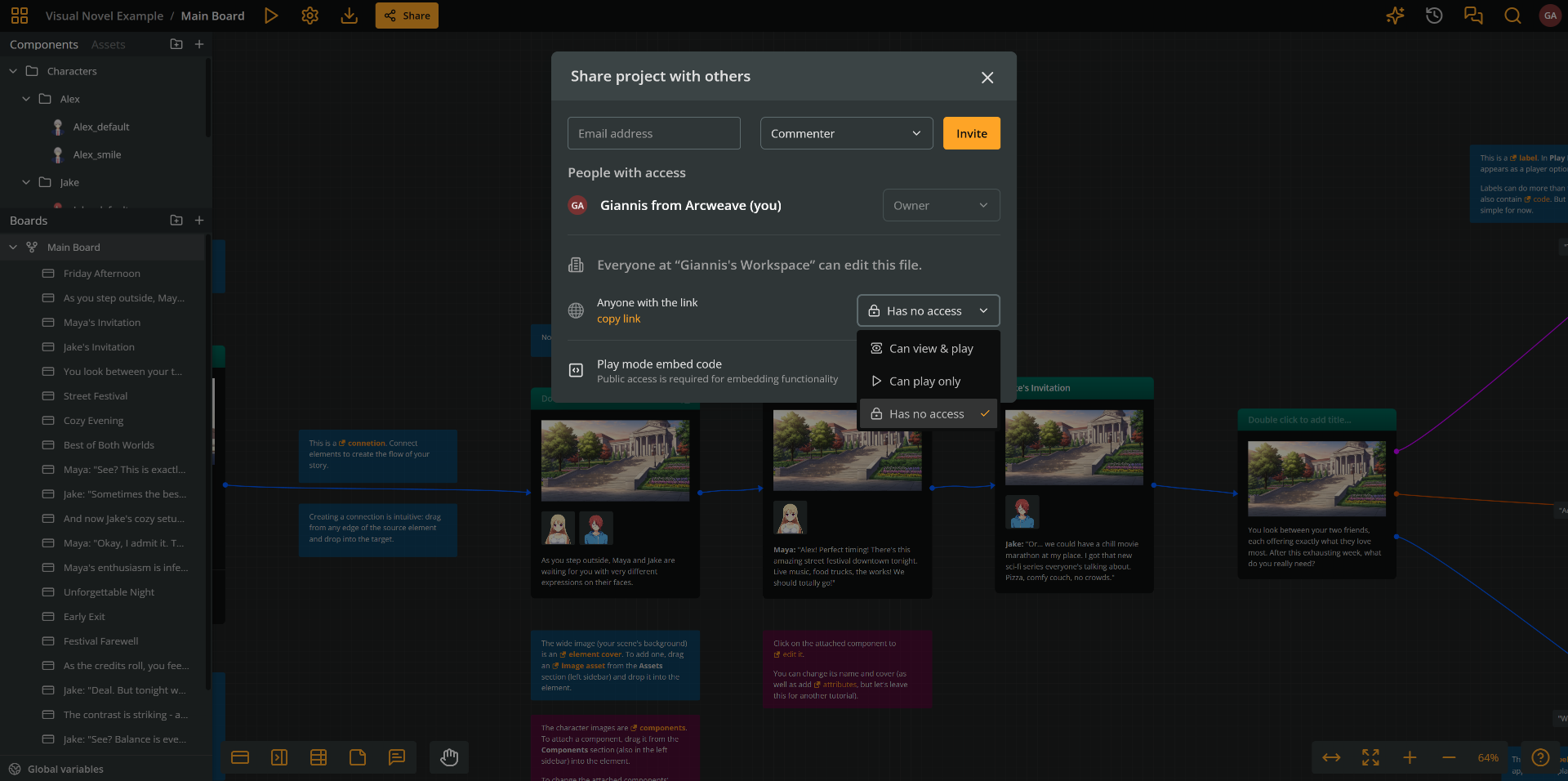
✅ Users accessing a project through a public link are called project visitors. They do not need an Arcweave account to view or play the project.
Embed Play Mode in HTML
Projects with public Play Mode provide an HTML embed code snippet, enabling the project to be played in its own iframe window on any webpage.
Embed example
The following is a public project created by the Arcweave team:
The code for the above embed is the following:
<iframe
  src="https://arcweave.com/embed/MWEZebKl2g/play"
  style="width: 100%; border: none; border-radius: 25px; aspect-ratio: 4/3;"
  frameborder="0"
  allowfullscreen
>
</iframe>
ℹ️ This code has been customized. See Customize embed code, below.
Copy embed code
To copy a project's embed code:
- Open the project and click Share in the top menu.
- Make the project or its Play Mode public.
- Click Get embed code at the bottom of the Share modal.
- Paste the code from your clipboard into the body of your webpage.
ℹ️ Only the Play Mode of a project can be embedded; the Arcweave project interface cannot.
⚠️ Advanced Play Mode features, such as the (Debugger, Style Editor, and Play Mode menu), are not available when the project is played in the embed window.
Customize embed code
The following is the default embed code of a project:
<iframe
  src="https://arcweave.com/embed/{HASH}/play"
  width="800"
  height="600"
  frameborder="0"
  allowfullscreen
>
</iframe>
{HASH} is the project's hash, which you can copy from Project Settings > Properties > Project hash.
After pasting the code into your webpage's body, you can customize it as needed:
- Adjust the embed window's dimensions by changing the
widthandheightvalues. - Use the
styleattribute for advanced CSS control.
See the previous embed example for such customization.
ℹ️ The
height: 100%;property-value pair works best on host pages that include a parent container with defined dimensions for the embed window, such as Itch.io.
✅ If your page includes a parent container for the embed window, adjust the parent's width and height and the window will expand automatically.
Export as HTML for Itch.io
Some platforms, such as Itch.io, require an HTML file that embeds your game directly in the browser.
Follow the steps below to create a file optimized for embedding Arcweave's Play Mode.
Step 1: Prepare the HTML file
Open any plain-text editor and create a new file.
Paste the template below into the file. (You will replace{HASH} with your actual project hash in the next step.)
<!DOCTYPE html>
<html style="width: 100%; height: 100%;">
  <body style="width: 100%; height: 100%; margin:0;">
    <iframe
      src="https://arcweave.com/embed/{HASH}/play"
      style="width: 100%; height: 100%; border: none;"
      allow="fullscreen"
    ></iframe>
  </body>
</html>
Step 2: Insert your project hash
You can find your project hash in the Settings panel.
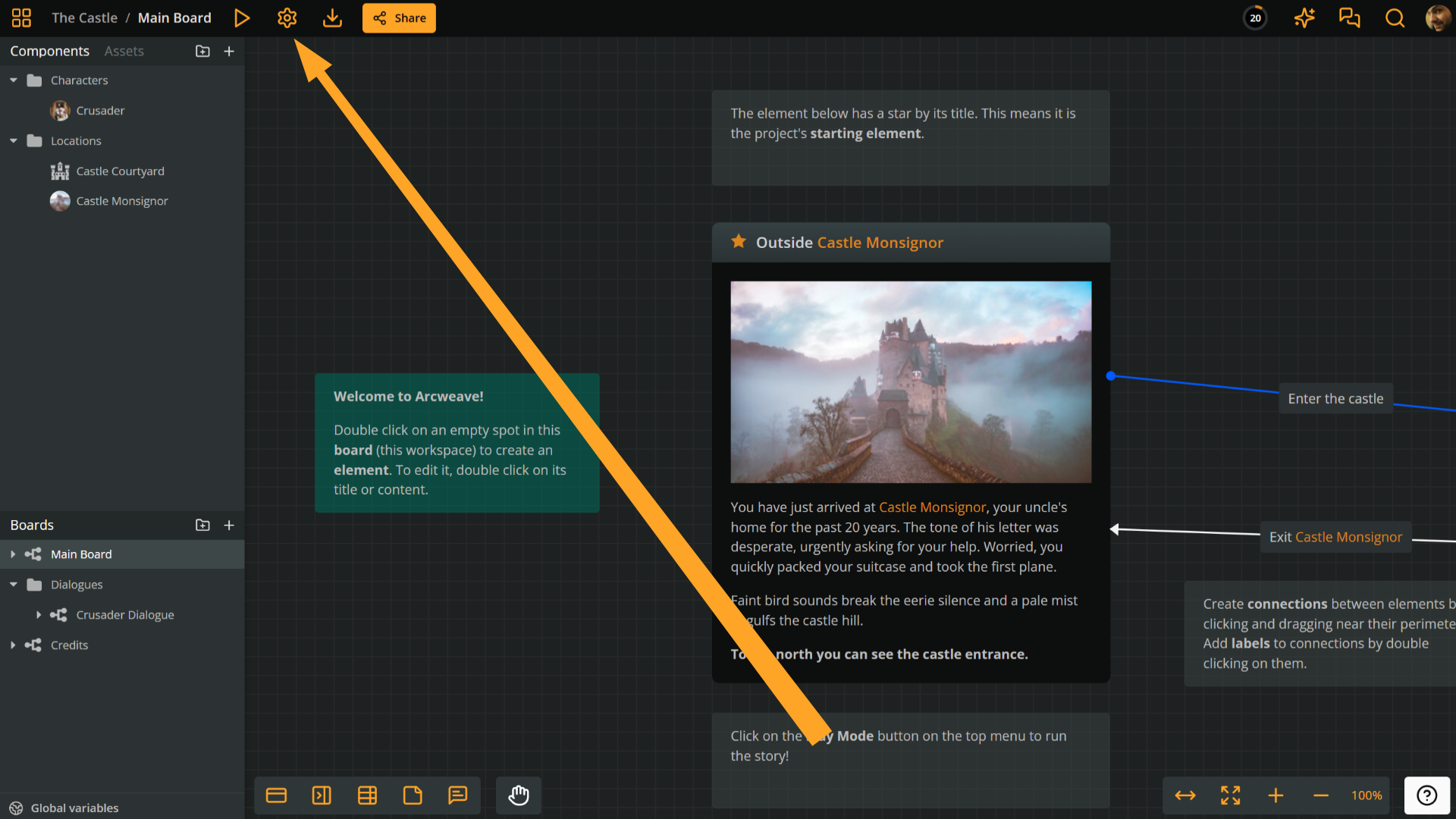
- Click the cog icon on the left side of the top menu.
- Open the Properties section.
- Locate Project hash and click the clipboard icon to copy it.
Insert your hash in place of {HASH} within the HTML page created in the previous step.
Step 3: Save as HTML
Save the file with the .html extension.
Step 4: Upload to Itch.io
Upload the HTML file to your Itch.io project page. Your Arcweave game will then load and play directly within the page.