Localization
Arcweave includes built-in localization tools to manage translations of your project into multiple languages.
It allows you to:
- Translate your project collaboratively and efficiently.
- Work safely: adding/removing project items is disabled while translating.
- Set Arcscript segments as translatable or non-translatable.
- Let players choose their preferred language in Play Mode.
- Select which languages to include when you export the project.
ℹ️ Localization is available only in Team workspaces.
⚠️ A user must have project editing permissions to translate.
Main language & translations
By default, an Arcweave project has only one language, referred to as the project's Main language. By default, this is English, but you can change it to any language.
⚠️ When working in any language other than its main, the project enters Translation Mode. Once in Translation Mode, you cannot add or delete project items; you can only translate existing ones.
ℹ️ To return to Arcweave's default editing mode, you need to switch back to the project's main language.
Open localization
To open the localization menu, click the Localization icon on the right side of the top menu.
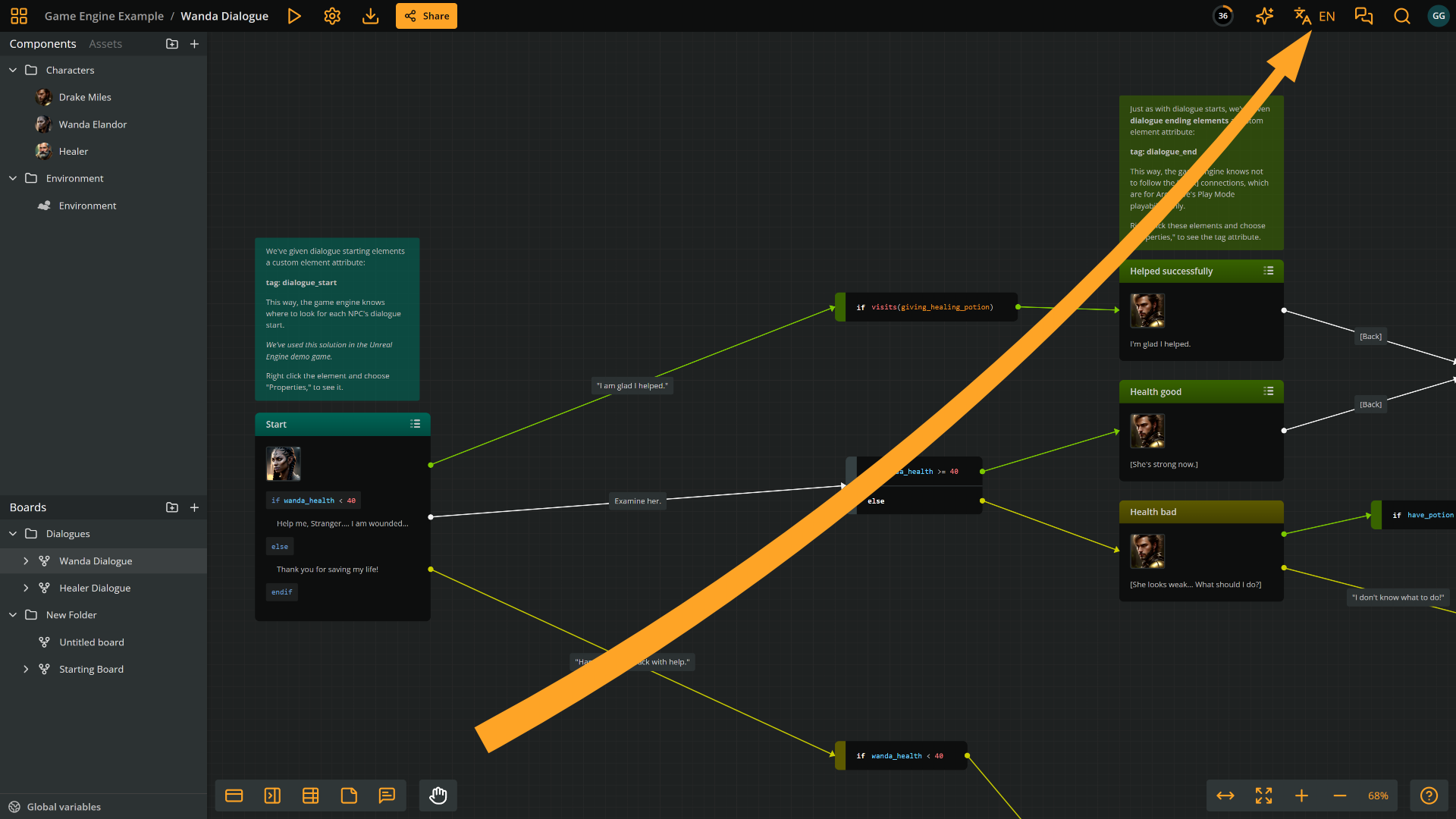
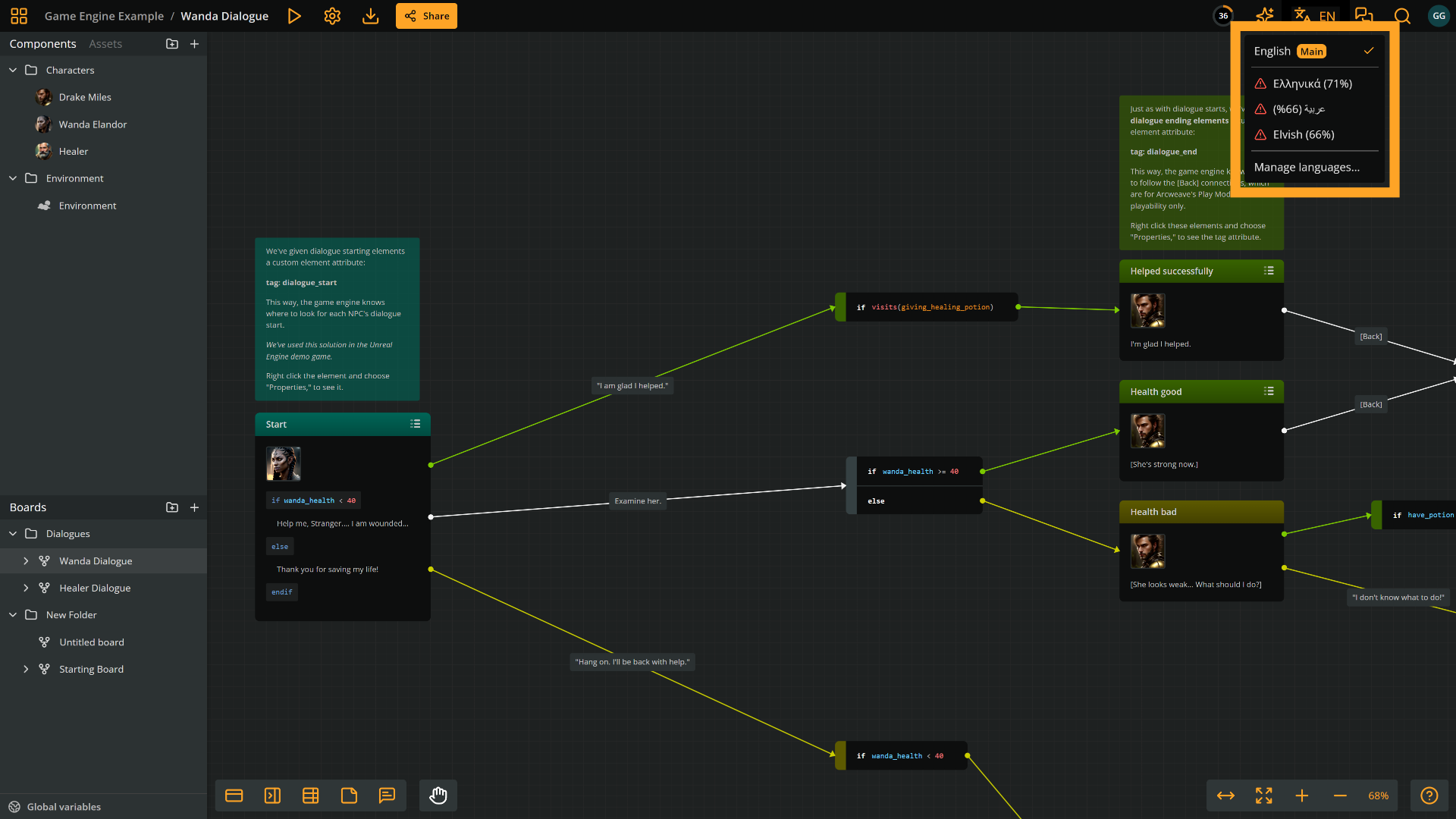
The drop-down menu shows:
- A list of all languages added to the project
- The project's main language (marked with an orange Main tag)
- The currently displayed language (marked with an orange tick)
- The translation status of each translation (marked with the relevant icon)
- The translation progress percentage for each translation
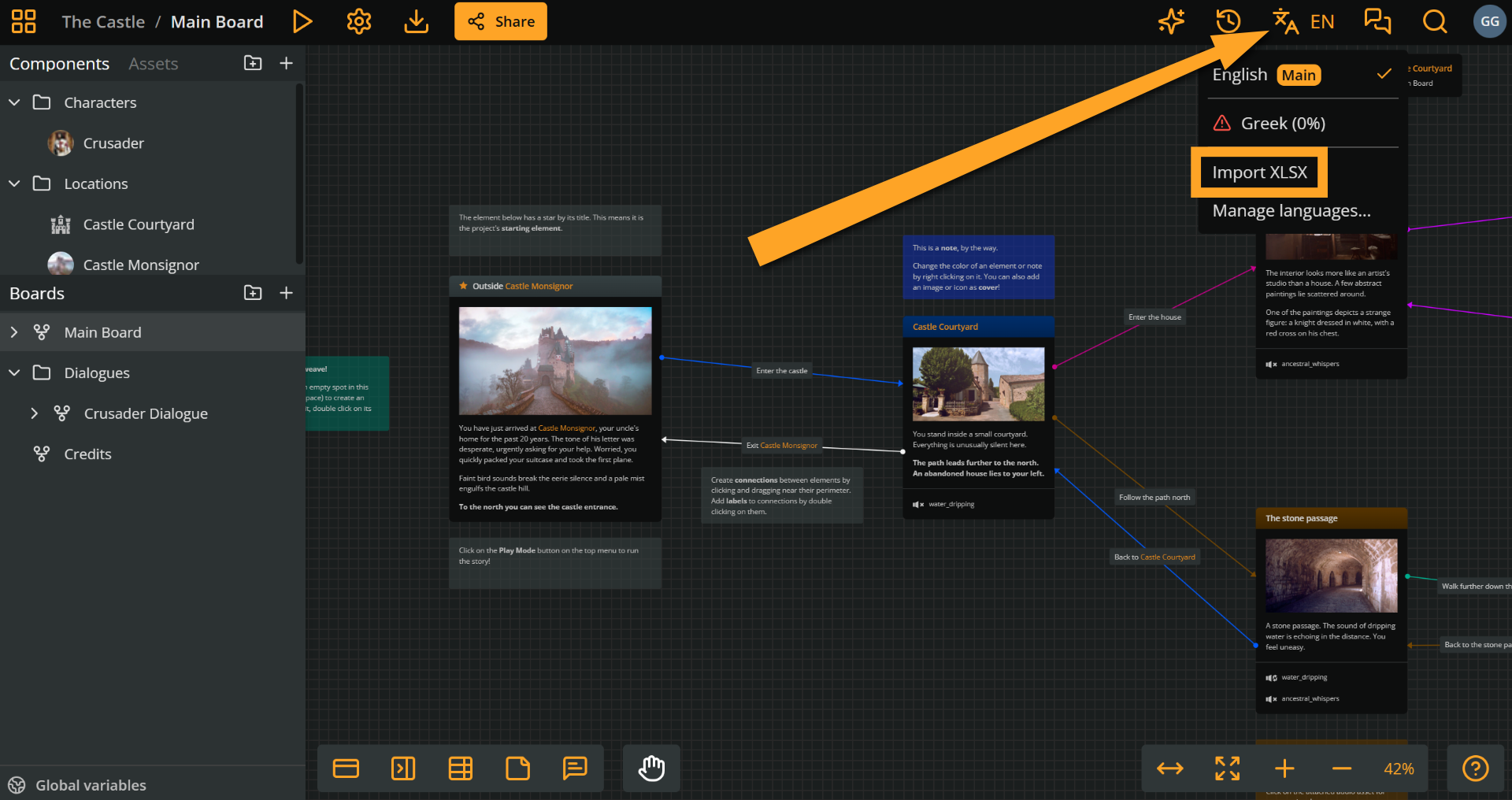
- An option to Import XLSX (owners and editors); see Import localized spreadsheets
- An option to Manage languages...
Manage languages
To add, edit, and remove languages:
- Open the Localization drop-down menu.
- Select Manage languages...
- Perform any of the following actions.
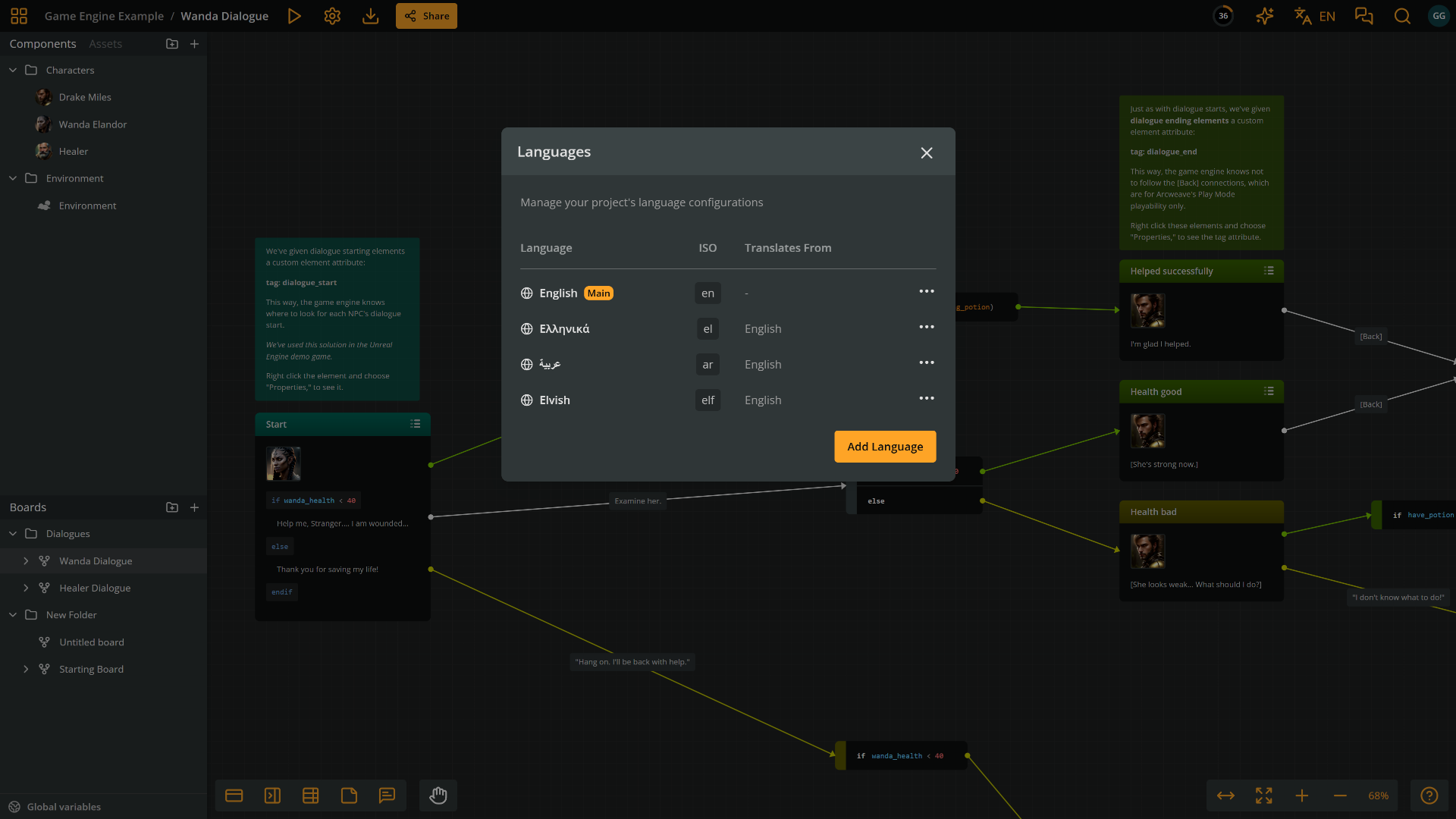
Set main language
By default, the project language is English. To set another language as the default:
- Open the Localization drop-down menu.
- Select Manage languages...
- Find the Main language; it is the first in the list.
- Click the three-dot (•••) icon on the right and select Edit.
- Update the main language's information:
- Language: e.g.
Spanish - ISO code: e.g.
es
- Language: e.g.
- Click Save.
Editing the main language changes its name and ISO code; the project's existing main-language content stays in the main language. You cannot turn an existing translation into the main language.
Add language
To add a new language:
- Open the Localization drop-down.
- Select Manage languages...
- Click Add Language.
- Enter the new language's information:
- Language: e.g.
Italian - ISO code: e.g.
it
- Language: e.g.
- Select a source language for the new language's translation in Translates from. It defaults to the main language.
- Click Save.
Language names (up to 50 characters) and ISO codes must be unique within the project. ISO codes are 2 to 10 characters long, can contain letters, numbers, hyphens, and underscores, and must start and end with a letter or number. A language cannot translate from a language that, directly or indirectly, translates from it.
✅ While translating to a language, the source content is displayed on the side, in the language set in Translates from.
Edit language
To edit an existing language:
- Open the Localization drop-down.
- Select Manage languages...
- Find the language in the list.
- Click the three-dot (•••) icon on the right and select Edit.
ℹ️ You can update the Language name, ISO code, and Translates from fields.
Delete language
To delete a language:
- Open the Localization drop-down.
- Select Manage languages...
- Find the language in the list.
- Click the three-dot (•••) icon on the right and select Delete.
- Confirm with Yes, Delete. This action cannot be undone.
⚠️ You cannot delete the main language.
Switch language
To switch the working language:
- Open the Localization drop-down menu.
- Select the desired language.
The editor will now display content in the selected language.
Copy a link in the current language
After switching languages, use an item's Copy link action to share that item in the selected language. Opening the link selects that language, entering Translation Mode for a translation. See Share an item or board position for supported items and access requirements.
In Translation Mode, you can select branches and jumpers and right-click them to copy their links. Moving or deleting them, editing branch logic, and changing jumper targets remain disabled.
Translation status
When working in translation mode, each board, element, label, and component has a translation status to indicate its progress. This makes it easier to track and manage the state of translations across the project.
The available statuses are:
- Untranslated (red)
- In progress (yellow)
- For review (blue)
- Final (green)
ℹ️ Translation status for elements, labels, and components must be set manually. Translation status for boards is generated automatically, according to the status of the containing elements and labels.
✅ Translation status is exported as part of Arcweave's JSON.
Set element status
To set the translation status of an element:
1. Locate the element in the current board.
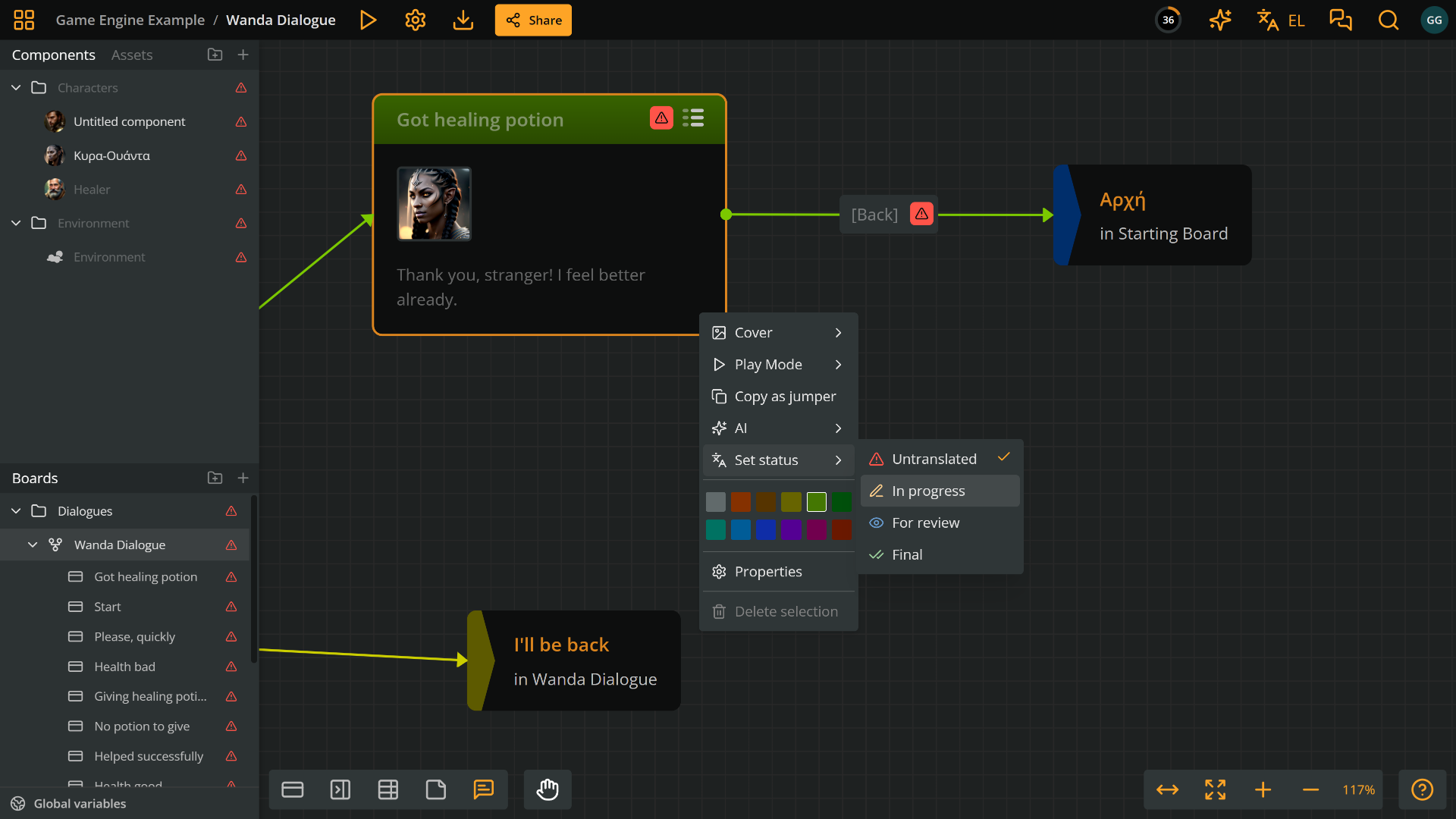
Alternatively, locate the element in the Boards section of the sidebar, as a child of the board it belongs to.
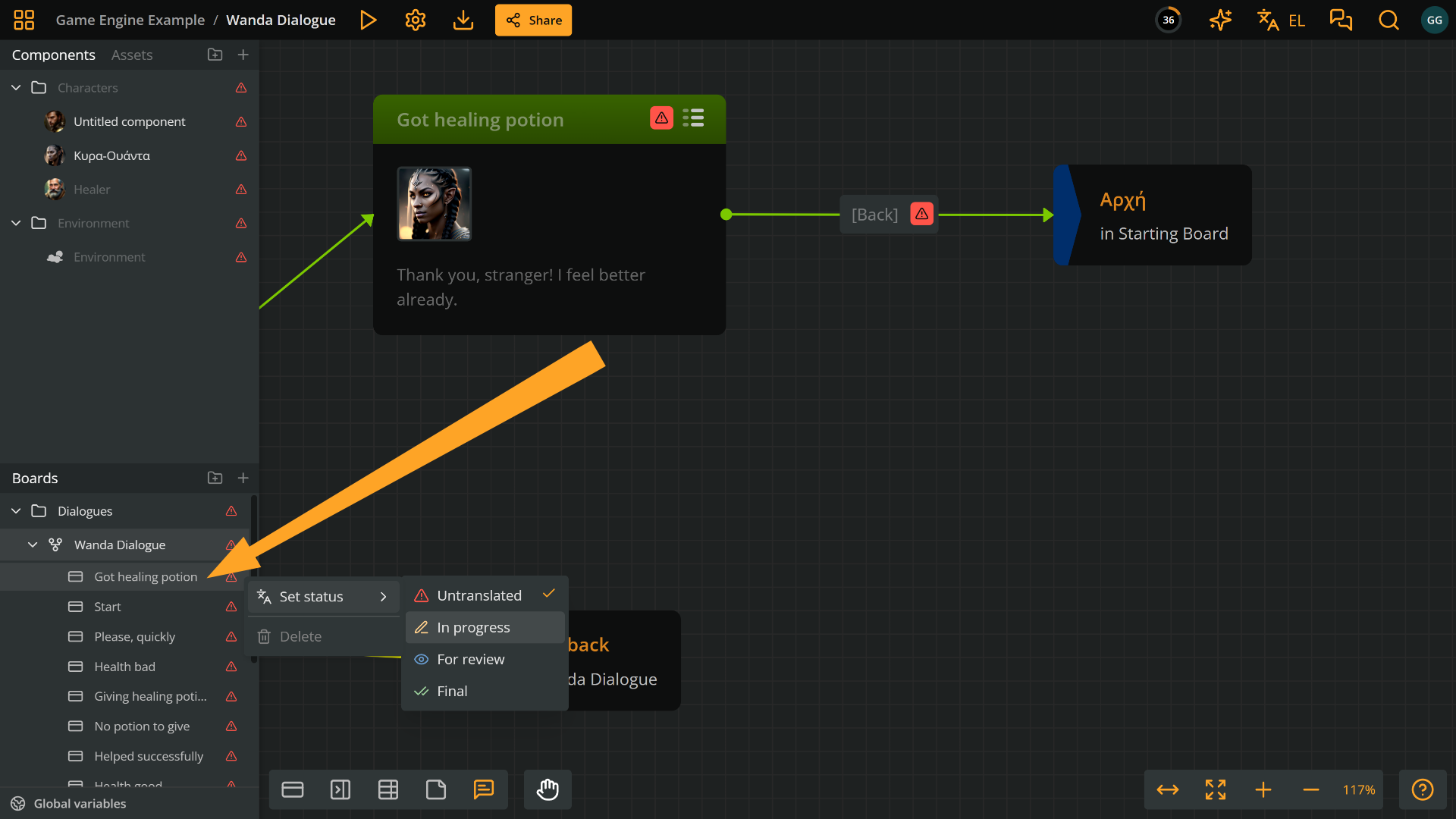
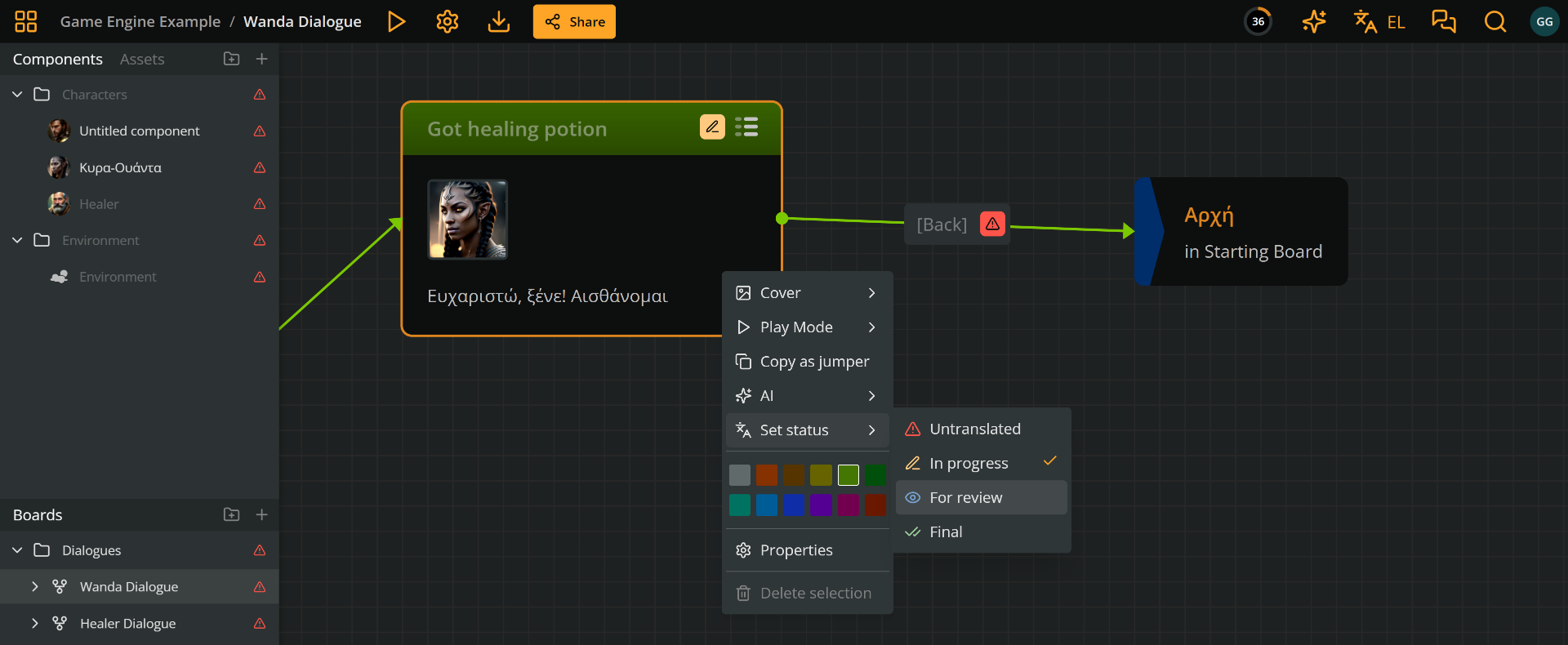
2. Right-click the element and select Set status.
Set label status
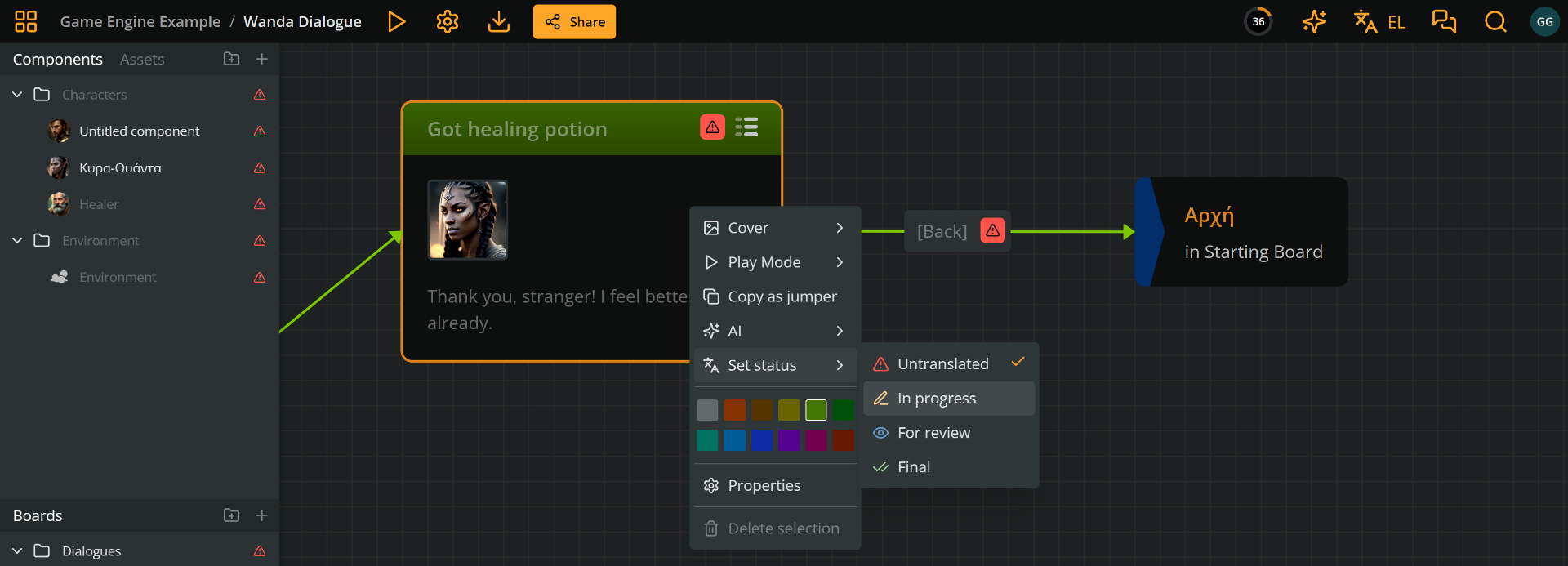
To set the translation status of a label, right-click the label in the current board and select Set status.
Set component status
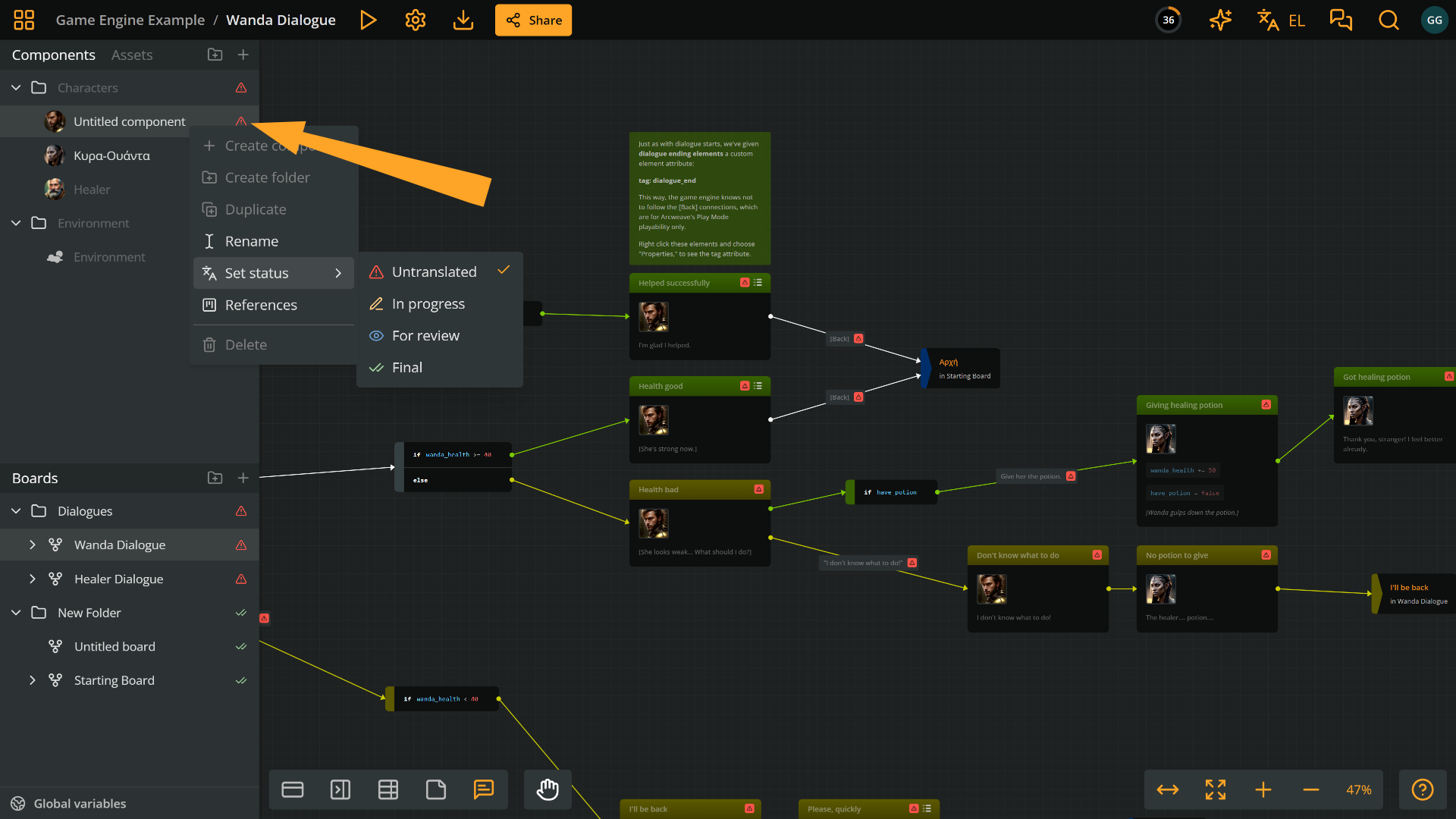
To set the translation status of a component, right-click the component in the Components section of the left sidebar and select Set status.
Translation percentage
Items marked as Final count toward the language's completion percentage, shown next to it in the Localization menu.
Translate elements
To translate an element:
- Open the Localization drop-down and switch to the desired language.
- Set the translation status of the element you want to translate from Untranslated to In progress.
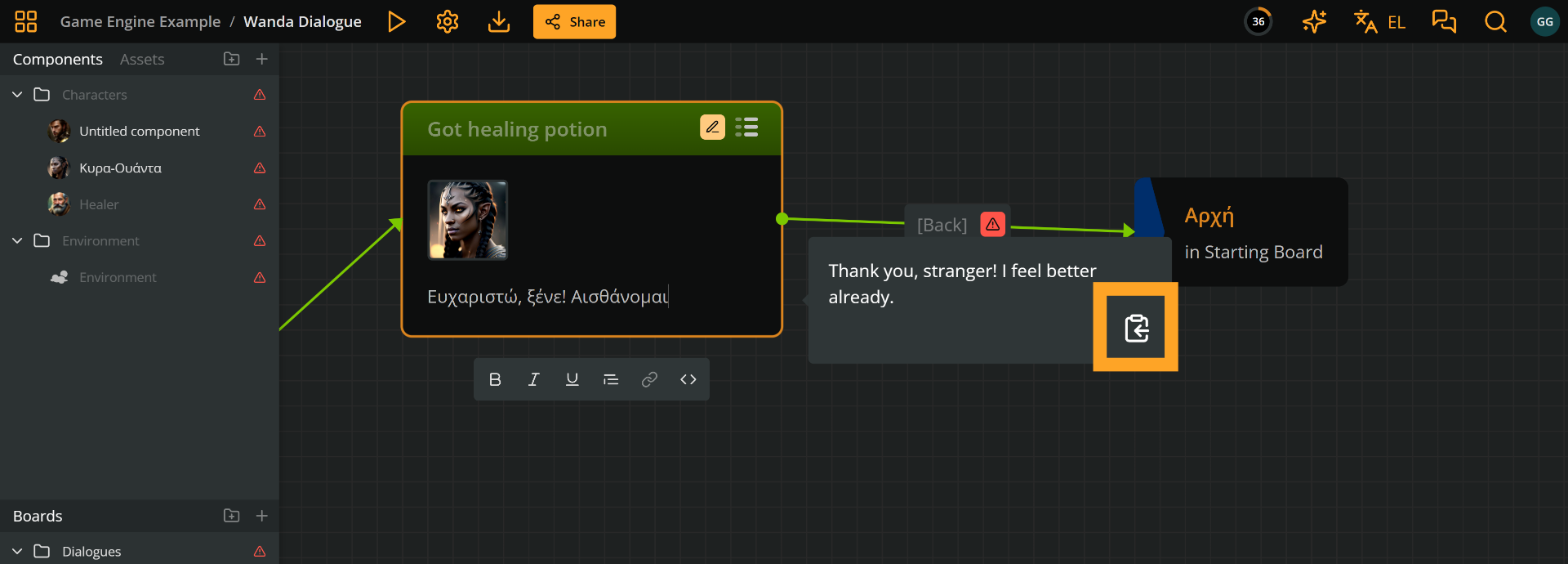
- Double-click the element you want to translate to start editing. The element's source text, in the language specified in the Translates from field, will appear as a reference.
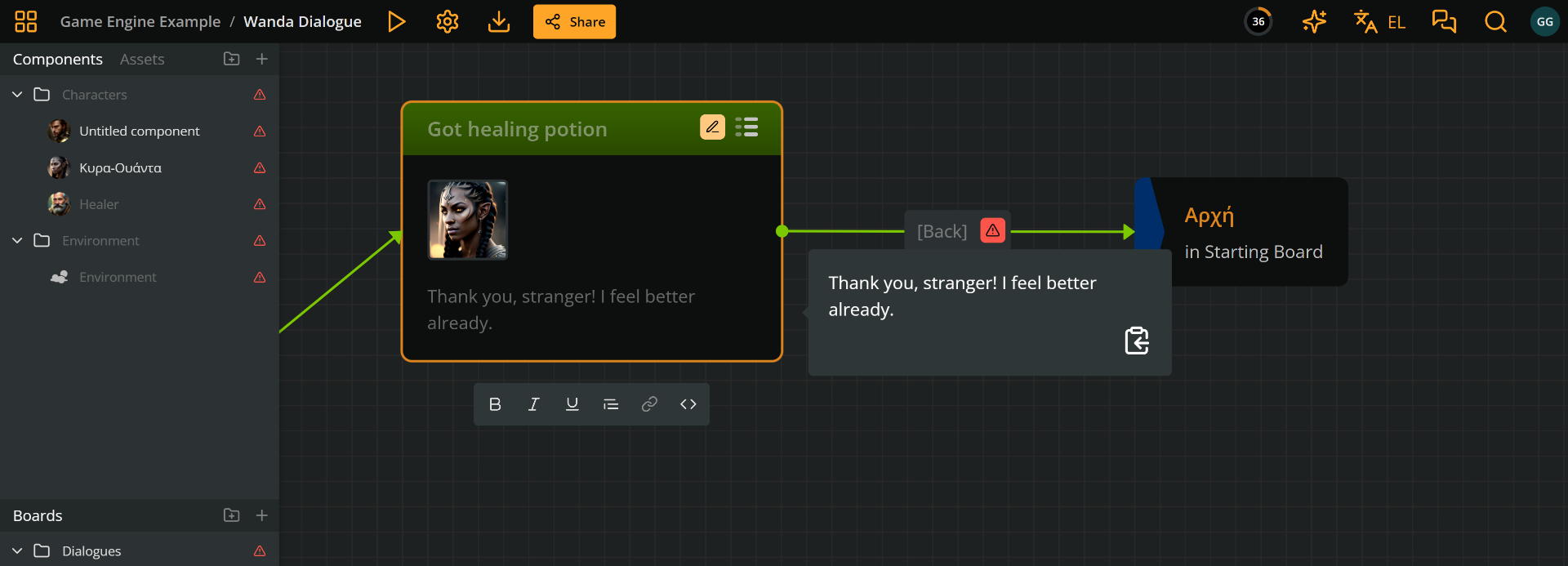
ℹ️ Use the clipboard icon in the source text reference to copy and paste the source text into the element you are translating.
- After translating, press ESC or click outside the element, to exit editing.
- Once done, set the translation status of the element to For review or Final, depending on your workflow.
Translate label
To translate a label:
1. Open the Localization drop-down and switch to the desired language.
2. Set the translation status of the label you want to translate from Untranslated to In progress.
3. Double-click the label you want to translate to start editing. The label's source text, in the language specified in the Translates from field, will appear as a reference.
4. After translating, press ESC or click outside the label, to exit editing.
5. Once done, set the translation status of the label to For review or Final, depending on your workflow.
Translate component
To translate a component:
1. Open the Localization drop-down and switch to the desired language.
2. In the left sidebar's Components section, set the translation status of the component you want to translate from Untranslated to In progress.
3. Click the component you want to translate to open it, then edit its name.
4. After translating, press ESC or click outside the name field, to exit editing.
5. If you're done, set the translation status of the component to For review or Final, depending on your workflow.
⚠️ You can only translate the name of a component, not its attributes or their values.
Translate Arcscript segments
By default, Arcscript segments in element and label content are non-translatable. This means that, when translating, Arcscript expressions cannot be modified.
Why translate Arcscript?
A common reason for making Arcscript segments translatable is to let string assignments properly follow the current language.
For example, the following code assigns a string value to the variable flower and then uses that value in a sentence. It makes sense that the value must follow the language of the translation.
flower = "the rose"

You take

show(flower)

and give it to the guard.
This will render as "You take the rose and give it to the guard."
flower = "الوردة"

تأخذ

show(flower)

.ثم أعطها للحارس
And this will render properly in the Arabic language: ".تأخذ الوردة ثم أعطها للحارس"
⚠️ You cannot set branch conditions as translatable; only Arcscript in elements and labels.
Toggle translatable Arcscript
You can mark individual Arcscript segments as translatable or non-translatable. This setting determines whether a segment can be edited independently per language or only in the main language.
To toggle an Arcscript segment:
- Switch to your project's main language, if needed:
- Open the Localization drop-down menu and select the main language.
- Edit the content containing the Arcscript segment:
- In a label: double-click the label's connection and place the cursor inside the Arcscript segment.
- In an element: double-click the element's content and place the cursor inside the Arcscript segment.
- In the formatting bar, click Translatable (the globe icon) to toggle the setting.
- Translatable ON: the Arcscript segment can be edited separately in each language.
- Translatable OFF (default): the Arcscript segment is editable only in the main language and is locked in all translations.
⚠️ You can only toggle translatability while editing the project in its main language.
Localization in Play Mode
Set Play Mode language
To set the story's language in Play Mode use the Localization icon in the Play Mode menu. This is accessible to anyone who views the project's Play Mode.

To change the story's language:
- Click the Localization icon to open the list of available story languages.
- Choose the desired language.
Edit language in Play Mode
Edits made in Play Mode apply to the language currently selected and are saved automatically to the corresponding translation.
Export translations
Arcweave allows you to control which languages & translations you include in the export. See Export for instructions.
XLSX exports include Open in Arcweave links for viewing items in context. A single-language export's links select that language in Arcweave, entering Translation Mode for a translation. An All languages export's links leave language selection to the person opening them.
Import localized spreadsheets
Arcweave allows importing XLSX spreadsheet files for translating purposes. This facilitates translators who are familiar with and prefer working on spreadsheets.
⚠️ Valid spreadsheet files are the XLSX spreadsheets exported from Arcweave with the option All languages selected. These include the Languages sheet and translators must preserve this format.
Workflow synopsis
To establish such a workflow, follow these steps:
- Project owner/editor
Export spreadsheet and send to the translator. - Translator
Translate on the spreadsheet and send back. - Project owner / editor
Import the translated spreadsheet.
⚠️ Edits in the main language are also reimported.
Below you'll find instructions for each of the above steps.
Export spreadsheet
To export a spreadsheet for your translator:
- Add the new language to the project.
- In Languages to export, select All languages.
- Export the project as an
.xlsxspreadsheet file.
Then, forward the exported spreadsheet file to the translator, who will work as described in the following step.
Translate spreadsheet
Once the translator receives the .xlsx spreadsheet file, they can open and edit it in their spreadsheet editor.
The translator should focus on specific sheets and columns, as described below.
Keep each row's Id unchanged. Import updates only items whose IDs still exist in the project; rows with missing or unknown IDs, including deleted items, are ignored. Adding rows does not create project items.
Keep the Languages sheet and the column headers unchanged. Arcweave matches languages by ISO code. If the Languages sheet lists a language that the project doesn't have, or a different name or Base Language for an existing one, the import adds or updates that language.
Blank translation and status cells are skipped during import, leaving the corresponding existing values unchanged. To remove existing translated text, use the editor steps below.
After translating, they must save the spreadsheet file as .xls or .xlsx and forward the translated spreadsheet file to the Arcweave project owner / editor, who will then reimport it. (See Import spreadsheet below.)
View an item in Arcweave
To check the story context while translating, click Open in Arcweave in the row's Arcweave Link column. The translator needs access to the project's boards to use these links.
This import workflow uses All languages exports, so their links do not select a translation. After opening a link, use the Localization menu to choose the language you are translating. A freshly opened project starts in its main language; navigating within an already open project keeps its current language.
Keep the Arcweave Link column as provided and continue entering translations in the columns listed below. The links are for navigation; spreadsheet translations are applied through the import process.
Translator access to sheets and columns
The file includes sheets for all kinds of project items, but the translator should focus only on the following sheets and columns.
Note that {languageIsoCode} stands for the ISO code of a language, e.g. en for English.
- Elements sheet:
- Source
{languageIsoCode}columns:
⚠️ The translator should only read from these:Title - {languageIsoCode}Content - {languageIsoCode}
- Translation
{languageIsoCode}columns:
✅ The translator uses these columns to type the translation and set its status:Title - {languageIsoCode}Content - {languageIsoCode}Status - {languageIsoCode}(see acceptable status values below)
- Source
- Connections sheet:
- Source
{languageIsoCode}column:
⚠️ The translator should only read from this:Label - {languageIsoCode}
- Translation
{languageIsoCode}columns:
✅ The translator uses these columns to type the translation and set its status:Label - {languageIsoCode}Status - {languageIsoCode}
- Source
- Components:
- Source
{languageIsoCode}column:
⚠️ The translator should only read from this:Name - {languageIsoCode}
- Translation
{languageIsoCode}columns:
✅ The translator uses these columns to type the translation and set its status:Name - {languageIsoCode}Status - {languageIsoCode}
- Source
Translation status acceptable values
The translator can mark their progress by setting the Status column with any of the following values:
untranslated: Untranslatedprogress: In progressreview: For reviewfinal: Final
Enter these values exactly as shown, in lowercase. Any other value makes the import fail.
Clear translated text in the editor
Switch to the translation language, then clear the text in Arcweave:
- Element titles, element content, and connection labels: double-click the field, remove the translated text, and click outside the field to save.
- Component names: right-click the component in the sidebar's Components section, select Rename, clear the name, and press Enter.
After clearing a translation, the editor may display source text as a placeholder. Set the translation status separately if needed; clearing text does not reset it.
Import spreadsheet
The project owner / editor imports the translated spreadsheet as follows:
- Open the Localization drop-down menu.
- Select Import XLSX.
- Click Import from Excel
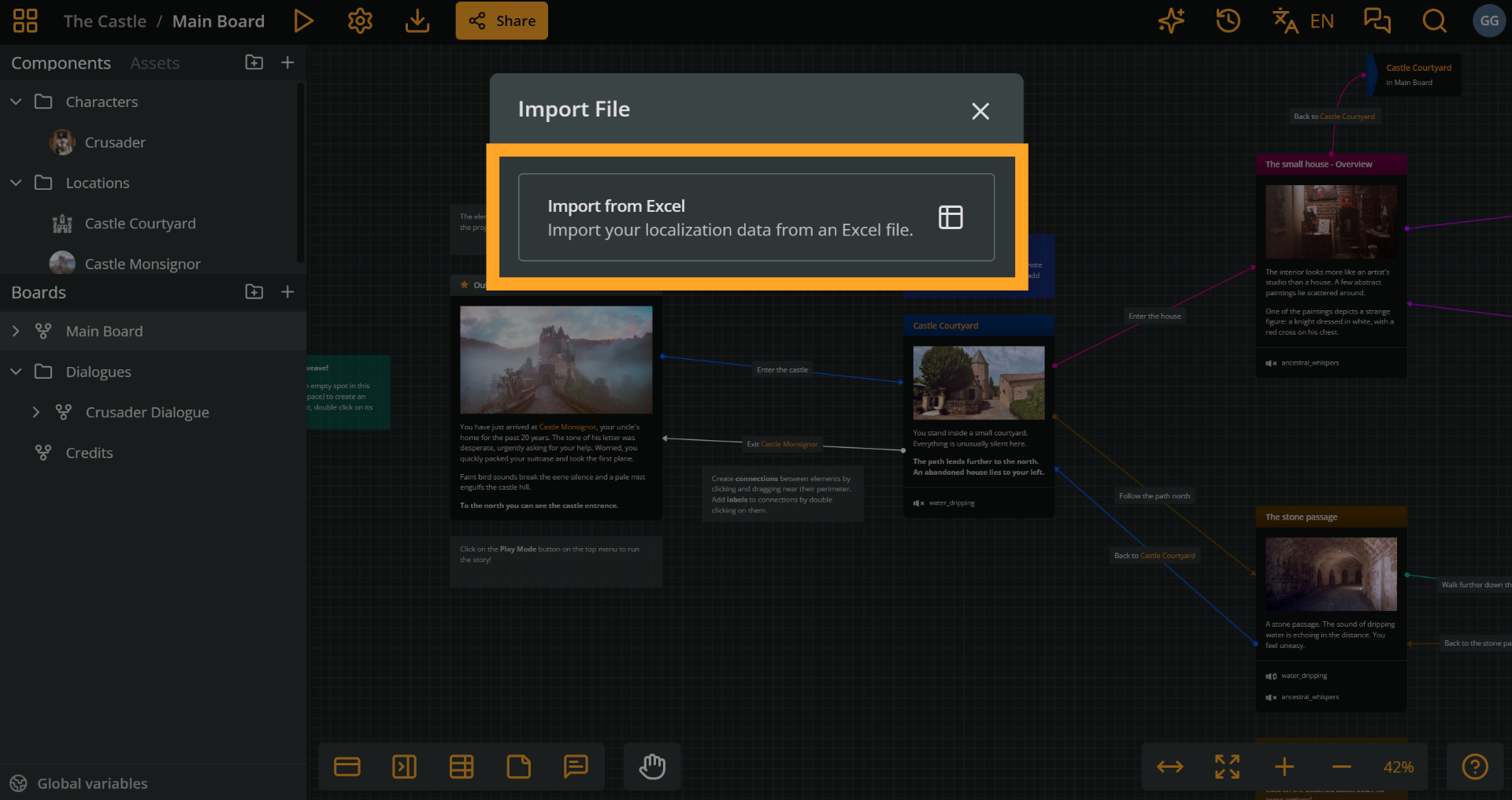
Select and upload an
.xlsor.xlsxfile from your drive.In Confirm Import, review the changes, grouped by language and item type, and select the ones you want to import. Only values that differ from the project are listed.
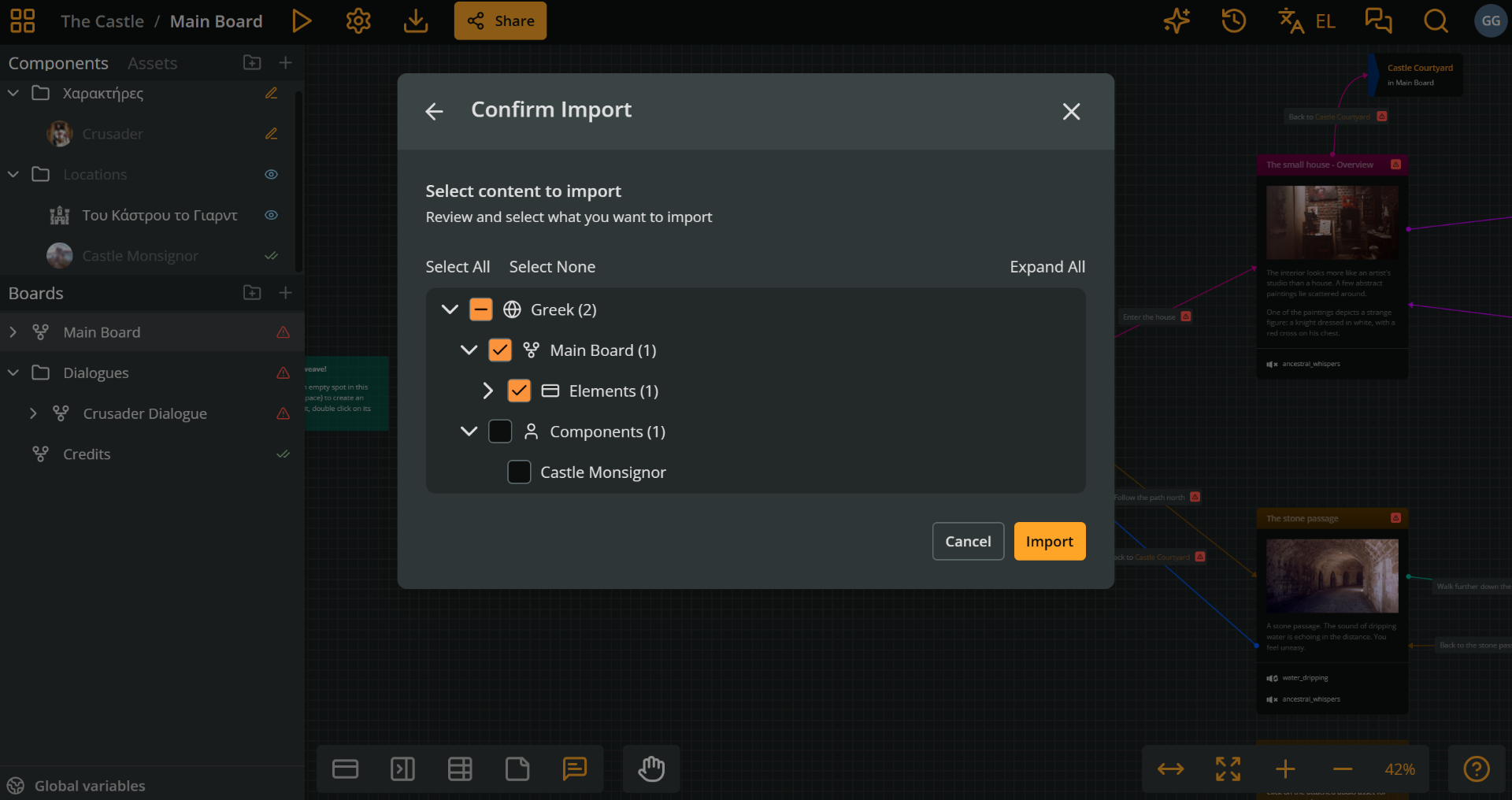
- Click Import.
The project will add the translation in its localization system.
If the file cannot be imported, Arcweave shows Import Failed with a list of errors, for example a missing Languages sheet, a column whose ISO code is not in the Languages sheet, or an invalid status value. Fix the file and select it again.
⚠️ Edits in the main language are also reimported.