Unity integration
Arcweave provides a free plugin for importing your Arcweave projects into Unity.
This plugin supports data that is either:
- Exported from Arcweave via Export for Unity (available to all workspace tiers) or
- Fetched via Arcweave's web API (available to Team workspaces only).
Example Project
Explore our Unity example project to see Arcweave's implementation with Unity in action.
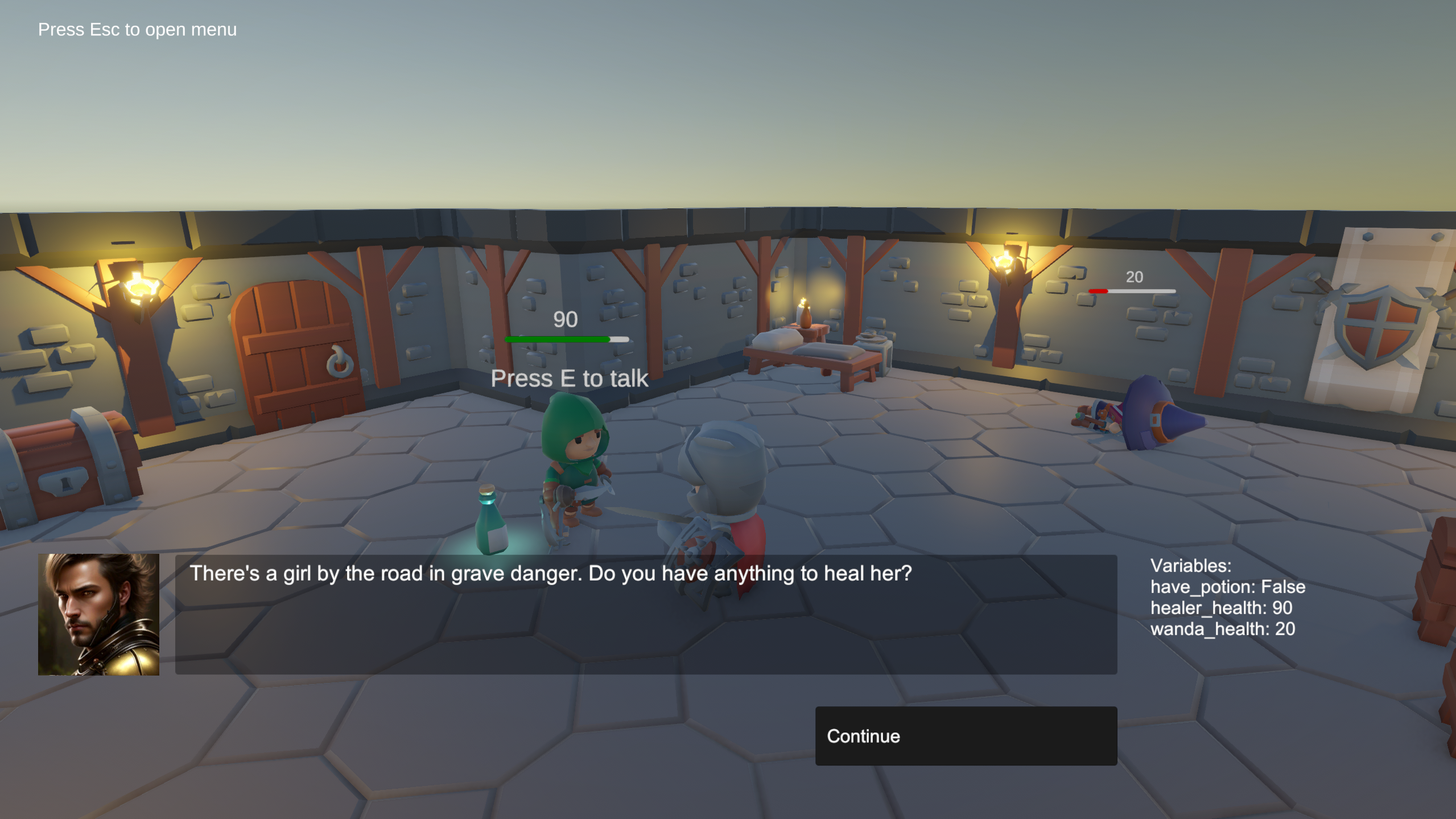
The project uses Arcweave's project template called Game Engine Example.
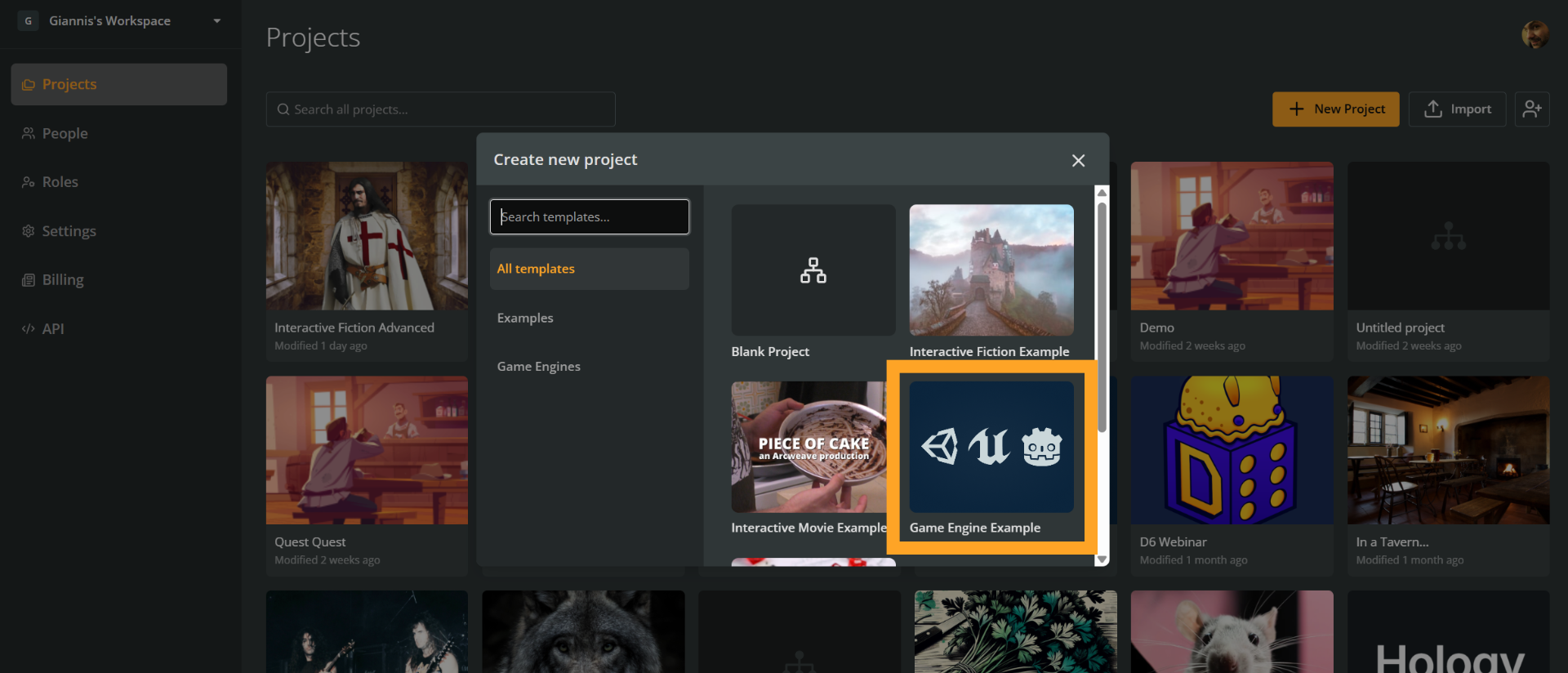
To recreate the Game Engine Example template:
- Go to the workspace's Projects section.
- Click the + New project button.
- Select a template from the menu.
Install the plugin
Choose one of the following methods to install the Arcweave plugin for Unity:
From GitHub
Downloading and manually installing the plugin from GitHub is the recommended solution. To do so:
- Download this repository as a ZIP file from GitHub.
- Extract the ZIP file.
- Copy the
/Assets/Arcweavefolder into your Unity project'sAssetsfolder.
From Unity Asset Store
You can also download and install the plugin from the Unity Asset Store:
- Get the asset from the Unity Asset Store.
- Open Unity and go to Window > Package Manager.
- Select My Assets from the dropdown.
- Find Arcweave for Unity and click Download, then Import.
Note: This repository is not structured as a UPM (Unity Package Manager) package and cannot be installed via Git URL.
Get Arcweave data
Via Export for Unity
In Arcweave:
- Open your project.
- Click the Export icon in the top bar.
- Go to the Engine tab.
- Click Export for Unity.
- Check Include Assets if your project uses images or audio.
You will get a .zip file containing:
project.json: all data of your Arcweave project- (Optional)
assets/Images/: project image assets (if "Include Assets" was checked) - (Optional)
assets/Audio/: project audio assets (if "Include Assets" was checked) - (Optional)
cover/cover.jpg: the project cover image
File placement:
- Place
project.jsonanywhere in your Unity project'sAssetsfolder. - For this demo project, images must go in a
Resourcesfolder (create one if it doesn't exist) or they won't load at runtime.
Via web API
Use of Arcweave web API is available to Team workspaces only.
You will need:
- Your Team workspace API key (found in your workspace's API section).
- Your project hash (found in your project's Settings > Properties).
Create ArcweaveProjectAsset
To import your data into Unity:
- Right-click in the Unity Project Window.
- Navigate to Create > Arcweave > Project Asset.
- Name the new
.assetfile as you prefer. - Select it to open the Inspector.
Import settings
Choose your import source:
- From JSON: Drag your
project.jsonfile into the "Project JSON File" field. - From Web: Enter your API Key and Project Hash.
Click the Import Project button to begin the import.
After successful import, the Inspector displays:
- The project name
- All global variables and their values
- An "Open Project Viewer" button for viewing the project flowchart
Demo scene
The plugin includes a Demo folder with a complete example scene.
Run the demo
- Open ArcweaveDemoScene from the Demo folder.
- Select the ArcweavePlayer GameObject in the hierarchy.
- Assign your imported project asset to the
AWfield. - Press Play.
Unity 6+ fix
If you're using Unity 6 or newer, you need to update the Input System module:
- In the Hierarchy, select the EventSystem GameObject
- In the Inspector, find the Standalone Input Module component
- Click the Replace with InputSystemUIInputModule button
- This upgrades the legacy Input Manager to the new Input System
Without this step, UI interactions (buttons, clicks) will not work in Unity 6+.
Add image assets
If your Arcweave project uses images:
- Create a
Resourcesfolder in your Unity project (if it doesn't exist). - Copy your image files into the
Resourcesfolder. - Ensure image filenames match those in Arcweave (without extension).
- Set each image's Texture Type to Default in Import Settings.
The plugin loads images dynamically using Resources.Load().
Plugin reference guide
Project
The root container for an imported Arcweave project. Access via ArcweaveProjectAsset.Project.
Properties
| Property | Type | Description |
|---|---|---|
name | string | Project name |
boards | List<Board> | All boards in the project |
components | List<Component> | All components (characters/entities) |
Variables | List<Variable> | All global variables |
StartingElement | Element | Entry point for the narrative |
Methods
| Method | Description |
|---|---|
void Initialize() | Must call before use. Resets all variables and visit counts. |
Board BoardWithID(string id) | Get board by ID |
Board BoardWithName(string name) | Get board by name |
Element ElementWithId(string id) | Get element by ID |
T GetNodeWithID<T>(string id) | Get any node by ID and type |
Variable GetVariable(string name) | Get Variable object by name |
bool SetVariable(string name, object value) | Set variable value |
void ResetVariablesToDefaultValues() | Reset all variables to defaults |
string SaveVariables() | Serialize current variable state to JSON |
void LoadVariables(string json) | Restore variable state from JSON |
int Visits(string elementId) | Get visit count for an element |
void ResetVisits() | Reset all visit counts to 0 |
Board
Container for narrative nodes.
Properties
| Property | Type | Description |
|---|---|---|
Id | string | Unique identifier |
Name | string | Board name |
Nodes | List<INode> | All nodes (Elements, Branches, Jumpers) |
Notes | List<Note> | Annotation notes |
Methods
| Method | Description |
|---|---|
T NodeWithID<T>(string id) | Get node by ID and type |
Element ElementWithID(string id) | Get element by ID |
Element
A narrative node containing dialogue content.
Properties
| Property | Type | Description |
|---|---|---|
Id | string | Unique identifier |
Title | string | Element title (may contain Arcscript) |
RawContent | string | Original content with Arcscript markup |
RuntimeContent | string | Evaluated content (call RunContentScript() first!) |
Visits | int | Visit counter (get/set) |
Components | List<Component> | Attached characters/entities |
Attributes | List<Attribute> | Custom metadata |
Outputs | List<Connection> | Outgoing connections |
cover | Cover | Cover image reference |
Methods
| Method | Description |
|---|---|
void RunContentScript() | Evaluate Arcscript in content → updates RuntimeContent |
Options GetOptions() | Get available paths (evaluates branch conditions) |
bool HasContent() | Check if element has content |
bool HasComponent(string name) | Check if element has component by name |
bool TryGetComponent(string name, out Component c) | Try to get component by name |
Texture2D GetCoverImage() | Load cover image from Resources |
Texture2D GetFirstComponentCoverImage() | Load first component's cover image |
Texture2D GetCoverOrFirstComponentImage() | Get cover or fallback to component image |
Code Example
// WRONG - RuntimeContent will be empty/outdated
string text = element.RuntimeContent;  // ❌ Don't do this!

// CORRECT - Always call RunContentScript() first
element.RunContentScript();            // ✅ Evaluates Arcscript
string text = element.RuntimeContent;  // ✅ Now it's updated

// Get available choices
Options options = element.GetOptions();
if (options.hasPaths) {
    foreach (Path path in options.Paths) {
        Debug.Log("Choice: " + path.text);
    }
}
Connection
Link between nodes with optional label.
Properties
| Property | Type | Description |
|---|---|---|
Id | string | Unique identifier |
RawLabel | string | Original label with Arcscript |
RuntimeLabel | string | Evaluated label (call RunLabelScript() first!) |
Source | INode | Source node |
Target | INode | Target node |
isValid | bool | True if connection has valid ID |
Methods
| Method | Description |
|---|---|
void RunLabelScript() | Evaluate Arcscript → updates RuntimeLabel |
Branch
Conditional branching node with if/elseif/else logic.
Properties
| Property | Type | Description |
|---|---|---|
Id | string | Unique identifier |
Conditions | List<Condition> | Ordered conditions (first true wins) |
colorTheme | string | Visual theme color |
Condition
Single condition in a branch.
Properties
| Property | Type | Description |
|---|---|---|
Id | string | Unique identifier |
Script | string | Arcscript condition expression |
Output | Connection | Output connection if true |
Methods
| Method | Description |
|---|---|
bool Evaluate() | Evaluate condition (empty scripts return true) |
Jumper
Navigation shortcut to another element.
Properties
| Property | Type | Description |
|---|---|---|
Id | string | Unique identifier |
Target | Element | Target element to jump to |
Component
Character or entity definition. Not a Unity MonoBehaviour.
Properties
| Property | Type | Description |
|---|---|---|
Id | string | Unique identifier |
Name | string | Component name |
Attributes | List<Attribute> | Custom attributes |
cover | Cover | Cover image reference |
Methods
| Method | Description |
|---|---|
Texture2D GetCoverImage() | Load cover image from Resources |
Attribute
Custom metadata on elements or components.
Properties
| Property | Type | Description |
|---|---|---|
Name | string | Attribute name |
Type | DataType | StringPlainText, StringRichText, or ComponentList |
data | object | Attribute data (lazy-evaluated for RichText) |
containerType | ContainerType | Element or Component |
containerId | string | ID of the container |
Variable
Global state variable. Supports: int, double, bool, string.
Properties
| Property | Type | Description |
|---|---|---|
Name | string | Variable name |
Value | object | Current value |
DefaultValue | object | Initial value |
Type | Type | System.Type of the value |
Methods
| Method | Description |
|---|---|
void ResetToDefaultValue() | Reset to default value |
Cover
Image or video reference.
Properties
| Property | Type | Description |
|---|---|---|
type | Cover.Type | Image, Youtube, or Undefined |
filePath | string | Asset filename |
Methods
| Method | Description |
|---|---|
Texture2D ResolveImage() | Load image from Resources folder |
Options
Available paths from an element. Created by Element.GetOptions().
Properties
| Property | Type | Description |
|---|---|---|
Element | Element | Source element |
Paths | List<Path> | Valid paths to next elements |
hasPaths | bool | True if any paths exist |
hasOptions | bool | True if multiple paths OR path has label |
Path
Resolved path to a target element.
Properties
| Property | Type | Description |
|---|---|---|
label | string | Connection label (if any) |
text | string | Label or target element's title |
TargetElement | Element | Destination element |
Methods
| Method | Description |
|---|---|
void ExecuteAppendedConnectionLabels() | Run Arcscript in all connection labels along path |
ArcweavePlayer
Event-driven narrative player (demo helper class).
Inspector Fields
| Field | Type | Description |
|---|---|---|
aw | ArcweaveProjectAsset | The project to play |
autoStart | bool | Auto-start on scene load |
Events
| Event | Signature | Description |
|---|---|---|
onProjectStart | (Project) | Narrative started |
onProjectFinish | (Project) | Narrative ended |
onElementEnter | (Element) | Entered new element |
onElementOptions | (Options, Action<int>) | Multiple choices available |
onWaitInputNext | (Action) | Single path, waiting for continue |
Methods
| Method | Description |
|---|---|
void PlayProject() | Start or restart the narrative |
void Save() | Save current state to PlayerPrefs |
void Load() | Load and restore saved state |
Important Notes
Unity 6+ requires Input System update: If using Unity 6 or newer, the EventSystem must use the new Input System module. Select EventSystem in Hierarchy, find Standalone Input Module in Inspector, and click "Replace with InputSystemUIInputModule". Without this, UI buttons won't respond to clicks. See Unity 6+ Input System Fix.
RuntimeContent requires RunContentScript(): The
RuntimeContentproperty is not automatically evaluated. You must callRunContentScript()before reading it.GetOptions() has side effects: This method internally saves and restores variable state while evaluating branch conditions.
Initialize() resets everything: Calling
Project.Initialize()resets all variables to defaults and all visit counts to 0.Images must be in Resources folder: Cover images are loaded via
Resources.Load(). Place them in anyResourcesfolder and ensure filenames match (without extension).Components are not MonoBehaviours: Arcweave Components represent characters/entities in your narrative, not Unity components.
Visit tracking is manual: The
Visitsproperty must be incremented manually (or use ArcweavePlayer which does it automatically).
Troubleshooting
❌ UI buttons don't respond to clicks in Unity 6 or newer versions
✅ Unity 6 requires the new Input System for UI interactions. Perform the following steps:
- Select EventSystem in the Hierarchy
- In the Inspector, locate Standalone Input Module
- Click Replace with InputSystemUIInputModule
- This migrates from the legacy Input Manager to the new Input System
❌ Images not loading
GetCoverImage() returns null.
✅ Ensure images are in a folder named exactly Resources (case-sensitive).
✅ Verify the filename matches (without extension).
✅ Check the image's Texture Type is set to Default in Import Settings.
❌ RuntimeContent is empty or shows Arcscript markup
You are seeing {variable_name} or if/endif blocks in text.
✅ Always call RunContentScript before reading RuntimeContent
element.RunContentScript();❌ Getting NullReferenceException when accessing variables
Variables are null or throw errors.
✅ Call Initialize once before using the project:
project.Initialize();❌ Choices/paths not appearing
GetOptions() returns no paths or wrong paths.
✅ Check your branch conditions in Arcweave - they might all be evaluating to false.
✅ Verify variable values are correct: Debug.Log(project.GetVariable("varName").Value);
✅ Use the Project Viewer in Unity to visually inspect connections.
❌ Save/Load not working
Load() doesn't restore the correct state.
✅ Ensure you called Save() before Load().
✅ PlayerPrefs persists between sessions - use PlayerPrefs.DeleteAll() to clear if testing.
✅ Check the save keys exist: PlayerPrefs.HasKey("arcweave_save_currentElement").
❌ "Import Project" button is disabled
✅ From JSON mode: Drag a TextAsset (.json file) into the "Project JSON File" field.
✅ From Web mode: Fill in both API Key AND Project Hash fields.
✅ Ensure the JSON file is valid (open it in a text editor to verify it's not corrupted)
License
See the LICENSE file on GitHub for details.