Arcscript
Arcweave has its own scripting language, arcscript, with basic scripting capabilities. You can use arcscript in the following two ways:
- As conditions, in branches.
- As segments, in element content and connection labels.
Arcscript in branches
Arcscript is used in branches to control flow with if, elseif, and else conditions.
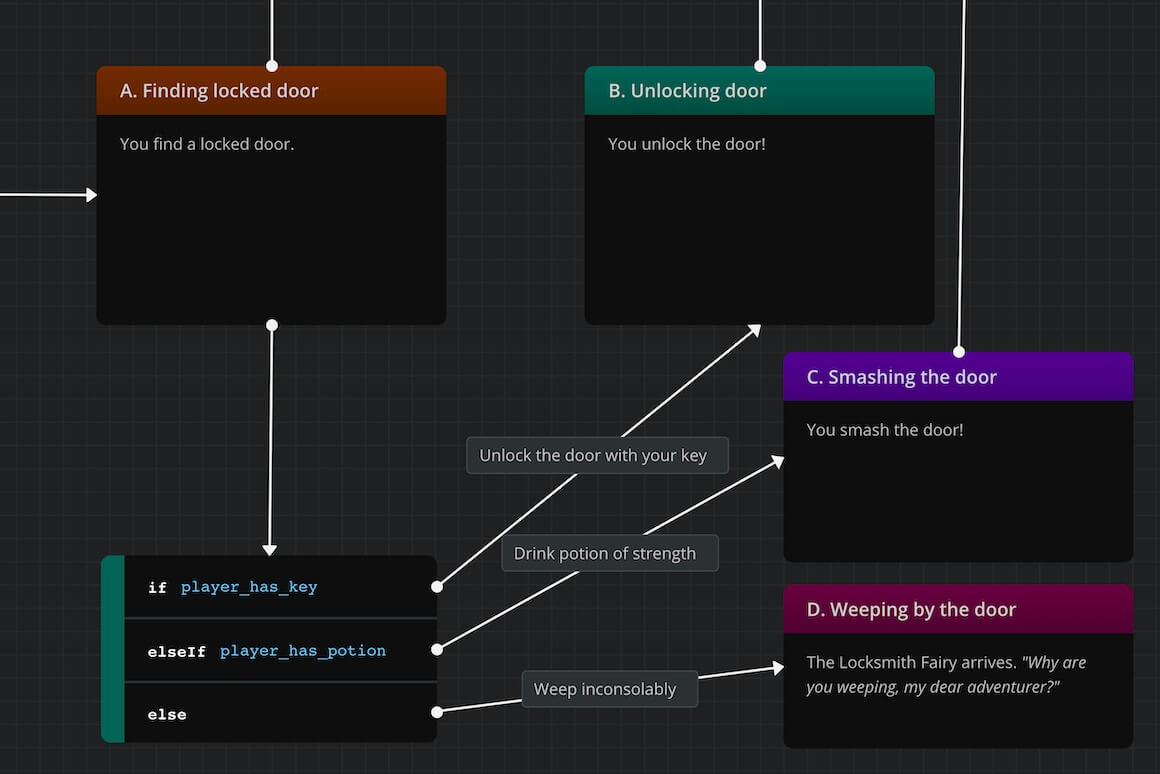
This page does not cover arcscript in branches; see branches.
Arcscript segments
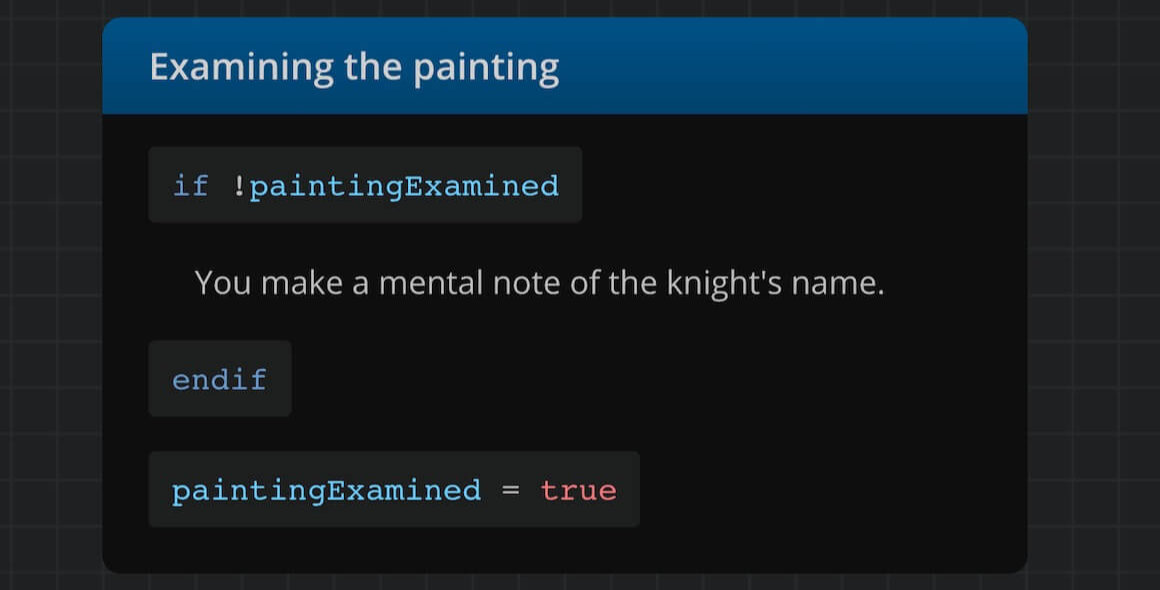
Arcscript segments are single lines of dialogue that you can add in element content and connection labels. They support assignment and conditional statements.
Add arcscript
To insert an arcscript segment into the content of an element or connection label:
- Double-click the element or label to enter content editing mode.
- Place the cursor on the line where you want to insert the arcscript segment.
- Click the Arcscript segment icon in the formatting toolbar.
- Press Enter to exit the arcscript segment and continue writing in the next line.
✅ You can also toggle an arcscript segment using the shortcut Ctrl/Cmd + Shift + C.
Auto-complete
While you type in an arcscript segment or branch, Arcweave will provide auto-complete suggestions.
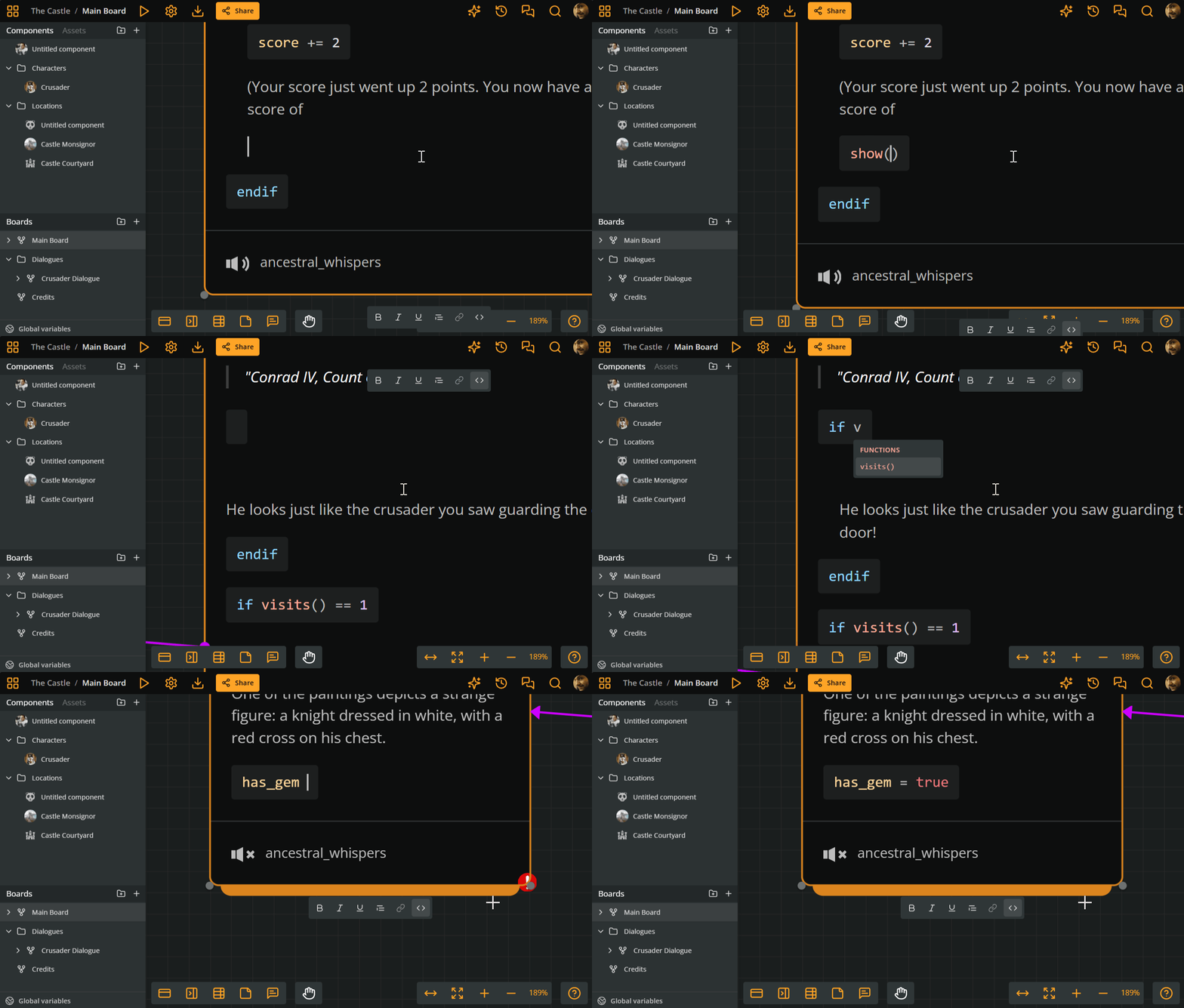
Suggestions include:
- Variable names
- Functions
- Operators
- Literals
Use the arrow keys to select the relevant suggestion and press Enter to auto-complete it in your code.
Assignment statements
Assignment statements are of the form of variable = expression. For example:
x = 5
x = y + 5
name = "Tim"
has_key = true
ℹ️ To use a variable in an arcscript segment or branch, you must first declare it in Global variables (bottom left of your window).
Arcscript also supports the following operations, with their respective operators:
| Operation | Operator | Description |
|---|---|---|
| Addition | += | Adds the right-hand value to the variable and assigns the result. |
| Subtraction | -= | Subtracts the right-hand value from the variable and assigns the result. |
| Multiplication | *= | Multiplies the variable by the right-hand value and assigns the result. |
| Division | /= | Divides the variable by the right-hand value and assigns the result. |
| Modulo | %= | Applies modulo to the variable using the right-hand value and assigns the result. |
For example:
x = 5
x += 10
x -= 2
Conditional Statements
Conditional statements are of the form: if.../elseif.../else/endif. Inside conditional statements, you may have:
- other statements (assignments or conditionals).
- text content.
Example of a conditional statement containing an assignment:
if x == 5
  y = 4
endif
Example of a conditional statement containing some text content:
if wielding_shield
  The knight is wielding a large shield.
endif
Example of a conditional statement containing some text content and a variable assignment:
if hasKey
  You unlock the door!
  doorUnlocked = true
else
  You cannot open the door
endif
Example of using elseif for multiple outcomes:
if age >= 18
  Look at you! All grown up!
  type = "adult"
elseif age > 0
  You are not an adult yet.
  type = "child"
else
  Are you sure you have been born?
  type = "unborn"
endif
Expressions
Arcsript supports expressions that use the following arithmetic operators:
| Operator | Name | Description |
|---|---|---|
+ | Addition | Adds two numeric values together. |
- | Subtraction | Subtracts the right-hand value from the left-hand value. |
* | Multiplication | Multiplies two numeric values. |
/ | Division | Divides the left-hand value by the right-hand value. |
% | Modulo | Returns the remainder of a division between two numeric values. |
( ) | Parentheses | Groups parts of an expression to control evaluation order. |
Expressions may combine literals, function calls and variables.
Conditions
Conditional operators
| Operator | Name | Description |
|---|---|---|
==, is | Equality | Checks whether two values are equal. |
!=, is not | Inequality | Checks whether two values are not equal. |
> | Greater than | Checks whether the left-hand value is greater than the right-hand value. |
>= | Greater than or equal | Checks whether the left-hand value is greater than or equal to the right-hand value. |
< | Less than | Checks whether the left-hand value is less than the right-hand value. |
<= | Less than or equal | Checks whether the left-hand value is less than or equal to the right-hand value. |
Logical operators
| Operator | Name | Description |
|---|---|---|
&&, and | Logical AND | Evaluates to true if both conditions are true. |
||, or | Logical OR | Evaluates to true if at least one condition is true. |
!, not | Logical NOT | Negates a condition, turning true into false and vice versa. |
Built-in functions
The functions that are currently supported in Arcscript:
| Function | Returns |
|---|---|
abs(n) | The absolute value of a number |
sqr(n) | The square of a number |
sqrt(n) | The square root of a number |
min(n1, n2, ...) | The minimum of a series of numbers |
max(n1, n2, ...) | The maximum of a series of numbers |
random() | A random decimal between (and including) 0 and (excluding) 1, i.e. in [0, 1) |
reset(v1, v2, ...) | Has no return value; resets the given variables to their initial value |
resetAll(v1, v2, ...) | Has no return value; resets all variables, except the given ones, to their initial value |
resetVisits() | Has no return value; resets all elements' visits to 0 |
roll(m, n) | A roll of an n number of m-sided dice (e.g. for 2d6: n == 2, m == 6) |
round(n) | The number rounded to the nearest integer |
show(e1, e2, ...) | The evaluation and concatenation of its argument expressions |
visits(el) | The number of visits in a certain element |
roll
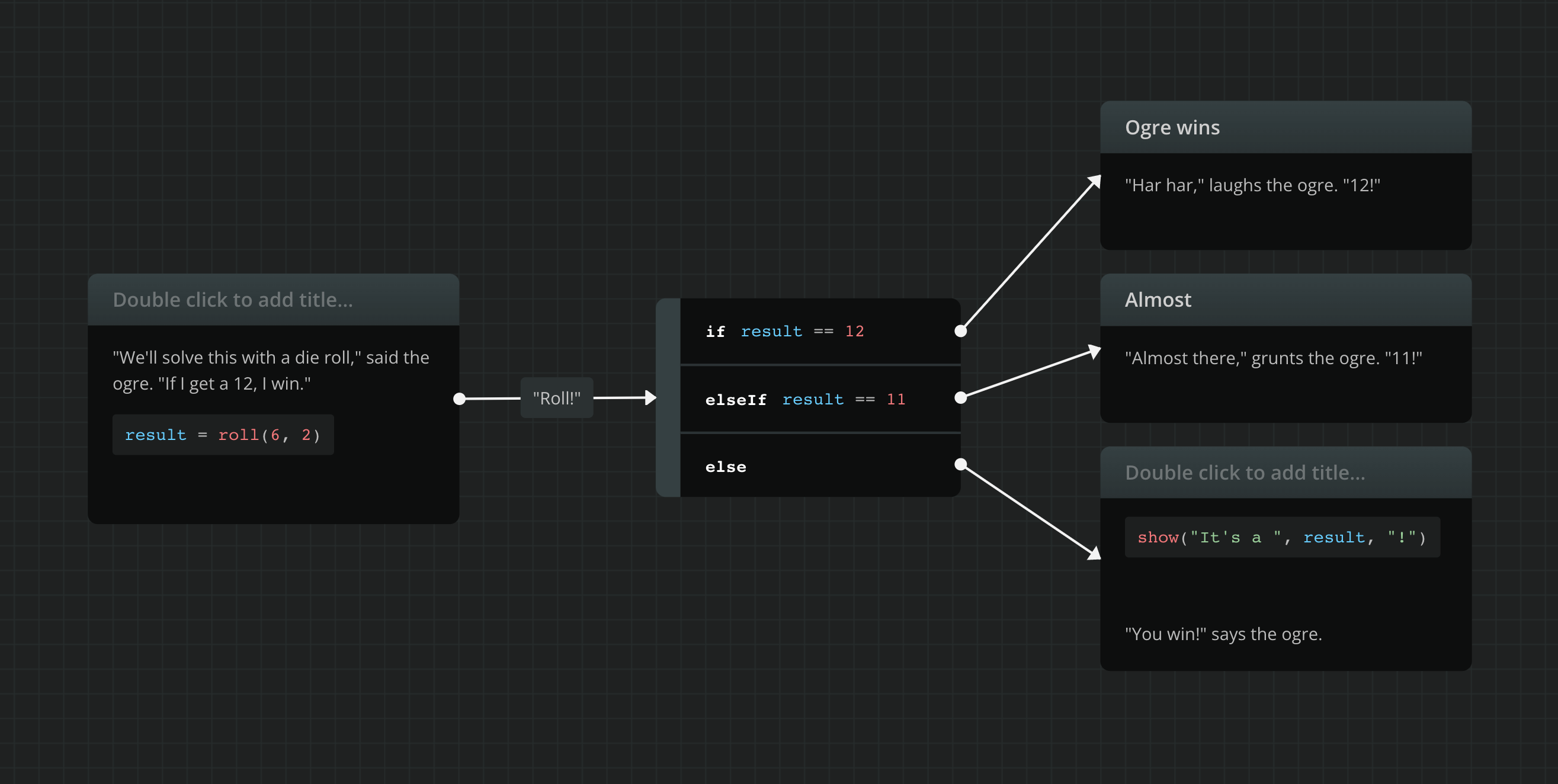
The roll(m, n) function simulates polyhedral die rolls from the classic tabletop RPGs.
Roll takes 2 integer numbers as its arguments:
m: the number of sides of the rolled die.n: the number of dice rolled.
The function returns a random integer between (and including both) n and n*m, i.e. [n, n*m].
✅ If
n = 1, you can omit the second argument and simply typeroll(m).
For example, rolling for a number from 1 to 12:
damage = roll(12)Example of rolling 3d6 (3 six-sided dice) for a character's ability scores in Dungeons & Dragons:
dexterity = roll(6, 3)Example of a dynamic use, where the player suffers damage from 1 to max_damage:
player_hp = player_hp - roll(max_damage)But the roll(m, n) function can also be used in a conditional statement:
if roll(max_damage) > player_hp
  Oops... This isn't good...
endif
show
The show(e1, e2, ...) function renders its arguments and concatenates them as one string.
For example, the following:
show("Your score is ", score, "/", max_score, ".")... for score == 3 and max_score == 256 returns:
> Your score is 3/256.
You can use the show(e1, e2, ...) function in combination with text content, in elements. For example:
if roll(max_damage) > player_hp
  Oops... This isn't good...
  You have died. In this game you scored
  show(score, " out of ", max_score, ".")
endif
visits
Call visits() with an element argument
The visits(element) function returns the number of times a specific element has been visited during the current playthrough.
The element argument must be a mention to an element. To mention an element inside visits():
- Place your cursor within the parentheses of
visits(). - Type
@and begin entering the element's title. - Select the correct element from the autocomplete list.
✅ Mentioning an element in arcscript works similarly to mentioning a component or board in rich text fields.
Call visits() without an argument
If visits() is called without an argument, it implicitly refers to the most recently loaded element in the flow. This means one of the two following cases:
- When used inside an element's content, it refers to that element itself.
- When used inside a connection label, it refers to the element that was visited immediately before.
✅ To reset the visits of all elements of your project, use the
resetVisits()function. It is always called without arguments.
Examples
The knight is guarding a mysterious gate. You see a name written above his head:
| "Conrad IV, Count of Exeter"
if visits(examine_the_painting) > 1
  You make a mental note of the knight's name.
endif
And if we are already in the Examine the painting element, we can write:
The knight is guarding a mysterious gate. You see a name written above his head:
| "Conrad IV, Count of Exeter"
if visits() > 1
  You make a mental note of the knight's name.
endif
Errors
When a script has a compile-time error, this is denoted by an exclamation mark symbol, at the lower right corner of the container element.
✅ Hover your mouse cursor over the symbol to get more info on what the error is about.