Basic Arcweave tutorial | Part 16: Import & export project
If you are an owner or editor in a Pro or Team workspace, you can export any of its projects as an .arcw file. This format is a project backup, which you can later re-import into any Pro or Team workspace.
This page also includes some project exporting & sharing features not included in Part 14: Share & export of this tutorial.
Video tutorial
Watch this tutorial as a video:
⚠️ This video does not reflect the latest updates to Arcweave's UI.
✅ You can play the finished version of the Tutorial Project here and explore its diagrams and structure here.
Export project backup
To save a backup of your project to your drive:
- Open the project.
- Click Export project (the download icon) in the top menu.
- Choose Backup.
- Click Export and save the file to your drive.
ℹ️ This option is available to owners and editors of Pro and Team workspaces only.
Import project backup
To import a project as an .arcw file:
- Go to the Projects section of your workspace.
- Click the Import button at the top right.
- Choose Arcweave File.
- Select the
.arcwfile from your device and upload it.
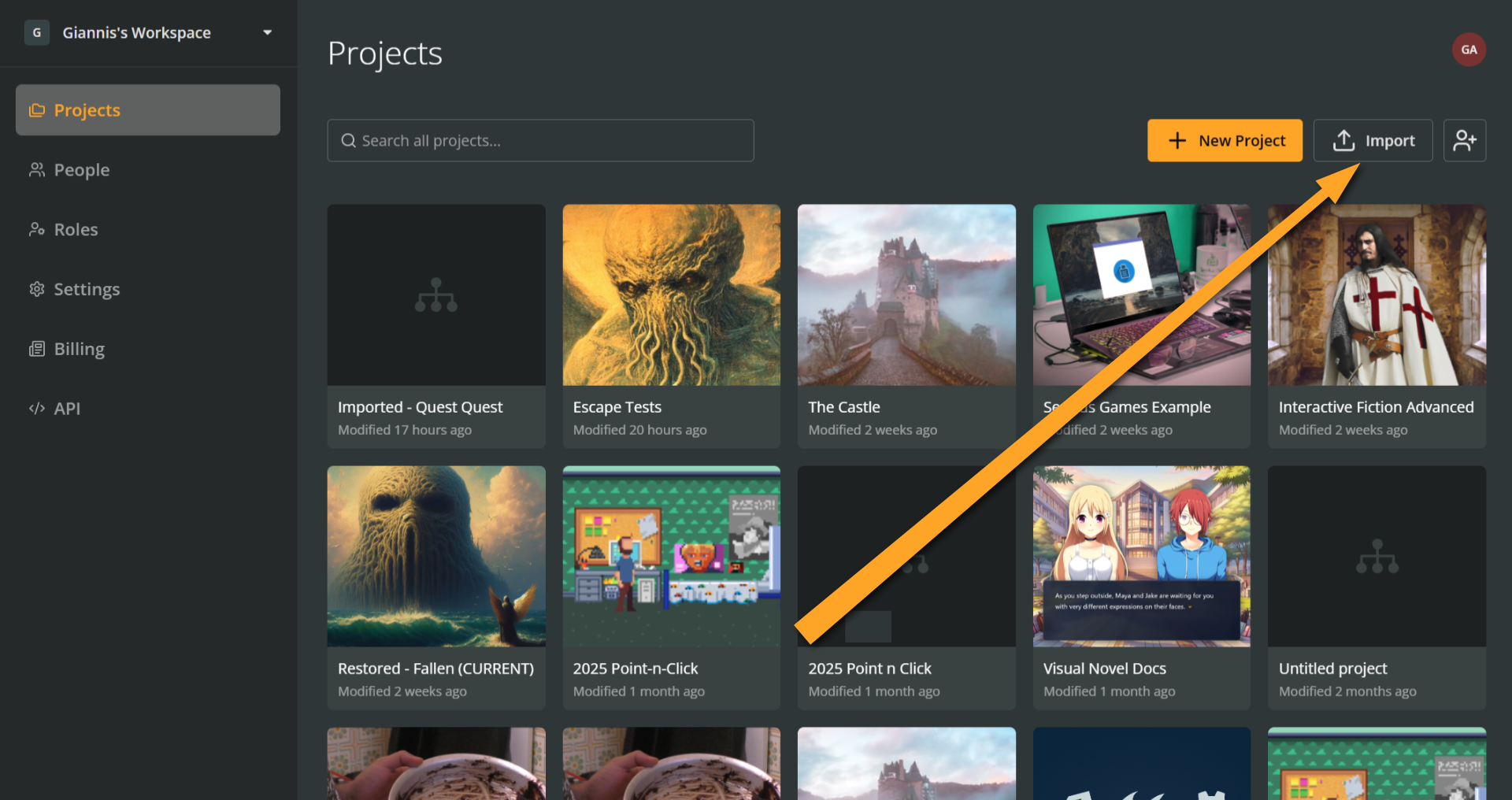
Once the import is complete, the project will appear in your workspace's Projects section, prefixed with Restored -. You can rename it as you wish.
ℹ️ This option requires Import projects permission in a Pro or Team workspace.
Import JSON file
To import a project as a JSON file:
- Go to the Projects section of your workspace.
- Click the Import button at the top right.
- Choose JSON File.
- Select the
.jsonfile from your device and upload it.
ℹ️ This option requires Import projects permission and is available in all workspaces, subject to their project and item limits.
Export JSON without assets
A simple but convenient feature, available to all users including owners and editors of Basic workspaces, is the ability to export your project data as a JSON file without also downloading all of the project's assets.
To do this:
- Open the project.
- Click Export project (the download icon) in the top menu.
- Choose JSON.
- Deselect the Include assets checkbox.
- Click Export and save the file to your drive.
✅ If you export to JSON often, this saves you from the unnecessary asset downloads.
What's next
You now know how to back up your projects via import and export, as well as how to export JSON files without assets. In the next tutorial, we'll continue exploring some features of project editing.