Global variables
Global variables are project-level variables that are not owned by a board or component. They are accessed without a scope.
Global variables list
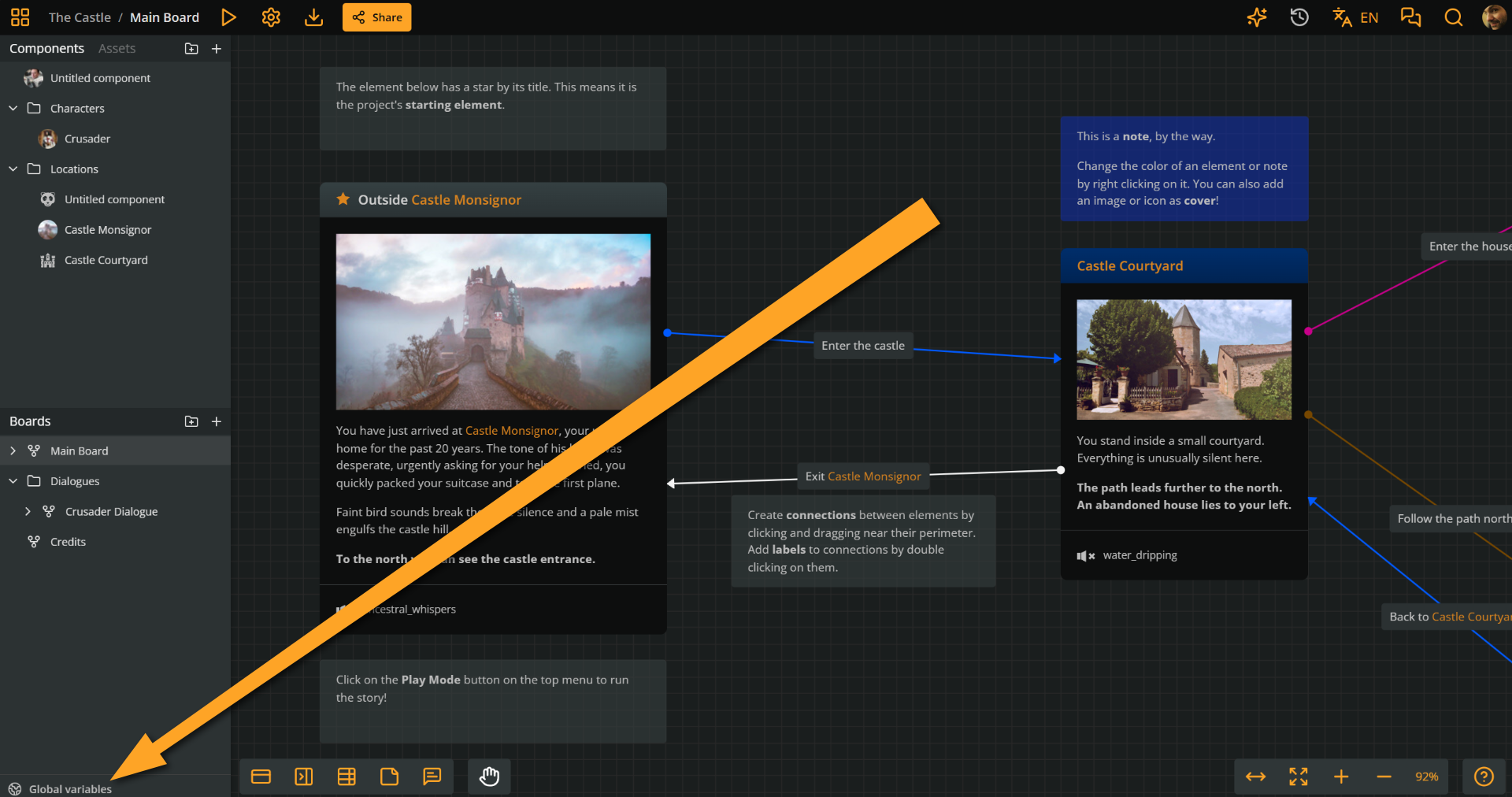
To view and manage your project's global variables, click Global variables at the bottom of the left sidebar.
This opens the global variables list, which includes the project's global variables along with their name, type, and initial value.
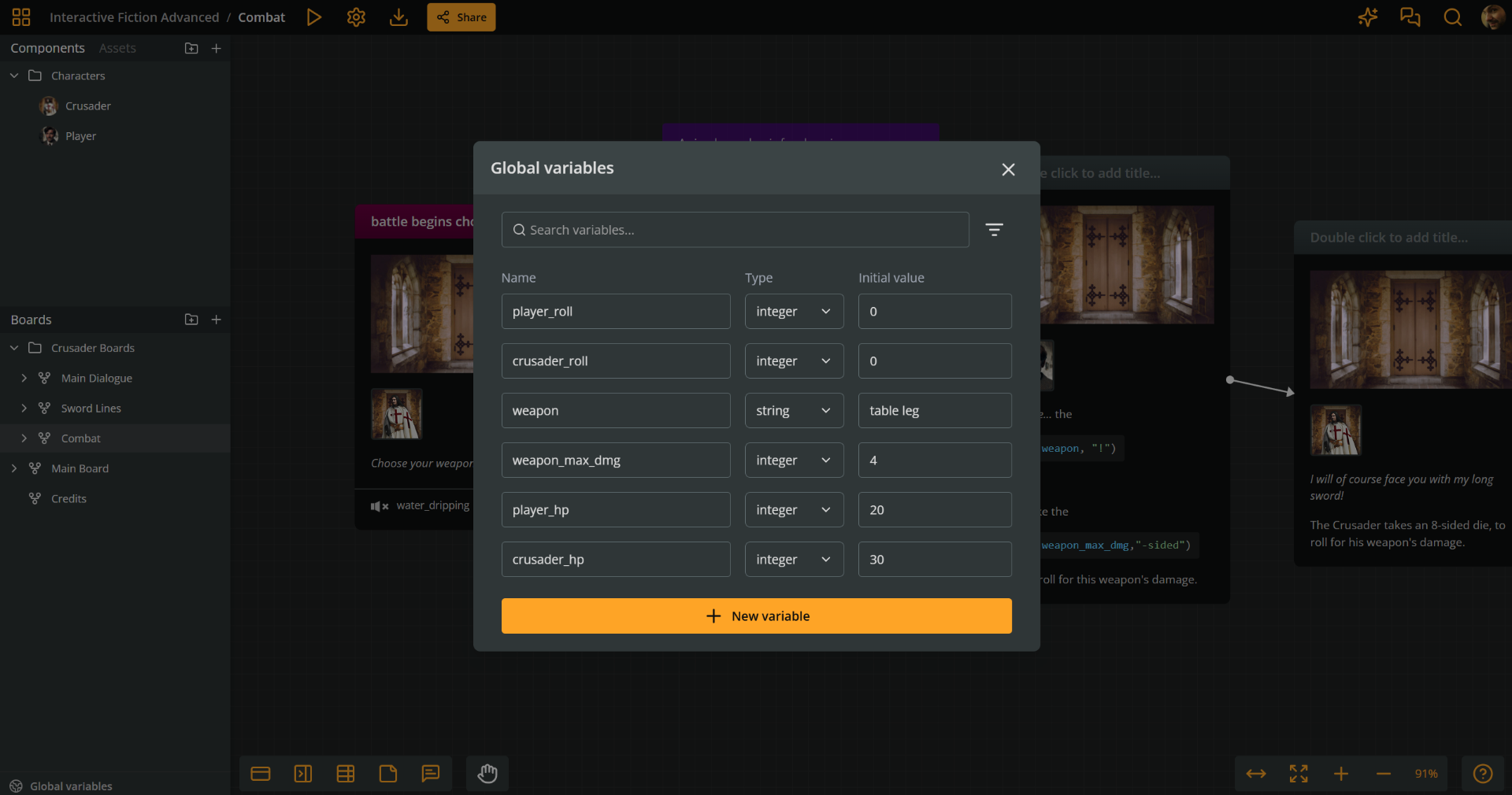
ℹ️ A variable's initial value is the value it holds at the start of Play Mode.
Create global variables
To create a new variable follow the next steps:
- Click Global variables at the bottom of the sidebar to open the Global variable dialog.
- Click + New variable.
- Enter a unique variable name.
- Select the variable's type from the dropdown menu.
- Enter its initial value.
ℹ️ Arcweave will prevent you from entering an invalid initial value for a variable's type (e.g. a string like
"John Smith"for an integer).
See Variable names and custom IDs for the naming rules.
Use global variables
Global variables are accessible from anywhere in the project using just their name, e.g. score += 2. An unqualified name always resolves a global variable, never a board or component variable.
See Common use cases in the Variables overview page for instructions and examples.
Search global variables
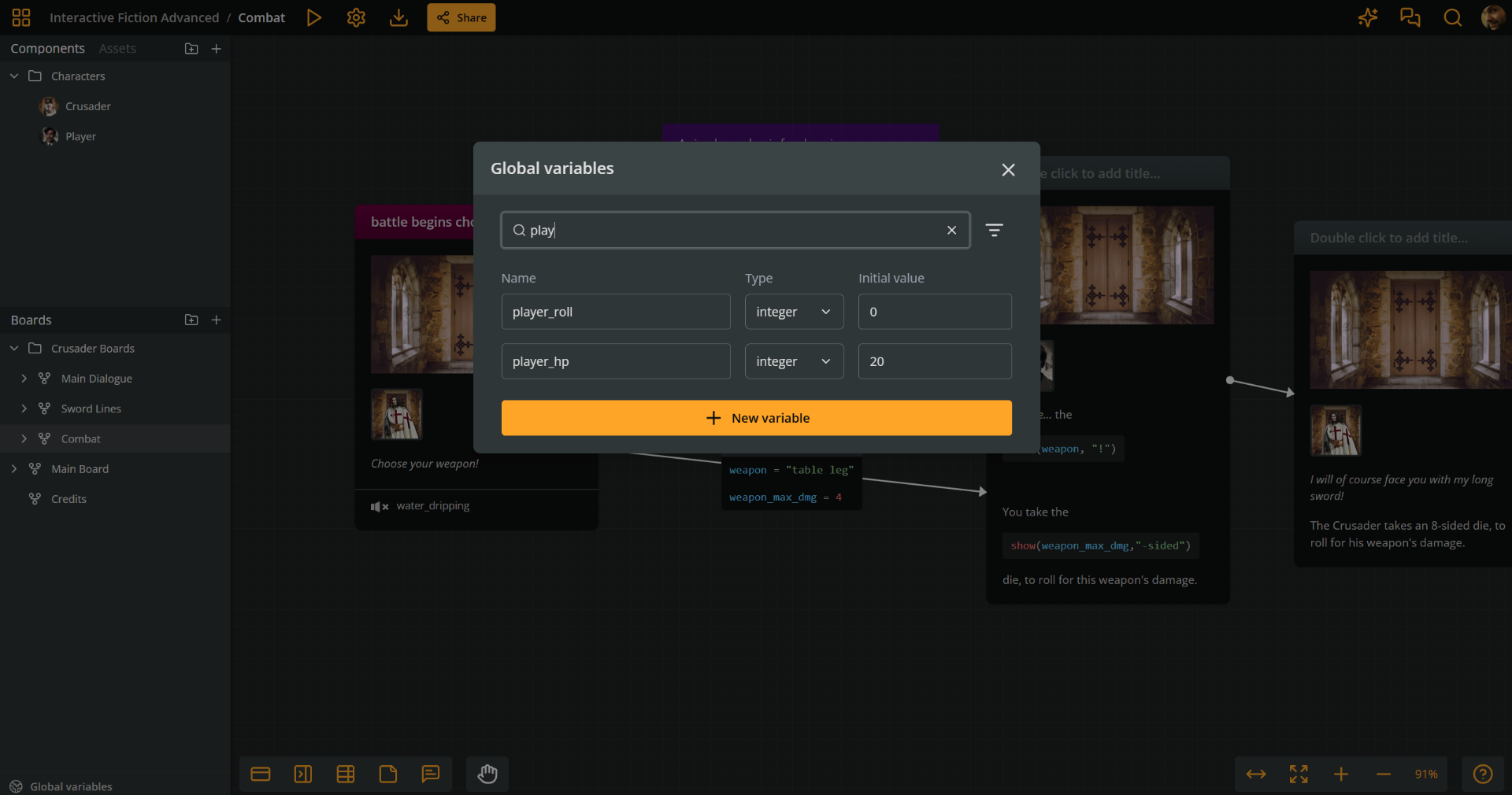
To locate a variable in the global variables list, start typing its name in the search field at the top of the Global variable dialog.
Filter global variables
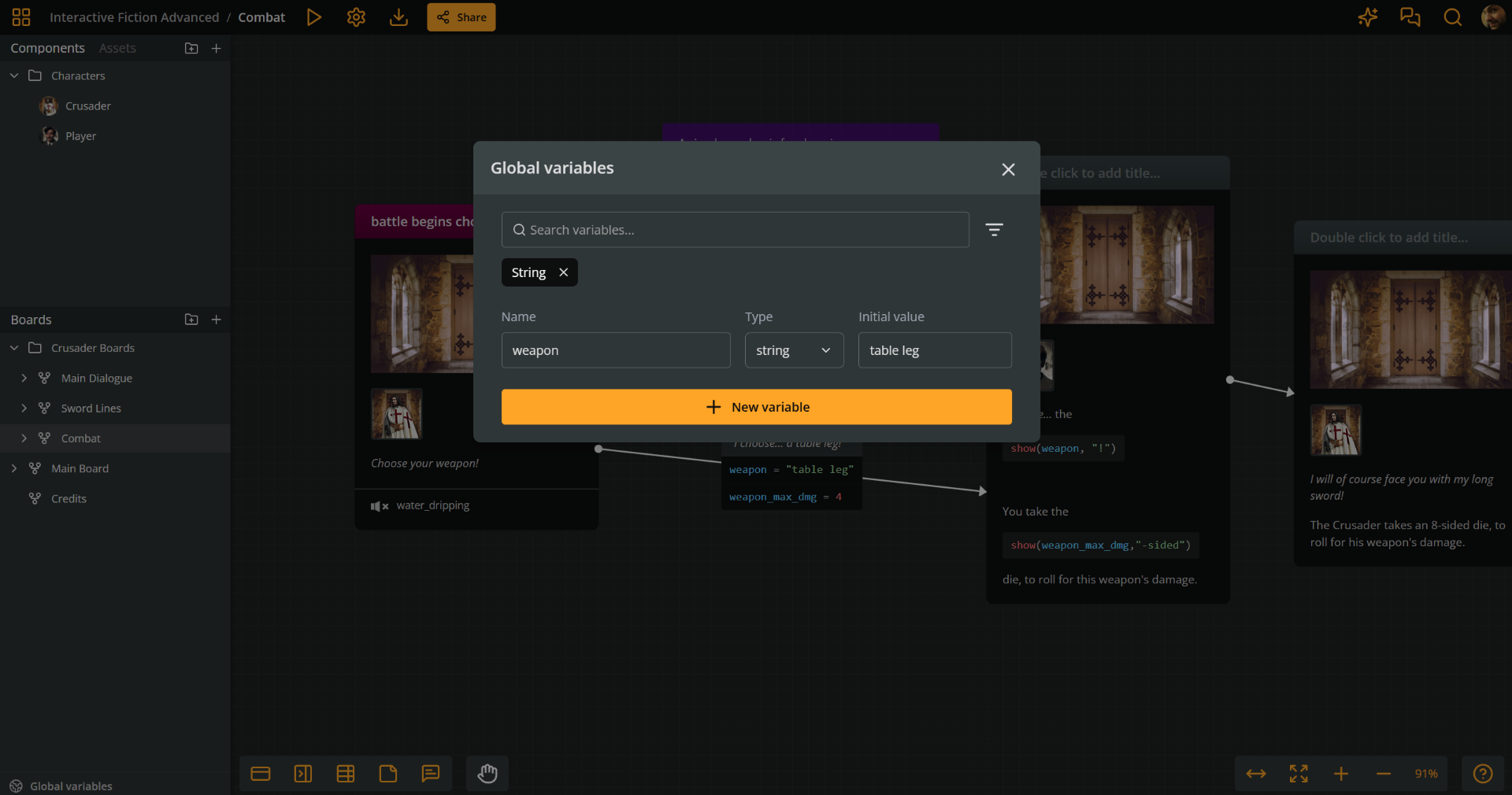
For type-specific searches, you can filter your variables list by type:
- Click the Filter icon at the right of the search field, at the top of the Global variable dialog.
- Select the variable types you want to add to the search.
Reorder global variables
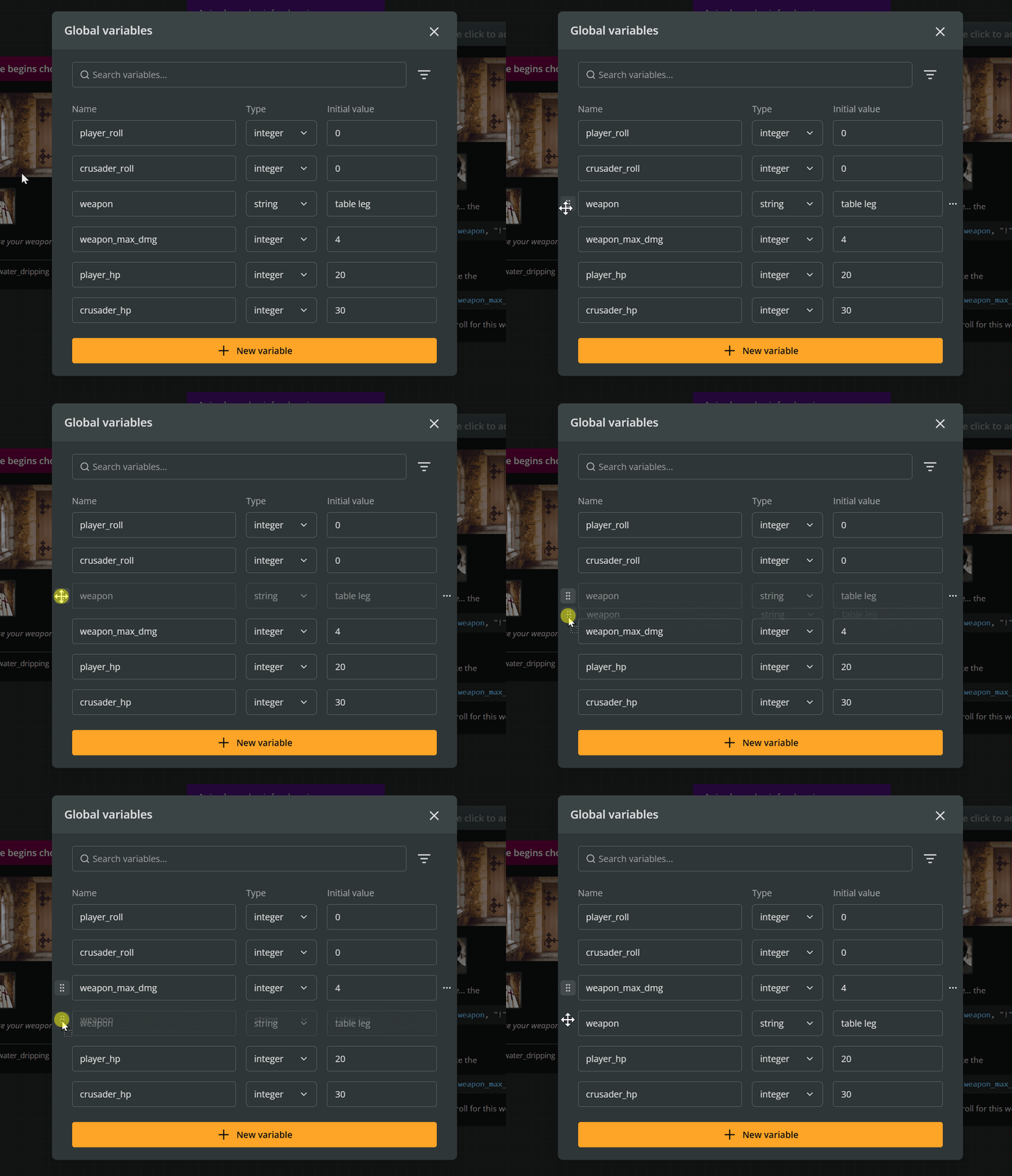
To reorder variables:
- Click Global variables at the bottom of the sidebar to open the Global variable dialog.
- Click and hold the handle icon at the beginning of the variable's row.
- Drag and drop the row to the desired position.
Delete global variables
- Click Global variables at the bottom of the sidebar to open the Global variable dialog.
- Locate the variable in the list.
- Click the three dots icon at the end of its row.
- Select Delete variable.
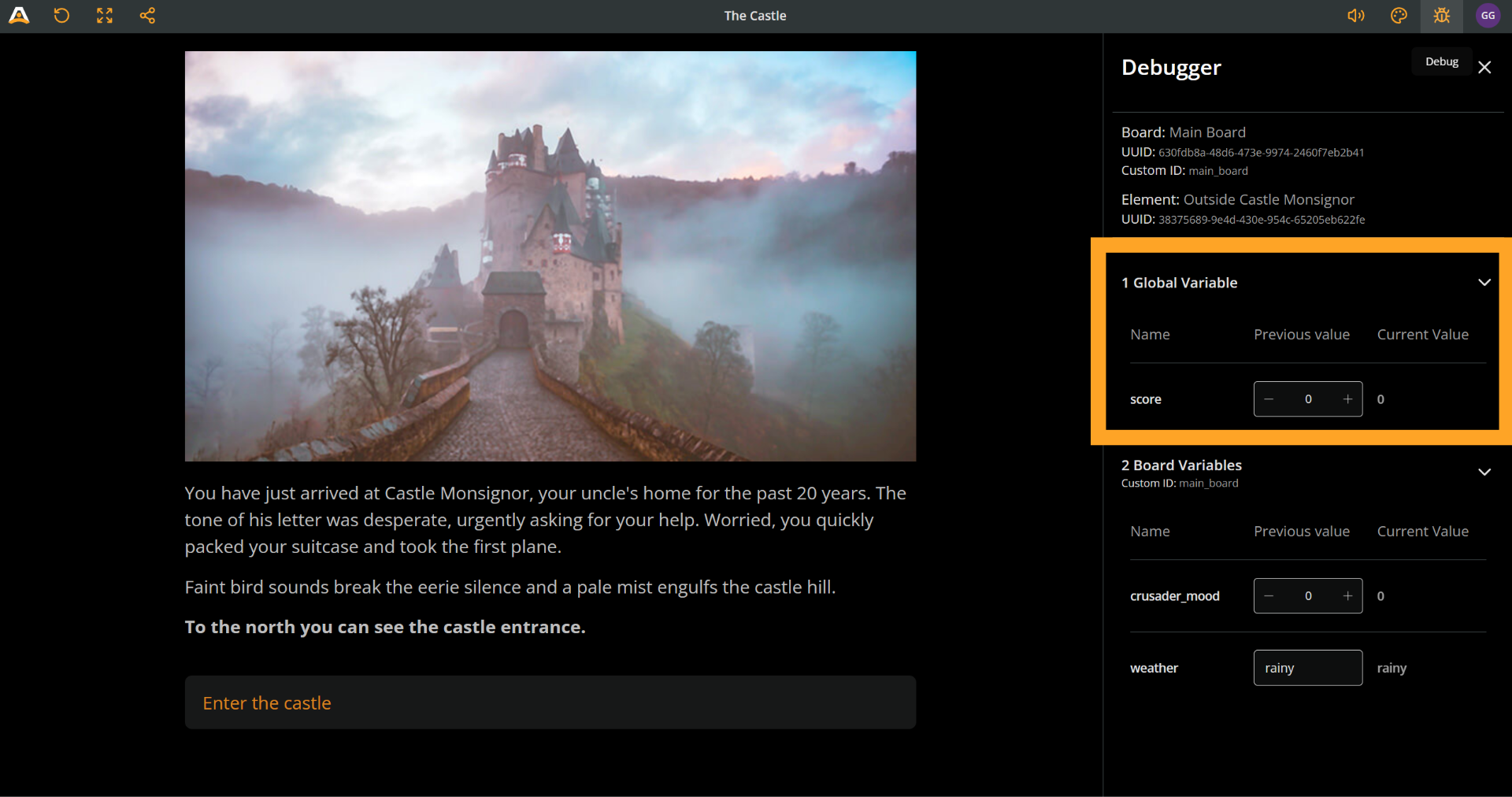
Global variables in Debugger
When in Play Mode, you can monitor the global variables and their values in the Debugger.