Basic Arcweave tutorial | Part 7: Notes
Learn how notes work in Arcweave.
Notes are a dedicated entity in Arcweave designed for communication between writers, designers, and developers. They are not for the players to experience.
While elements are the building blocks of your narrative, notes serve as the sticky pieces of paper in your project: a place to leave comments for collaborators, reminders for yourself, explanations of complex story logic, dialogue subtext, or the reasoning behind a particular design decision.
Video tutorial
Watch this tutorial as a video:
⚠️ This video does not reflect the latest updates to Arcweave's UI.
✅ You can play the finished version of the Tutorial Project here and explore its diagrams and structure here.
Notes vs. elements
Before creating a note, it's worth understanding what sets notes apart from elements. Unlike elements:
- Notes cannot have connections to other board items.
- They cannot have attachments like components or assets.
- They cannot contain code.
This is by design. Notes do not participate in the narrative tree; they exist purely as a communication tool for the people building the project.
Create notes
There are two ways to create a note on the board:
- Right-click an empty area of the board and select Create > Note from the context menu.
- Click and drag the Drag new note icon from the bottom menu onto the board.
Having created the note, double-click its body to edit its content.
Change note colors
Notes support color customization, making it easy to visually organize them by type or topic.
For example, you can use one note color for story logic and another for technical reminders.
To change a note's color, right-click the note and select a color from the color picker in the context menu.
Format notes text
Notes support rich text formatting, just like elements.
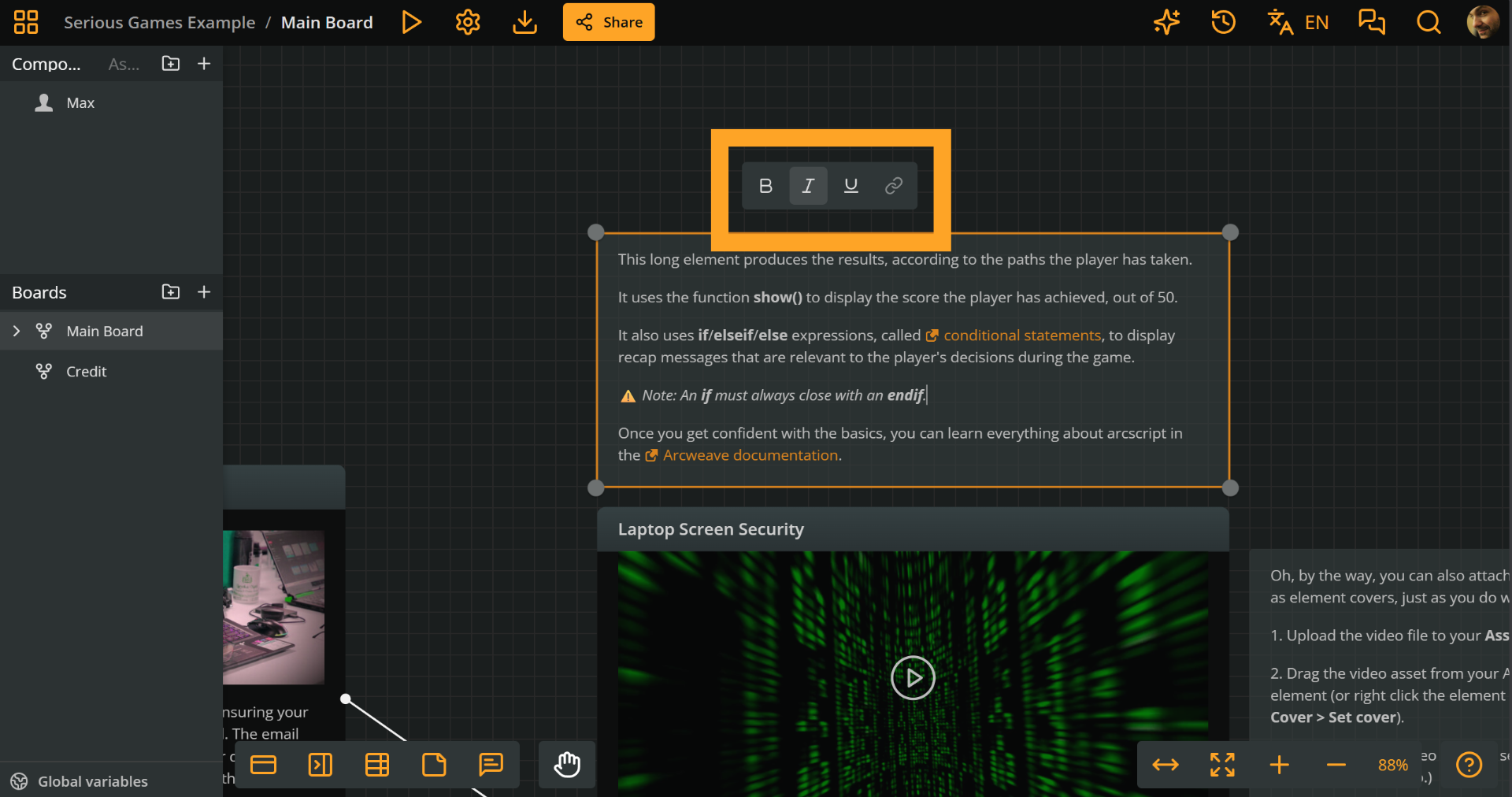
While editing a note, use the formatting menu to apply:
- Bold, italic, and underline formatting: Emphasize your text as you want.
- Links: Add URLs to web pages and attach references, research, or resources directly to notes for easy access.
- Mentions of components and boards (see previous part of this tutorial): Cross-reference parts of your project directly from a note.
What's next
Now that you know how to work with notes, the next tutorial covers how you can add and use images in your Arcweave project.