Unity tutorial | Part 5: Customize the template
In this tutorial, you'll add a Fighter NPC who teaches the player combat, for a price. The result depends on whether the player can afford the training.
You'll use Arcweave components to mark where each dialogue starts and ends, and to signal Unity when to enable the attack animation.
Expanded project
This tutorial focuses on expanding Arcweave's original Game Engine Example template. You can play the expanded version in the embedded window below and see its boards here:
Video tutorial
You can watch the video version of this tutorial below.
Set up variables
Open your Arcweave project and navigate to the Global variable dialog. Add two new variables:
gold: integer, default50. The player starts with exactly enough to pay for training.sword_locked: boolean, defaulttrue. The player starts without combat training.
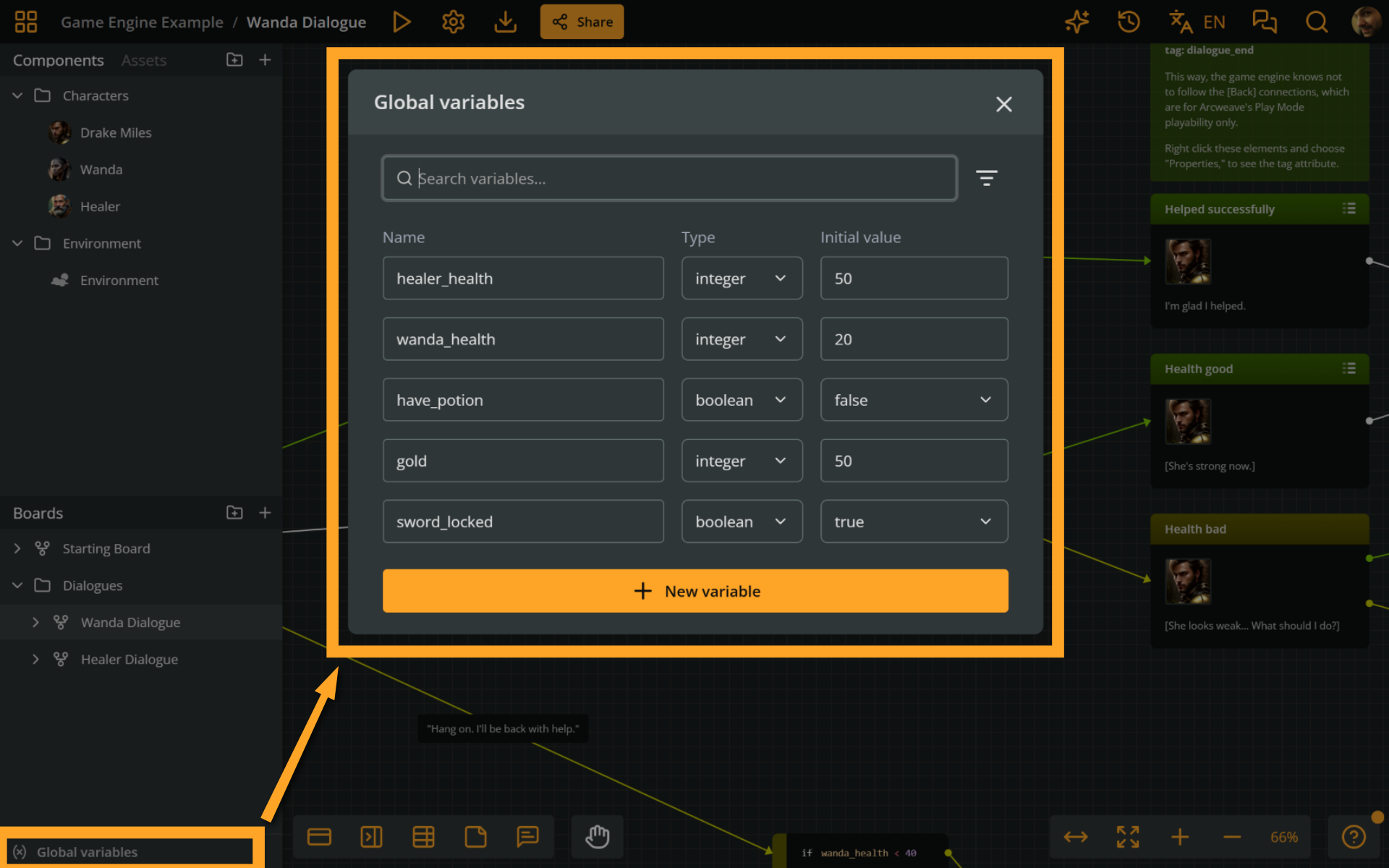
sword_locked is the narrative flag that tracks the player's state. It starts as true (not yet trained), drives the conditional text in the dialogue, and controls which branch the player can take.
Create components
In the Components panel, create four components:
dialogue_start: marks the element where a conversation begins. Unity looks for this component name, as configured on theGameManager, to find the entry point. No attributes needed.dialogue_end: marks the exit element. When Unity detects it, the dialogue closes and gameplay resumes.Fighter: the character component. Attach a portrait image here; the filename (e.g.fighter.png) must match the file you'll place in Unity'sResources/folder.attack: the gameplay signal. When the dialogue reaches an element with this component attached, a Unity script detects it and enables the attack ability on the player. No attributes needed, just the name matters.
⚠️ The component names' capitalization does not need to follow a specific protocol, but make sure you are consistent between your Arcweave and Unity projects. Here, we're using snake case, except for the
Fightercomponent, in order for it to match the other character components.
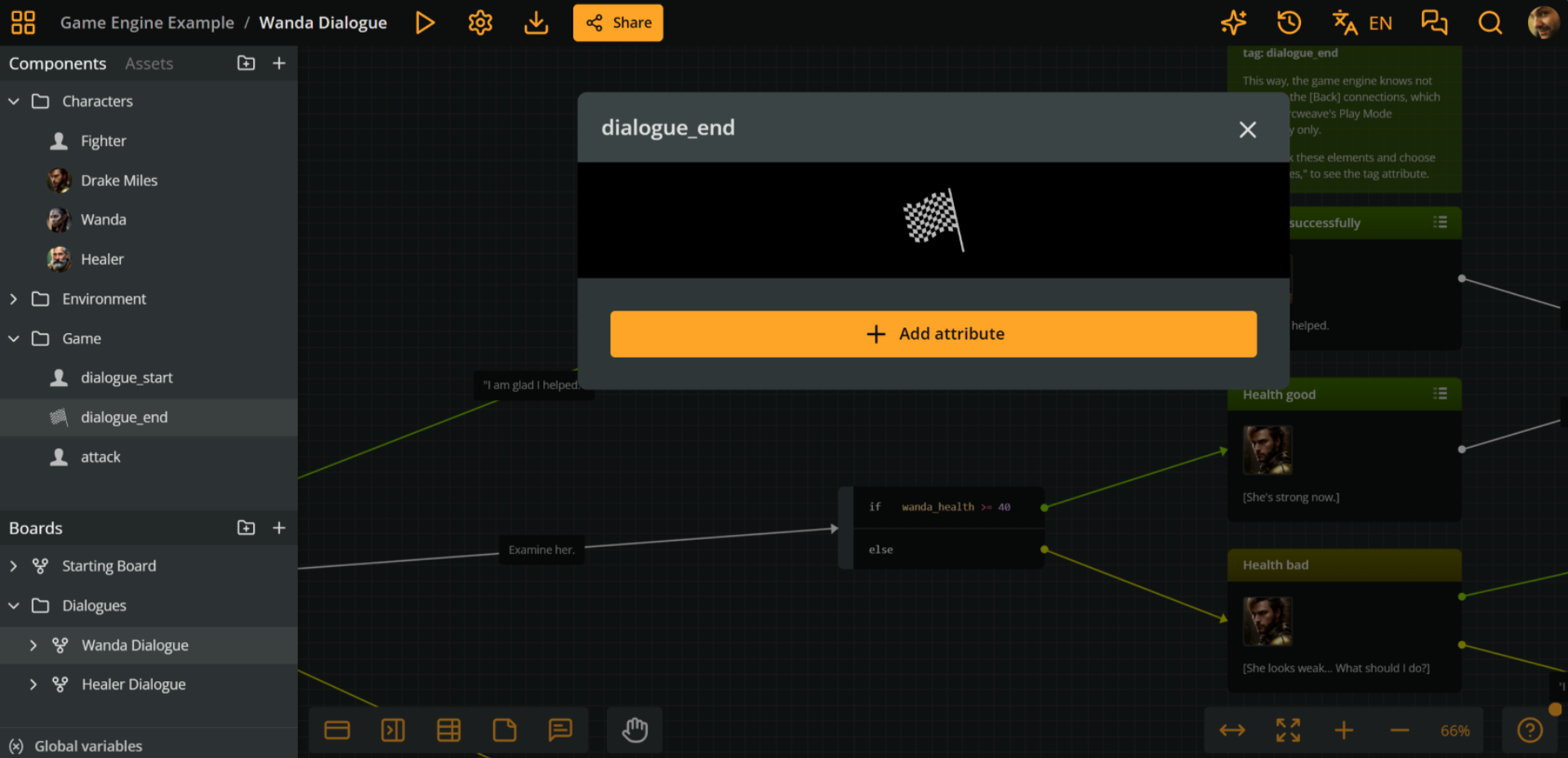
Two components handle dialogue flow, one handles the portrait, and one triggers gameplay.
Build the Fighter Dialogue board
In your Dialogues board folder, create a new board named Fighter Dialogue. This name must match the name Unity will use to locate the fighter dialogue tree.
Dialogue starting element
Let's now create the starting element of the fighter dialogue.
Create a new element inside the Fighter Dialogue board and attach the Fighter and dialogue_start components to it, in that order.
⚠️ Attach the
Fightercomponent first. The dialogue UI shows the cover image of the element's first attached component as the portrait, so a marker component such asdialogue_startmust come after the character component.
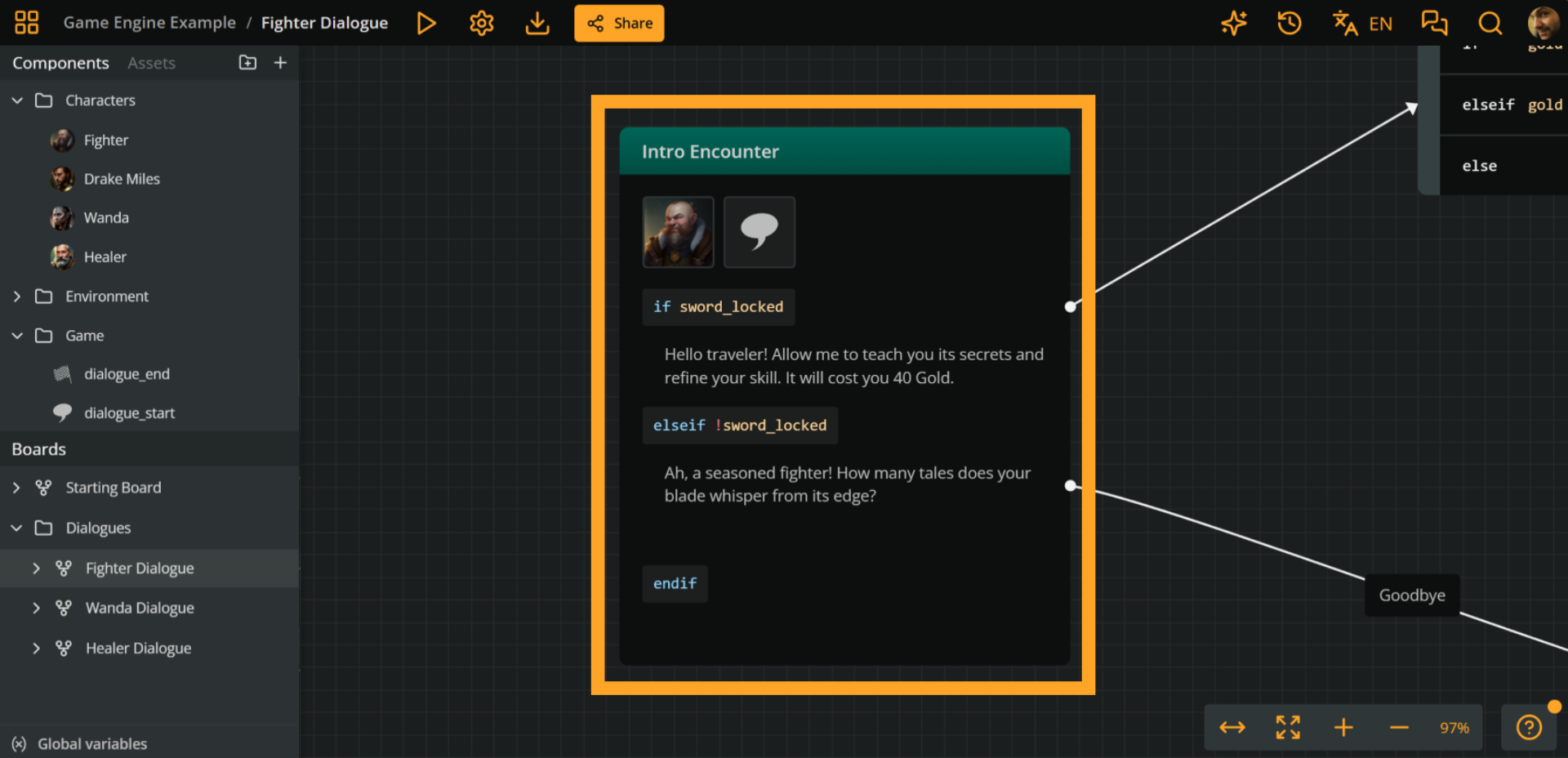
This element's content will use conditional text to show different dialogue depending on the player's state. Type in the following content and Arcscript:
if sword_locked
  I see your blade is untested. Allow me to teach you its secrets and refine your skill. It will cost you 50 Gold.
else
  Ah, a seasoned fighter! How many tales does your blade whisper from its edge?
endif
Arcweave evaluates sword_locked and displays only the matching text.
Player options
The dialogue's starting element has the following two output connections:
1. Evaluating gold
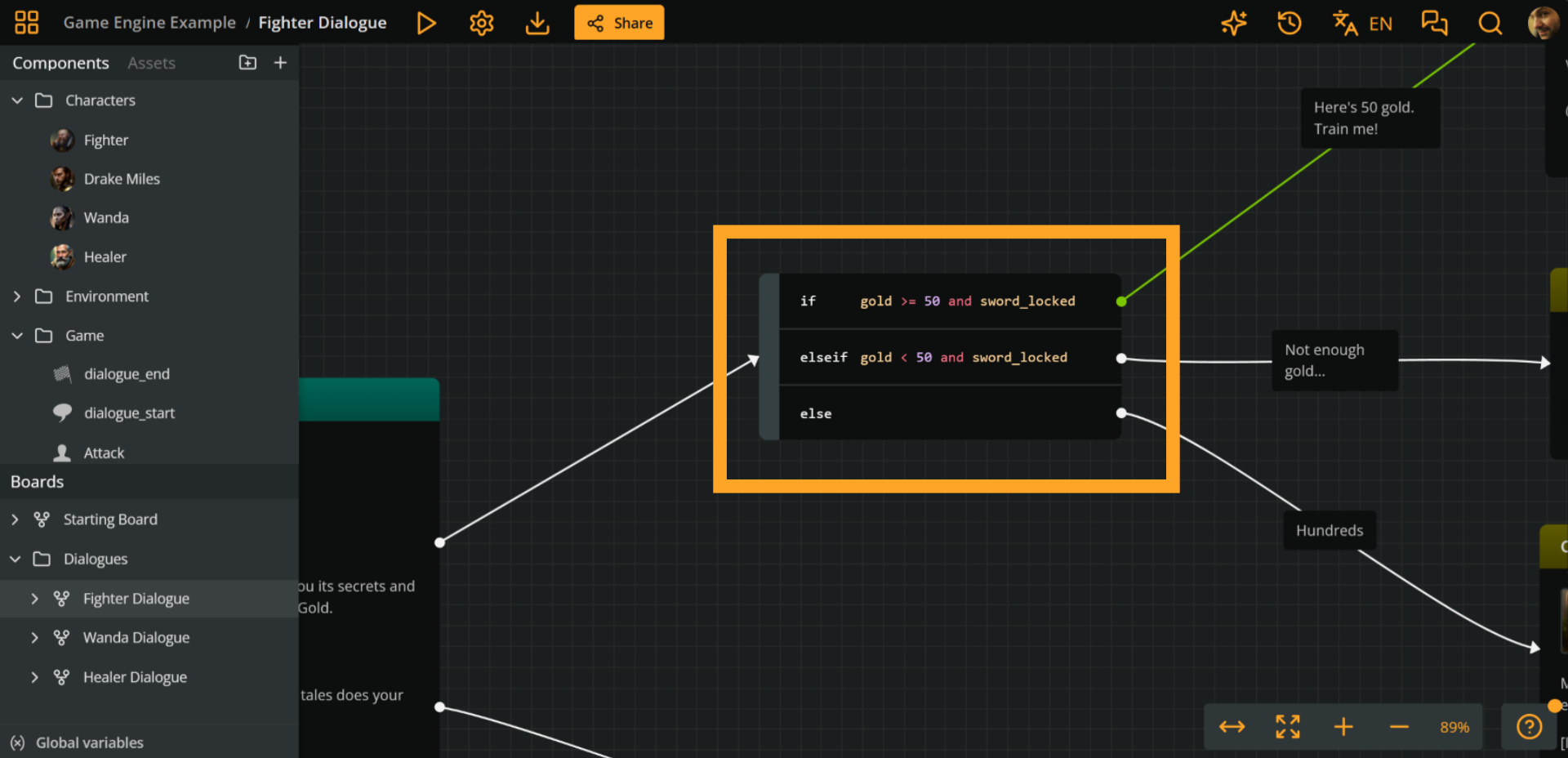
The first connection leads to a branch that evaluates the player's gold and fighting skills:
- If the player has not been trained yet and also has the gold to pay for their training (i.e.
if gold >= 50 and sword_locked), they then can choose to pay and unlock their fighting skills. This path leads to the training element (see further below). - Else if the player has not been trained yet, but cannot afford it (i.e.
elseif gold < 50 and sword_locked), the Fighter tells them to come back with more gold. - Else (if the player has been already trained), they can boast about their fighting achievements.
2. Escape clause
The second player option is an unconditional "goodbye" route, which leads to an element with the dialogue_end component attached.
✅ Including unconditional output connections safeguards your dialogue from running out of player options in cases where required conditions are not met.
Training element
The first output of our evaluating branch leads to this element, where training takes place.
Variables
Type the following Arcscript in the element's content:
gold -= 50
sword_locked = false
50 gold coins are deducted and sword_locked flips to false. From this point on, the dialogue's starting element shows the "seasoned fighter" text instead of the training offer.
sword_locked is the narrative variable: it shapes the dialogue text and determines which branch path the player can take.
To notify Unity to unlock the attack animation, attach the attack component to the training element. See right below.
Components
Attach the following components to the training element: Drake Miles, attack, and dialogue_end.
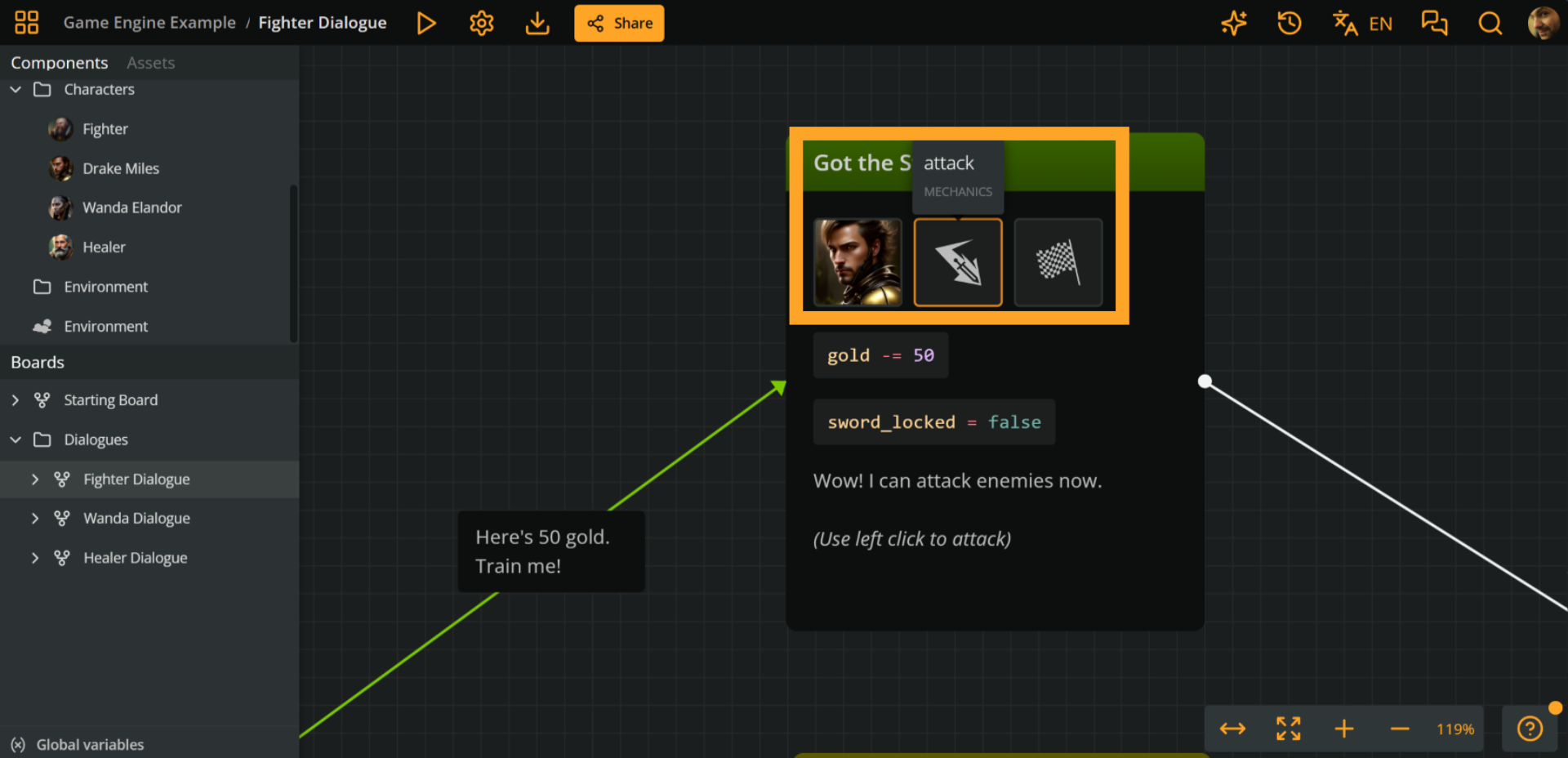
This is why:
Drake Miles: Since the player is the speaker, we attach theDrake Milescomponent.attack: To trigger Unity to unlock the fighting player skill (and its animation), attach theattackcomponent to the training element; this is the event Unity will listen for.dialogue_end: Although the flow continues in the Arcweave project (the training element has an output connection leading to a jumper), we want the dialogue to end here in our Unity game.
Export from Arcweave
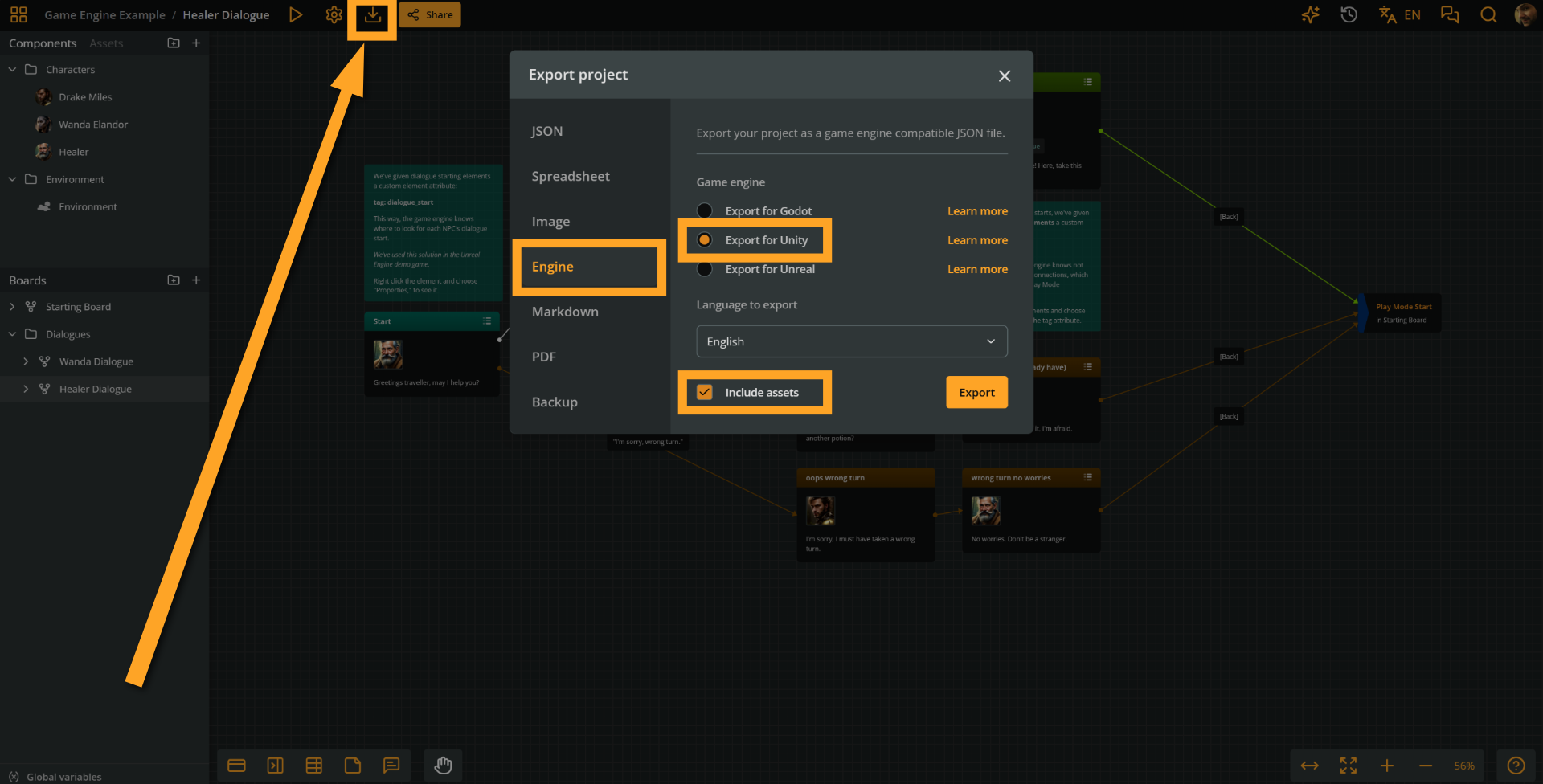
- Go to Export.
- Select the Engine tab.
- Select Export for Unity.
- Check Include assets.
- Press Export and save the compressed
.zipfile to your drive. - Extract the
.zipfile and notice theproject.jsonfile it includes. You'll use it in the next step, below.
Import into Unity
Import new JSON
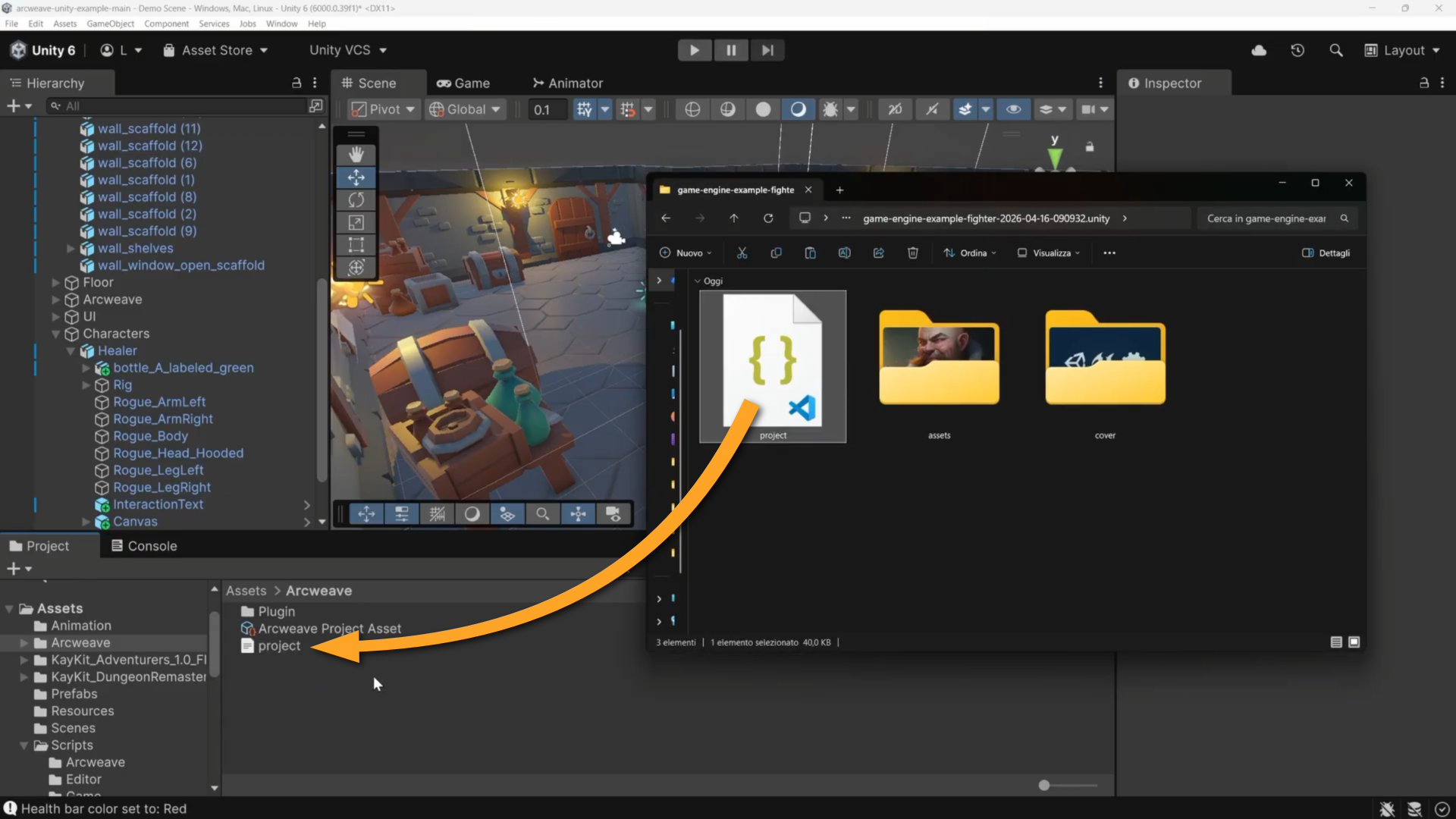
- In the Unity editor, import the new
.jsonfile by dragging it from the file explorer into the project folder Assets > Arcweave.
- Select the
ArcweaveProjectAssetand notice its field Project JSON File in the Inspector. Drag the new.jsonfile from Assets > Arcweave into that field.
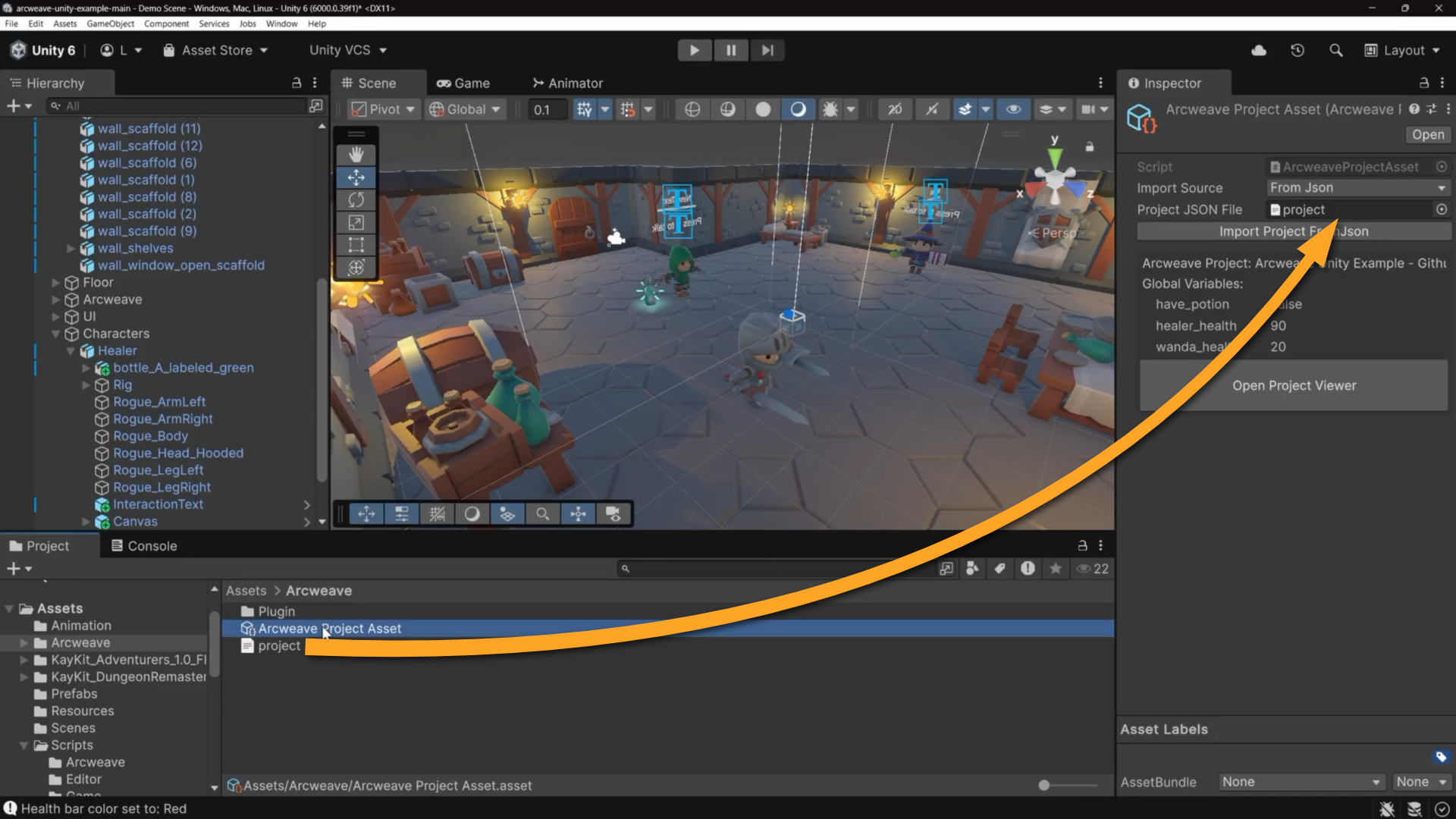
- Click Import Project FromJson.
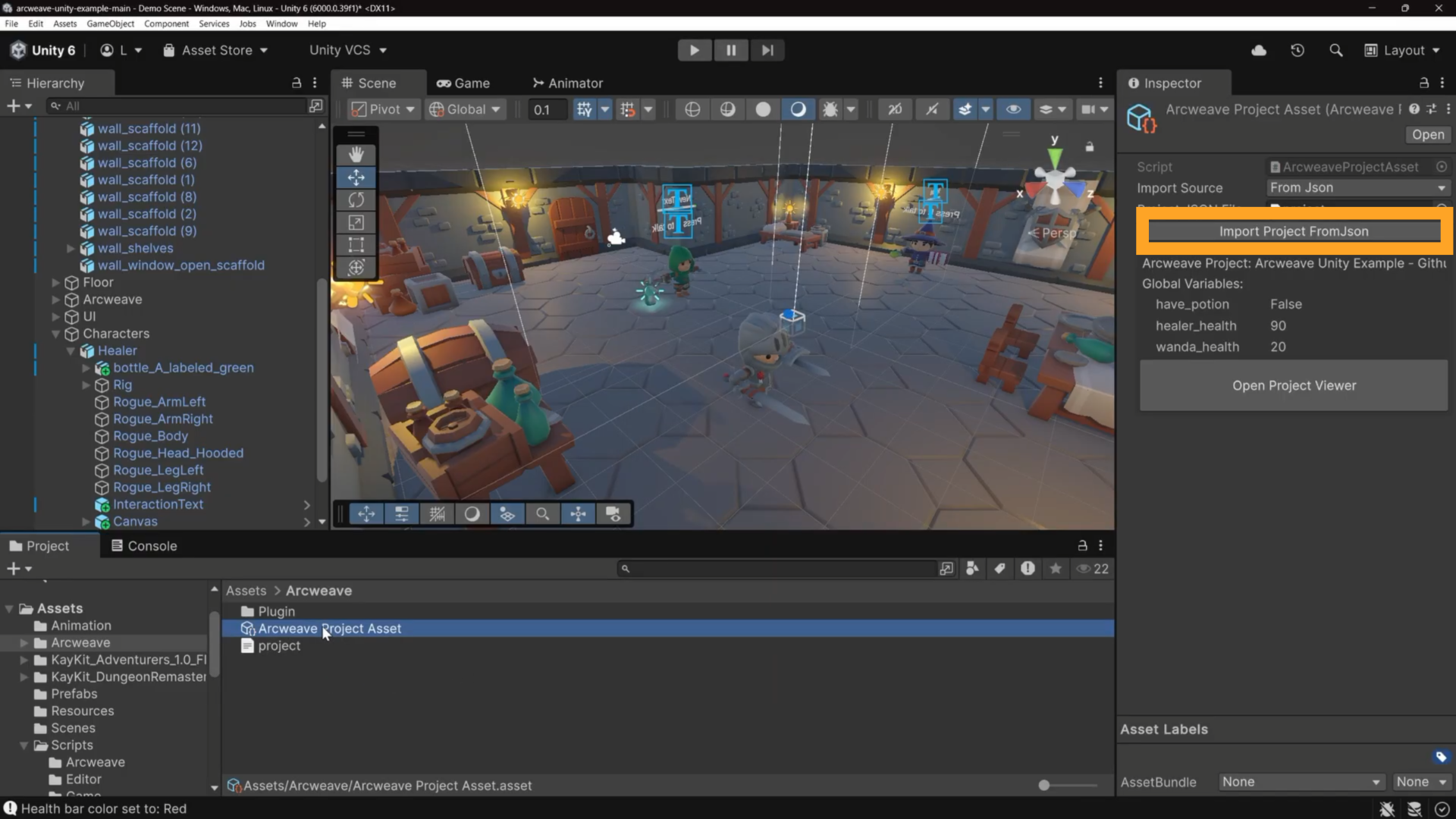
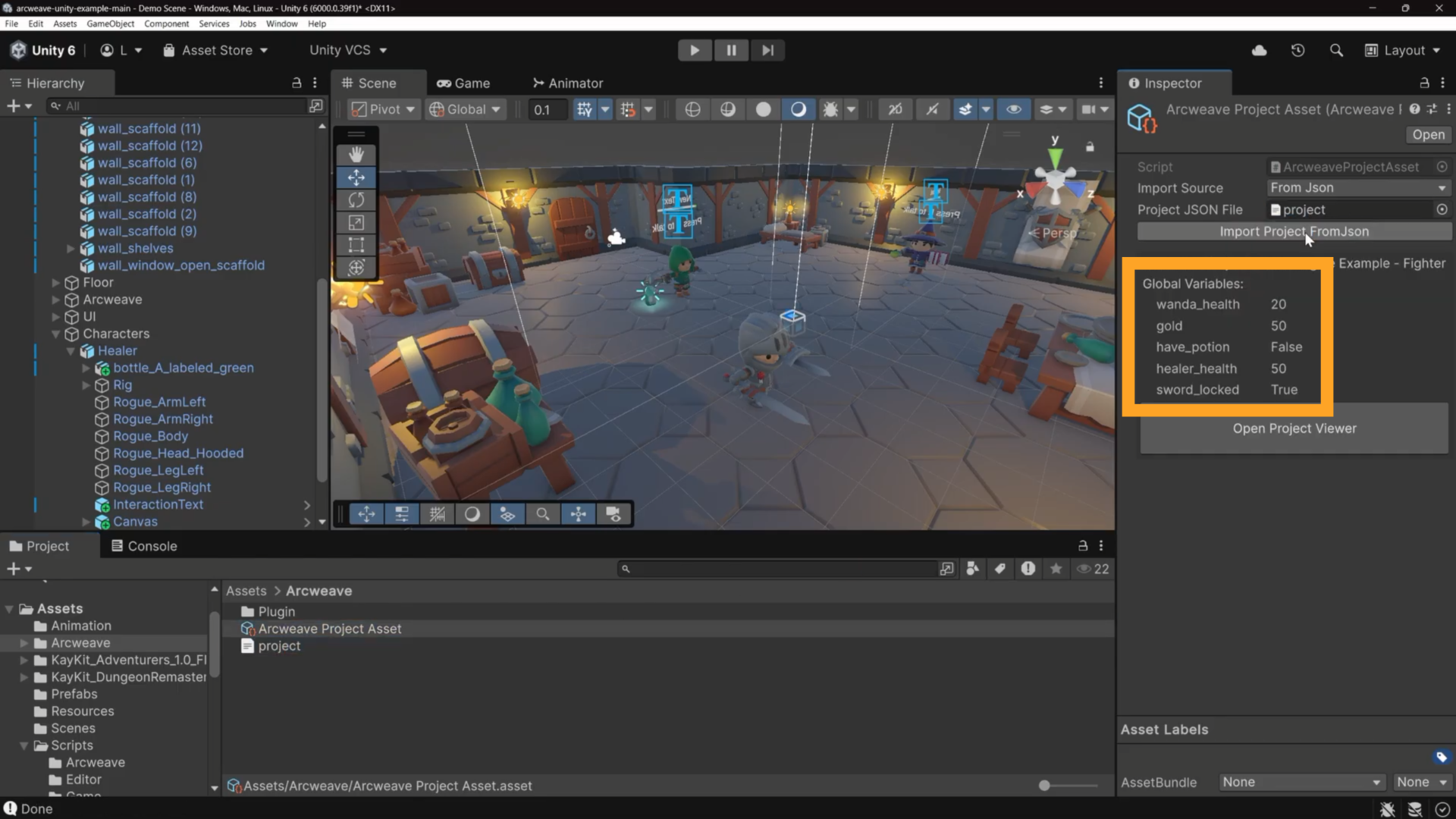
- Once you've imported the project from the
.jsonfile, you will notice the new variables appearing in the Inspector. Confirm that bothgold: 50andsword_locked: trueare present.
Import fighter asset
For the fighter portrait to appear during dialogue, we need to import the new fighter image asset: in Unity's Project panel, open Assets > Resources and drag fighter.png into it.
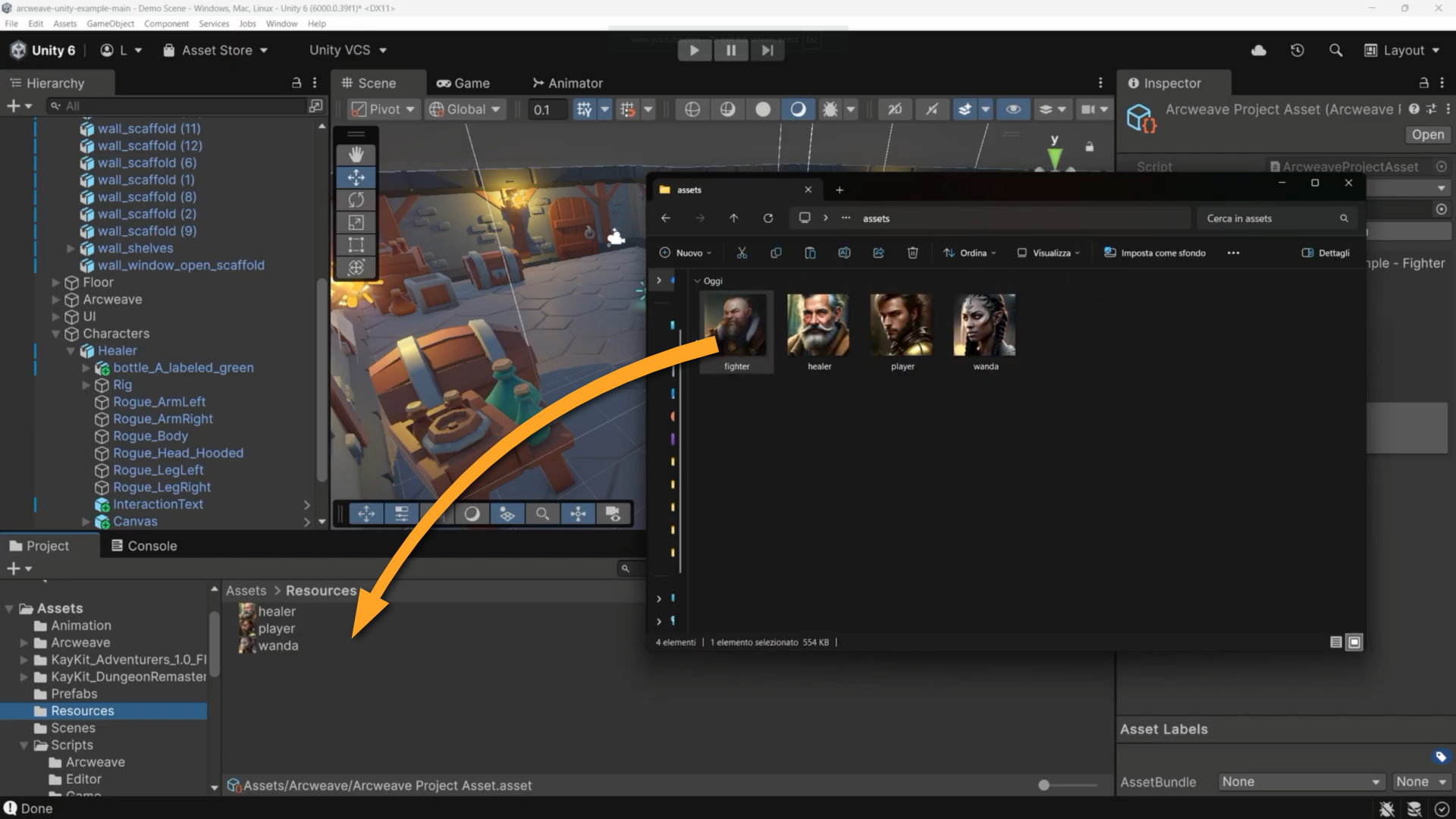
When the dialogue reaches an element whose first attached component is Fighter, @ArcweavePlayerUI loads that component's cover image from a Resources folder by filename (without the extension). The only rule: the filename in Assets > Resources must match the asset name in the Arcweave project.
Configure dialogue components
Select GameManager in the Hierarchy and open the Inspector. Find the Dialogue Tags section.
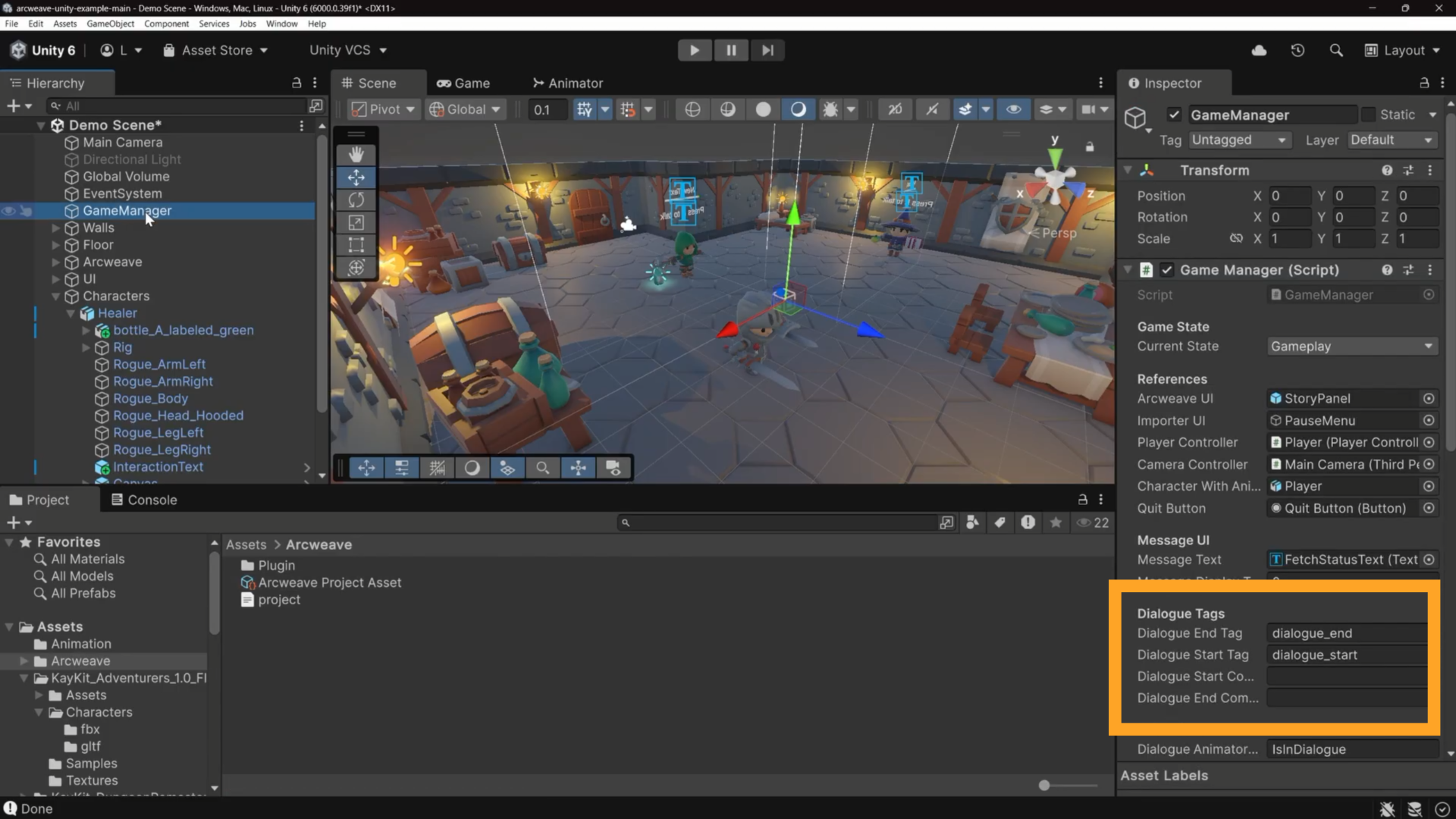
The first two fields (dialogue_end and dialogue_start) are text-based defaults used by the existing Healer Dialogue and Wanda Dialogue boards.
Fill in the last two empty fields:
- Dialogue Start Component Name:
dialogue_start - Dialogue End Component Name:
dialogue_end
When the game evaluates an element, it checks for a component named dialogue_start first. If it doesn't find one, it falls back to the text attribute check, so existing boards keep working without any changes.
Fighter GameObject
Add fighter 3D model
In the Project panel, navigate to the folder Assets > KayKit_Adventurers_1.0_FREE > Characters > fbx.
Drag the Barbarian 3D model into the scene and position it as needed.
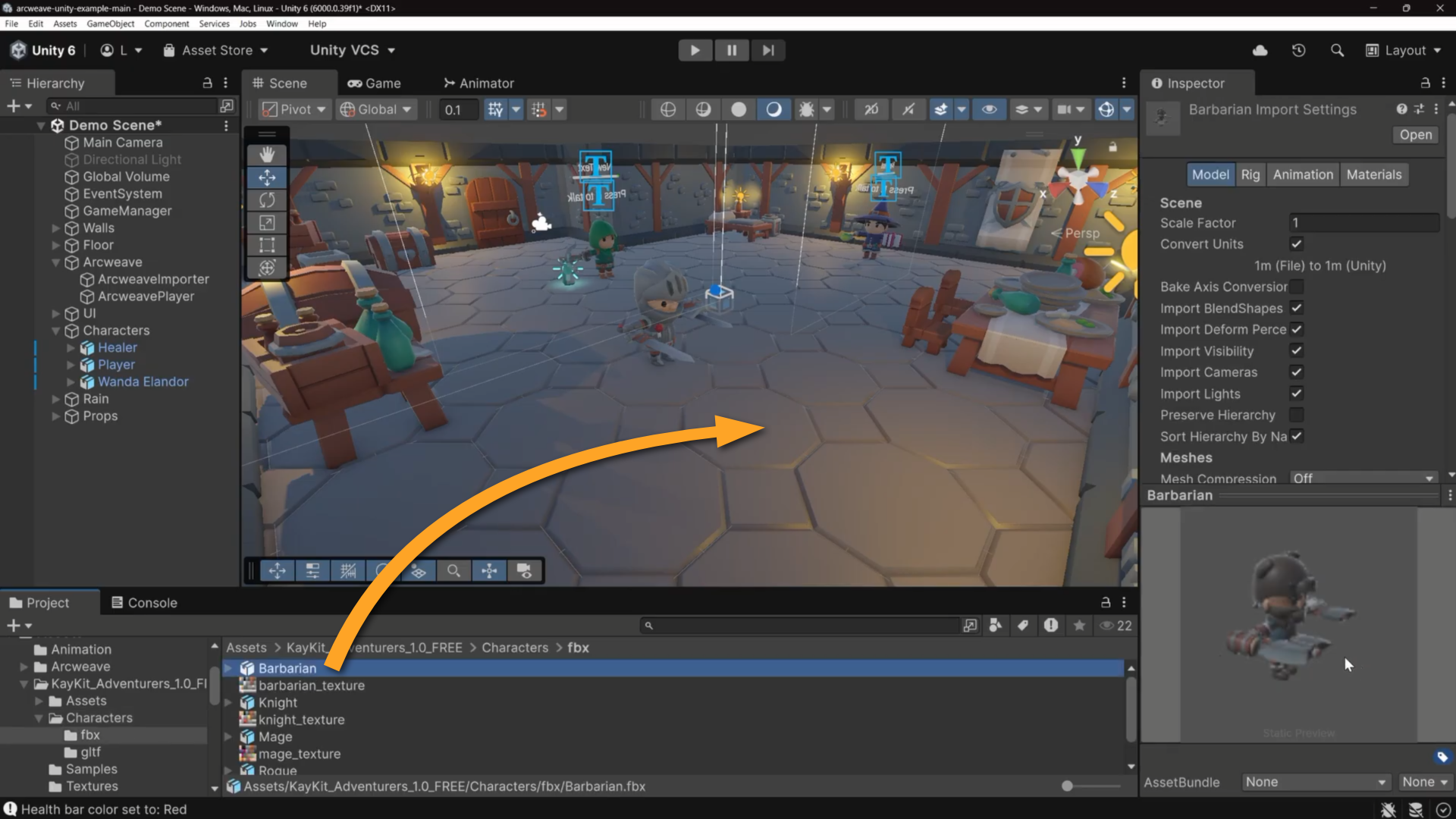
- In the scene Hierarchy, rename the GameObject from "Barbarian" to "Fighter."
Add Dialogue Trigger component
We must now add the Dialogue Trigger component to the Fighter GameObject. This way, the player can trigger the dialogue when approaching the fighter.
In the Project panel, navigate to Assets > Scripts > Game and locate the ArcweaveDialogueTrigger script.
Drag the ArcweaveDialogueTrigger script into the Inspector of the Fighter GameObject. The Dialogue Trigger component will be added.
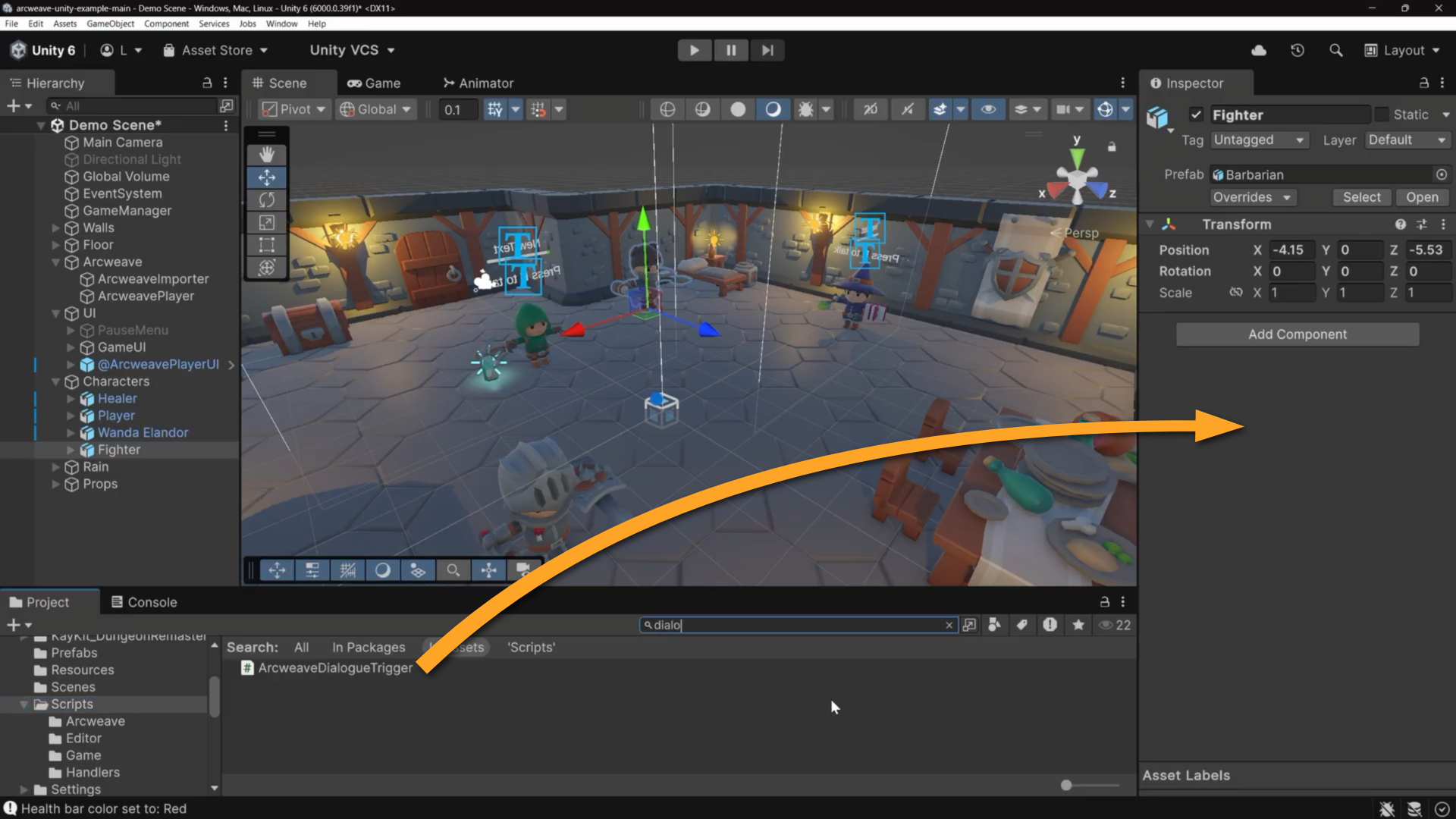
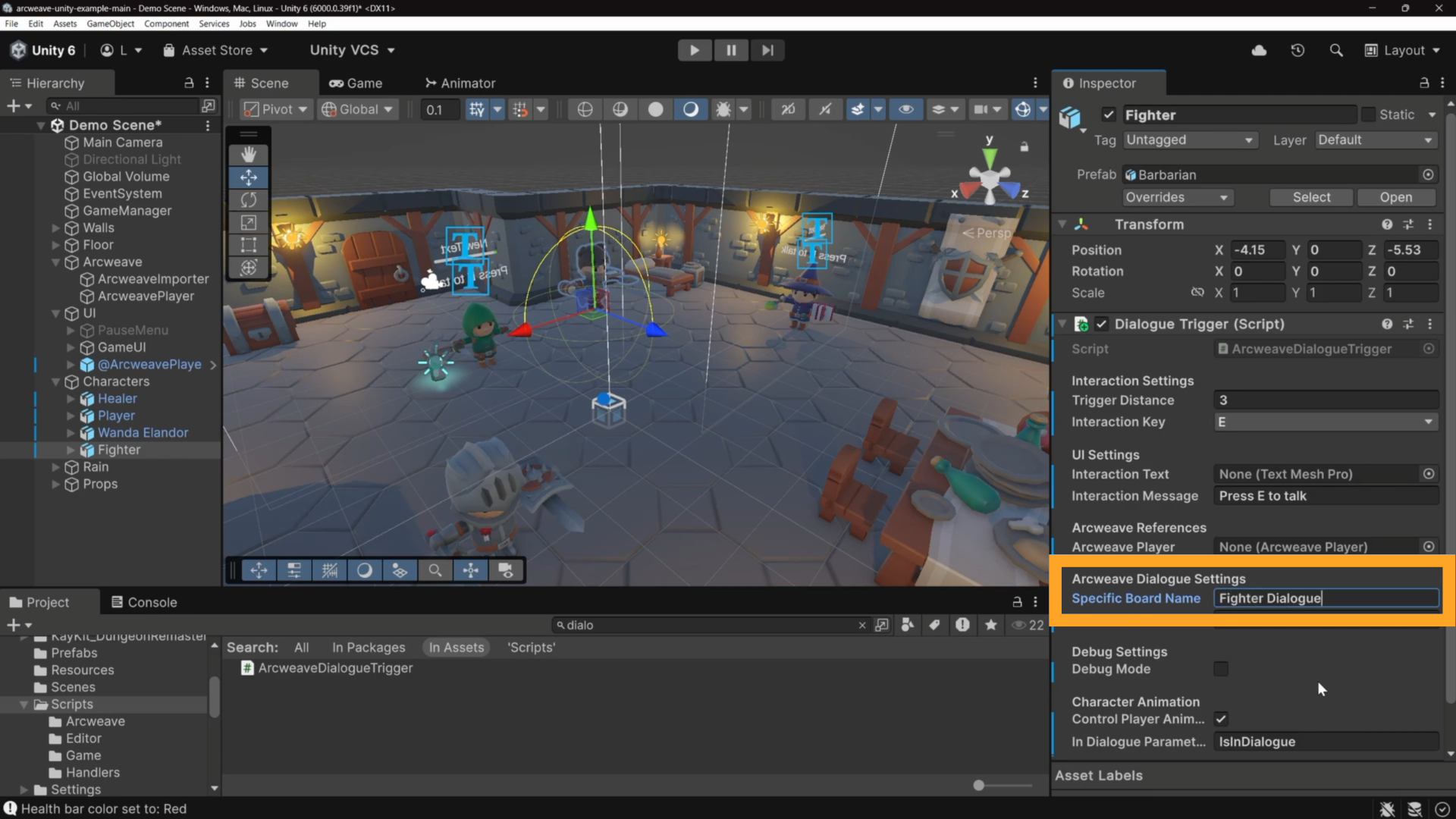
- Configure the following fields of the Dialogue Trigger component:
Specific Board Name: Type Fighter Dialogue. This must match the board name in the Arcweave project exactly.
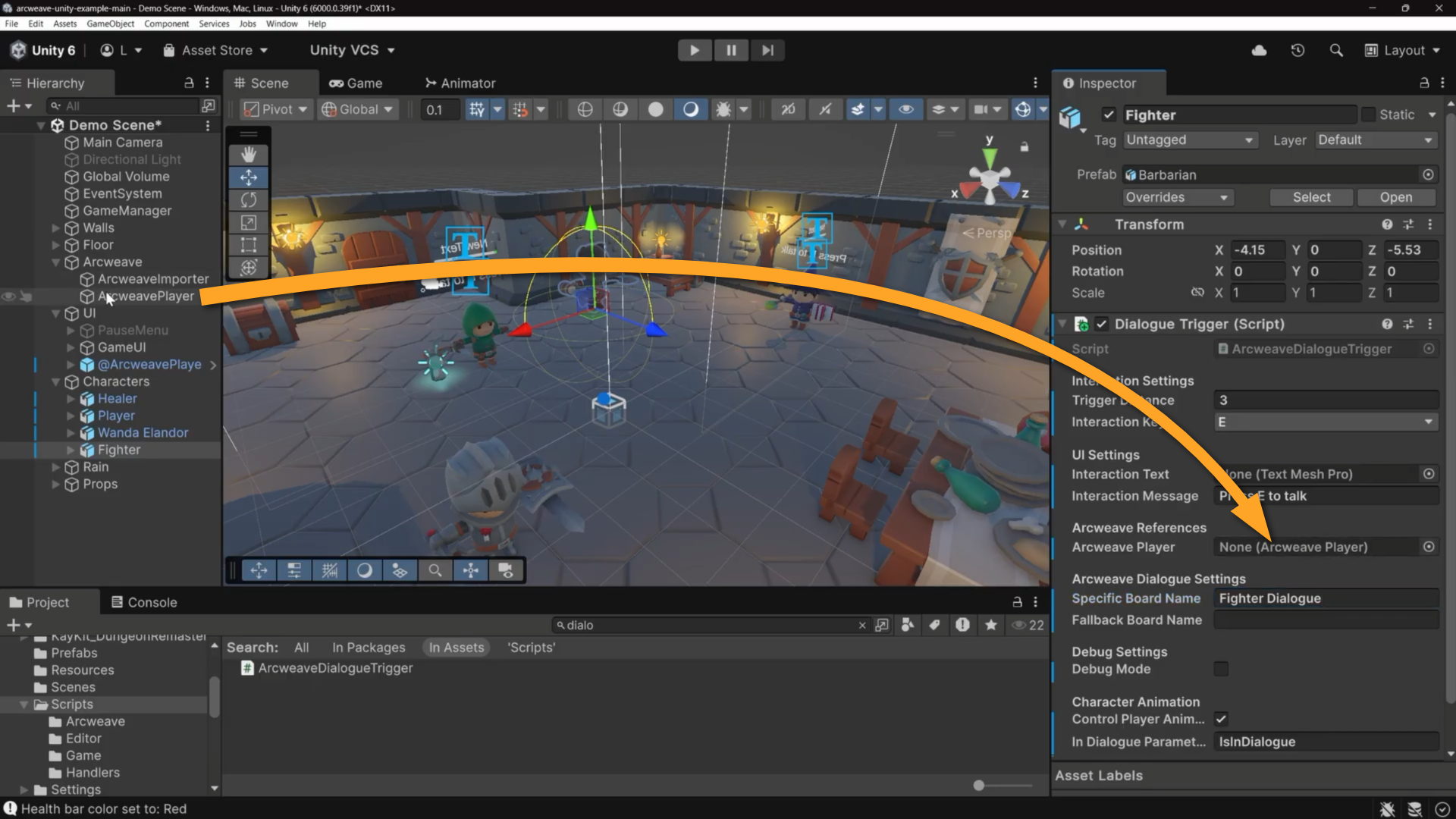
Arcweave Player: Drag the ArcweavePlayer GameObject from the Hierarchy and drop it into this field.
Interaction Text:
- Open the Assets > Prefabs folder in the Project panel.
- Drag the InteractionText prefab from the Prefabs folder and drop it onto the Fighter GameObject in the Hierarchy.
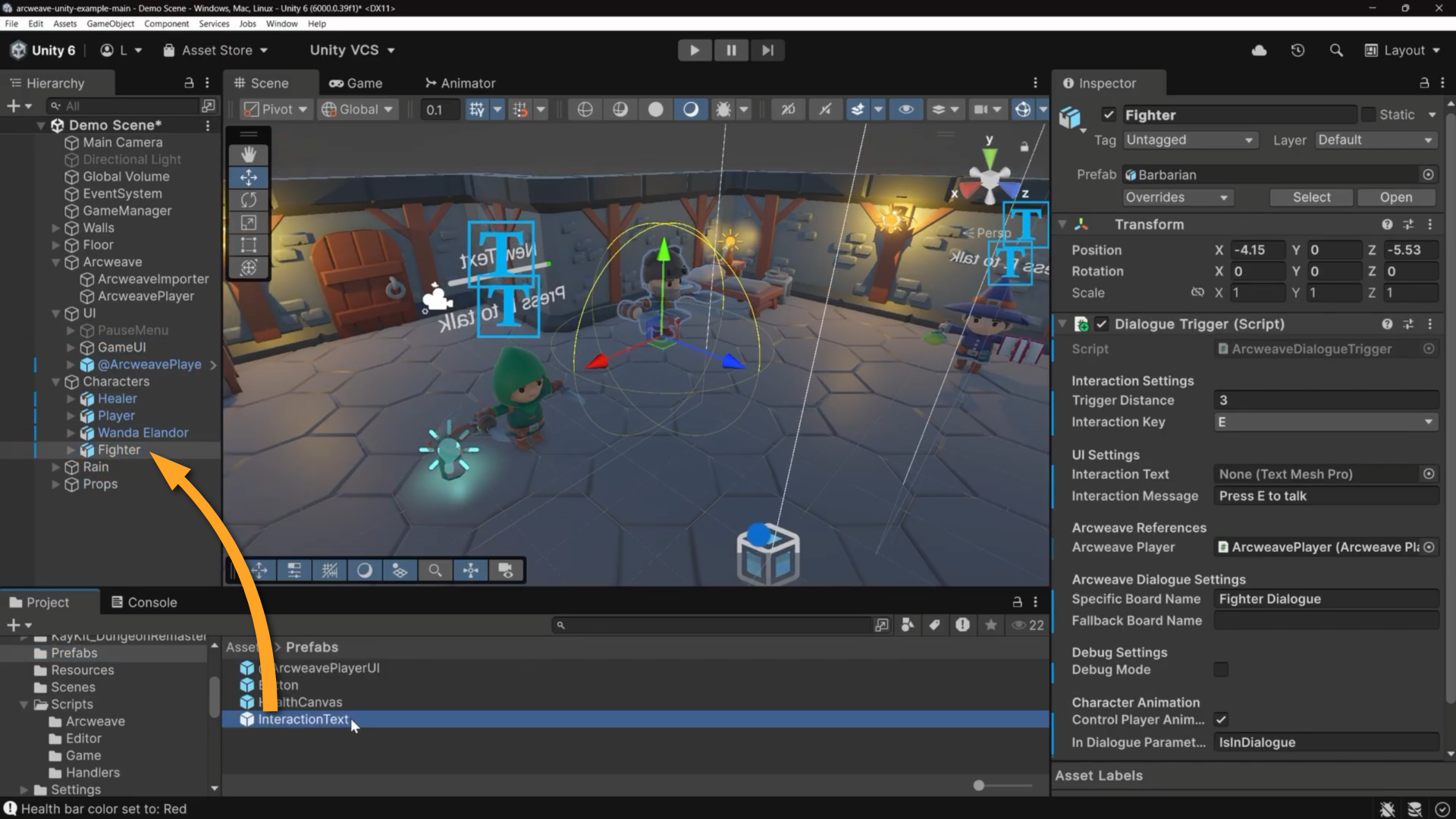
- Then, drag the InteractionText child from the Hierarchy into the Interaction Text field, under UI Settings of the Fighter Inspector to assign it.
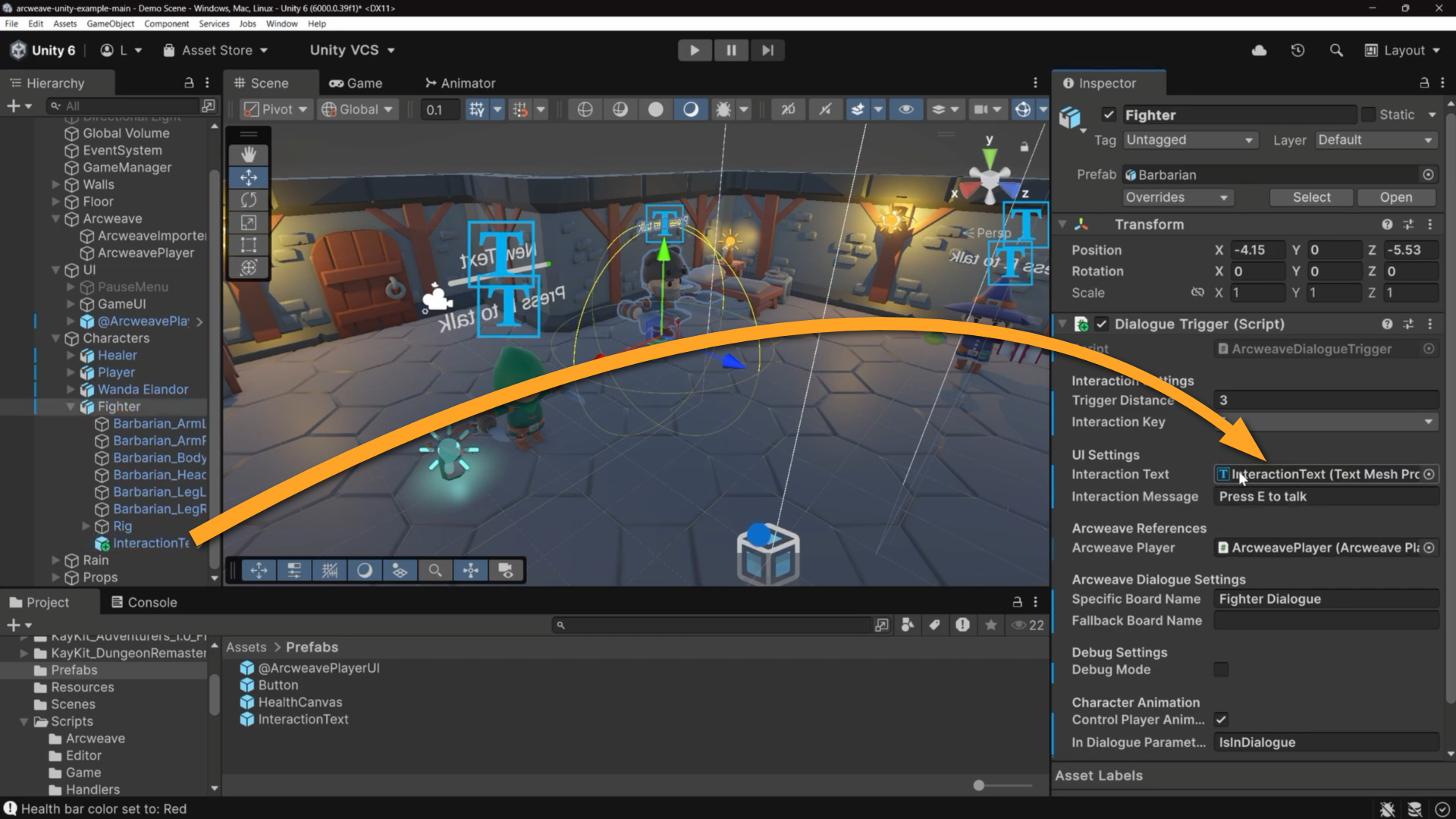
When the player walks into range and presses E, Unity looks for the board named Fighter Dialogue, finds the element with the dialogue_start component, and begins the conversation.
Enable the attack animation
Add SwordSwingHandler
- Go to Unity's Project panel and open the Assets > Scripts > Handlers folder.
- Select the Player GameObject in the Hierarchy.
- Drag the SwordSwingHandler script from the Handlers folder into the Player Inspector.
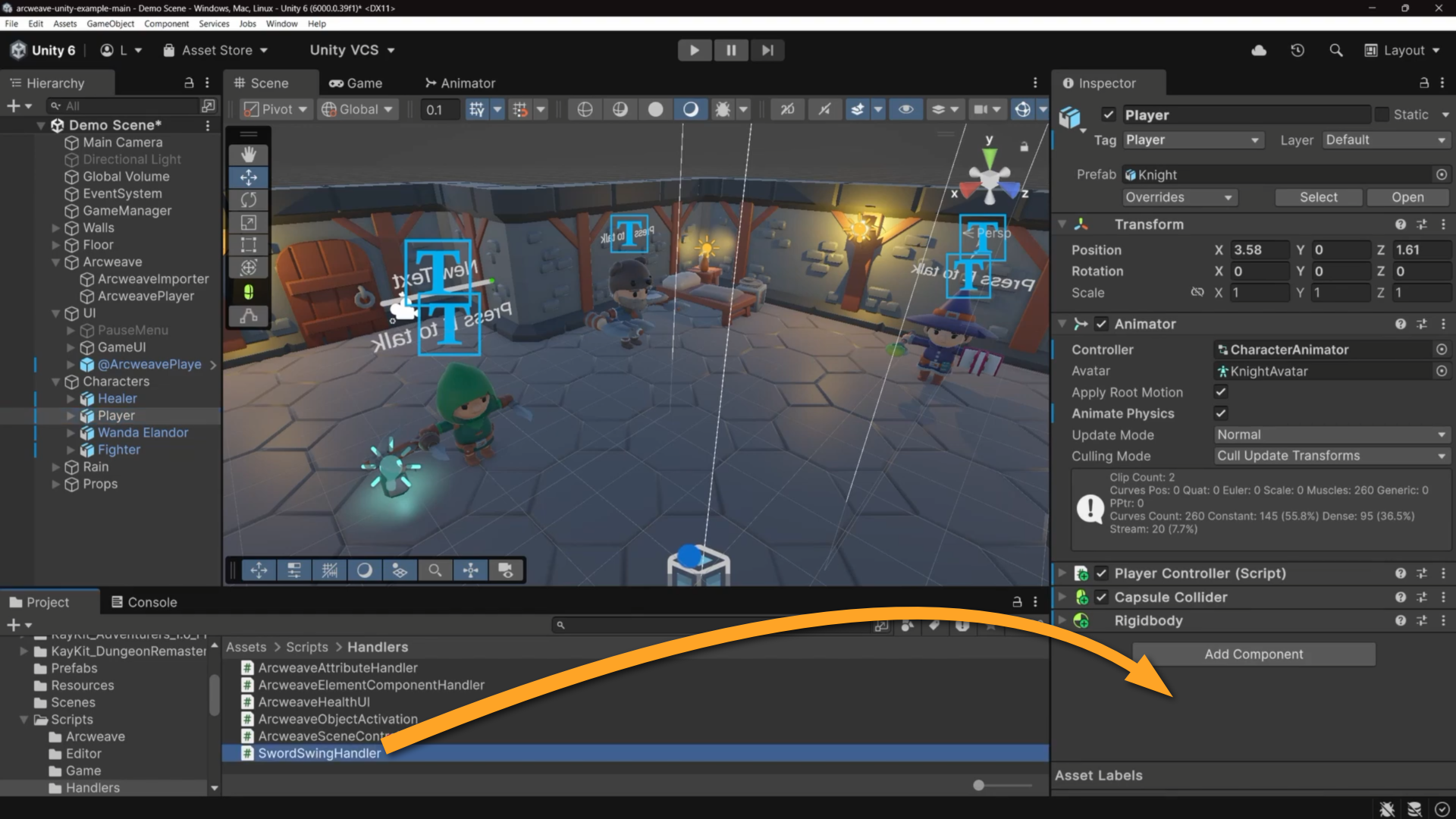
This adds the Sword Swing Handler component to the Player.
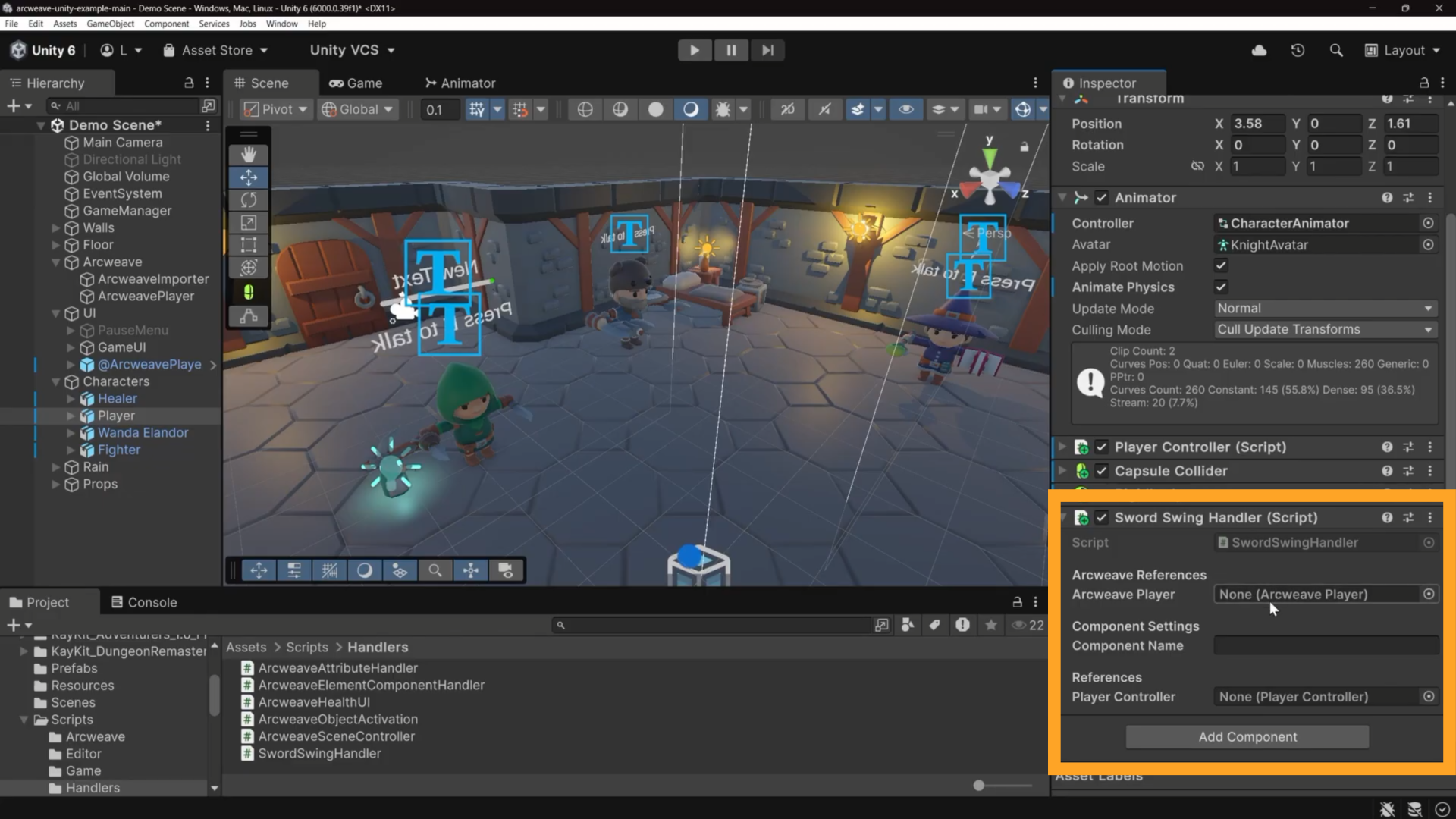
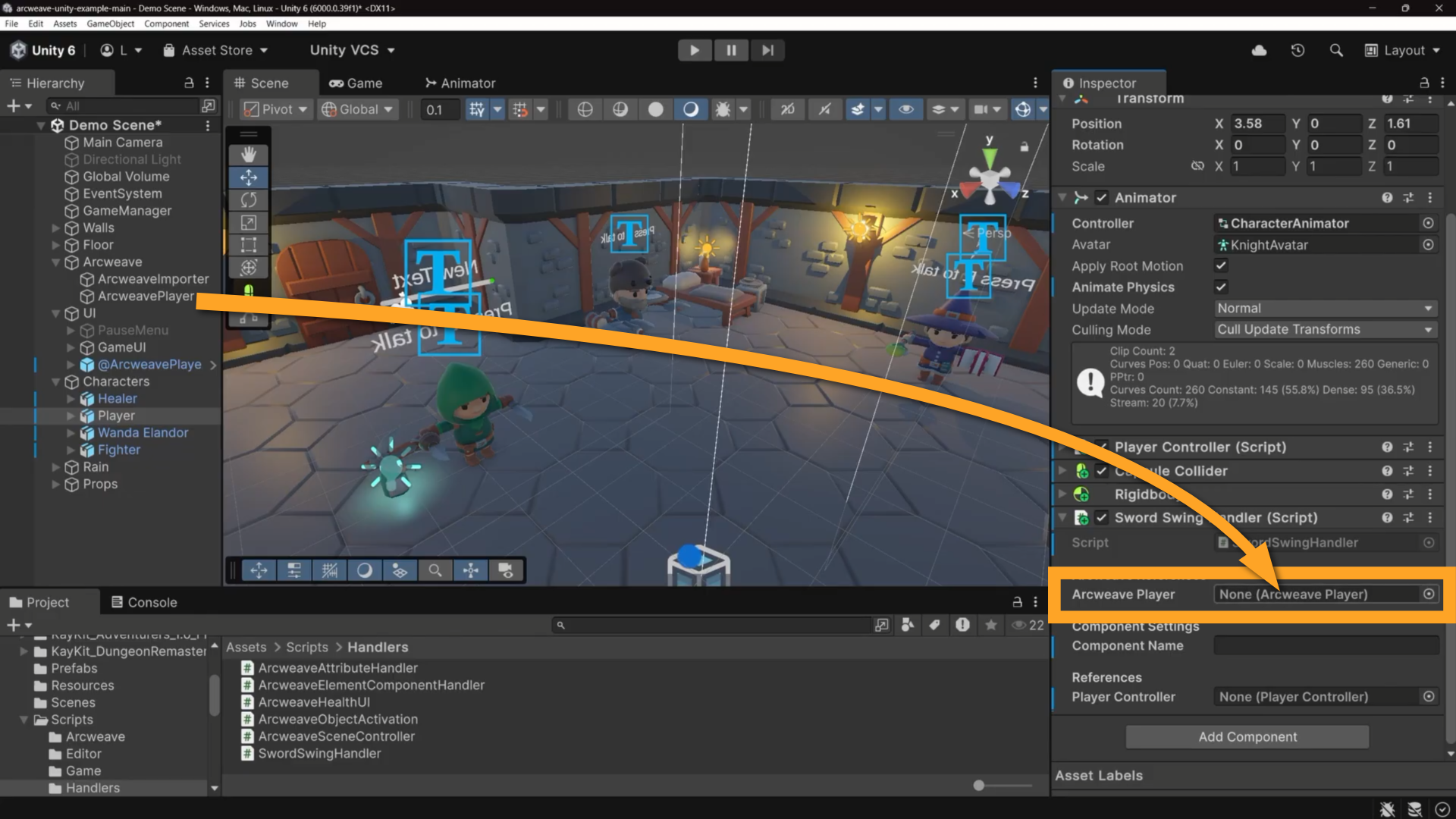
This script extends ArcweaveElementComponentHandler. It listens to every element the dialogue passes through, and when it finds one with the attack component attached, it calls EnableSwordSwing() on the player.
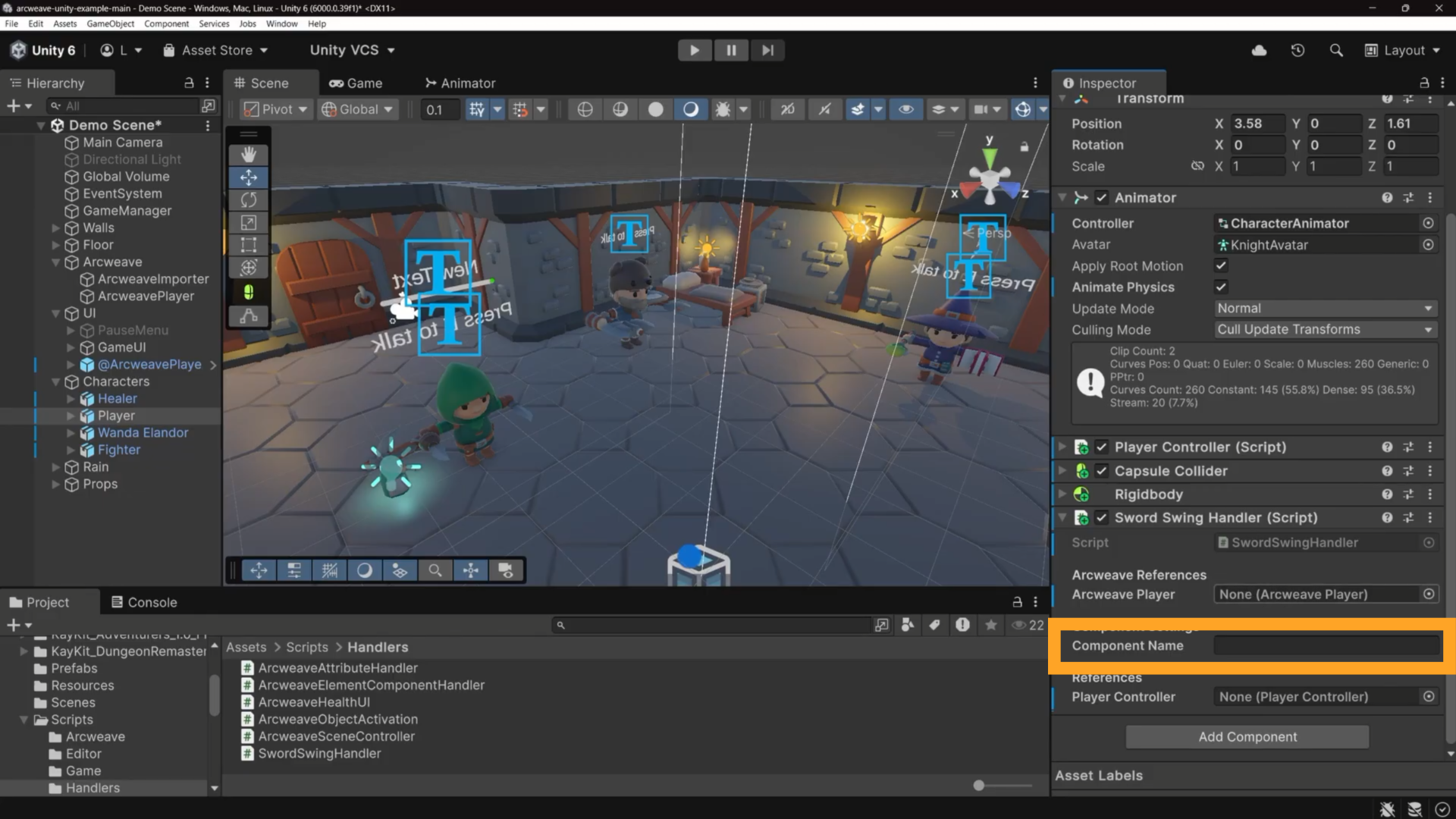
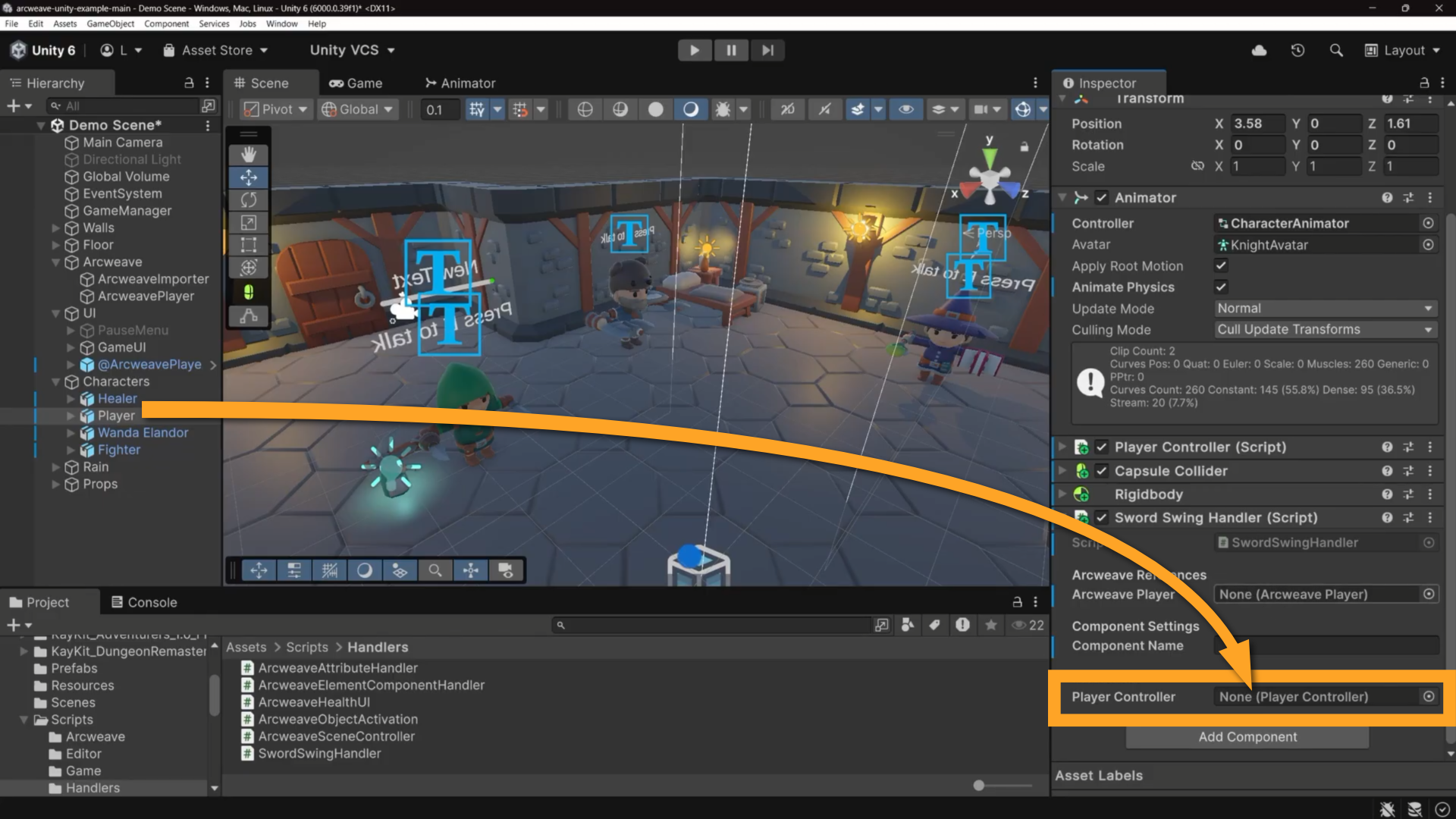
Configure its three fields:
- Arcweave Player: Drag the ArcweavePlayer GameObject from the Hierarchy and drop it into this field.
- Component Name: Type
attack. This must match the Arcweave component name exactly (case-sensitive).
- Player Controller: Drag the
PlayerGameObject from the Hierarchy and drop it into this field.
Set up the Animator
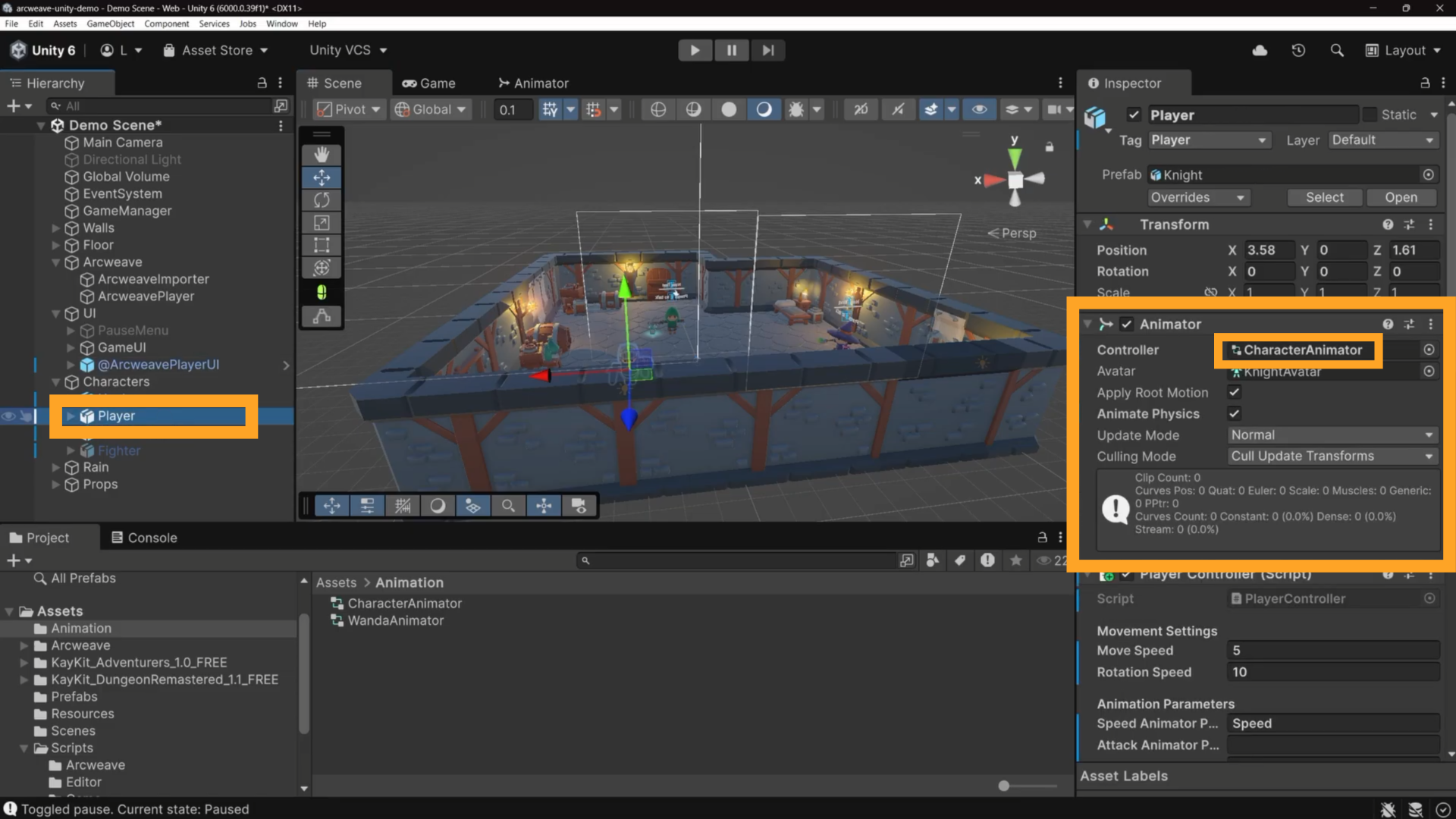
- Select the Player GameObject in the Hierarchy
- Locate the Animator component in the Inspector
- Double-click the Controller asset to open the animator graph in the Animator window.
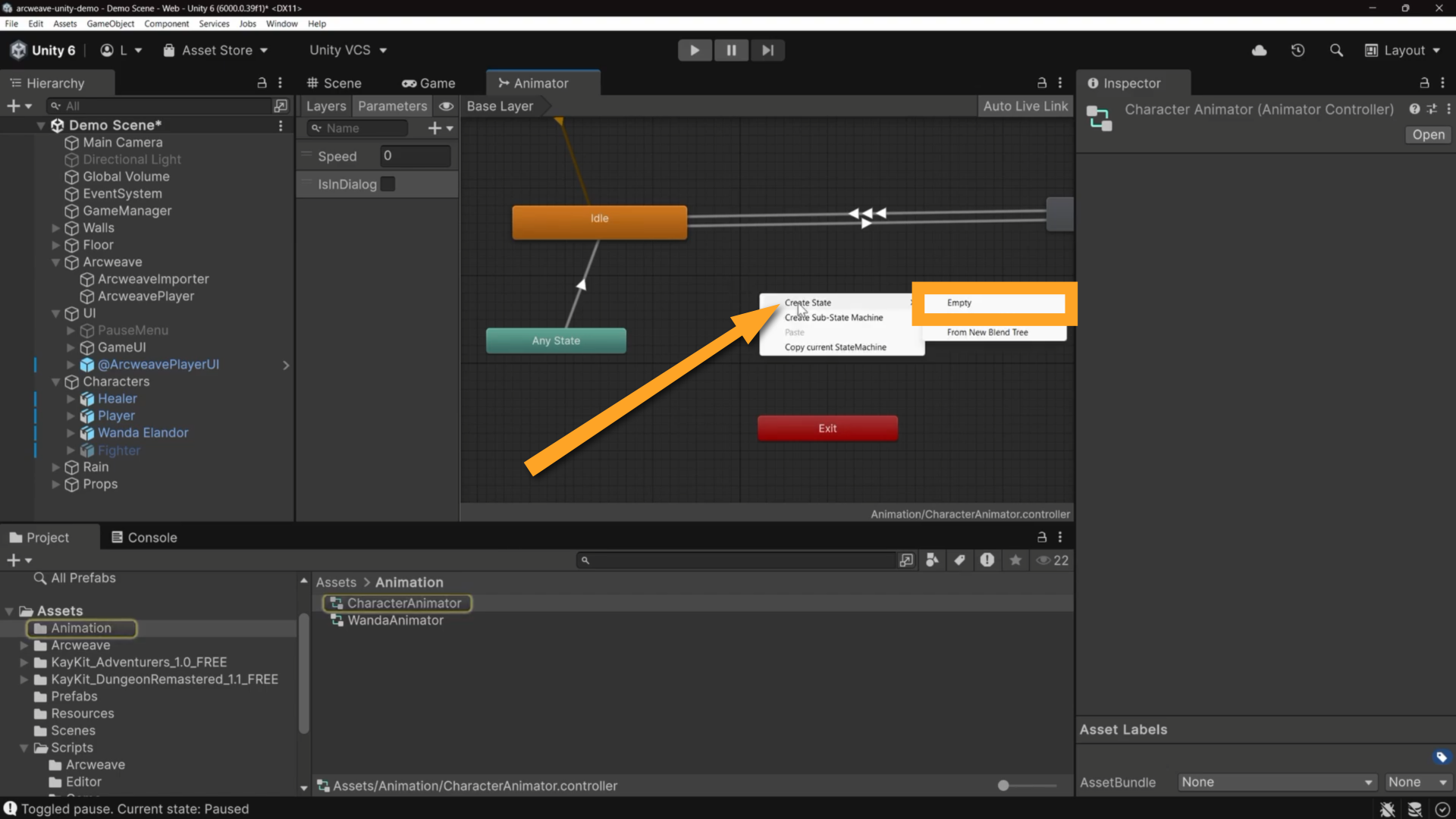
Right-click on an empty area of the graph and select Create State > Empty.
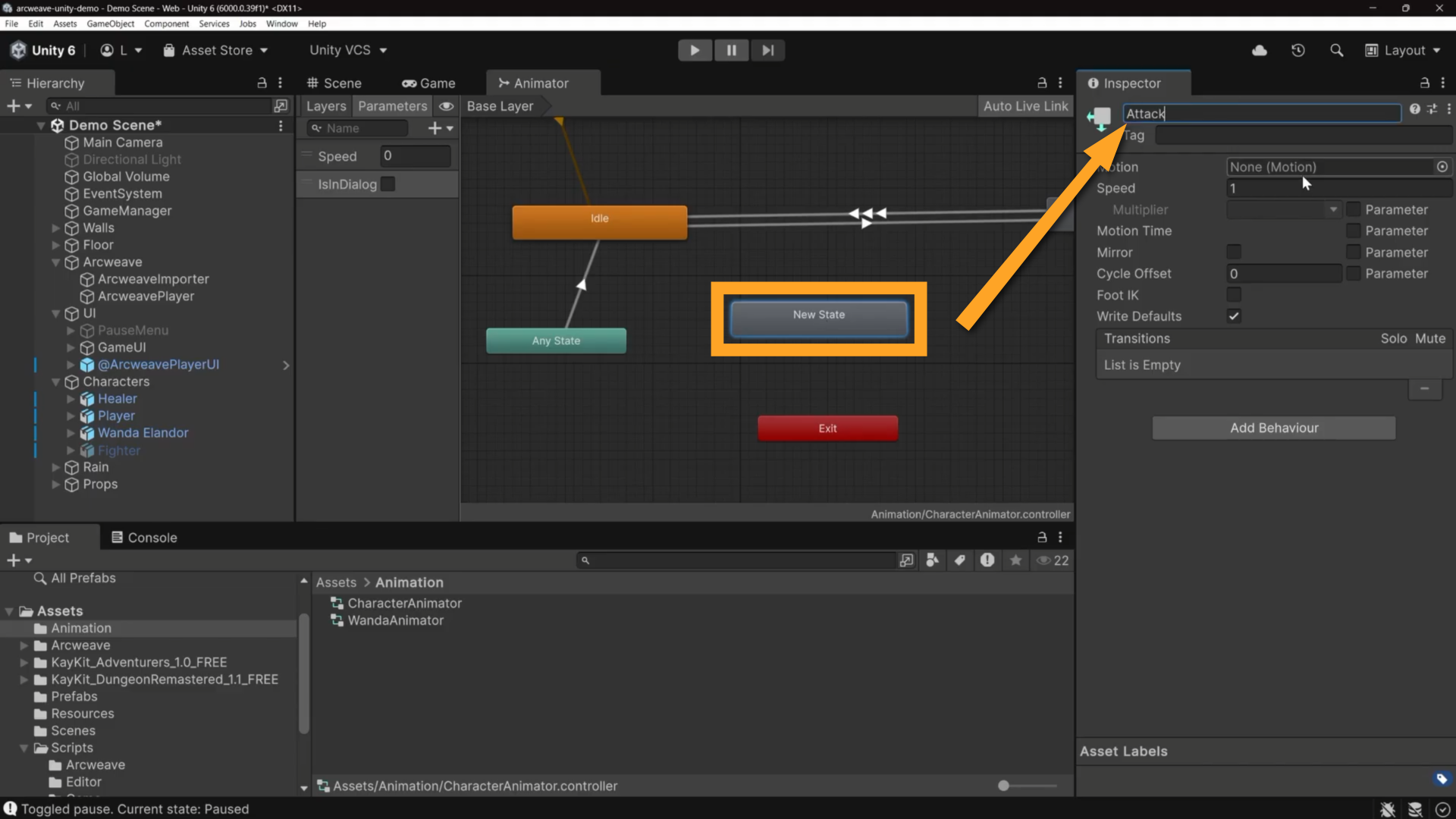
Rename the state Attack.
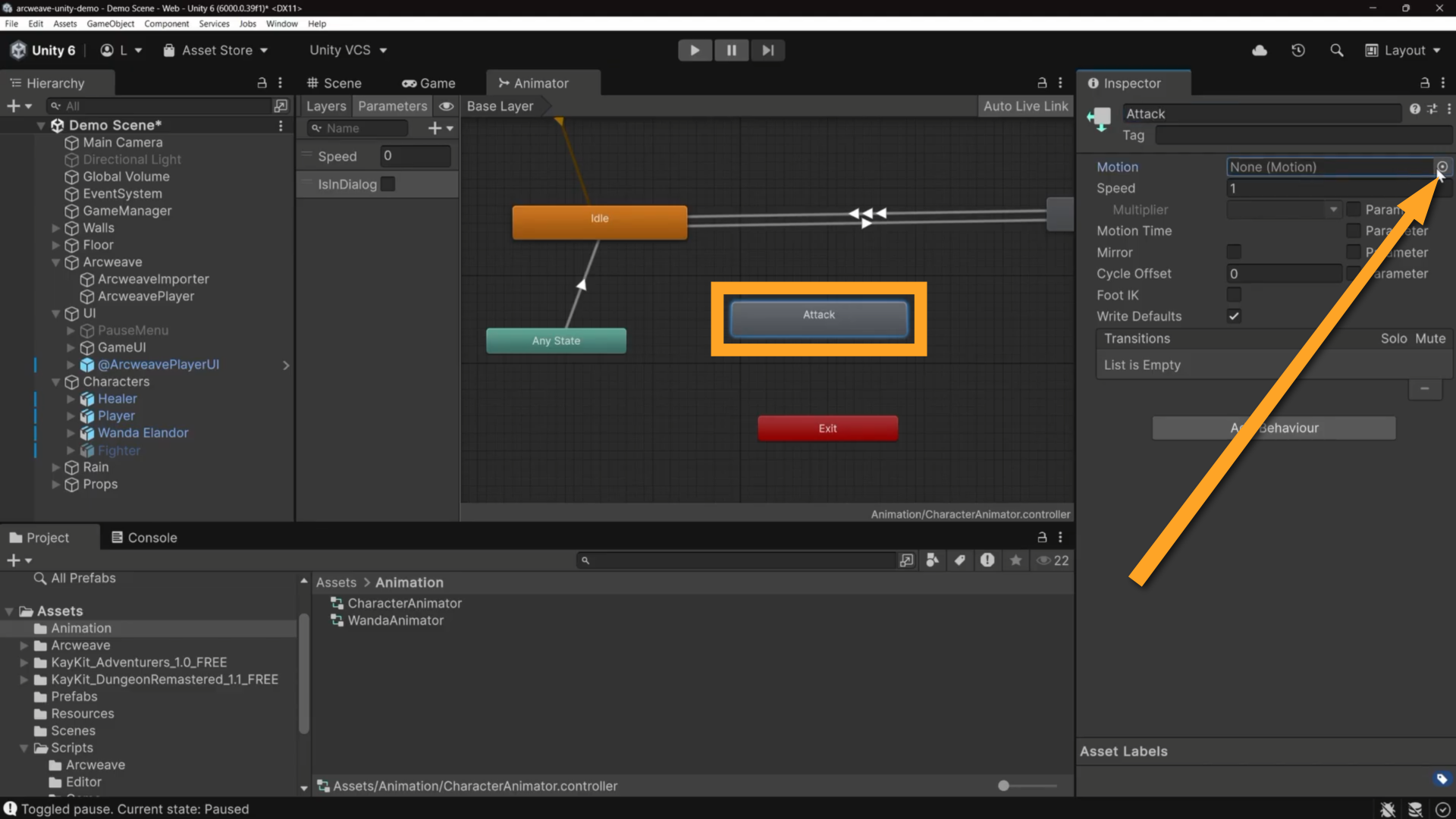
With the state selected, click the object picker button (on the right side of the Motion field), to browse the available animation clips.
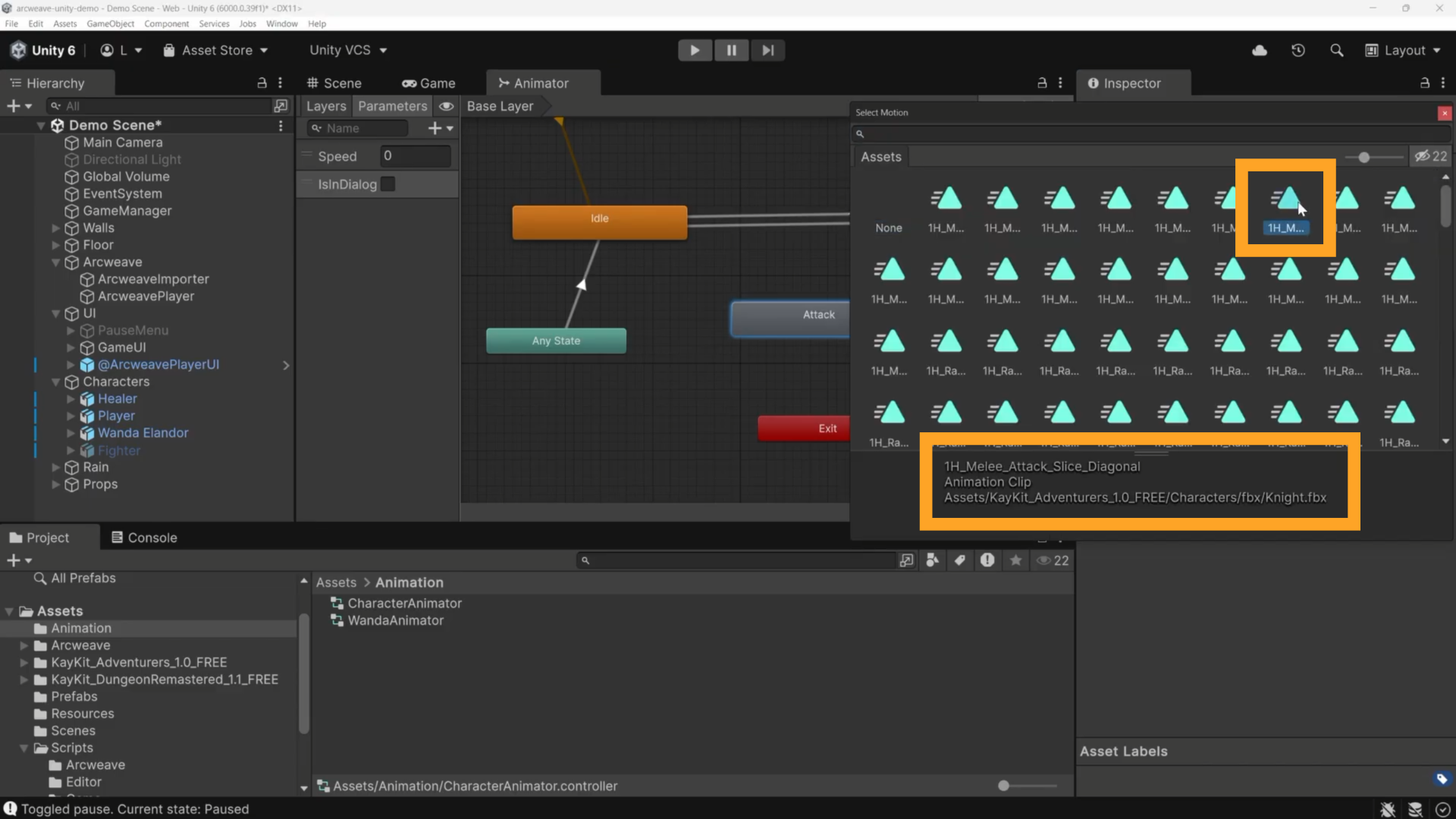
Select the attack animation clip named 1H_Melee_Attack_Slice_Diagonal and assign it to the Motion field in the Inspector.
Now add the transitions:
- Right-click Any State and drag a transition to the Attack state.
- Right-click the Attack state and drag a transition to Exit.
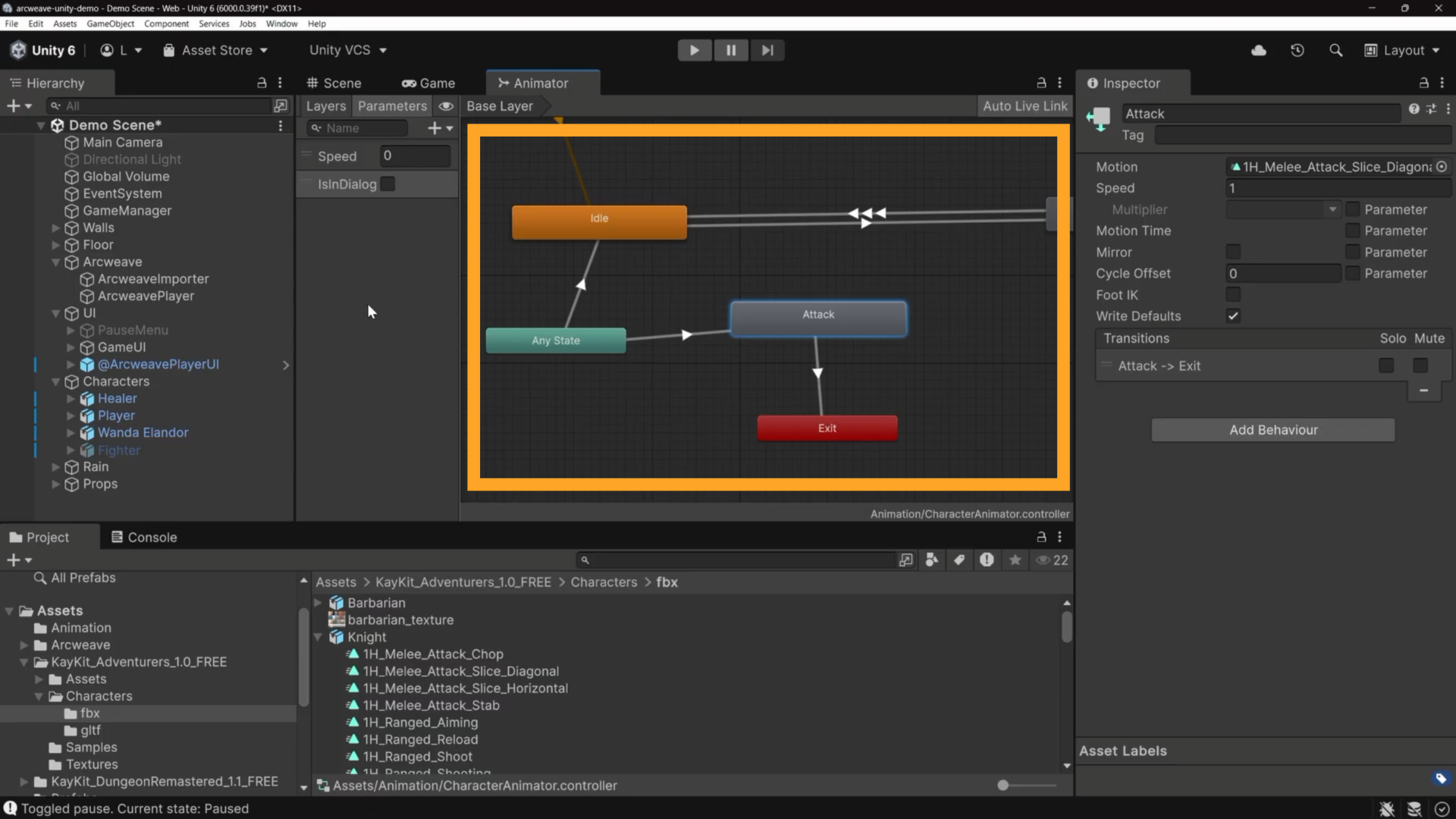
The final animation graph should look like the one in the image below:
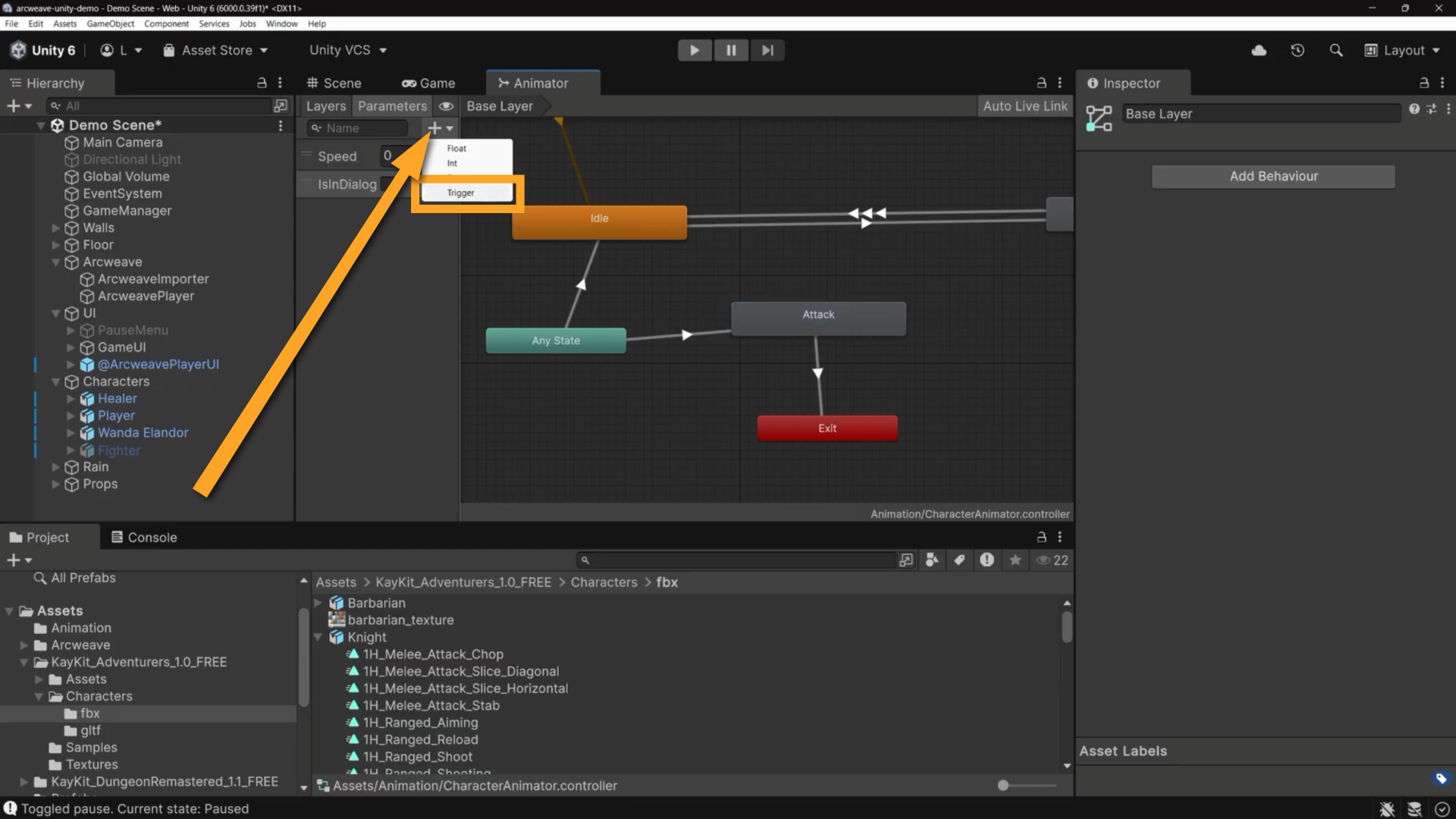
In the Parameters panel, click +, add a Trigger, and name it Attack.
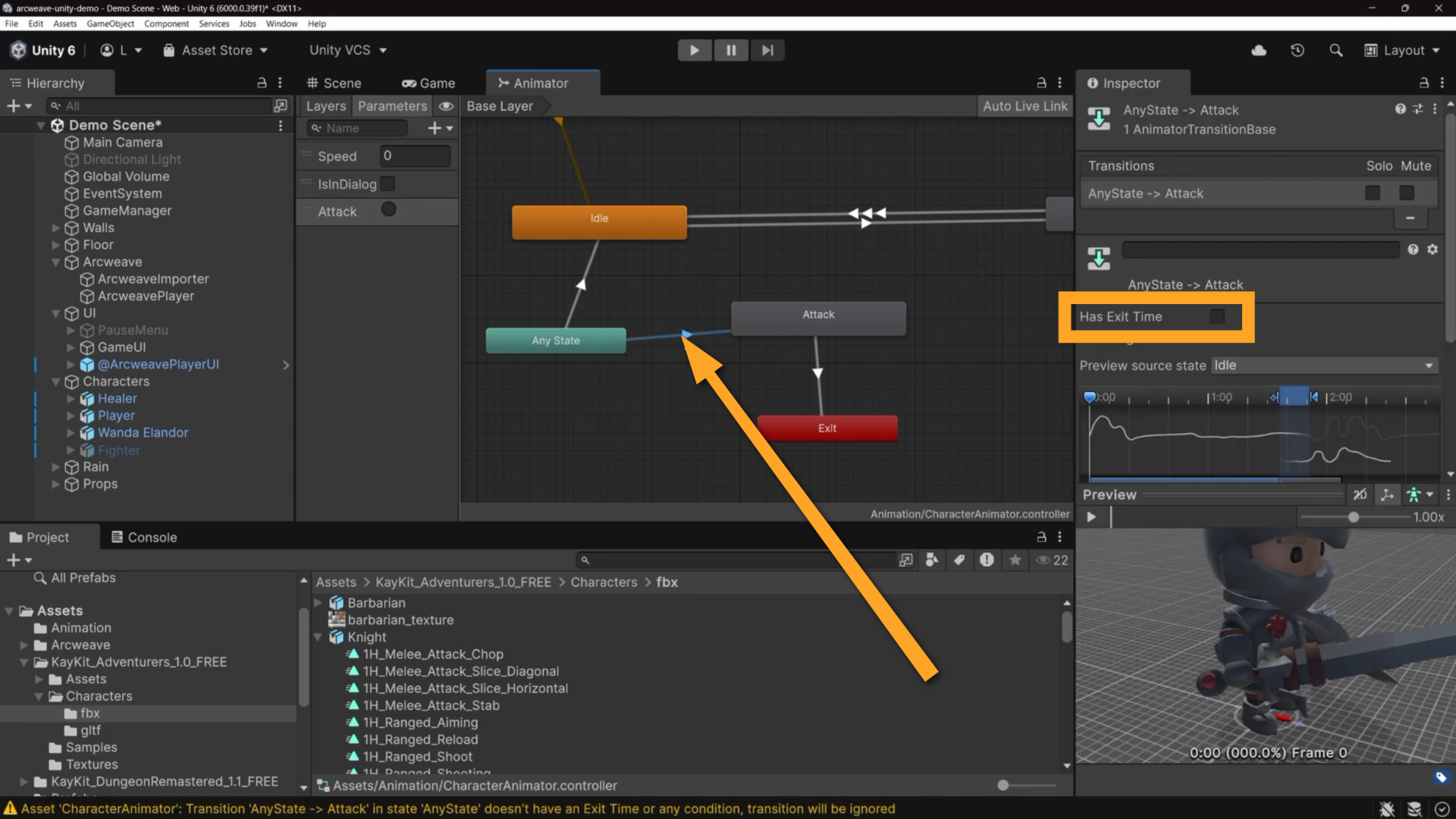
Select the Any State → Attack transition. In the Inspector, uncheck Has Exit Time so the animation fires immediately on input rather than waiting for the current clip to finish.
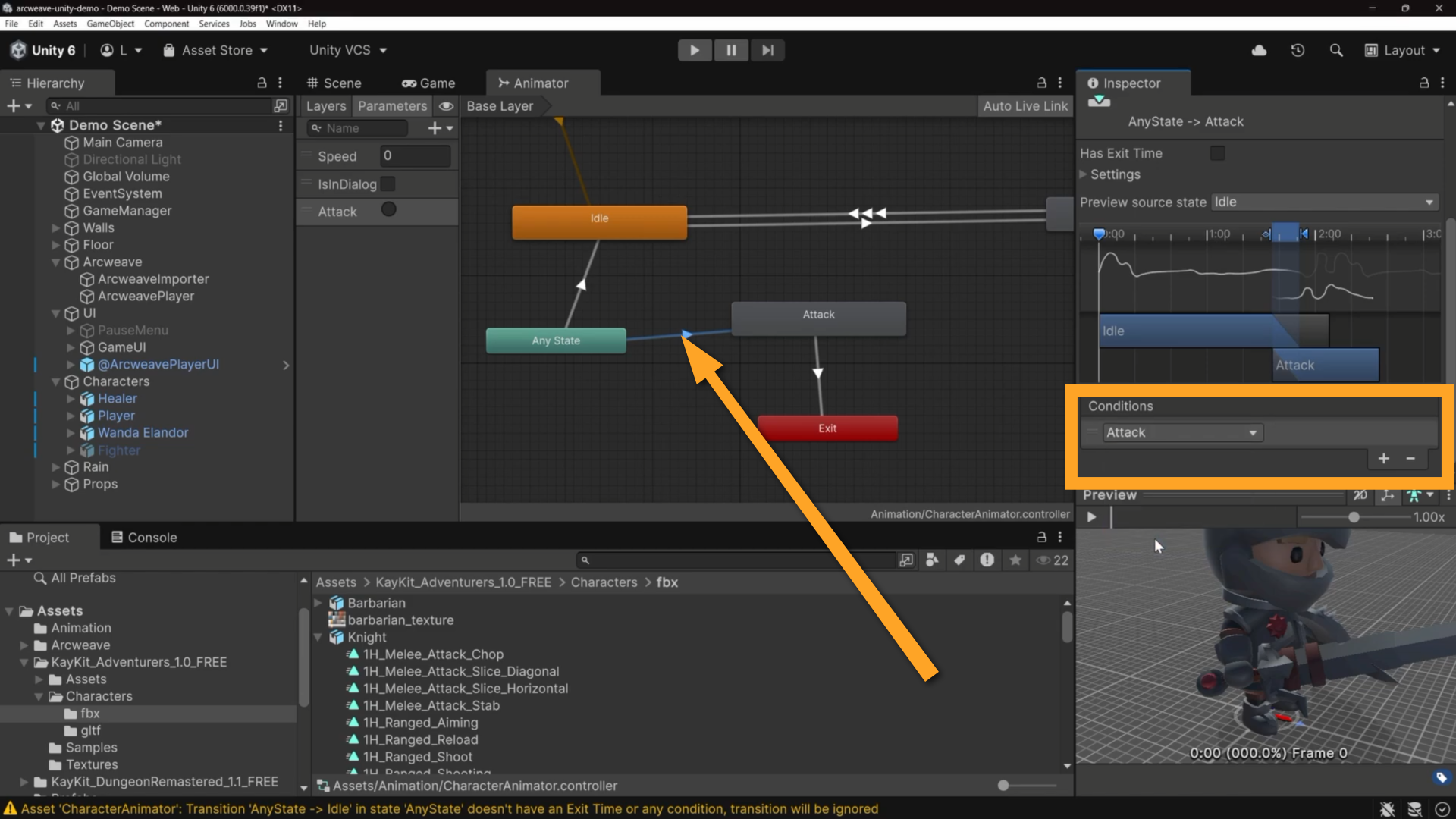
To the same transition, add a condition: Attack.
✅ The Attack → Exit transition can keep Has Exit Time checked; this lets the animation finish naturally before returning to idle.
✅ If you're using the template Player from this project, the Animator is already configured.
Finally, set the animation parameters in Player:
- Select the Player GameObject in the Hierarchy.
- In the Player Controller component, locate the Animation Parameters.
- Type
Attackin both fields of Attack Animator Param and Attack State Name.
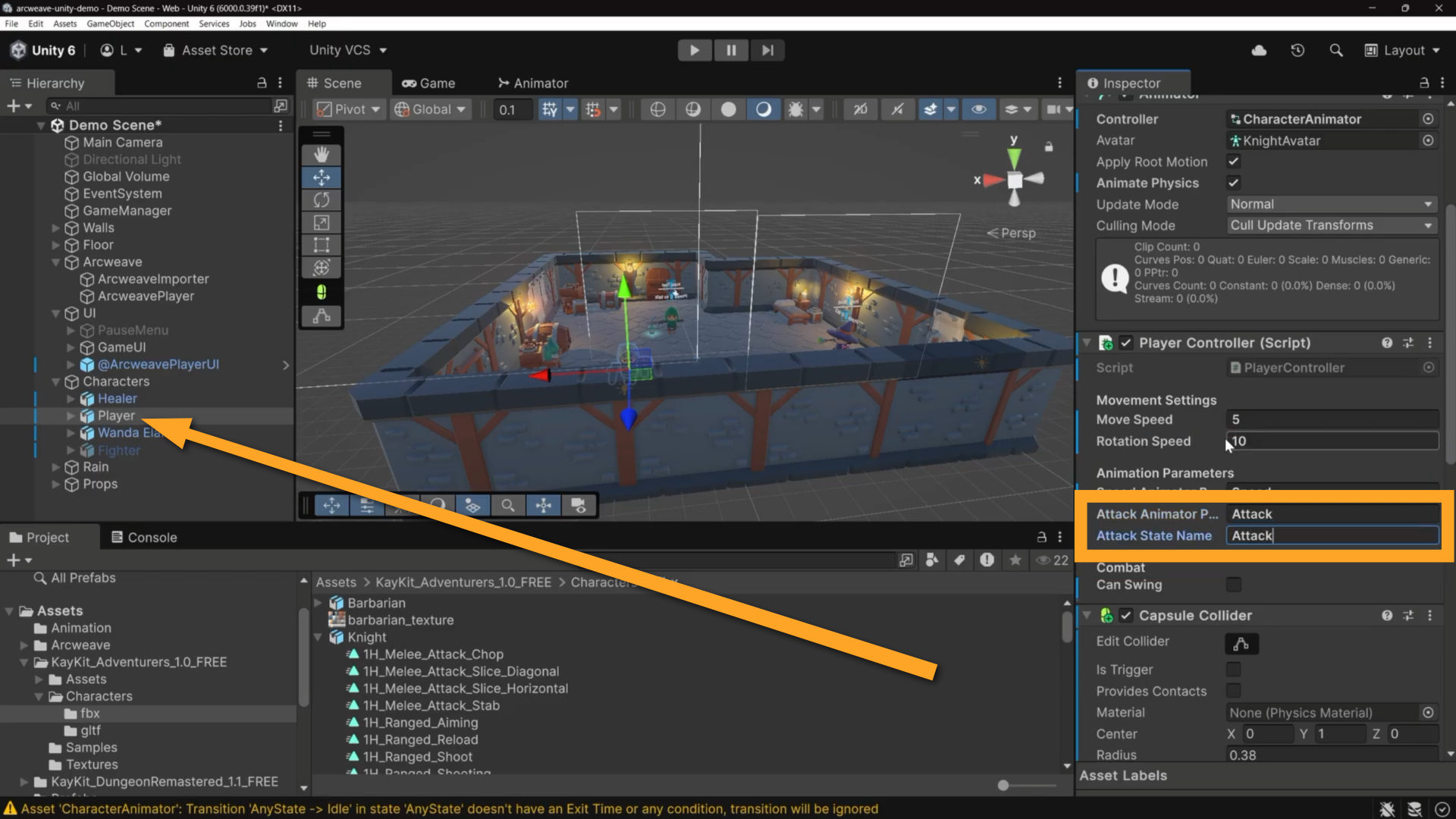
These tell the script the name of the trigger that activates the attack and the name of the attack animation.
The full chain
When the player chooses to train:
- The Arcweave project's Arcscript runs in the training element (
gold -= 50,sword_locked = false). ArcweavePlayerfiresonElementEnterfor the training element, which has theattackcomponent attached.SwordSwingHandlerdetects theattackcomponent and callsEnableSwordSwing()on thePlayerController.- From that point on, left-clicking triggers the attack animation.
Test in Play mode
Enter Play mode. Walk to the Fighter and press E.
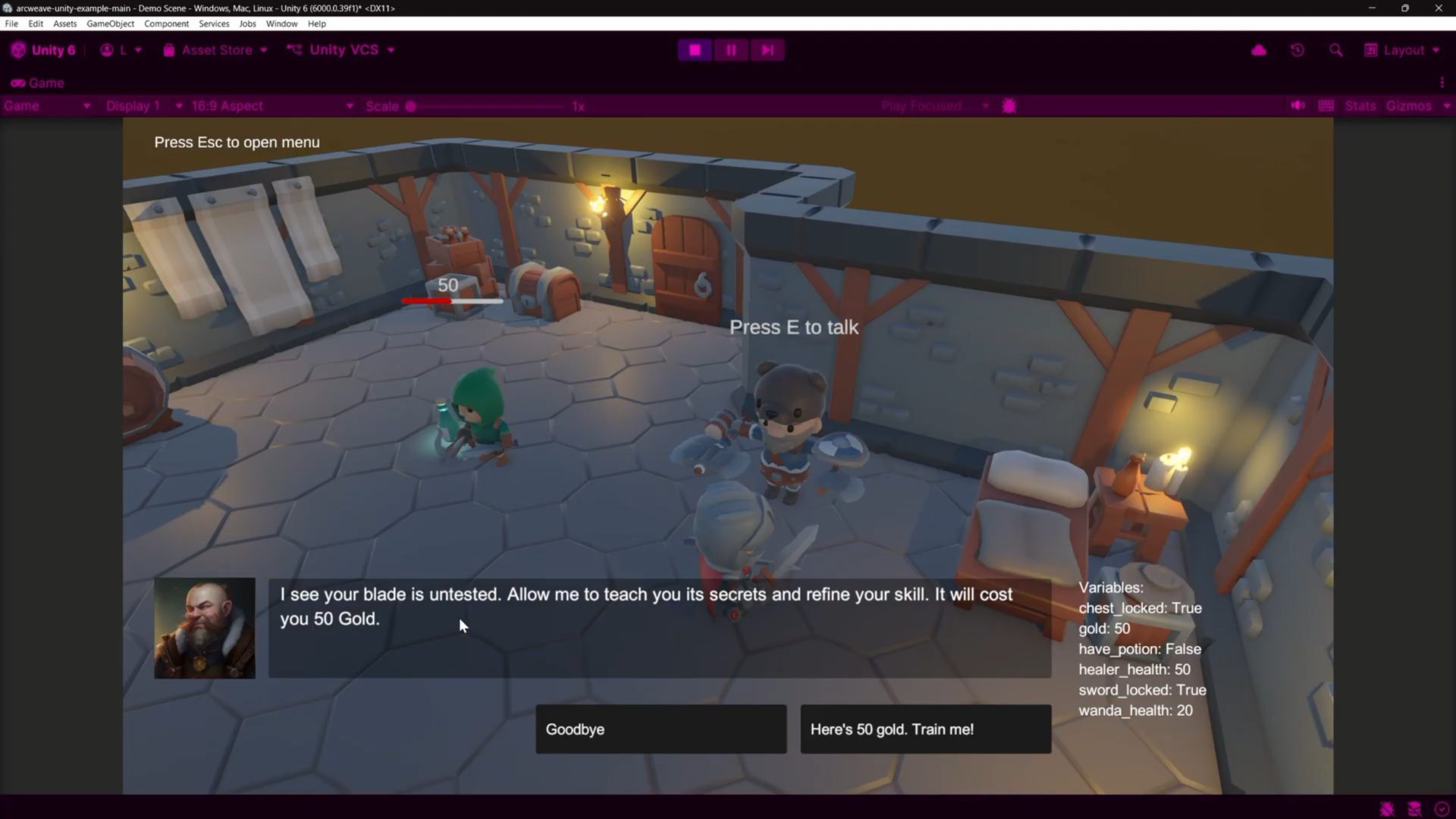
- The starting element shows the training offer because
sword_lockedistrue. - The branch evaluates
gold >= 50 and sword_lockedas true, so the training path is available. - After choosing it,
SwordSwingHandlerdetects theattackcomponent and callsEnableSwordSwing(). You can seecanSwingflip totrueon the PlayerController in the Inspector. - Close the dialogue and left-click: the attack animation plays.
- Return to the Fighter:
sword_lockedis nowfalse, so the starting element shows the "seasoned fighter" line and the training path is no longer available.
Build the project
Go to File → Build Profiles (File → Build Settings in Unity versions before Unity 6), confirm the scene is in the scene list and the platform is selected, then click Build.
After the build completes, open the output folder. Alongside the executable and data folder, you'll find an arcweave/ folder with an arcweave/resources/ subfolder inside. This is created automatically by ArcweaveBuildProcessor.cs after every build. It also copies project.json from Assets/Arcweave/ if one is present.
That arcweave/ folder is what makes it possible to update narrative without rebuilding.
Update dialogue after shipping
From a local JSON file
Edit the Fighter dialogue in Arcweave, export it for Unity again, and copy the new project.json into the arcweave/ folder next to the executable. The next time the game launches, RuntimeArcweaveImporter loads it automatically, with no Unity rebuild required.
If the game is already running, press Escape to open the import panel and click Import from local JSON to reload immediately.
From the REST API
In the import panel, fill in:
- API: an API key with Read projects enabled from your workspace's API section. The REST API is available to Team workspaces only.
- Project Hash: from Project settings.
Click Web Import. The game pulls the latest version directly from Arcweave. The designer saves in Arcweave; you test in the running build.
Summary
For any new NPC and mechanic in this template, the workflow is:
- In Arcweave: add variables; create components (
dialogue_start,dialogue_end, character portrait, gameplay components likeattack); build the board with conditional text and branches; attach components to elements to signal Unity at the right narrative moment; export. - In Unity, import: update the
ArcweaveProjectAsset. - In Unity, GameManager: fill in
Dialogue Start Component NameandDialogue End Component Name. - In Unity, NPC: add the character, rename it, add
ArcweaveDialogueTriggerwith the correct board name. - In Unity, portrait: place the image in
Assets/Resources/with the same filename as in Arcweave. - In Unity, gameplay: add the appropriate handler script (an
ArcweaveElementComponentHandlersubclass) to the relevant GameObject, set the component name to watch, and wire up the target. - Build: the
arcweave/folder is created automatically. Drop in a newproject.jsonor use the import panel to update without rebuilding.
The Arcweave project is where the narrative lives; Unity is where it runs. Variables shape the story, components trigger the gameplay, and the two sides stay connected even after shipping.