Basic Arcweave tutorial | Part 8: Image assets
Learn how to upload and use image assets in Arcweave. Assets are the media files you upload to use in your project.
ℹ️ This tutorial page and the video tutorial below do not refer to video and audio assets. For audio assets, see this tutorial page.
For video assets, refer to their documentation.
Video tutorial
Watch this tutorial as a video:
ℹ️ This older video does not include the more recent features of audio and video assets.
⚠️ This video does not reflect the latest updates to Arcweave's UI.
✅ You can play the finished version of the Tutorial Project here and explore its diagrams and structure here.
Why assets
While the icon library is great for abstract or symbolic imagery, image assets let you bring your own pictures into Arcweave (photographs, illustrations, concept art, and more) and apply them as covers on elements and components.
Assets section
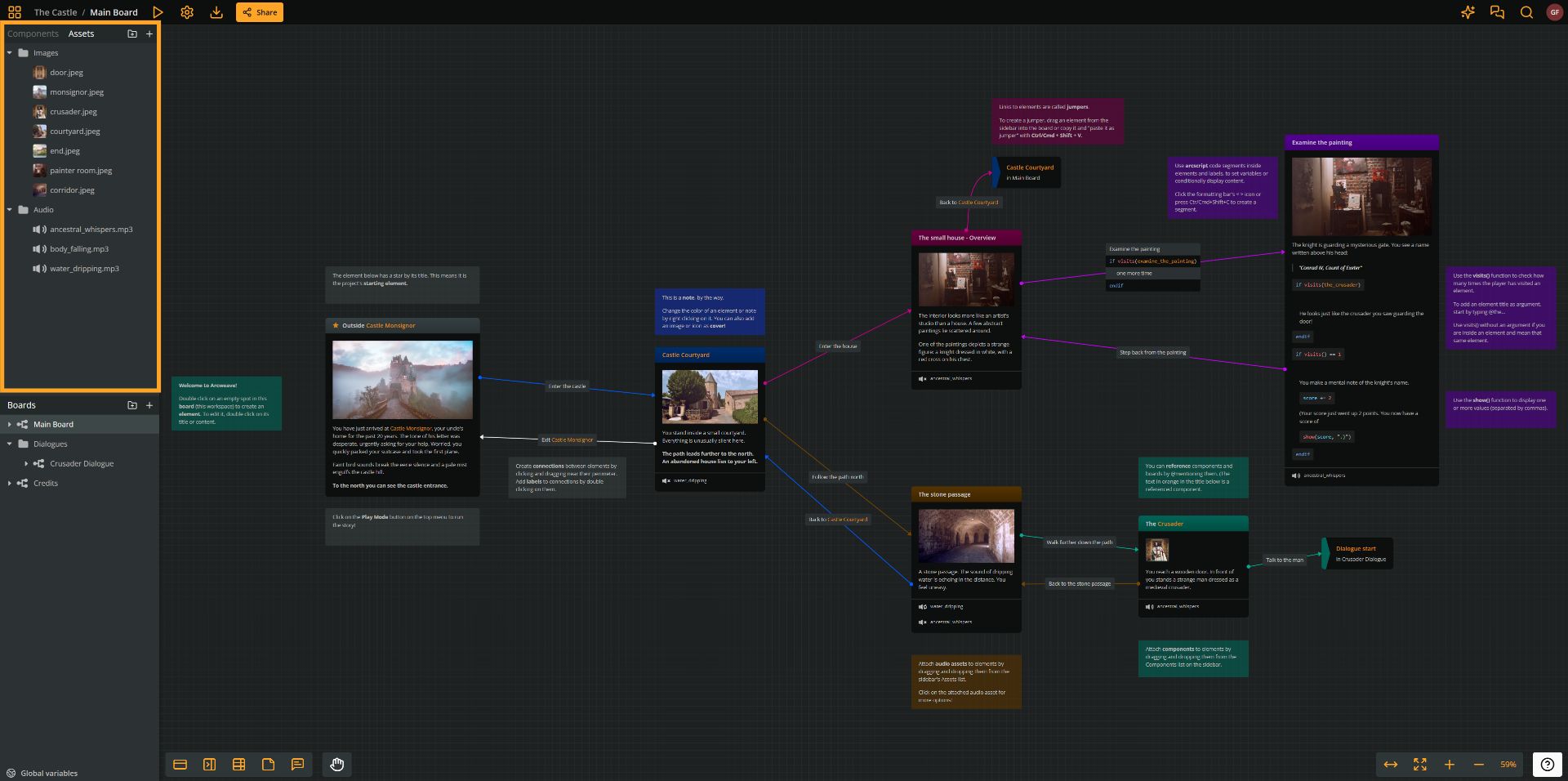
You can find your project's assets in the sidebar under Assets.
Supported file types
Arcweave supports the following image file types, which you can use as assets:
.jpg/.jpeg.png.gif.webp
ℹ️
.giffiles animate in Play Mode only. In the board view, they appear as static images.
ℹ️ Uploaded images can be up to 8192 x 8192 pixels.
Upload assets
There are two easy ways to upload assets to your project.
Use context menu
The first way to upload one or more assets is by clicking the Create asset button found in the Assets section of your project.
- In the sidebar, click the Assets tab.
- Click Create asset (the + icon).
- Click Upload assets... from the context menu.
- Choose an image file from your computer.
The uploaded file will appear in your project's Assets section immediately after the upload completes.
Drag and drop
The second, even easier way is to drag one or more images and drop them directly into the Arcweave browser tab.
- Drop them anywhere: The asset will be saved in the root of the Assets section.
- Drop them into a specific asset folder: The asset will be saved in that folder within the Assets section.
Organize assets
Create asset folders
Just as with components, you can create folders (and subfolders) to keep your assets organized.
- Click the + icon next to any asset or asset folder
- Select Create folder from the menu that appears.
- Give the folder a name (e.g., Characters or Locations).
Repeat this process to create as many folders as you need.
✅ Nest subfolders inside other folders to build a deeper organizational structure.
Move assets
To move an existing asset into a folder or a different position in the order, use drag and drop.
ℹ️ You cannot select multiple assets for moving.
Upload assets into folders
To save time, you can upload new assets straight into a specific folder instead of dragging them later.
- Hover over the target folder row in the Assets panel.
- Click the + icon that appears next to the folder name.
- Select Upload assets... and choose your file.
The file will land directly inside that folder.
Rename an asset
- Right-click on the asset you want to rename.
- Select Rename from the context menu.
- Type the new name and confirm.
Note: Renaming an asset does not affect the original file's extension. Only the display name changes.
Set assets as element covers
You can assign an image asset as the cover image of an element on your board. There are two ways to do this.
Use context menu
First, you can set an asset as element cover using the Set cover menu option:
- Right-click on the element.
- Select Cover > Set cover.
- In the dialog that opens, go to the My Assets tab.
- Browse to the image you want and click it to apply.
The image will appear as the element's cover. If the text is pushed down, resize the element's height to suit your layout.
Drag and drop
The second way to set an image asset as element cover is to drag the image directly from the Assets section and drop onto the element.
Replace element covers
If you change your mind about an element's cover, just reset its cover using either of the two ways described above.
Remove element covers
To remove a cover entirely, right-click the element and select Cover > Remove cover.
Component covers
Image assets can also be used as component covers.
Change component covers
Not sure if you've noticed, but components always come with a cover. Upon their creation, their default cover is the generic icon of a person.
This is why there is no Set cover option for components; only Change cover. To assign an image asset as component cover:
- In the Components section, click on any component to open it.
- Hover your mouse over the current cover (be it an icon or another asset) and click the orange button that appears, saying Change cover.
- On the appearing panel, go to the My Assets tab, navigate to the correct folder, and select the image you want to use.
The updated cover will be reflected everywhere that component appears across the project.
Replace assets
Sometimes you need to swap out an image that is already in use. For example, to replace a placeholder sketch with the final artwork.
Arcweave lets you replace an asset globally in a project, updating all its occurrences in a single action.
- In the Assets section, right-click on the asset you want to replace.
- Select Replace asset....
- Choose the new image file.
The new image will immediately replace the old one everywhere it was used in the project.
What's next
In this tutorial you learned how to upload and organize assets in folders and apply them as element or component covers.
The next tutorial will teach you all there is to know about jumpers, which you will use to jump from one element to another within your project.