Basic Arcweave tutorial | Part 3: Format text
In this tutorial, you will learn how to format text inside elements, apply color themes to elements and connections, and change the visual style of connections in Arcweave.
Video tutorial
Watch this tutorial as a video:
⚠️ This video does not reflect the latest updates to Arcweave's UI.
✅ You can play the finished version of the Tutorial Project here and explore its diagrams and structure here.
Format element text
Arcweave uses formatted text throughout the editor, giving you rich text controls directly inside elements.
To open the text editor, double-click on any element. A formatting toolbar will appear at the element's top (or bottom, if there is not enough space).
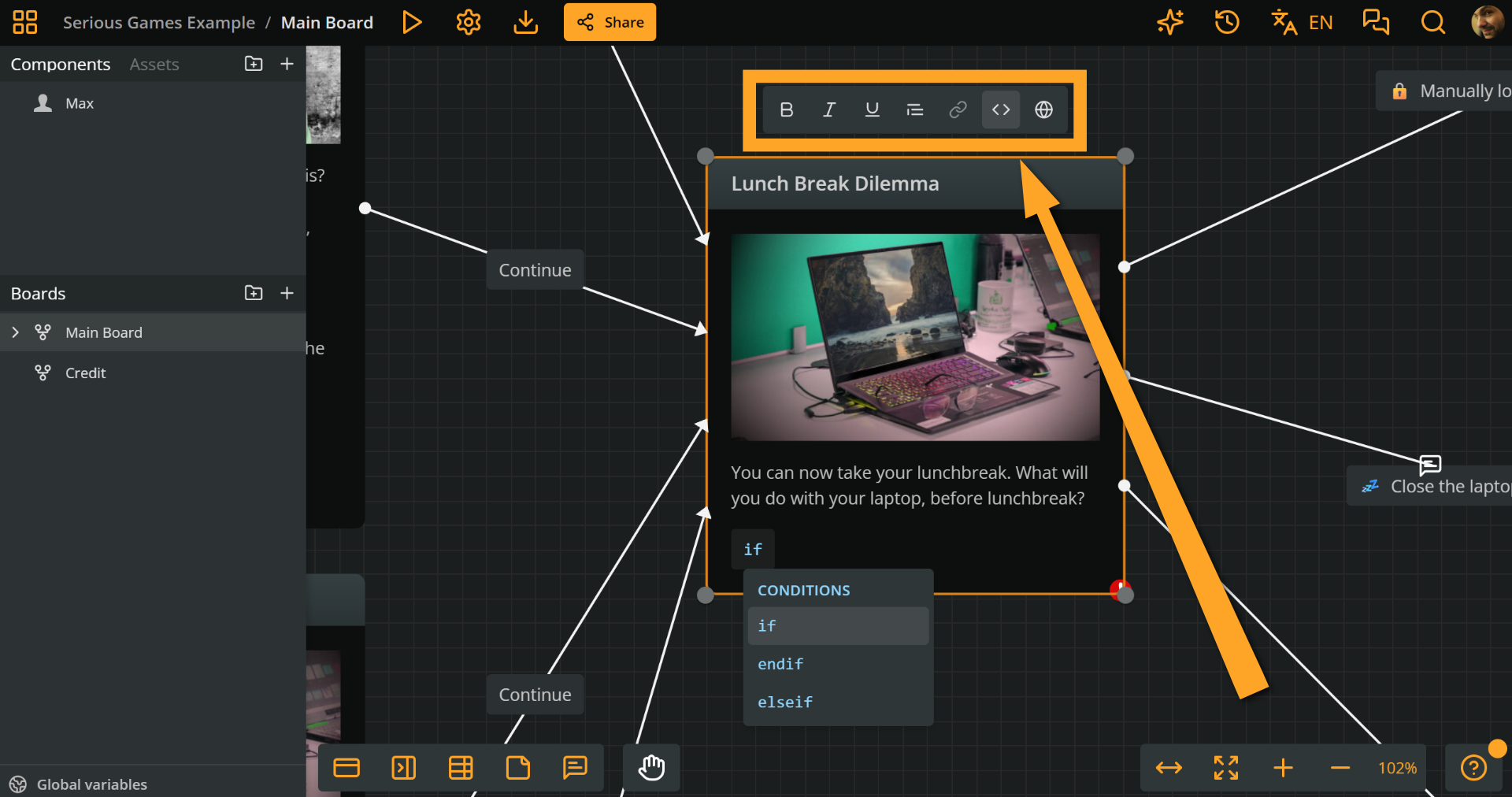
With text selected, you can apply the following formatting:
- Bold — emphasize key terms or names.
- Italic — use for titles, foreign words, or subtle stress.
- Underline — draw attention to specific phrases.
- Block quote — make a paragraph stand out as a quote or a descriptive aside. Use this format for in-world signs, notes, or flavour text.
Add and remove links
You can attach hyperlinks to any selected text inside an element — useful for research notes, world-building references, or external resources.
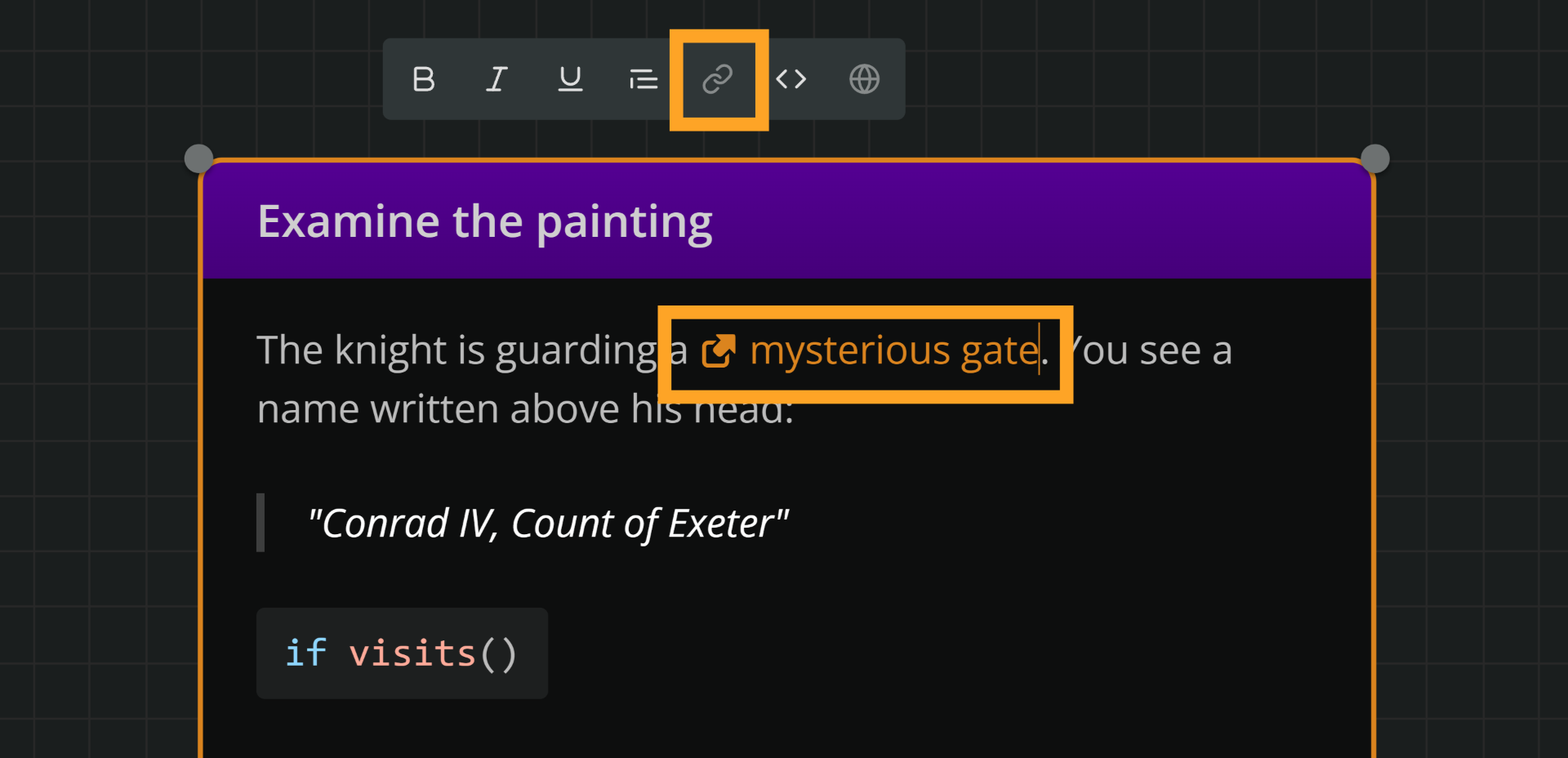
Add links
- Select the text you want to turn into a link.
- Click the link button in the formatting toolbar.
- Enter the URL.
- Press Enter to confirm.
Remove links
- Select the linked text again.
- Click the link button.
- Delete the URL from the field.
- Press Enter to confirm.
Apply element color themes
Color coding is a powerful and intuitive way to visually organize your project at a glance.
You can assign color themes to elements to communicate meaning, e.g. to mark important plot points in blue, or negative outcomes in red.
To apply a color theme to an element:
- Right-click the element on the board.
- Select the desired theme color from the context menu.
✅ Color coding is personal; there is no universal convention.
ℹ️ Whichever color theme you choose last becomes the default for the next element you create. This means you can set your preferred color and keep working without changing it each time.
To verify this, try the following:
- Change an element's theme to any color.
- Create another element. It will automatically use the last color theme you selected.
Apply connection color themes
Connections can also be color-coded, following the same logic as elements.
To apply a color to a connection:
- Right-click the connection on the board.
- Select the desired theme color from the context menu.
ℹ️ Whichever color theme you choose last becomes the default for the next connection you create. This means you can set your preferred color and keep working without changing it each time.
Change connection styles
Beyond color, you can also change the visual form of a connection. Arcweave offers three styles:
| Style | Description |
|---|---|
| Bezier | The default curved style. |
| Straight | A direct line between two elements. |
| Flowchart | Right-angle lines, similar to a flowchart diagram. |
To change a connection's style:
- Right-click the connection on the board.
- Choose the desired style icon among Bezier, Straight, or Flowchart.
ℹ️ Whichever connection style you choose last becomes the default for the next connection you create. This means you can set your preferred style and keep working without changing it each time.
What's next
Now that your elements and connections are formatted and color-coded, you're ready to explore Play Mode. The next tutorial covers essential Play Mode functionalities that will help you playtest your project efficiently.