Unity tutorial | Part 4: The 3D demo project
This tutorial walks through a full 3D RPG demo that shows how each piece of an Arcweave project connects to a Unity scene. You will see characters you can walk up to, conversations that change health bars and environmental effects, and a world that reacts to story choices.
Video tutorial
You can watch the video version of this tutorial below.
Download project
Download the 3D demo project from GitHub. Click the green Code button, then Download ZIP. Extract it and open Unity Hub.

In Unity Hub, click Open → Add project from disk, select the arcweave-unity-example root folder, and open it. Unity will import assets on first load; this may take a minute.
Once loaded, navigate to Assets > Scenes and double-click Demo Scene to open the scene.
What the demo does
Before diving into the wiring, it helps to see the demo running.
Hit Play in the Editor.
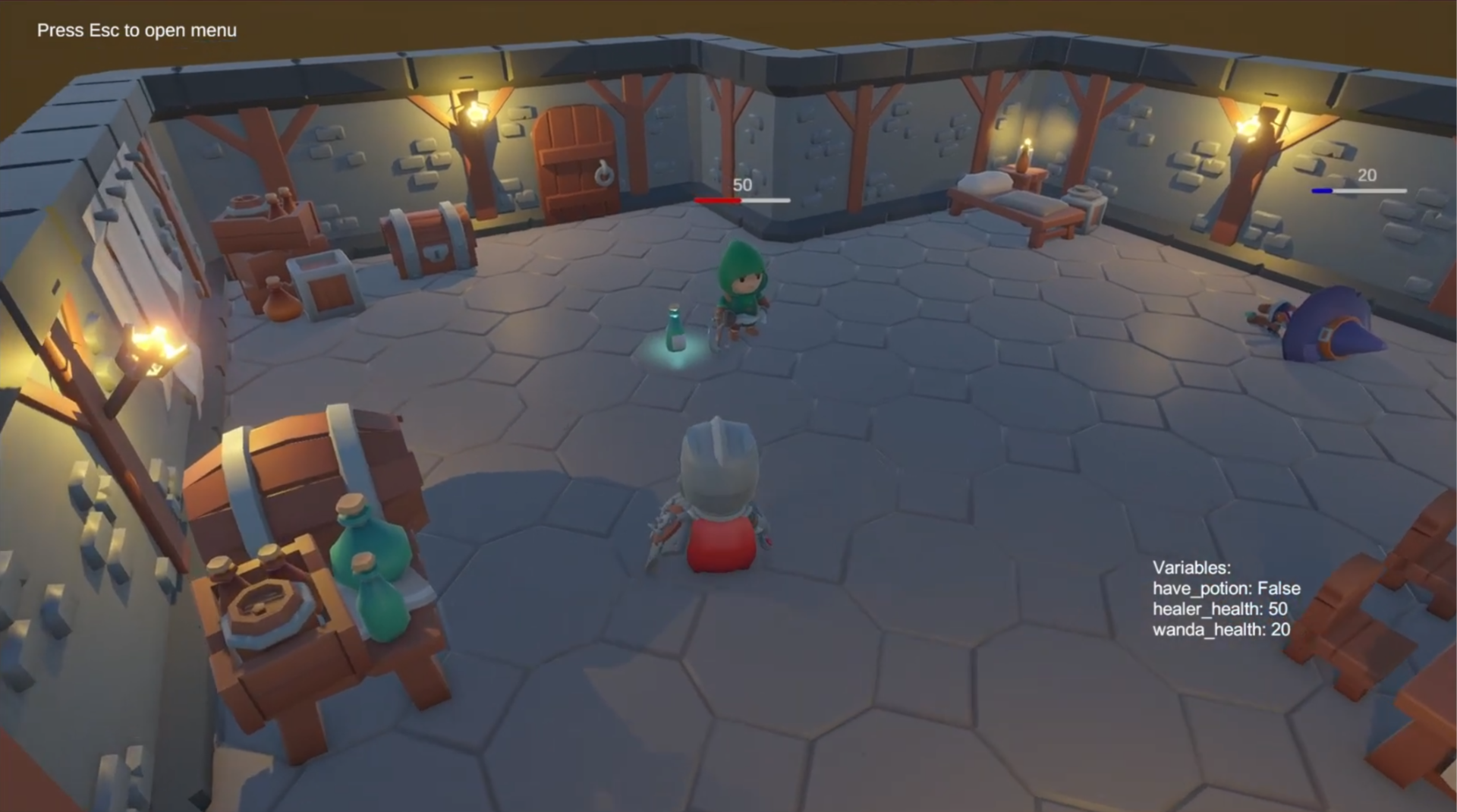
You are in a small village with two NPCs. Notice the health bar above them. That value is driven by an Arcweave variable, not set manually in Unity.
Walk toward the Healer until a prompt appears, then press E. The player freezes, the camera locks, and the dialogue UI slides in: the same ArcweavePlayerUI covered in the earlier tutorials.
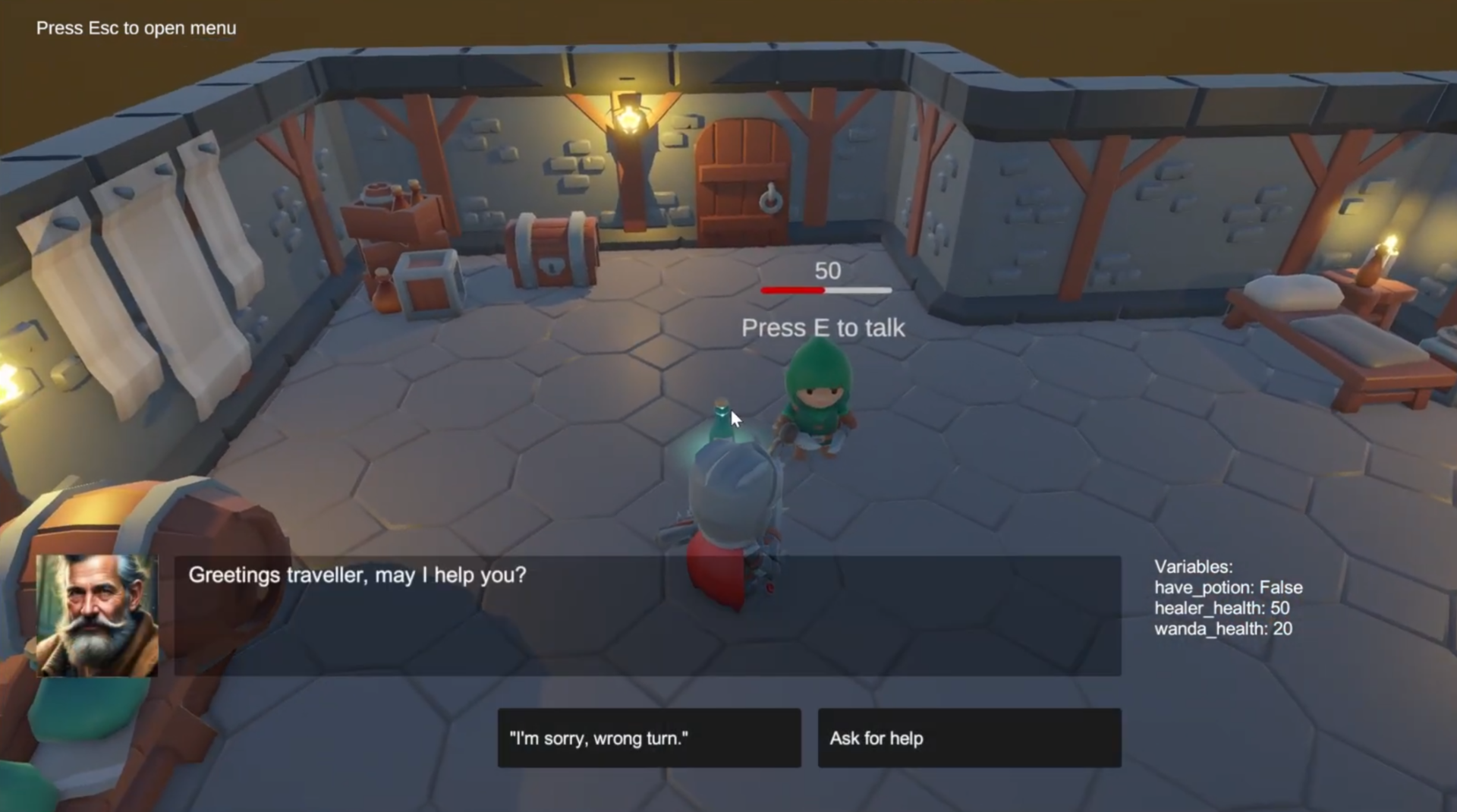
Make a choice and work through the conversation. When it ends, movement is restored and you return to the world.
Now walk to Wanda. She has low health. If you got a potion during the Healer conversation, you will see the option to give it here. Watch the bar above her head update immediately when you do.
Finally, press Escape during gameplay. The game pauses and an import menu appears. This is how you re-import the Arcweave project at any time, from the web or a local JSON file, without rebuilding or redeploying.
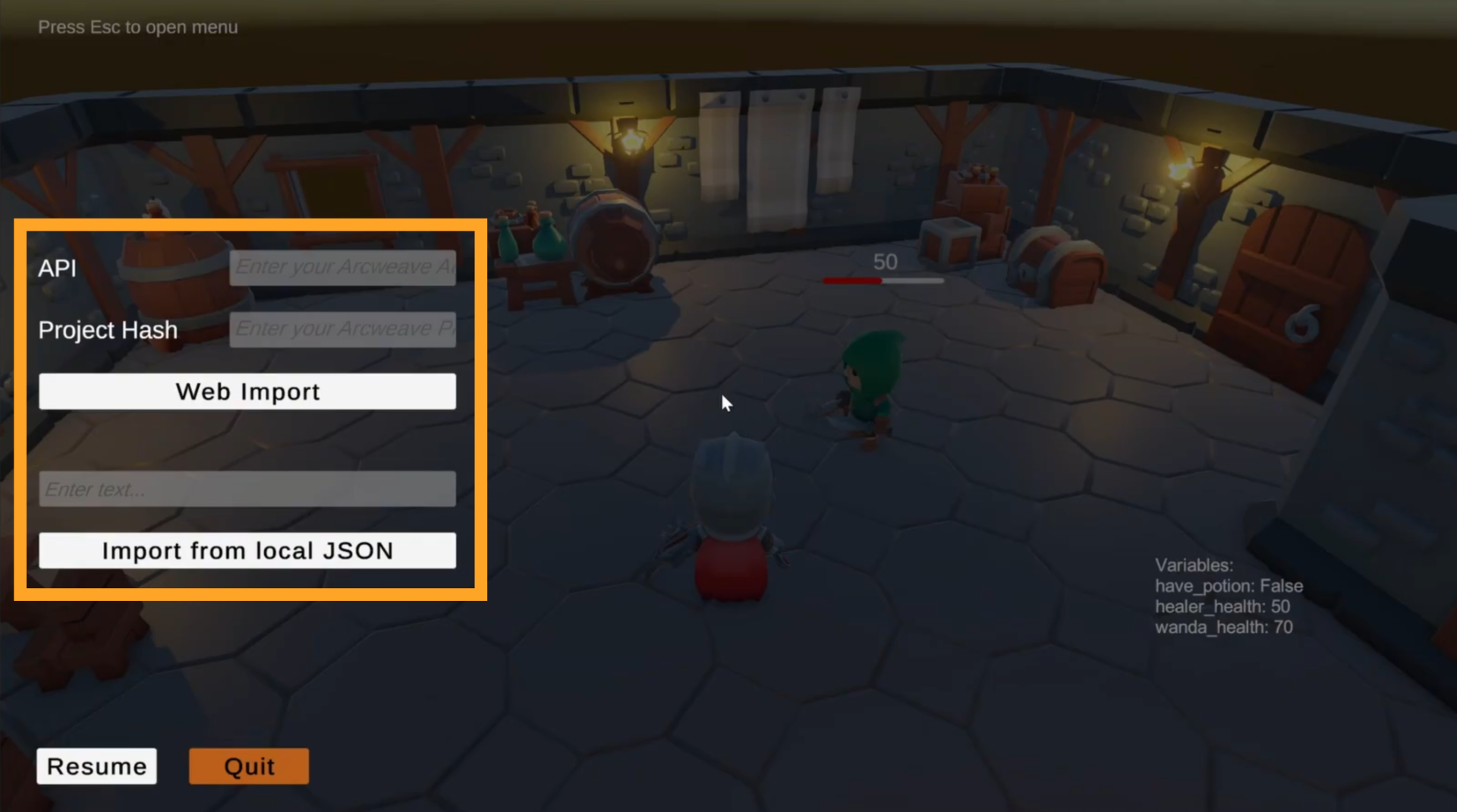
Press Escape again to close it, then stop Play mode.
Scene hierarchy overview
Open the Hierarchy panel and expand all top-level objects. ArcweavePlayer and ArcweavePlayerUI work as described in Part 2, with a few demo-specific additions: Auto Start is off, because each NPC's dialogue trigger starts its own conversation, and ArcweavePlayerUI ends the conversation when it reaches an element marked as a dialogue end. Five additional systems build on top of them.
GameManager GameObject
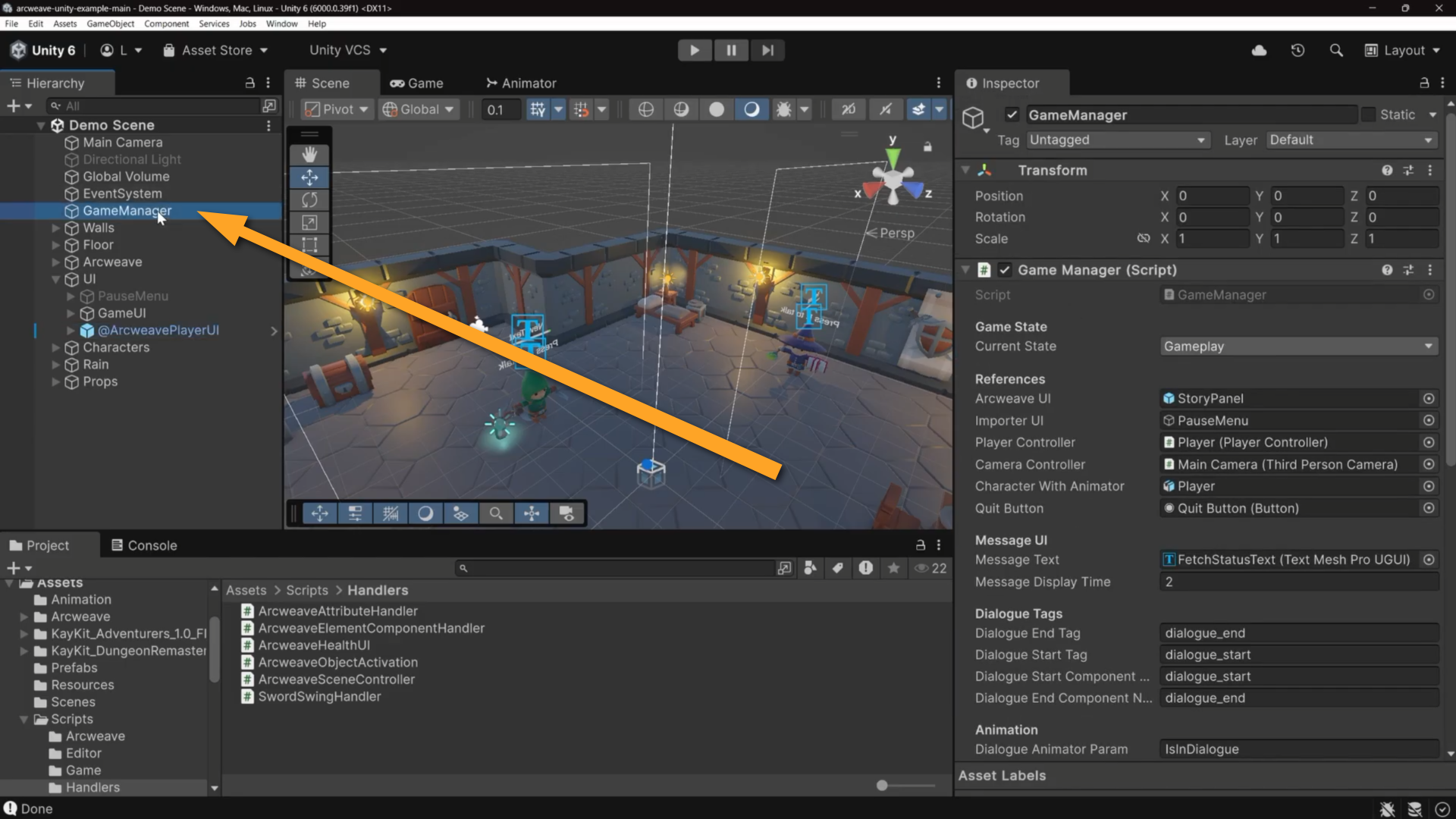
Select the GameManager object and look at its Inspector.
GameManager component
The first component of the GameManager GameObject is GameManager. It is a singleton with three states: Gameplay, Dialogue, and Paused. It holds references to all major scene objects (ArcweaveUI, ImporterUI, PlayerController, ThirdPersonCamera) and enables or disables them as the state changes.
Two string fields control how dialogue boundaries are identified:
- dialogueStartTag: defaults to
dialogue_start - dialogueEndTag: defaults to
dialogue_end
These strings must match exactly the tags placed on elements in the Arcweave boards. There are also two optional fields:
- dialogueStartComponentName
- dialogueEndComponentName
When filled in, the demo first looks for an element carrying an Arcweave component with that name, and falls back to matching the tag value if no element has it. Use this when you prefer to mark entry and exit points with a dedicated component rather than a tag string.
When the state becomes Paused, triggered by pressing Escape, GameManager shows the ImporterUI.
ArcweaveSceneController component
The GameManager GameObject also has the component ArcweaveSceneController.
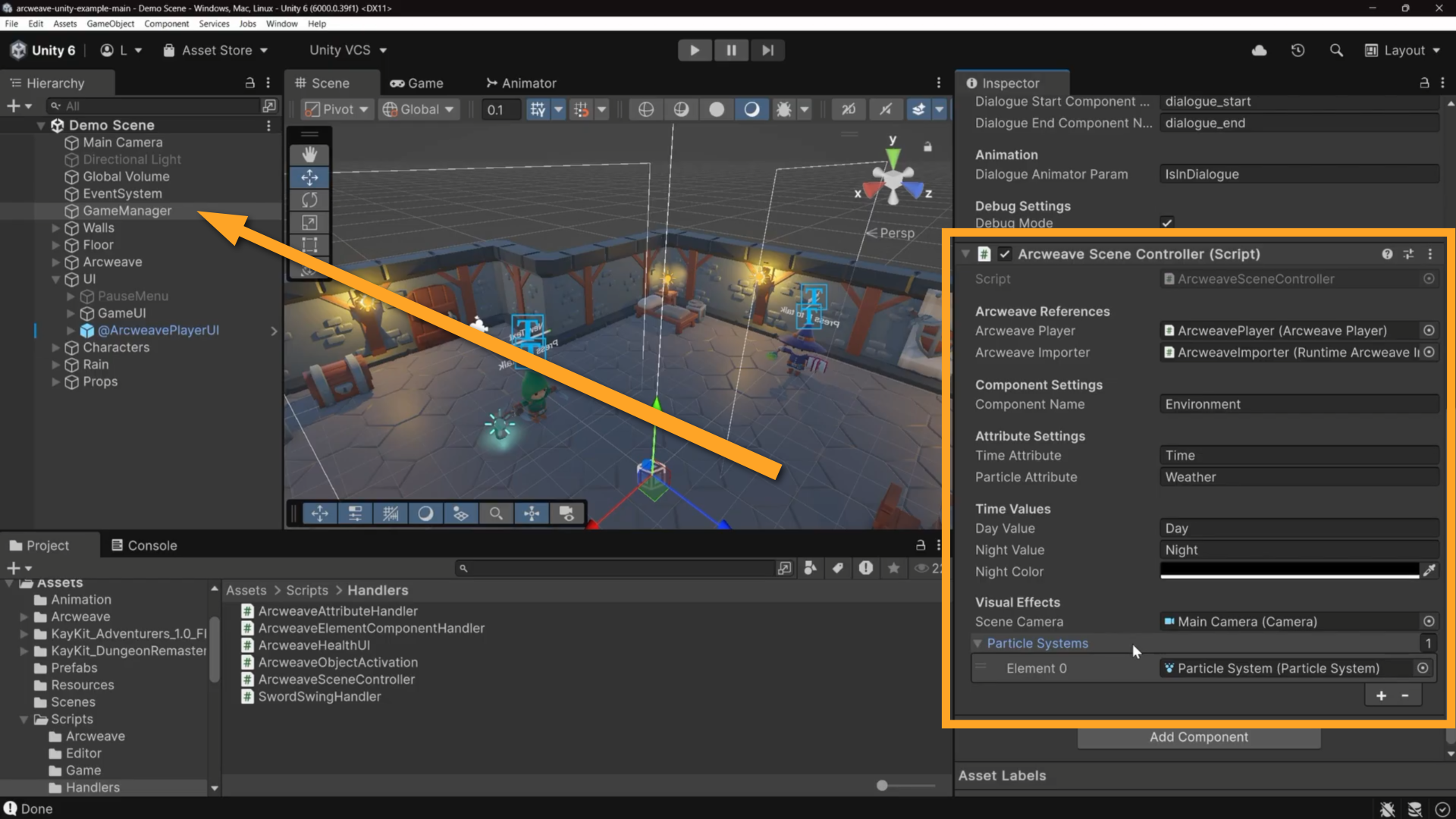
ArcweaveSceneController reads scene configuration from the Arcweave project on three occasions:
- When the scene starts
- When the narrative reaches an element with no outgoing paths (
onProjectFinish) - When a new project is imported (
onImportSuccess)
It draws its Time (Day/Night) and Weather (Clear/Rain) values from the Arcweave project's Environment component. The component and these two Arcweave attributes link with the following fields in ArcweaveSceneController's Inspector:
- Component Name: Set to
Environment; the Arcweave component to read. - Time Attribute: Set to
Time; it controls the camera's clear flags; Skybox for day, solid black for night. - Particle Attribute: Set to
Weather; it controls whether particle systems in the scene are playing.
Change the attribute values in Arcweave's Environment component, reimport, and the environment updates automatically.
NPC GameObjects
Let's now have a look at the components of our NPC GameObjects.
DialogueTrigger
Select any NPC in the Hierarchy and find the DialogueTrigger component in its Inspector.
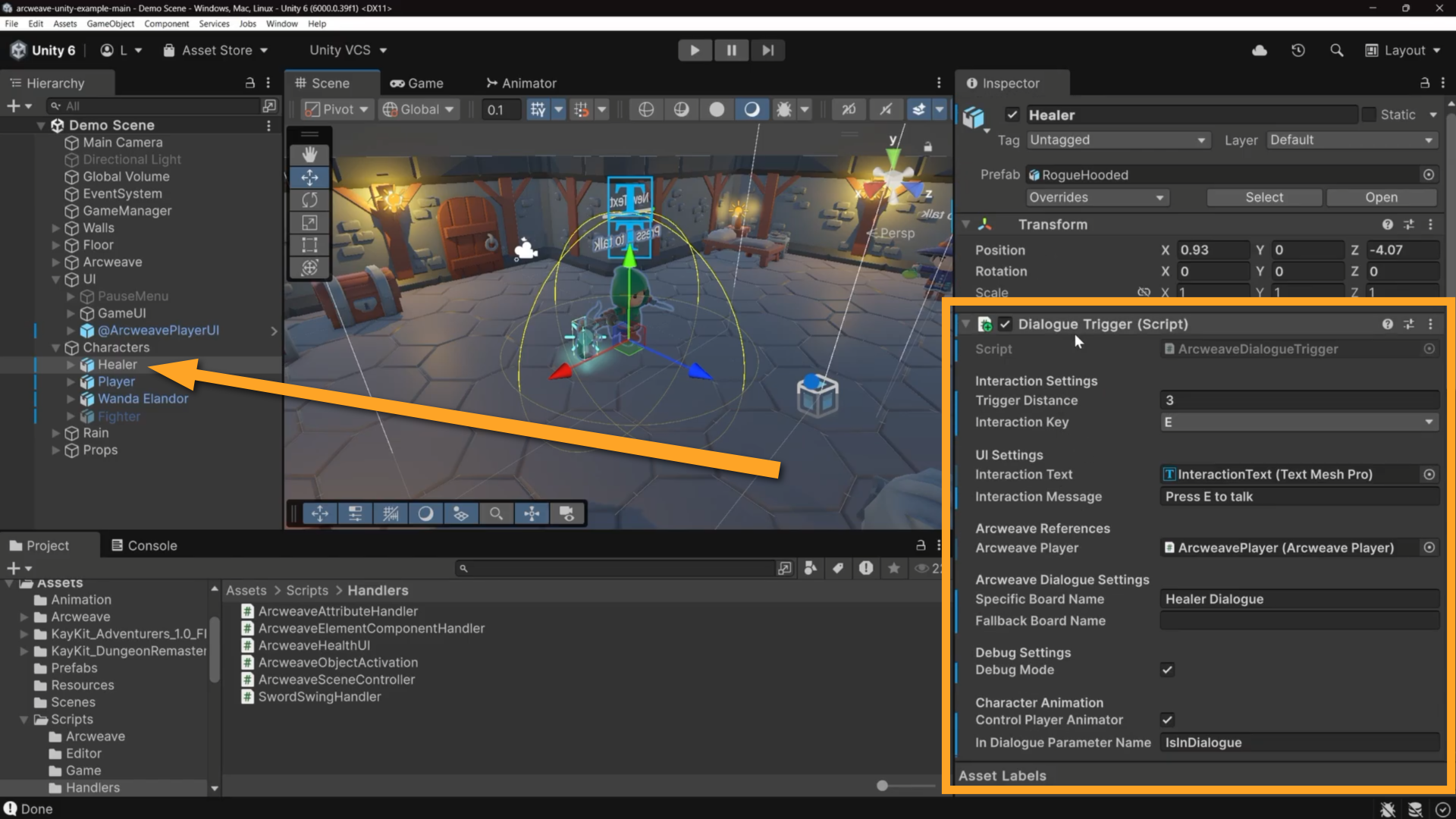
DialogueTrigger runs every frame, measuring the distance between the NPC and the player. When the player is close enough and presses the interaction key, this component starts the dialogue flow.
The key field is Specific Board Name. This string must match exactly the name of a board in the Arcweave project (Healer Dialogue, Wanda Dialogue, and so on). That single string is the only link between an NPC and their dialogue. If you rename a board in Arcweave without updating the Unity Inspector, the connection will break and the NPC will have nothing to say.
Other configurable fields:
- Trigger Distance: How close the player must be before the prompt appears
- Interaction Key: Key to press (default: E)
- Interaction Text: Reference to the 3D TextMeshPro label above the NPC's head
✅ With Gizmos enabled in the Scene view, select an NPC to see its trigger radius as a yellow wire sphere.
ArcweaveHealthUI
Select an NPC that has a health bar. Find ArcweaveHealthUI in its Inspector.
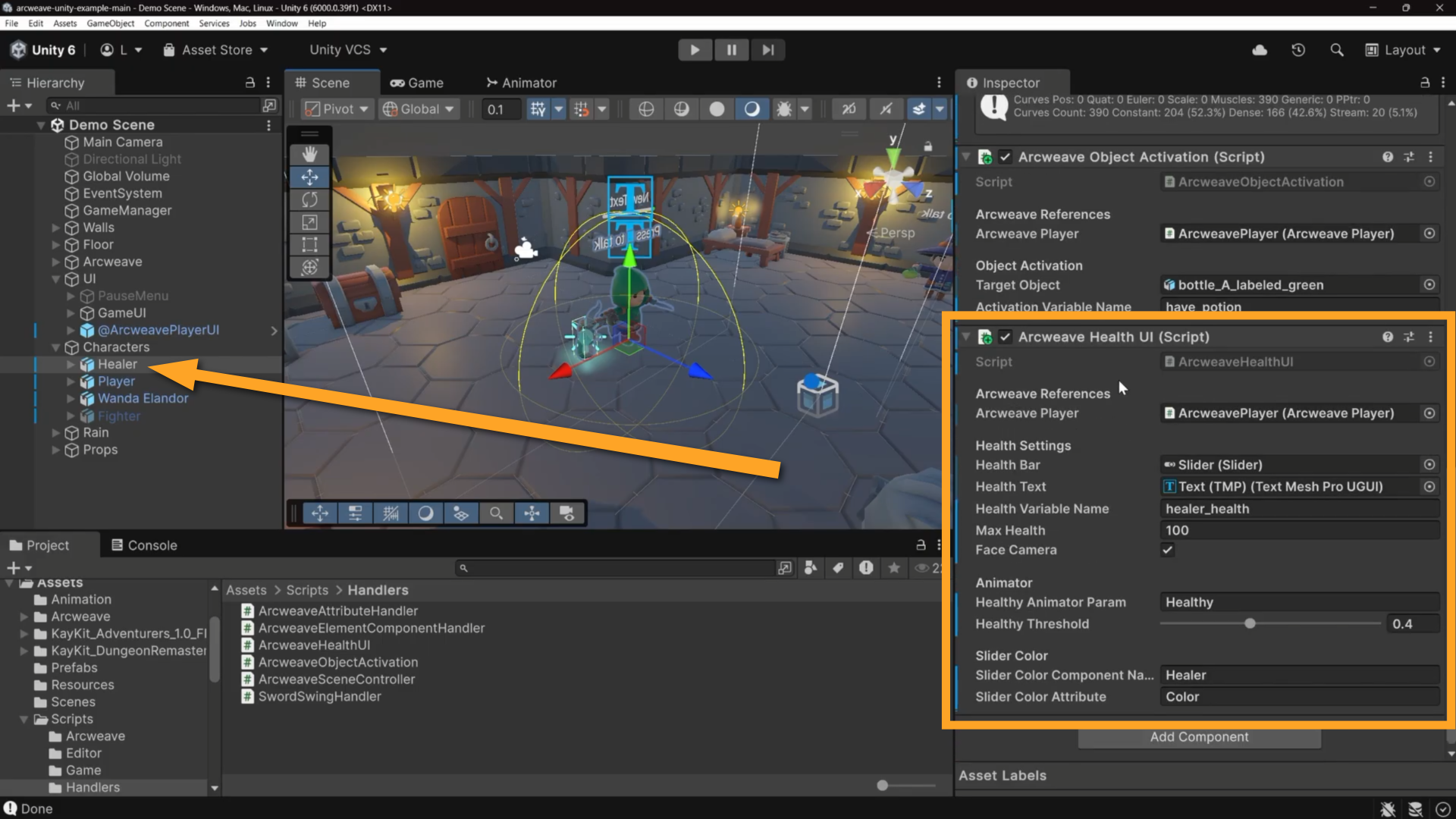
ArcweaveHealthUI reads a health variable from the Arcweave project every frame and pushes its value to a UI Slider.
The relevant fields are:
- Health Variable Name: the name of the Arcweave variable (e.g.
wanda_health) - Health Bar: the UI Slider above the NPC's head
- Max Health: sets the slider's full scale
The component also updates on onProjectFinish and onImportSuccess to stay in sync after imports.
A separate Slider Color section lets you point to an Arcweave component attribute containing an HTML color string: a hex value such as #FF0000 or a color name such as Red. When the project loads, that color is applied to the slider fill. Change the color in Arcweave, reimport, and the bar updates; no code required.
ArcweaveObjectActivation
Select an NPC that has ArcweaveObjectActivation in its Inspector.
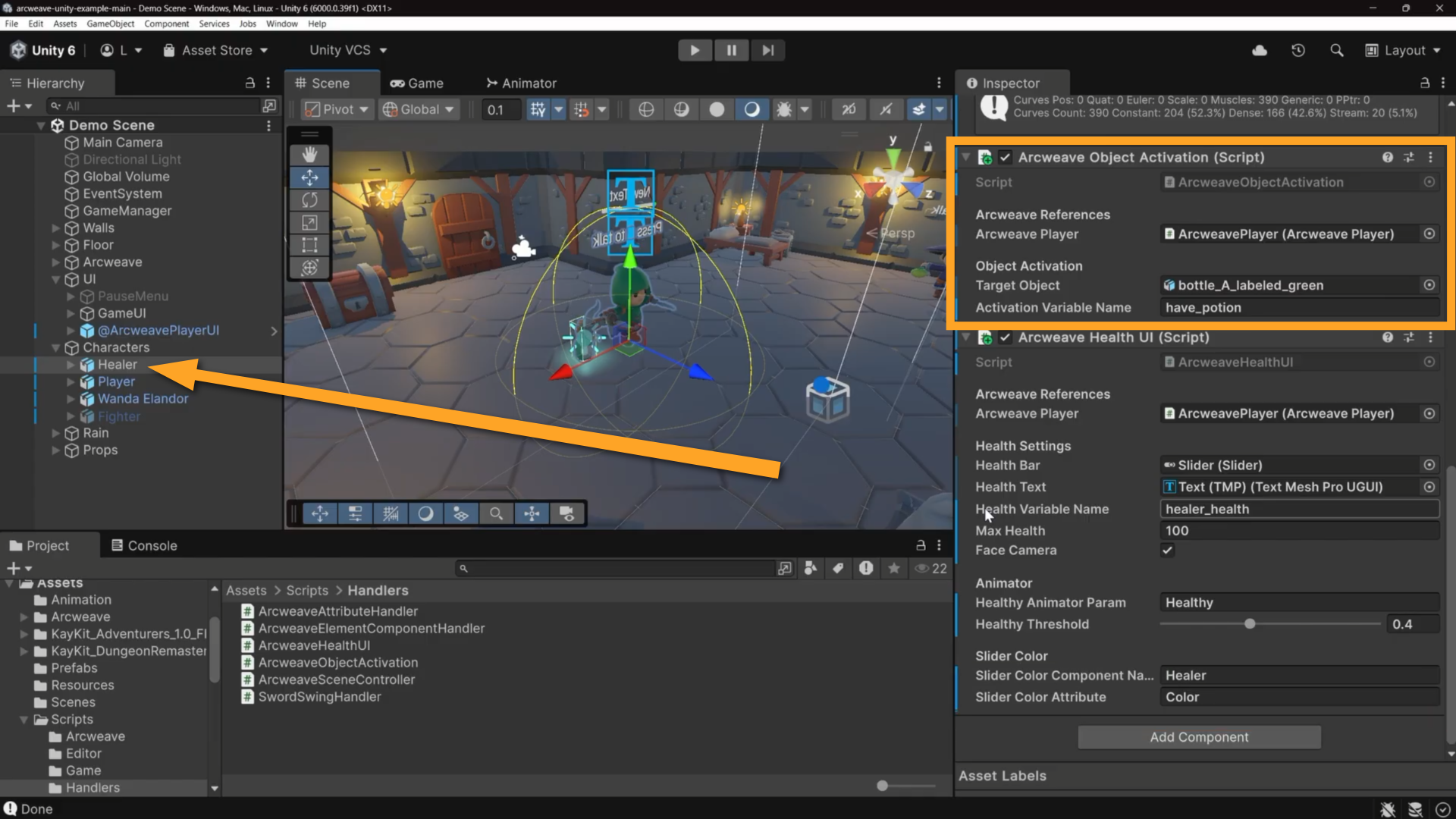
This component shows or hides a GameObject based on a boolean Arcweave variable. Two fields:
- Target Object: the GameObject to activate or deactivate
- Activation Variable Name: the boolean variable to watch
The logic is inverted: while the variable is false, the object is active. When the variable becomes true, the object is deactivated and stays inactive for the rest of the session, even if the variable later returns to false. A reimport (onImportSuccess) or onProjectFinish resets this.
Extension patterns
Beyond the five systems above, the demo includes two reusable patterns for connecting Arcweave data to custom Unity behavior.
ℹ️ For specific details on how these scripts work, take a look at the README file in the GitHub repository of the Unity example.
ArcweaveAttributeHandler
Go to the Assets > Scripts > Handlers folder and open ArcweaveAttributeHandler.
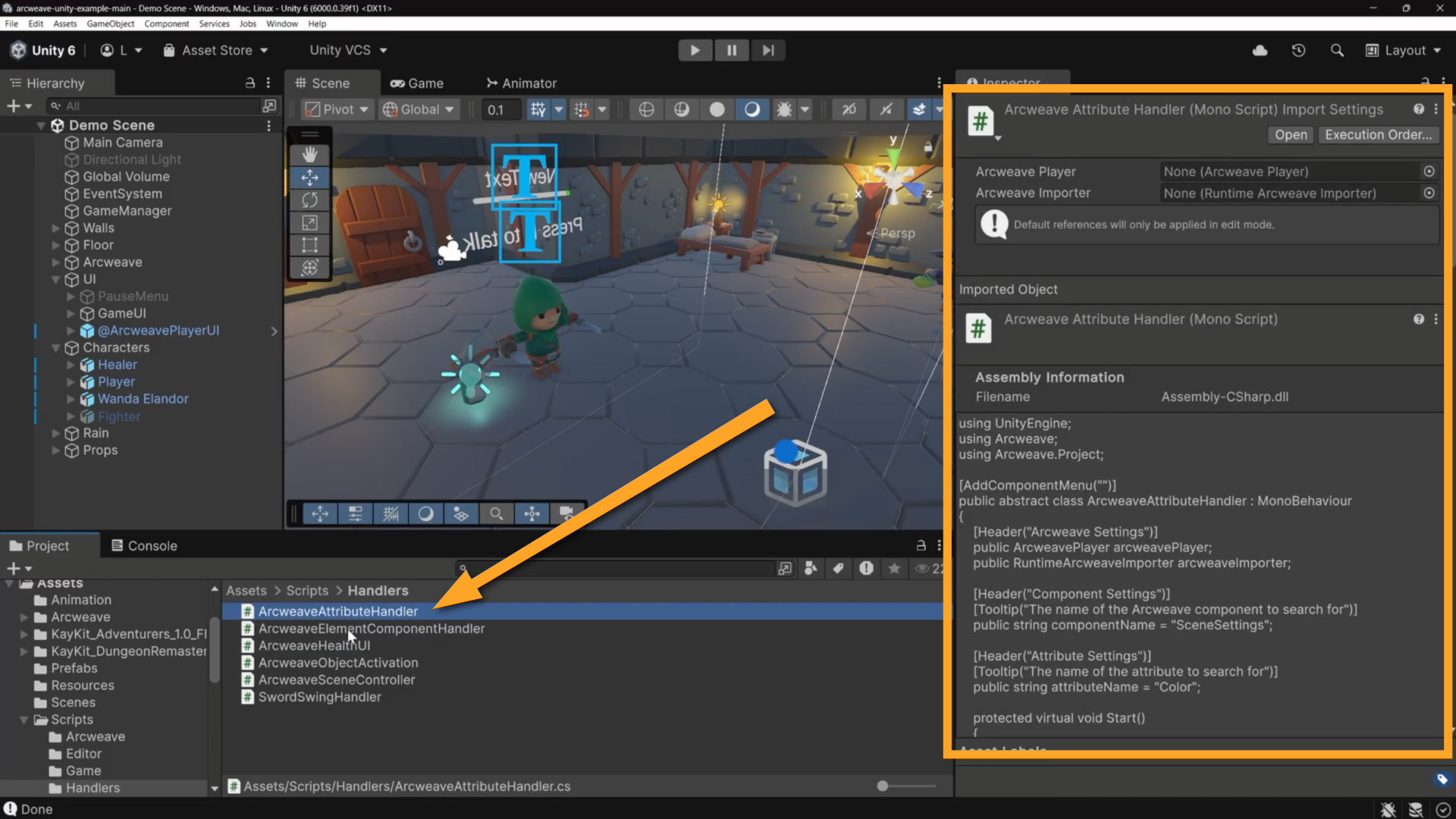
ArcweaveAttributeHandler is an abstract base class that handles the boilerplate of finding a component by name, finding an attribute by name, and subscribing to the right events. You subclass it, override one method, and implement your behavior.
ArcweaveHealthUI uses the same lookup pattern in its own code, without subclassing ArcweaveAttributeHandler: it reads a color string from an Arcweave attribute and applies it to the health bar slider fill. Any Arcweave attribute can drive any Unity object through a subclass of ArcweaveAttributeHandler. Full documentation is available in the GitHub repository.
ArcweaveElementComponentHandler
Go to the Assets > Scripts > Handlers folder and open ArcweaveElementComponentHandler.
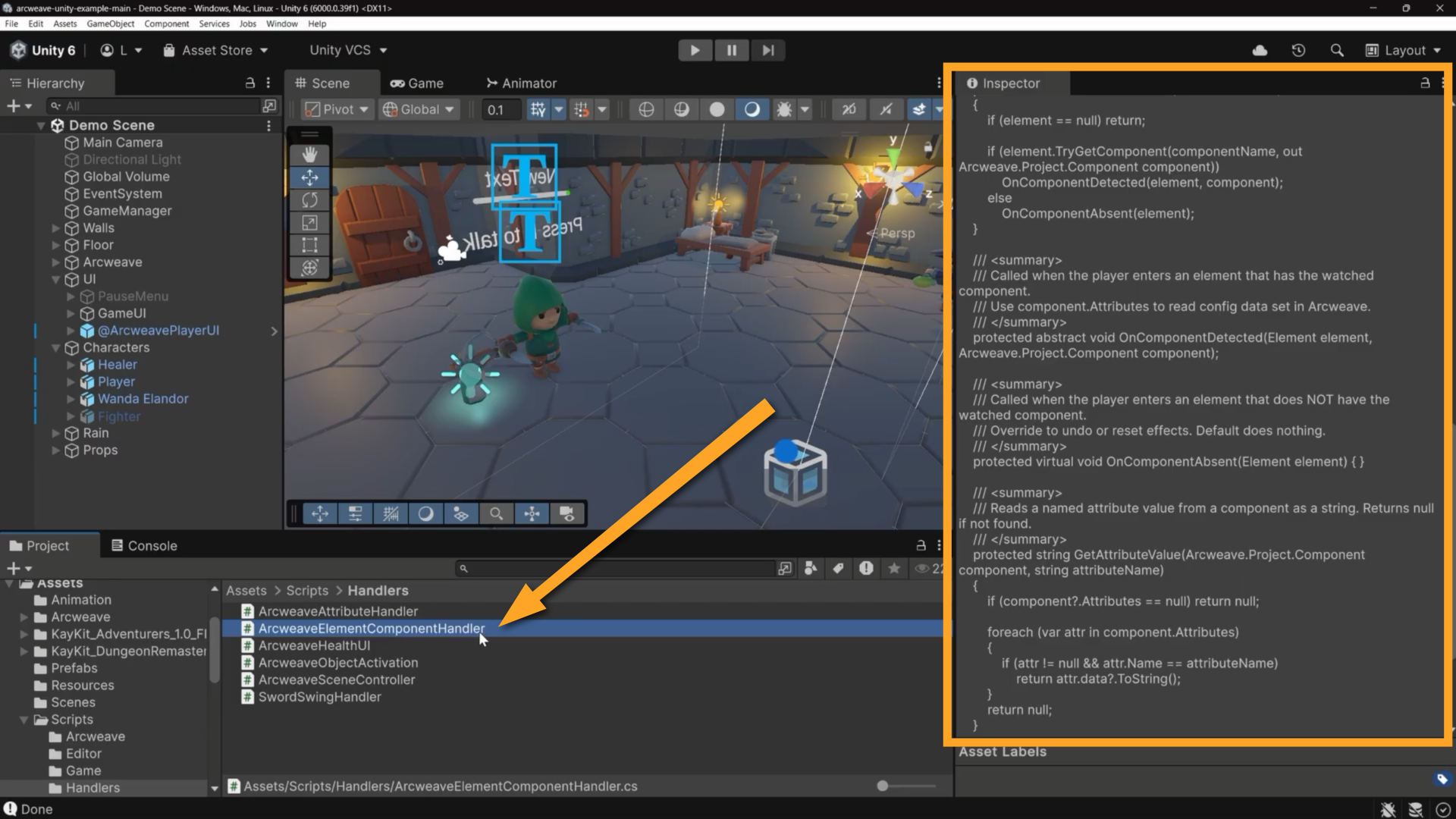
Where ArcweaveAttributeHandler reads data at project load time, ArcweaveElementComponentHandler reacts to components attached to specific dialogue elements, firing every time the player enters a new element during a conversation.
The concrete example in the scene is SwordSwingHandler. Its Component Name field is set to attack.
When the dialogue reaches an element that has the attack component attached, this handler fires and permanently enables the player's sword swing ability; left-click now triggers the attack animation.
The component's presence on the element is the trigger itself. This pattern is covered in more detail in the next tutorial.
ℹ️ For specific details on how these scripts work, take a look at the README file in the GitHub repository of the Unity example.
How it all connects
The clearest way to understand these systems working together is to watch variables change during Unity's Play mode.

In the Project window, select the ArcweaveProjectAsset assigned to ArcweavePlayer's Aw field (ArcweaveProjectAssetV2 in Assets > Arcweave) so the Inspector shows the project's variables, then enter Play mode.
Approaching the Healer. DialogueTrigger measures distance every frame. While outside the trigger radius, no prompt appears.
Stepping inside the radius. The prompt appears. Press E.
Under the hood: DialogueTrigger called GameManager.Instance.StartDialogue(). GameManager switched to GameState.Dialogue, disabling PlayerController and ThirdPersonCamera, showing ArcweaveUI, and unlocking the cursor. Then DialogueTrigger ran FindAndStartNPCDialogue(), which searched the Arcweave project for a board named Healer Dialogue, found the element tagged dialogue_start inside it, and called arcweavePlayer.Next() on it. From there, onElementEnter fires and ArcweavePlayerUI updates, exactly as described in the earlier tutorials.
Making a choice. Watch have_potion in the Inspector. Click "Ask for help", then Continue.
have_potion now becomes true. Each button click invokes the player's callback, which runs any Arcscript in the connection labels and enters the next element. When ArcweavePlayerUI displays the Healer's reply, it calls RunContentScript(), which executes the Arcscript have_potion = true embedded in that element's content.
Ending the Healer dialogue. The Healer's reply is tagged dialogue_end. When you click its button, ArcweavePlayerUI calls the active DialogueTrigger's EndDialogue(), which calls GameManager.Instance.EndDialogue(). State returns to Gameplay and controls are restored. If the narrative reaches an element with no outgoing paths instead, onProjectFinish ends the dialogue the same way.
Walking to Wanda. Because have_potion is true, GetOptions() evaluated the condition on the "Give her the potion" path as true, and the button is visible after you examine her. If you had visited Wanda first, without the potion, this option would not have appeared.
Giving the potion. Watch wanda_health in the Inspector jump to 70. The health bar responds at the same frame; ArcweaveHealthUI polled the variable in Update and pushed the new value to the Slider.