Basic Arcweave tutorial | Part 21: Audio assets
In this tutorial, we'll show how to add and manage audio in your Arcweave projects. You can add music and sounds to your projects to create a much more immersive interactive experience.
Arcweave manages audio clips the same way it manages images. You can use the Assets tab in the sidebar to upload and access all your audio files.
Video tutorial
Watch this tutorial as a video:
⚠️ This video does not reflect the latest updates to Arcweave's UI.
✅ You can play the finished version of the Tutorial Project here and explore its diagrams and structure here.
Upload audio assets
Just as with images, it's good practice to keep an organized folder structure for your audio files inside the Assets section of your left sidebar.
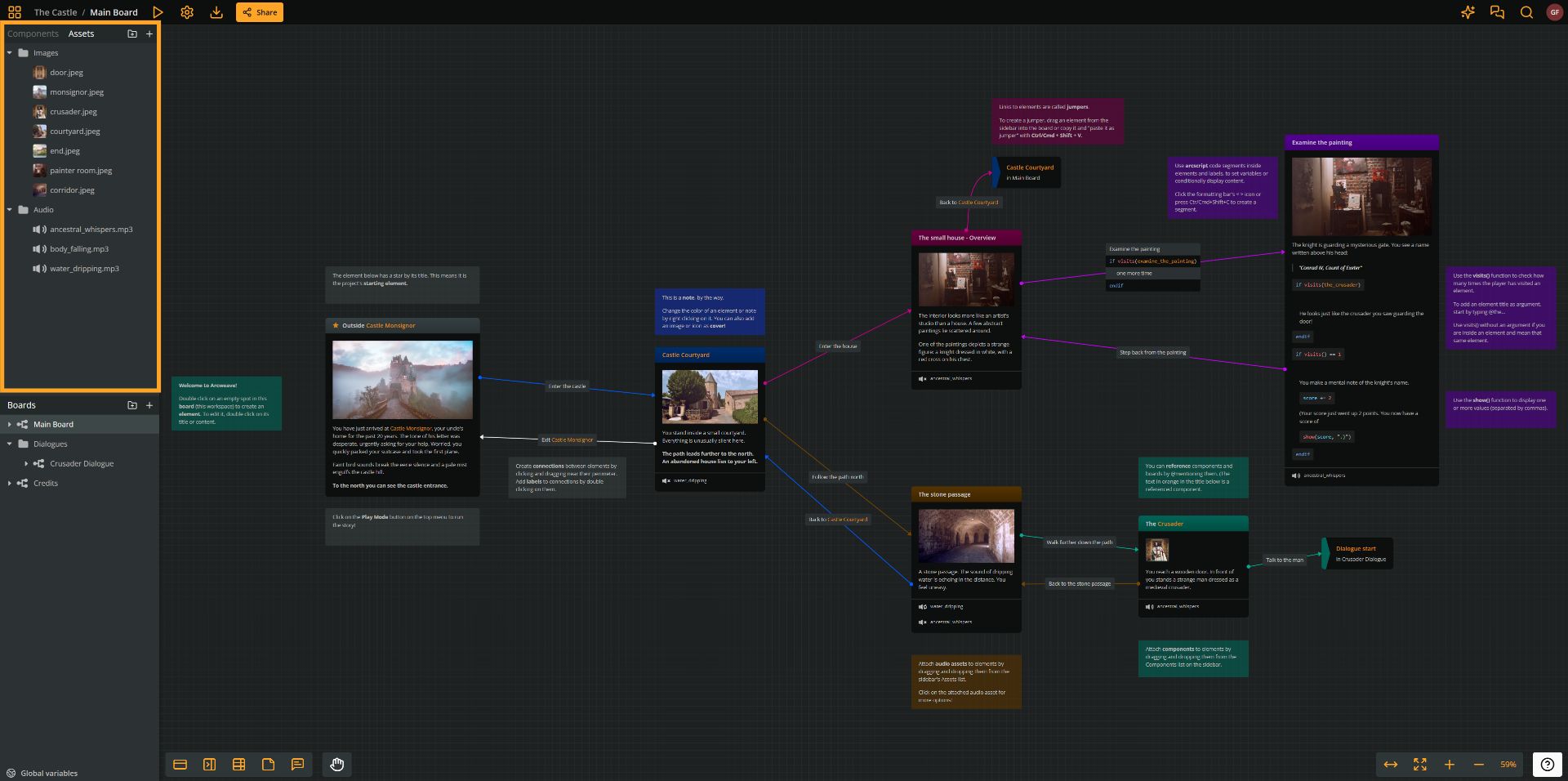
To upload a new audio file:
- Click Create asset (the + icon) in the Assets section.
- Select Upload assets... from the menu.
- Select one or more audio files from your drive.
Arcweave supports .mp3, .ogg, .wav, and .webm files to be used as audio assets.
✅ You can also drag assets from your file manager straight into Arcweave's project window. See the page on Assets in this documentation.
For example, you could upload:
- A tavern ambience/atmosphere loop
- A zombie growl sound effect
- A short guitar music loop
Preview audio assets
You can play, test, and adjust the volume of an audio asset directly from the left sidebar's Assets section:
- In your Assets section, click on the audio asset you want to preview.
- Click the Play button to listen to the clip.
- Use the volume slider to adjust the volume.
- Optionally, set Fade in and Fade out durations in milliseconds.
✅ The asset's volume and fades are defaults for all instances of that asset throughout the project. You can override them for a single instance.
Attach audio to elements
To attach an audio asset to an element, simply drag and drop it from the Assets section into the element's body, the same way you would attach images or components.
Once attached, a new section appears at the bottom of the element listing its audio attachments. You can test how the audio plays by entering Play Mode.
Attach multiple audio assets
You can attach multiple assets to the same element and you can even attach the same asset multiple times. Each attachment is its own independent instance of that audio clip.
Set audio behavior
Once you attach an audio asset to an element, you can set its playback behavior. See Audio behavior below.
Remove audio attachment
To remove an audio instance from an element, drag it out of the element and drop it onto an empty area of the board. You can also drag a clip instance from one element directly onto another.
Volume control in Play Mode
While playing your project, you can adjust the volume from the Play Mode top menu:
- Hover near the top of your browser window to reveal the Play Mode top menu.
- On the right side of the menu, click the Audio icon (a speaker) to open the volume controls.
- Drag the volume slider to turn the volume down, or click the mute icon next to the slider to silence the audio entirely during a playthrough.
✅ The debug icon is only accessible to the project's owners and editors, but the volume control is available to anyone playing the game.
Audio attachment behavior
So far, the settings we've covered (the asset's volume and fades) apply at the asset level, as defaults for every instance of that clip across the project. However, you can also configure each attachment at the instance level, meaning the settings only affect that specific attachment.
To access these settings, click on an audio instance attached to an element. This opens the Audio reference dialog, with a volume slider and the following Play mode settings:
Loops and one-shots
- By default, a newly attached instance is set to Play clip once, which is why clips stop after playing through a single time.
- To make a clip loop, select Loop clip. If you run the project in Play Mode, the clip will now restart automatically every time it finishes playing.
- The third option, Stop playing all instances of this clip, lets you stop a loop that was started on an earlier element. For example, if a guitar loop starts on one element, you can attach the same guitar asset to a later element and set that instance to stop all instances of the clip. This way, when the player reaches the new element, the loop ends.
✅ The stop option stops all instances of that clip, whether they're looping or not. If multiple instances of the same asset are attached to different elements, a single "stop" instance will stop every one of them.
Add a delay
You can also delay when an instance starts playing. This is useful, for example, if you want to establish a scene with an ambience track first, then introduce music a few seconds later.
To add a delay:
- Click on the audio instance.
- Find the Delay field.
- Enter a delay in milliseconds (e.g.,
3000for a 3-second delay).
Fade in and out
Use Fade in and Fade out to ease a clip in when it starts and out when it stops, instead of cutting it abruptly. Enter durations in milliseconds. A clip set to Play clip once also fades out at its end, and a stop instance fades out the clips it stops.
Stop when leaving the element
Select Auto-stop on element exit to stop the clip as soon as the player moves to another element. This is handy for a line of narration or a sound that belongs to a single scene.
Override the asset defaults
The instance's volume, Fade in, and Fade out start with the asset's values. Changing them in the Audio reference dialog affects only this instance. To use the asset's value again, click Reset to asset default (the circular arrow icon) next to the setting.
See Audio reference settings for details.
Refresh Play Mode
Changes to an audio instance take effect the next time the clip starts playing. If a change doesn't seem to apply, refresh the Play Mode tab.
What's next
You now know how to upload audio assets, attach them to elements, control volume both in the editor and in Play Mode, and configure instance-specific behavior like looping, stopping, delays, and fades.
Next, take a look at all the features of assets in this documentation, including video. Combining audiovisuals with your storytelling will help you create a richer, more immersive experience for your players.
From here, you can continue exploring the documentation pages for any specific features you'd like to learn more about.
If you have questions along the way, you can also find answers in our Discord server.