Basic Arcweave tutorial | Part 5: Components & icons
Components are one of Arcweave's most versatile features. They let you represent any meaningful object in your story (characters, locations, inventory items, abstract concepts like emotions or pieces of information) and then connect them to your board elements to make your narrative easier to navigate and manage.
The icon library is a built-in collection of symbols and icons that you can use as art for your Components.
Video tutorial
Watch this tutorial as a video:
⚠️ This video does not reflect the latest updates to Arcweave's attributes, which now support more types (and are not called "text fields" anymore). See Attributes for more details.
✅ You can play the finished version of the Tutorial Project here and explore its diagrams and structure here.
Why components
In a typical interactive story, you'll have characters, places, things, and ideas that recur across many scenes.
Components give these entities a home: a dedicated card where you can store their attributes, backstory, relationships, and inventory. Once created, components can be attached to board elements, dragged between them, and used to quickly locate every scene where a particular character or object appears.
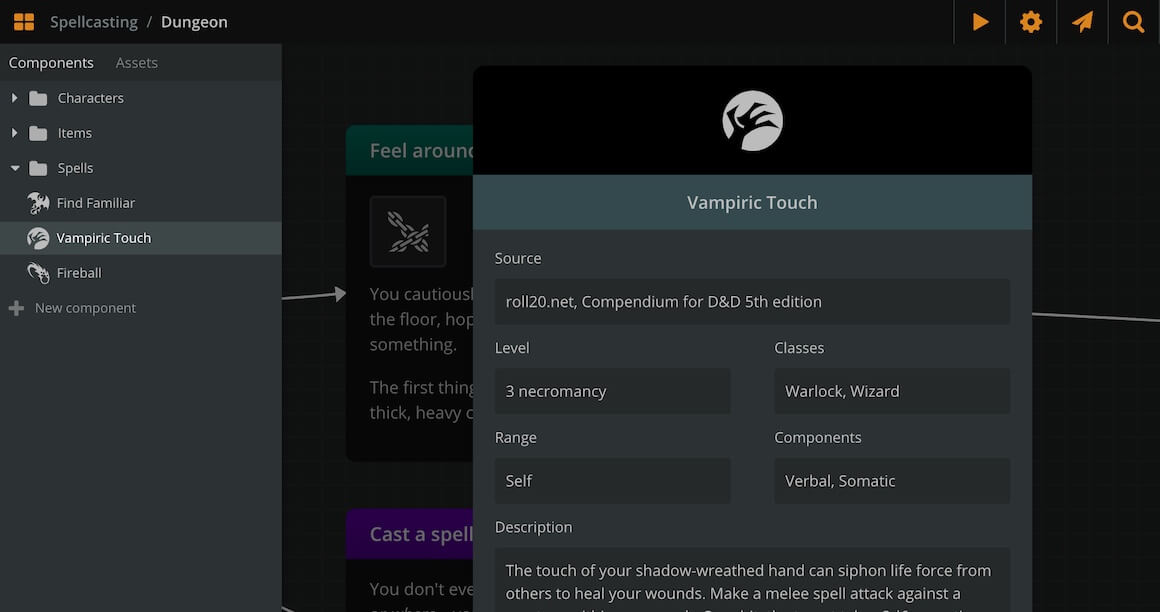
Create components
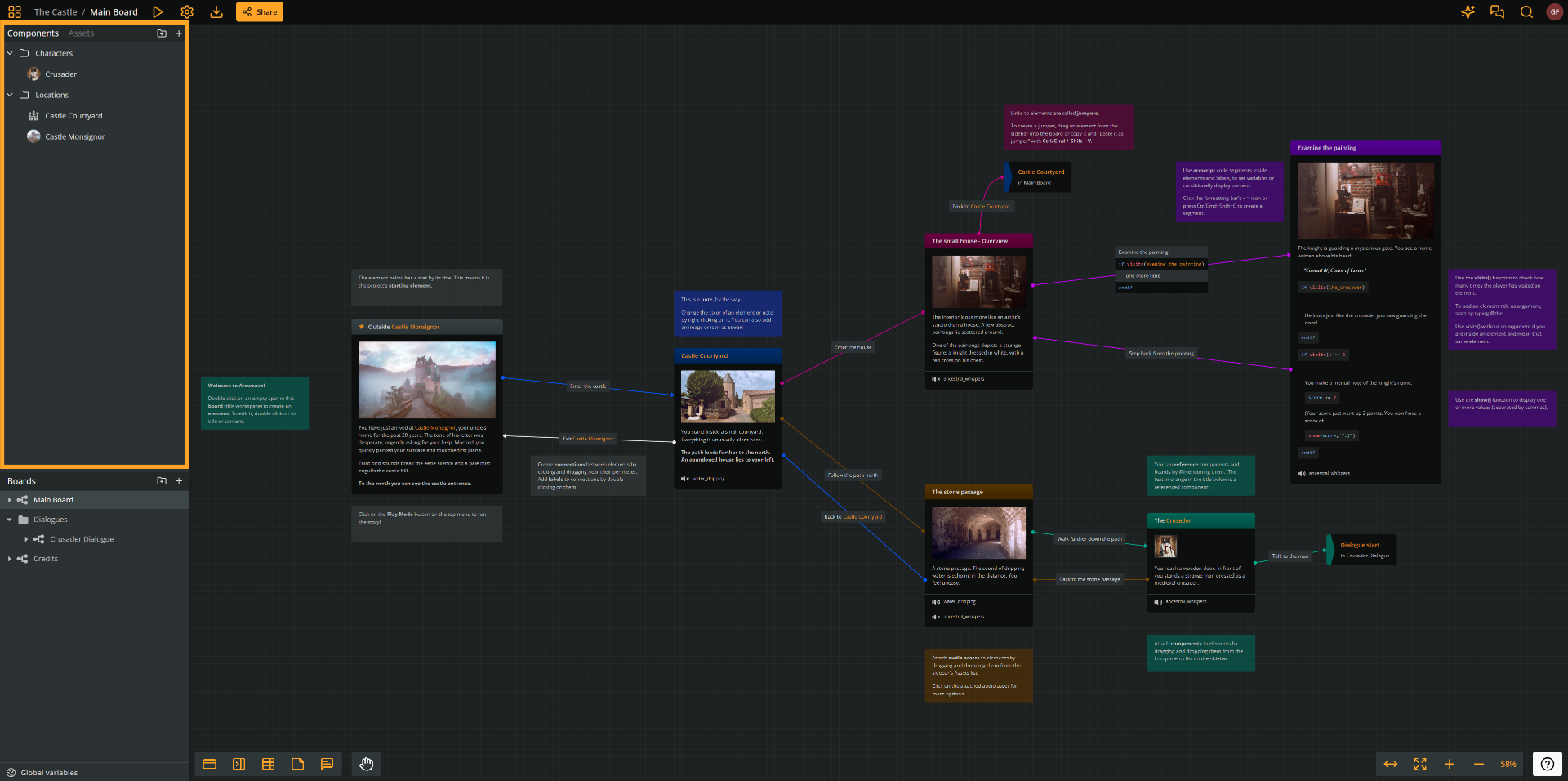
- Go to the Components section in the sidebar.
- Click Create component (the person icon with a + sign in the section header).
- Click on the default title and replace it with your component's name (e.g. Jillian Linetti).
Attributes
In Arcweave, attributes are fields that let you store extra information inside boards, components, and elements. See Attributes for more information.
All three item types support the following attributes:
- String Field
- Rich Text Field
- Component List
- Asset List
Boards and components additionally support Boolean, Integer, and Float attributes. On boards and components, these types and String Field appear in the Variables group and act as scoped variables. Elements support only the four shared attribute types listed above.
Add attributes
You can enrich a component with as many custom attributes as you need.
- In the component dialog, click Add attribute.
- Select the type of attribute (see above).
- Type the attribute name (e.g. Dramatic function or Backstory, etc.) and press Tab.
- Enter the content for that attribute.
Reorder and resize attributes
- To reorder attributes, drag them by the grip (dots) icon at their top left into the position you want.
- To resize an attribute between full and half width, open its three-dot menu (•••) and select Resize.
Set component covers
To make a component more visually distinctive, you can use Arcweave's built-in icon library and pick an icon to set as component cover:
- Hover over the component's icon area and click Change cover.
- Choose the Icon Library tab.
- Browse the icon library and select an icon to set as cover.
For example, searching head returns a wide selection of face icons.
The new icon will appear both on the component card and in the sidebar.
ℹ️ Besides Icon Library, you can also select My Assets (your own uploaded images) or Generate (use Arcweave's AI Image Generator to generate an image cover.)
Duplicate components
If you need to create a similar component quickly, you can duplicate an existing one instead of starting from scratch.
- Right-click the component in the sidebar.
- Select Duplicate.
- Open the duplicate and update its name and content as needed.
ℹ️ To duplicate board elements, copy and paste them (Ctrl/Cmd + C, then Ctrl/Cmd + V).
Attach components to components
Components can contain references to other components. This is useful for modelling relationships (e.g. family members) or inventories (e.g. items a character carries).
Link characters to each other
- Open a character component (e.g. Horace Linetti).
- Click Add attribute, choose Component List, and give it a name (e.g. Family).
- Drag another component (e.g. Jillian Linetti) into the list.
- Click the attached component to open it directly from within the parent.
Create a character inventory
- First, create the item components you need (e.g. Dice, Top hat, Gold watch).
- Open the character component you want to assign items to.
- Click Add attribute, choose Component List, and name it Inventory.
- Drag the item components into the list.
- Reorder items within the list by dragging them.
Organize components with folders
As your project grows, you can keep the sidebar tidy by grouping components into folders.
- In the Components section header, click Create folder (the folder icon with a + sign). Alternatively, hover over a component or folder, click its + icon, and choose Create folder.
- Name the folder (e.g. Characters).
- Drag components into the folder.
- Repeat to create additional folders (e.g. Items).
You can also create subfolders by adding a folder inside an existing one.
Attach components to elements
Attaching components to elements lets you see at a glance which characters, items, or locations are involved in a given scene.
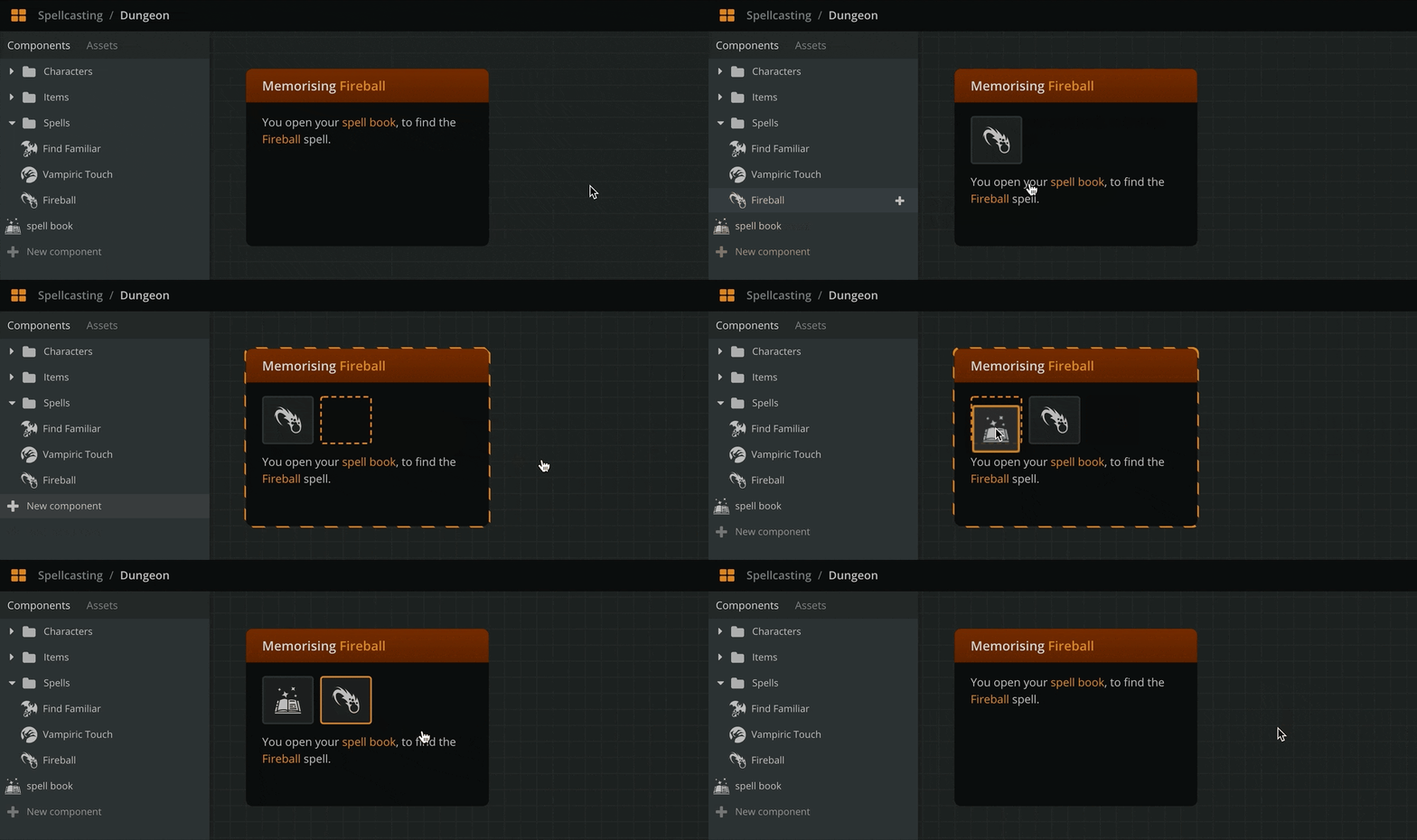
- From the sidebar, drag a component directly onto an element on the board.
- Repeat for any other components relevant to that scene.
Once attached, components appear visually on the element. If the element's layout looks off, adjust it:
- Select the element.
- Adjust its size. Either:
- Drag its sides or corners to manually adjust the element's height and width.
- Double-click the element's orange bounding rectangle. Arcweave will automatically resize the element to fit its content at the chosen width.
(Re)move attached components
- To remove a component from an element, drag it out of the element onto an empty area of the board.
- To move a component, drag it from one element to another.
- You can attach the same component multiple times to the same element if needed.
Create elements from components
You can quickly scaffold a new element around a component directly from the sidebar:
- Drag a component from the sidebar onto an empty area of the board.
Arcweave creates a new element with the component's name as the title and the component attached automatically. This is a fast way to start building a scene around a specific character or object.
What's next
After learning all there is about components, the next tutorial will teach you how to mention both components and boards in your project and why this is useful.