Unity tutorial | Part 3: Arcweave project structure
This tutorial covers the Arcweave project that drives the Arcweave Unity Example, a 3D RPG demonstrating Arcweave's integration with Unity. You can find the example on its GitHub repo.
Before opening Unity and playing the demo, it's worth understanding how the data is structured on the Arcweave side, because that is where the project's narrative logic lives. Once you understand how the project is organized, wiring it up in Unity becomes straightforward.
Prerequisites: This tutorial is part of a series on Arcweave's Unity integration. It assumes you have completed Part 1 and Part 2, where you installed the plugin and explored a simple 2D scene.
Video tutorial
You can watch the video version of this tutorial below.
Project overview
Boards
Open the Arcweave project used for the Unity demo. The first thing to examine is the board list on the left side of the editor.
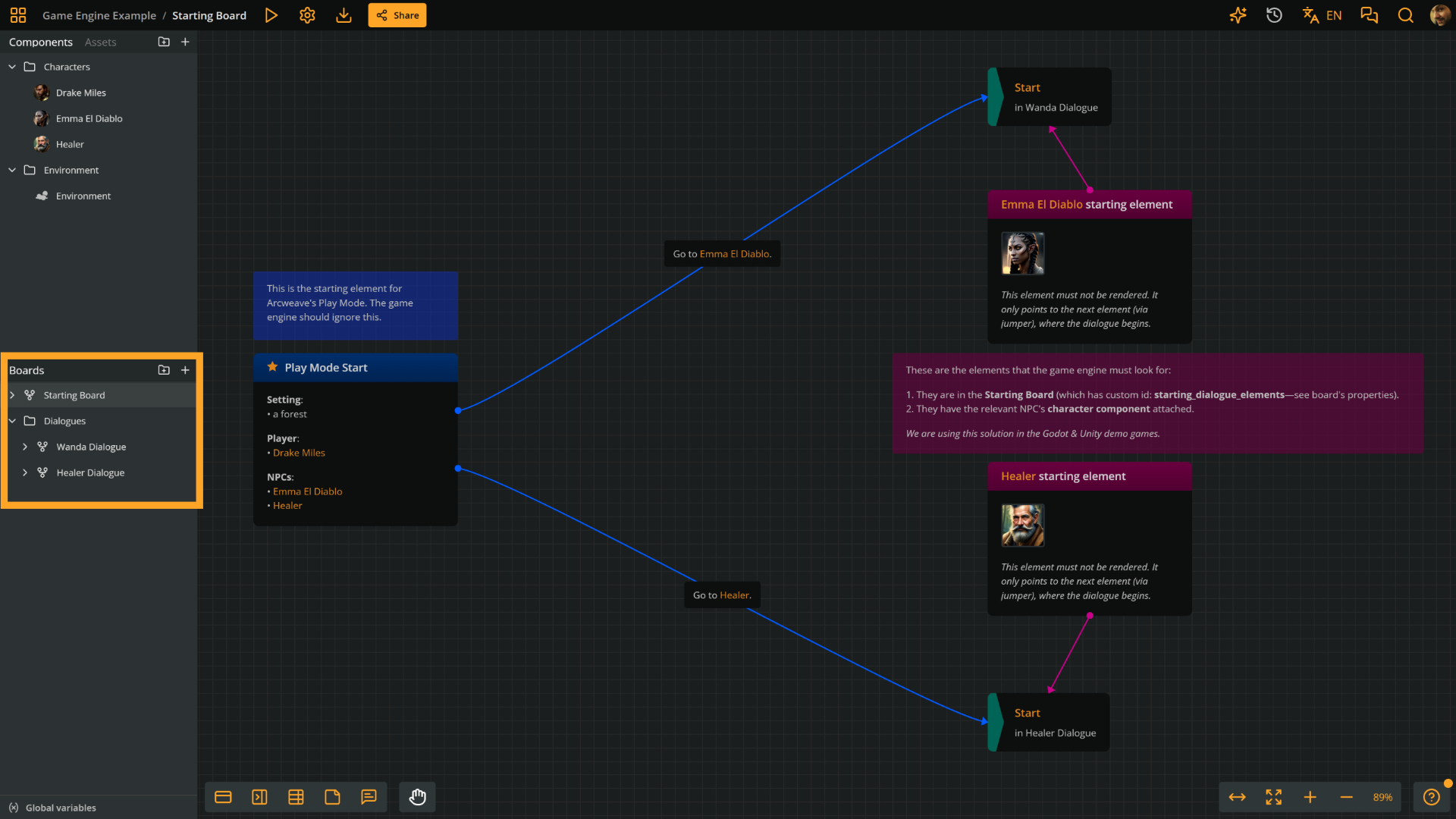
The project has three boards:
- Starting Board: Contains the starting element for testing the project in Arcweave's Play Mode. We won't be using this board in the Unity 3D project, although the 2D demo scene uses it, as we saw in Part 2.
- Dialogues (folder):
- Healer Dialogue: The dialogue tree between the player and the healer NPC.
- Wanda Dialogue: The dialogue tree between the player and Wanda, the injured NPC.
In the 3D demo we'll explore next, the relevant boards are Healer Dialogue and Wanda Dialogue, and their names are not decorative. As we'll see in the next part of this tutorial, these names are the only connection between an NPC and their dialogue, in Unity.
Global variables
Before going into the boards, open the Global variable dialog from the project sidebar.
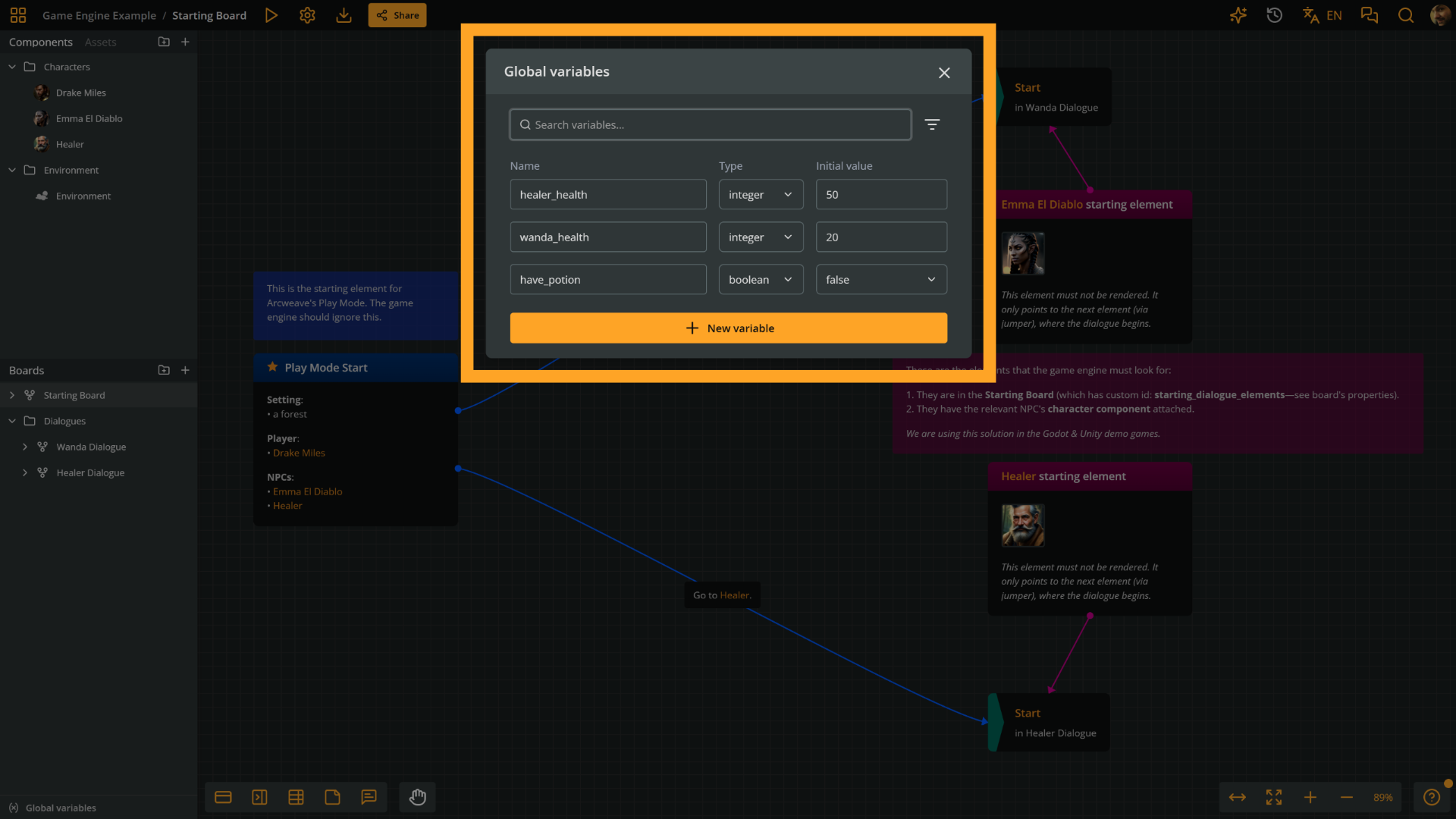
The project defines three variables:
have_potion— boolean, defaultfalsehealer_health— integer, default50wanda_health— integer, default20
In Unity, the ArcweaveHealthUI component on each NPC reads from this list, using the variable name as a string key to get the current value. Arcweave owns the values; Unity reads them. If you add a new variable here, it becomes accessible in Unity after you re-import the project — no code changes required.
Boards and dialogue flow
Entry and exit points
Open the Healer Dialogue board. This is a graph where each box is an element, a moment in the dialogue, and the arrows are connections representing the paths a player can follow.
The first thing to identify is the entry point. Unity needs to know when a conversation starts so it can lock player movement, and when it ends so it can return control.
Locate the first element of the dialogue. The icon at its top right corner shows that the element has attributes: hover over it to preview them, or double-click it (or right-click the element and select Properties) to open the Element Properties dialog on its Attributes tab.
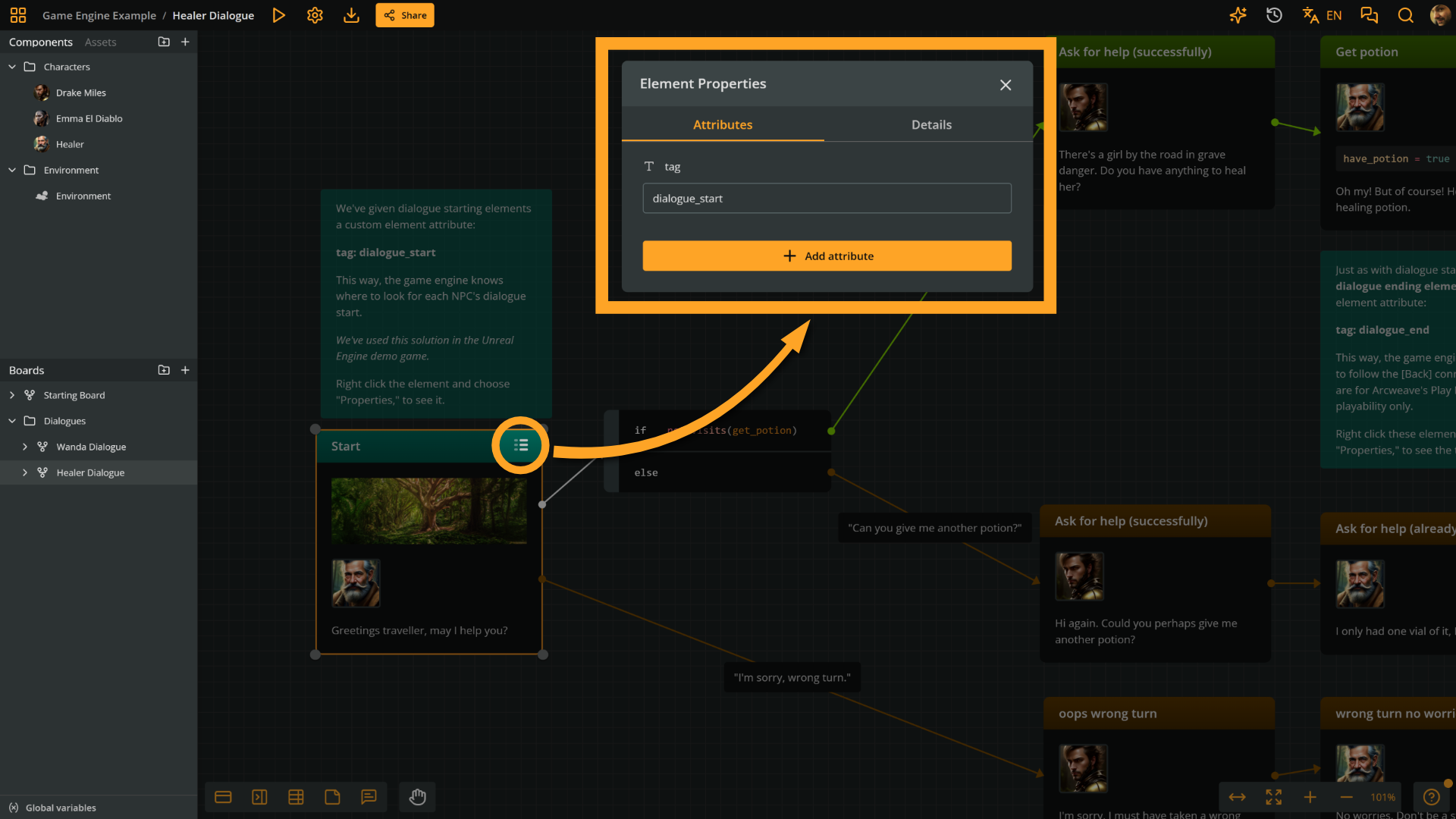
This element has an attribute named tag with the value dialogue_start. When Unity opens a board for an NPC, it searches for this tag to know where to begin. Without it, the entry point is unpredictable. Always tag the first element explicitly.
The element's content holds the Healer's opening line — the text Unity displays in the dialogue box when this element is reached.
At the other end of the graph, there is a final element tagged dialogue_end. When Unity detects this tag, it closes the dialogue and returns control to the player.
This is your explicit exit point. The tag string must match what Unity expects — the default is dialogue_end.
Player choices
The outgoing connections from an element represent the player's choices. Each connection label becomes a button in the UI — for example, Ask for help or "I'm sorry, wrong turn."
Arcscript in elements
Some elements contain Arcscript. Look for elements whose content includes an expression such as have_potion = true.

This script runs when the player arrives at that element — before the element content is rendered. That is the moment have_potion flips from false to true.
Branches
The project also includes branches, project items that evaluate conditions and direct the flow accordingly.
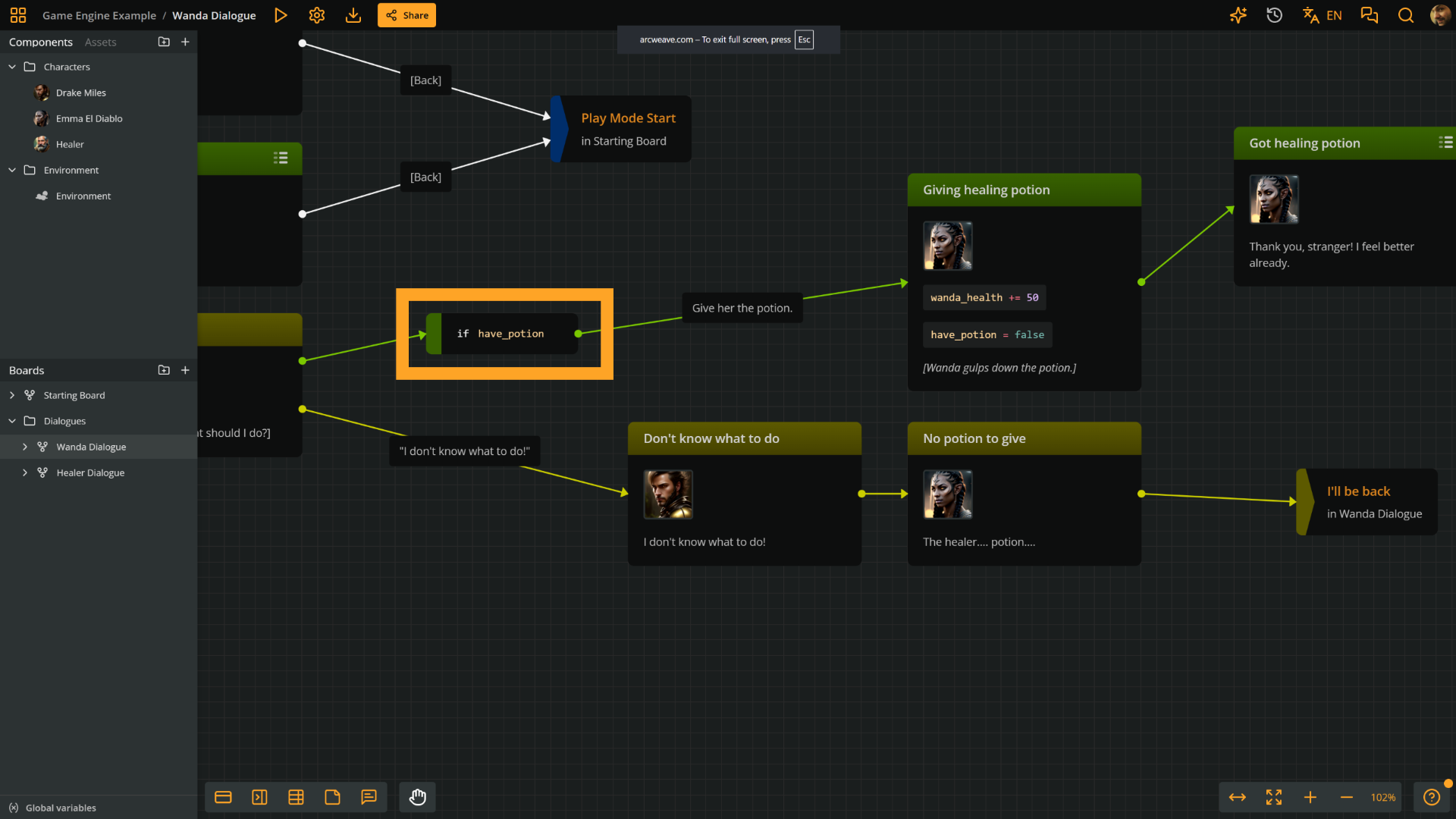
Open the Wanda Dialogue board and notice the branch with the condition if have_potion. Arcweave evaluates the expression have_potion to decide whether the player option to Give her the potion should be available.
Components and attributes
Navigate to the Components section in the project sidebar. Components in Arcweave are reusable data containers, named objects that hold attributes. They don't drive narrative flow; they hold configuration that scripts in Unity read.
The Environment component
Open the component named Environment.
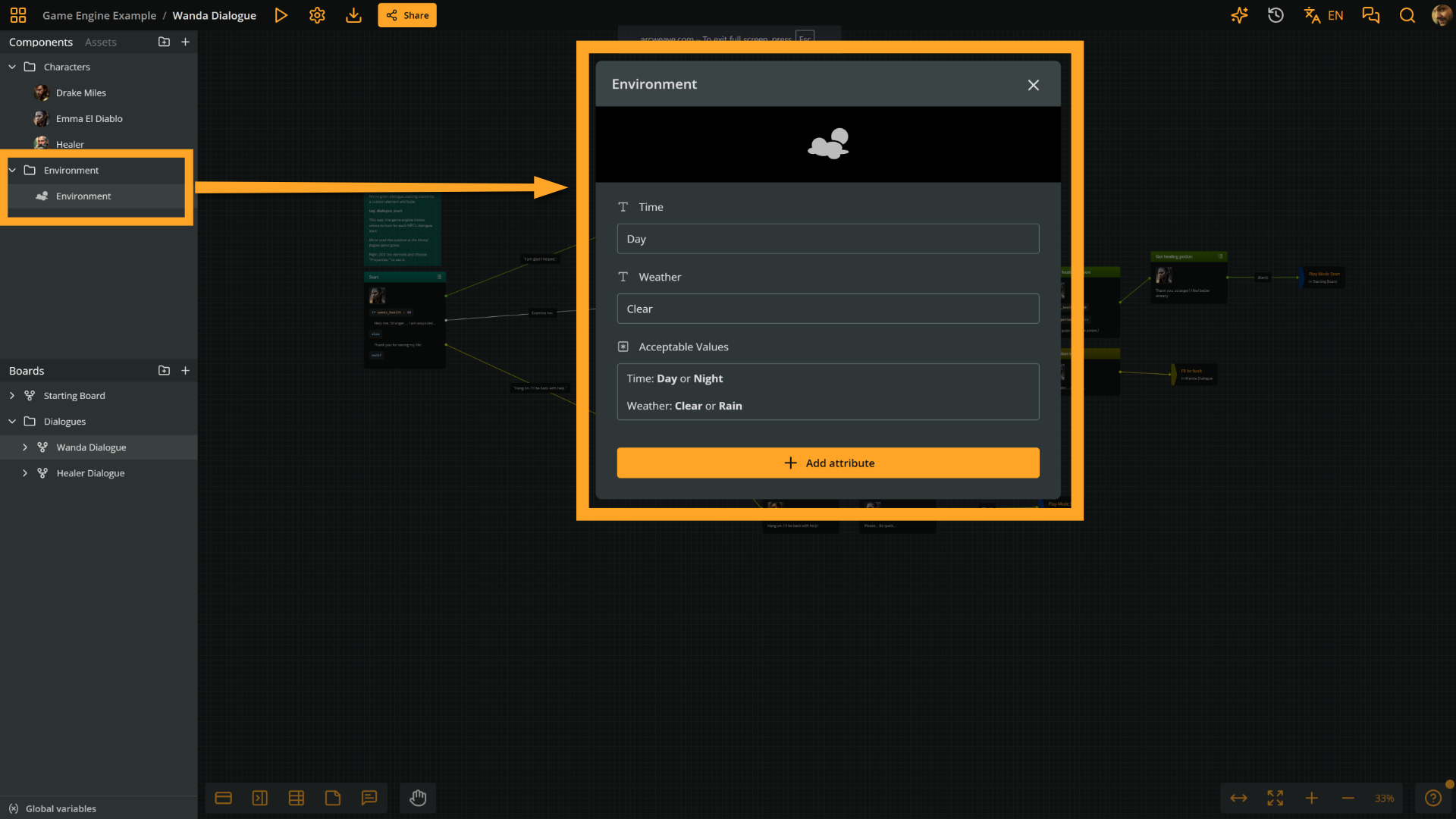
It has two attributes:
Time: A string, eitherDayorNightWeather: A string, eitherClearorRain
In Unity, a script reads these values when the project loads and updates the scene accordingly — showing the skybox by day or a solid night color by night, and starting or stopping the rain particle system. To change the weather or time of day in the game, update the attribute value here and re-import in Unity. No code changes needed.
Character components
Each NPC has its own component named after them: Healer and Wanda Elandor.
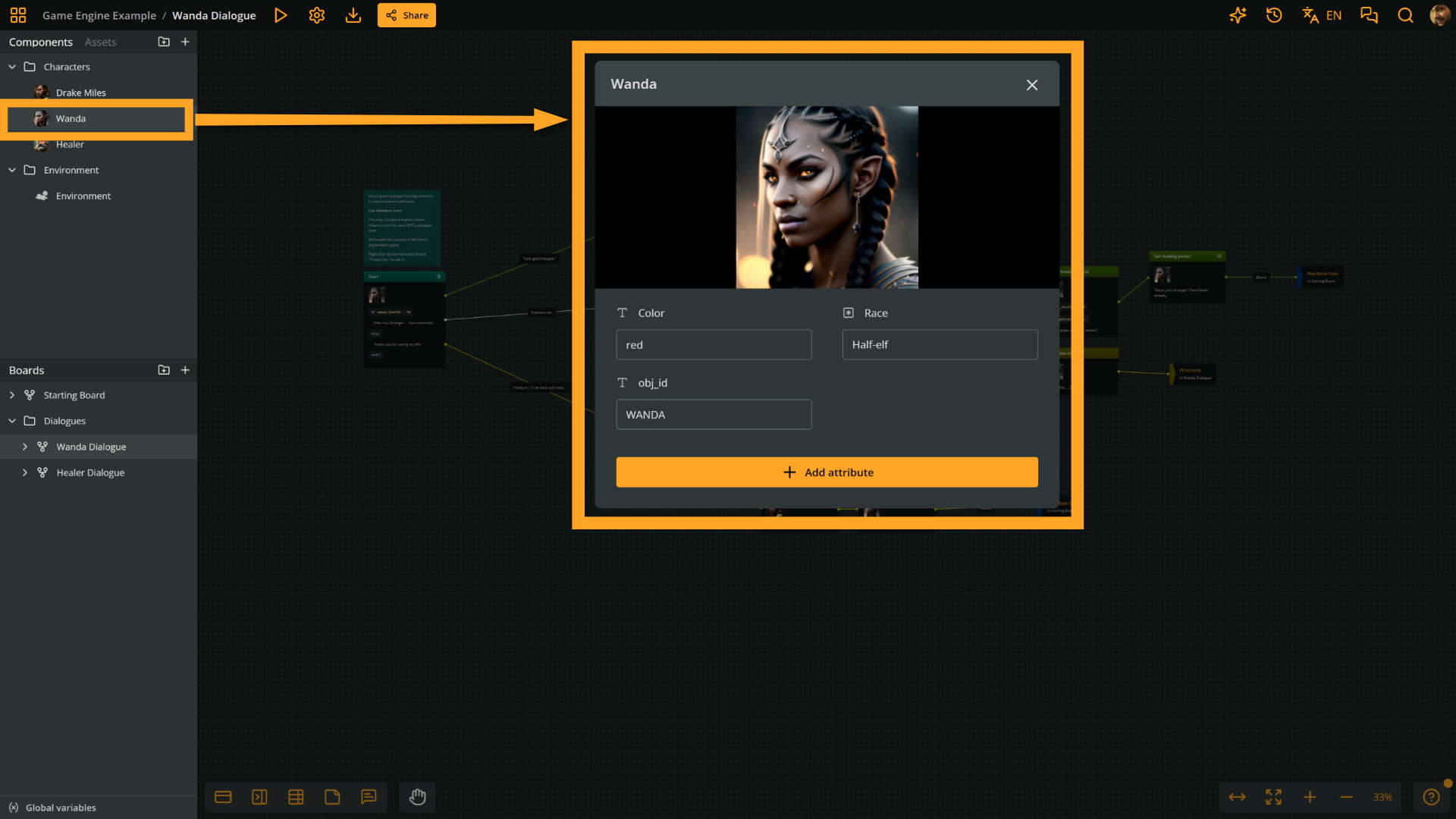
Open Wanda's component to see its attributes:
Color: A color string, for exampleBlueRace: A text description of the characterobj_id: A custom string that can be used to reference this component from Unity
In Unity, the Color attribute controls the fill color of the character's health bar slider. The obj_id can be used to match components from Unity code when a name-based lookup isn't sufficient.
String Field component attributes also import as scoped variables when both the attribute and its component have custom IDs. Their Arcscript and Unity scope uses the component custom ID, so Wanda's Color attribute (custom ID color) on the component with custom ID wanda_elandor is available as wanda_elandor.color. The demo handlers still look these attributes up by component and attribute name; ArcweaveSceneController uses the scoped variable's current value when one exists.
Components attached to elements
Components can also be attached to individual elements.
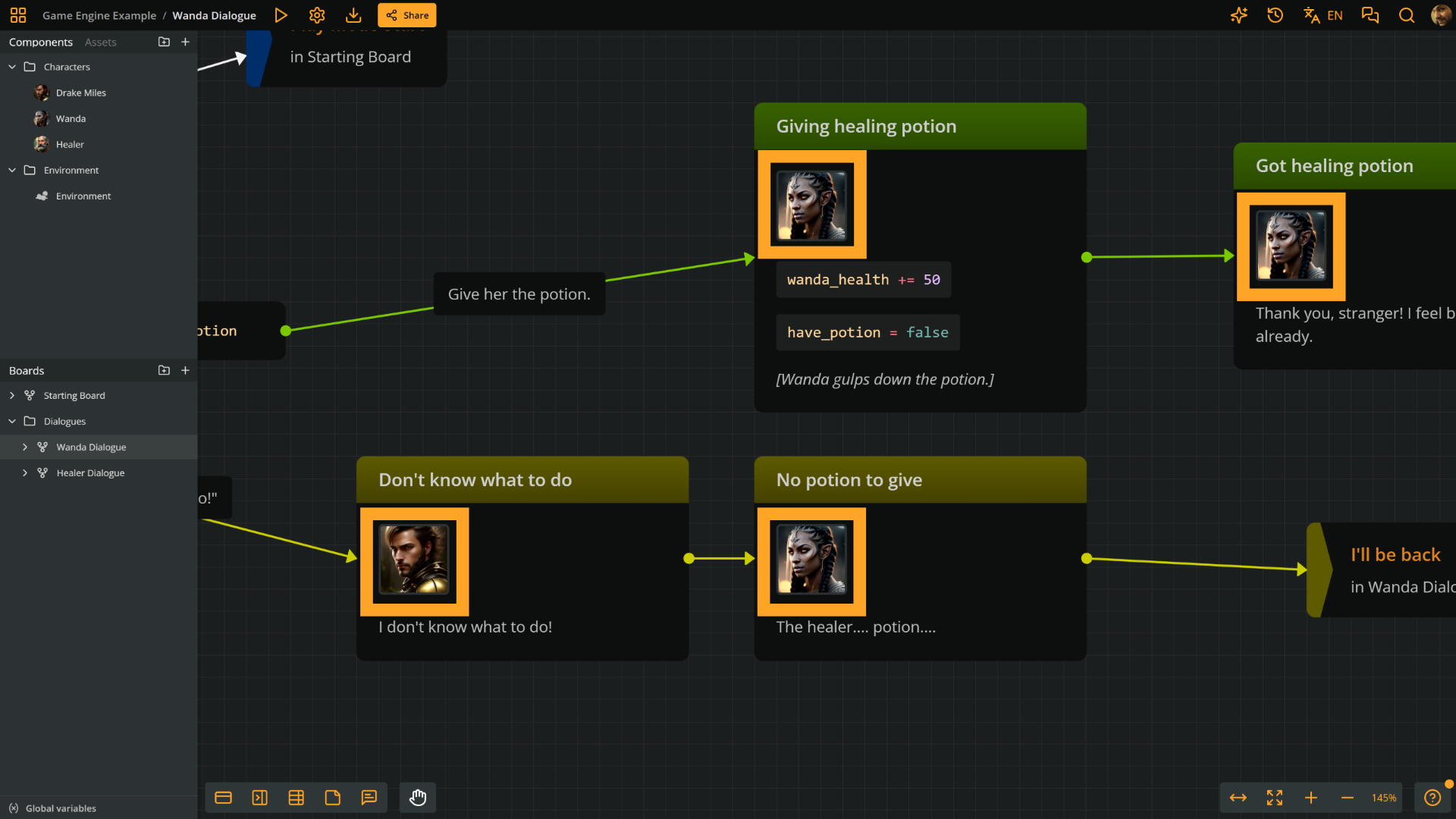
When an element's first attached component has a cover image, Unity displays that image as the character portrait during dialogue.
To show a character portrait during a specific line of dialogue: attach a component with a cover image to the relevant element, as its first component.
Summary
The Arcweave project follows a few consistent rules that everything else builds on:
Boards are named after NPCs. Each NPC in Unity references their board by name. The string must match exactly.
Variables are typed and can be global or scoped. This template keeps its main story-state variables global. String Field, Boolean, Integer, and Float board and component attributes are also available through their owner scope when both the attribute and its owner have custom IDs.
Tags control flow entry and exit. dialogue_start tells Unity where to begin a conversation; dialogue_end tells it when to return to gameplay. Both must match the strings Unity expects.
Components hold configuration. The Environment component drives scene visuals. Character components drive properties like the health bar slider color.
This project is intentionally small — two NPCs, three variables, a handful of components — but the pattern scales. More NPCs means more boards. More gameplay effects means more variables and components. The architecture stays the same.