Arcweave CSS basics tutorial
The Style Editor of Arcweave's Play Mode uses CSS and gives you full control over how your prototype looks in regard to text styling, layout, and color palette.
This how-to guide teaches you how to customize your Arcweave game with the Style Editor. It iterates through the available CSS selectors, shows how they affect your Play Mode interface, and demonstrates simple, efficient examples of changes you can apply with ease.
For the complete DOM structure, defaults, and CSS precedence rules, use the Play Mode styling reference. The same CSS works through the REST API and MCP tools.
Access the Style Editor
To open the Style Editor:
- Click the Play Mode button (▶) in the project's top menu bar. Play Mode opens in a new browser tab.
- Select the Style Editor (🎨 palette icon) on Play Mode's top bar. If the bar has faded out, move the pointer to the top of the window.
- Write your CSS directly in the panel; changes appear instantly.
- Press Save changes to save the CSS in your project.
The Style Editor is available to project owners and editors.
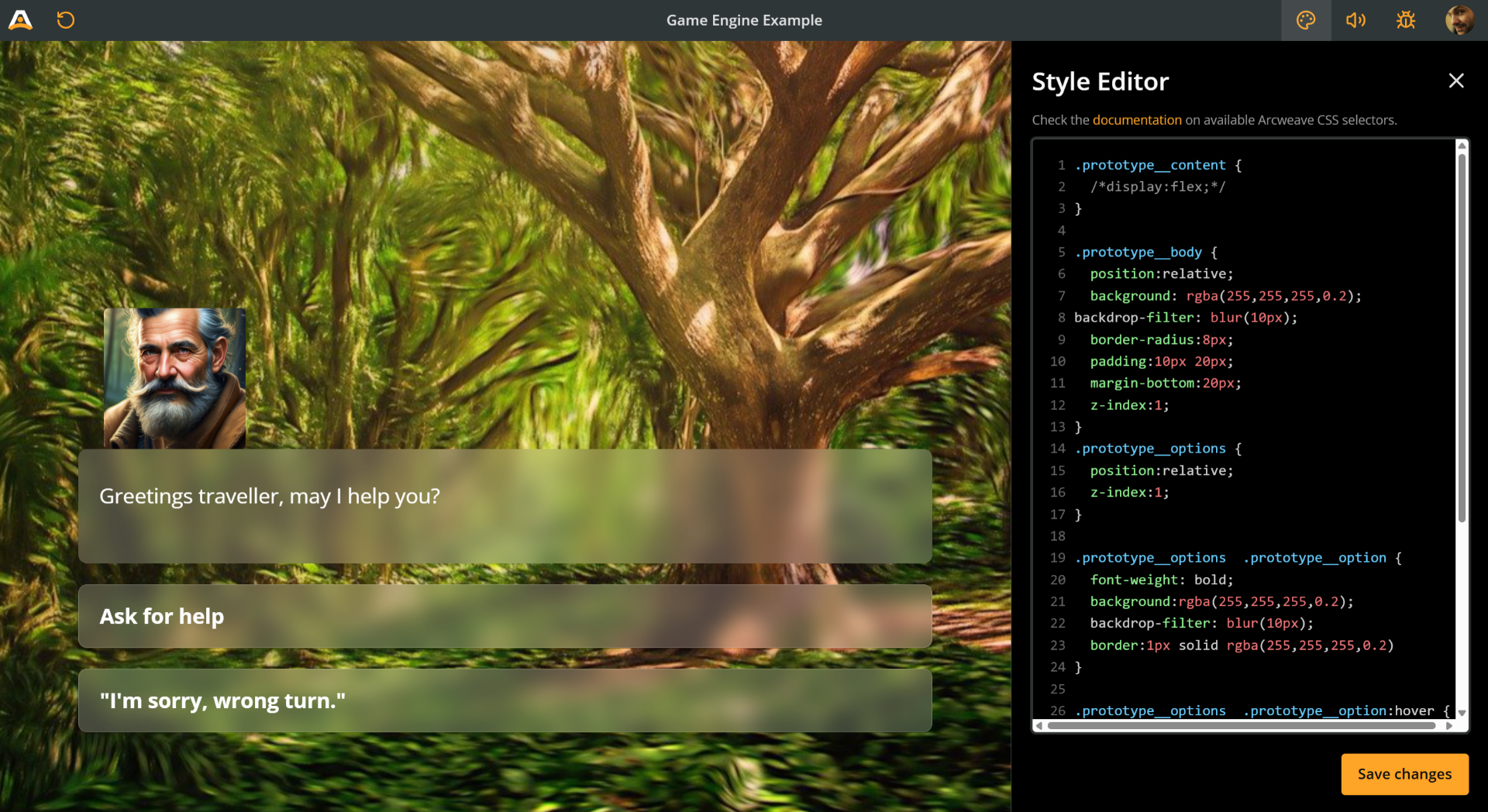
⚠️ If the Save changes button is disabled, your CSS has errors. Click the error count at the bottom of the panel to see each error with its line number, then fix them.
The Style Editor previews your changes live. Keep a copy of existing CSS before replacing it so you can restore it later.
Containers
Prototype wrapper
The prototype wrapper centers the story content and adds top spacing. It sits inside the scrollable .prototype__root; the outer page is .prototype.
You can target it with the prototype__wrapper class.
🔍 Notice the double underscore
__used in the class names.
For example, you can use it to perform the following changes:
- Change the background color
- Add some padding at the top
- Change font
- Set the font as bold

The code snippet for these changes is the following:
@import url('https://fonts.googleapis.com/css2?family=Schoolbell&display=swap');

.prototype__wrapper {
  background-color: #143340;
  padding-top: 100px;
  font-family: 'Schoolbell', cursive;
  font-weight: 600;
}
💡 Remember to include an
@importdirective when importing fonts.
Prototype content
Your story's elements don't just float freely inside the prototype wrapper; they're organized within their own container called prototype content.
You can target the prototype__content class to control the display of the following parts of the rendered element:
- Header (element cover and attached components)
- Text content
- Option buttons
Use this class to make layout and style adjustments like the following:
- Make the prototype content narrower
- Change the color of just the content area
- Change font
- Add some margin around the content
- Add border radius (soft corners) to the content area

@import url('https://fonts.googleapis.com/css2?family=Schoolbell&display=swap');

.prototype__content {
  max-width: 50%;
  background-color: #143340;
  font-family: 'Schoolbell';
  border-radius: 25px;
  margin: 50px;
}
✅ As you've probably noticed, you can change the font using either class:
prototype__wrapperorprototype__content. However, it's best practice to target the text content in the editor, as described in Styling text below.
Prototype header
The prototype header is the area that holds the elements' following items:
- The element's cover (image, video, YouTube embed, or icon)
- Attached components
Target it by using the prototype__header class.
For example, to make the header area narrower than the text content, use the following snippet:
.prototype__header {
  max-width: 50%;
  margin: auto;
}
ℹ️ The
margin: auto;line centers the image.

You can also color this area (and make corners rounded) with the following snippet:
.prototype__header {
  max-width: 60%;
  margin: auto;
  padding: 20px;
  background-color: darkred;
  border-radius: 25px;
}
If an element has attached components and no cover, the components will take the cover's place in the prototype header area.

Prototype body
The prototype body contains the text content and the option buttons. Target it using the class prototype__body. See prototype text, below, for its usage.
Prototype text
The prototype text is a sub-container and contains only the text content. Target it using the class prototype__text.
The following example uses a combination of prototype body and prototype text to:
- Narrow the text / buttons area setting the
max-widthofprototype__bodyto95%. - Narrow the text content width setting the
max-widthofprototype__textto an extra90%. - Center both
prototype__headerandprototype__bodywithmargin: auto. - Center the text block with
margin: autoonprototype__text, and center-align its lines withtext-align: center. - Change all background colors.
- Give them some padding.
- Detach them from each other using
marginandmargin-top.
🔍 Notice that centering the
prototype__bodyis not the same as setting the text to be center-aligned. Feel free to experiment with the code snippets, to better understand exactly what each property does.
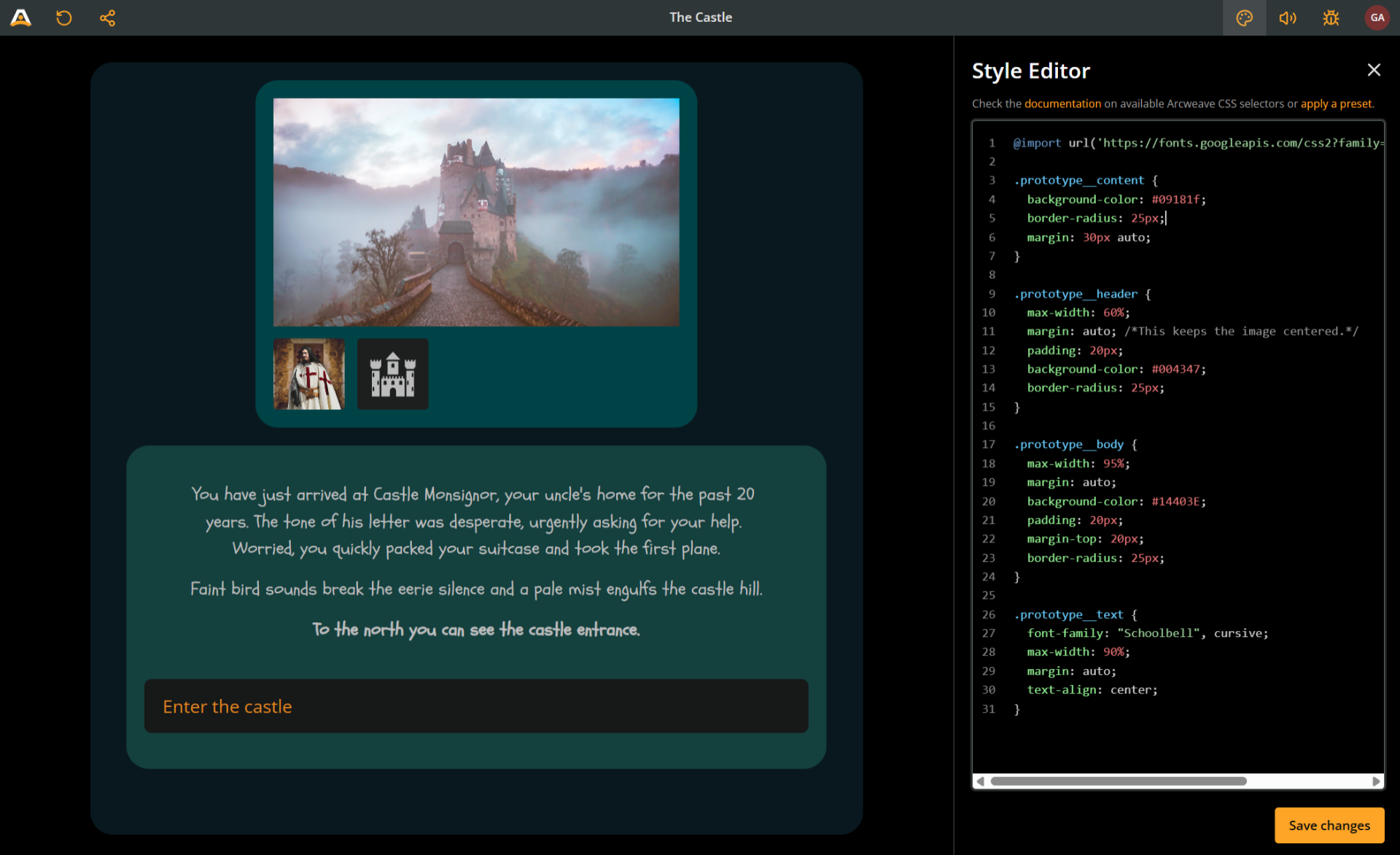
This is the code snippet that produces this result:
@import url('https://fonts.googleapis.com/css2?family=Schoolbell&display=swap');

.prototype__content {
  background-color: #09181f;
  border-radius: 25px;
  margin: 30px auto;
}

.prototype__header {
  max-width: 60%;
  margin: auto;
  padding: 20px;
  background-color: #004347;
  border-radius: 25px;
}

.prototype__body {
  max-width: 95%;
  margin: auto;
  background-color: #14403e;
  padding: 20px;
  margin-top: 20px;
  border-radius: 25px;
}

.prototype__text {
  font-family: 'Schoolbell', cursive;
  max-width: 90%;
  margin: auto;
  text-align: center;
}
Prototype options
Prototype options (notice the plural, options) is the container of the option buttons. Target it using the prototype__options class.
✅ One way to style specific option buttons is by targeting the respective children of the
.prototype__options(see further below, under Style specific options).
Styling text
Although you can perform some text styling by targeting the containers described above, you need to target the text itself to go even deeper.
Editor
The editor is a sub-container of prototype text containing the rich text of your elements. It can be targeted using the editor class. This article contains a couple of cases where the editor comes in handy, the first one following right below.
Editor content
To target the text content of your elements, use the full selector .prototype__text .editor .editor-content. Arcweave sets the default text color, font size, and padding on .prototype__body .editor .editor-content, so a shorter selector such as .editor-content alone does not override them. The following snippet increases the font size of the text content and changes its color:
.prototype__text .editor .editor-content {
  font-size: 28px;
  color: darkseagreen;
}
Prototype media
The element cover renders inside the prototype__media container. Target an image cover with .prototype__media img.single and a video cover with .prototype__media video:
.prototype__media img.single {
  border-radius: 25px;
}

.prototype__media video {
  border-radius: 25px;
}
When an element has no cover, its attached components appear inside prototype__media instead. The single class keeps the image rule from also matching component images.
Prototype components
Components are contained in the prototype components container, which you can target with the prototype__components class. To target the components themselves, use the selector .prototype__components .comp.
Here's an example of targeting components and their container to manipulate their size and remove their default border radius.

.prototype__components {
  height: 120px;
  padding: 10px;
  background: #123a54;
  grid-gap: 5px;
}

.prototype__components .comp {
  height: 100px;
  background: darkred;
  border-radius: 0px;
}
If you wish to completely omit components from the Play Mode experience, use display: none:
.prototype__components {
  display: none;
}
Prototype option
Option buttons render as clickable div elements with the prototype__option class. (Don't confuse with the parent container prototype__options, in plural, mentioned further above.)
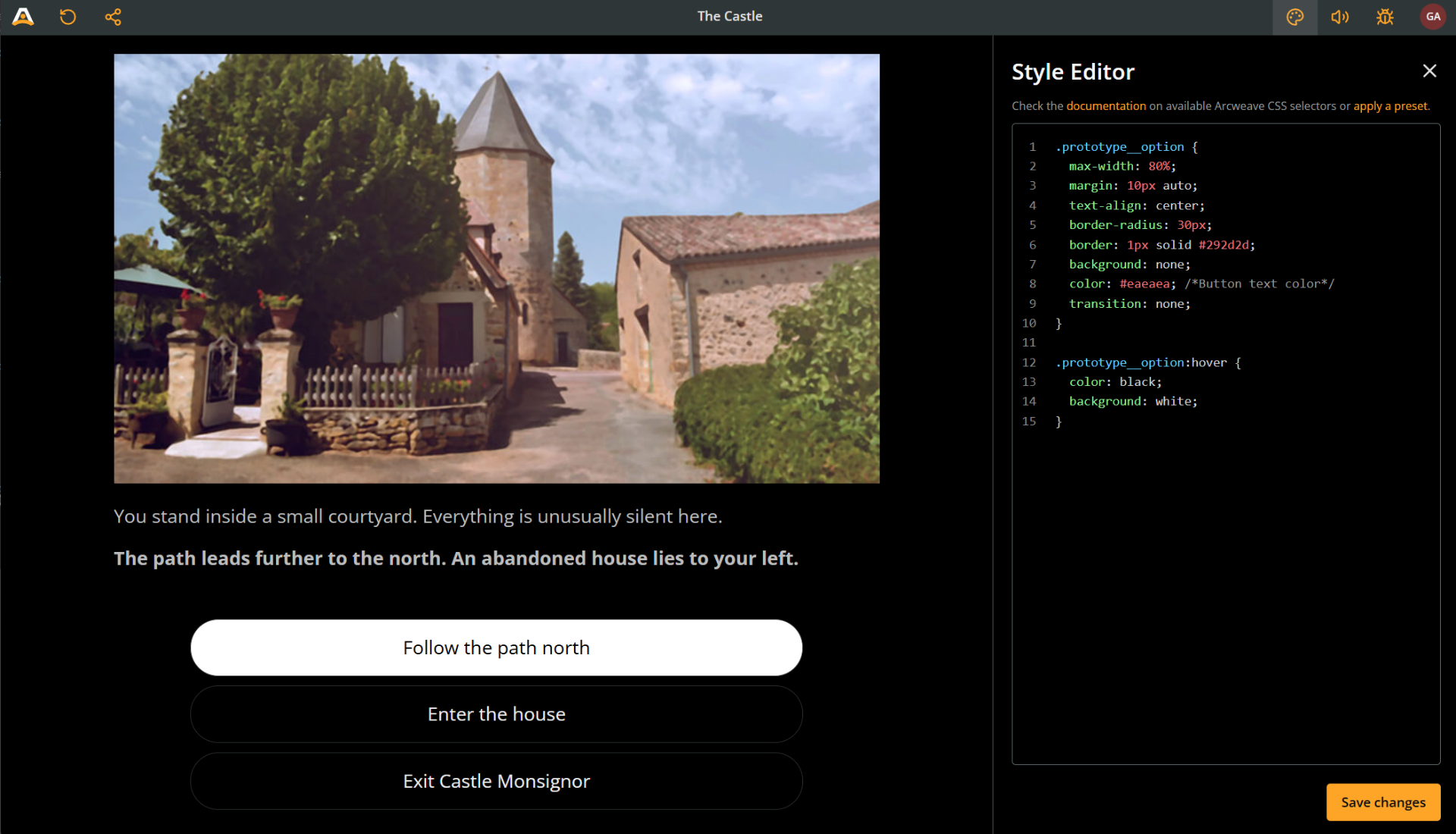
This example goes for a high-contrast, no-transition, rounded and centered buttons.
.prototype__option {
  max-width: 80%;
  margin: 10px auto;
  text-align: center;
  border-radius: 30px;
  border: 1px solid #292d2d;
  background: none;
  color: #eaeaea;
  transition: none;
}

.prototype__option:hover {
  color: black;
  background: white;
}
Style visited options
When an option leads to an element that has already been visited in the current playthrough, Arcweave adds the visited class to that option button. You can target those options with .prototype__option.visited.
For example, the following CSS dims choices that lead to previously visited elements:
.prototype__option.visited {
  opacity: 0.55;
}
Advanced styling
Style specific elements
The Style Editor allows you not only to globally style every element, but also style specific elements differently from the others.
Each element in your prototype has its own unique element ID. Including an element ID as a CSS selector allows you to target the specific element for CSS styling.
To do this, follow the next steps:
1. Copy the element ID
An element's ID looks like this: 81a30674-aa09-4eb8-8484-59298d37f984. You can get that UUID from the API/MCP element record, or copy it in Arcweave:
Debugger (Play Mode environment):
- Play the story until you reach the desired element.
- Open the Debugger.
- Click the ID button in the Element row (not the Board row).
- Next to UUID, press the copy button.
Element Properties (Project environment):
- Locate and right-click the desired element in its board.
- Select Properties.
- Go to the Details tab.
- Next to Element ID, press the clipboard button.
2. Add the element ID to the CSS selectors
After copying the element's UUID, prefix it with #el- to form #el-[element-id]. A DOM ID copied from the browser already includes el-, so do not add it twice. This ensures that your styles apply only to that specific element when rendered in Play Mode.
Here's an example showing how to target both the editor content and the prototype content of a single element:
@import url('https://fonts.googleapis.com/css2?family=Schoolbell&display=swap');

#el-81a30674-aa09-4eb8-8484-59298d37f984
  .prototype__text
  .editor
  .editor-content {
  color: darkseagreen;
}

#el-81a30674-aa09-4eb8-8484-59298d37f984 .prototype__content {
  max-width: 50%;
  background-color: #143340;
  font-family: 'Schoolbell';
  border-radius: 25px;
  margin: 50px;
}
Style specific options
Style specific options in either of the following ways:
- Target a specific option by its position inside the prototype options container (
prototype__optionsclass) - Target connections of specific color.
Style nth child of prototype options
In normal playback, choices are direct children of .prototype__options. Edit content mode can wrap each choice in .prototype-option-row. Target the position at the container level in both forms:
/* First visible choice, in playback and edit mode. */
.prototype__options > .prototype__option:first-child,
.prototype__options > .prototype-option-row:first-child > .prototype__option {
  border: 2px solid #60a5fa;
}
To target the second choice of a specific element:
#el-81a30674-aa09-4eb8-8484-59298d37f984
  .prototype__options
  > .prototype__option:nth-child(2),
#el-81a30674-aa09-4eb8-8484-59298d37f984
  .prototype__options
  > .prototype-option-row:nth-child(2)
  > .prototype__option {
  font-weight: bold;
}
These selectors mean the first or second currently displayed choice, not a particular connection. Branch conditions and reordering can change which choice occupies that position. A single unlabelled path shows an advance arrow instead of a choice. Connection UUIDs are not exposed as DOM IDs; use a theme class when it better expresses the styling you want.
Style connections of specific color
In Arcweave, you can change the color theme of connections.
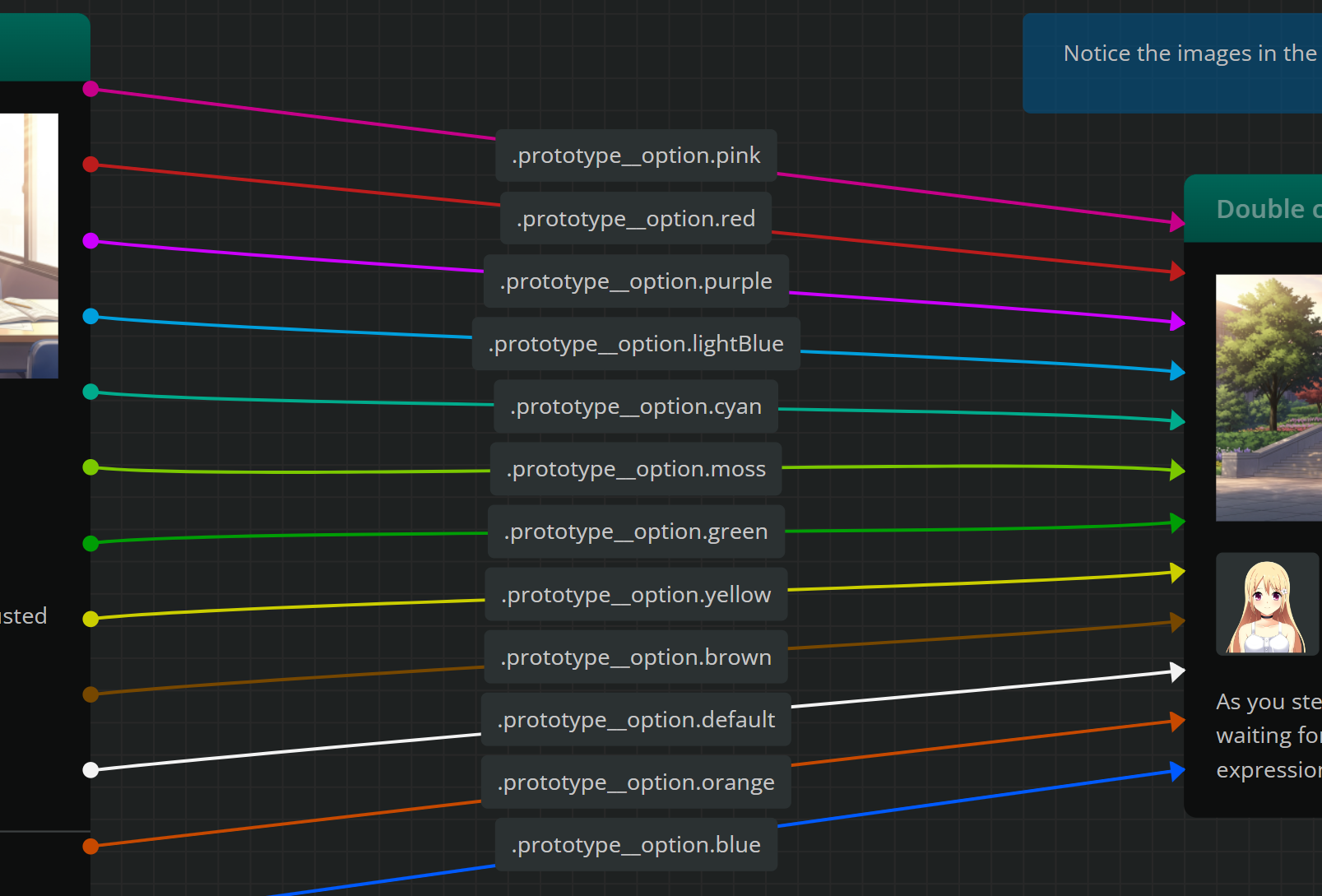
In the Style Editor, you can then target connections of specific colors, to style their respective option buttons. For example, to target the option corresponding to the pink connection of any element, add the following code:
.prototype__option.pink {
  ...
}
The colors used as connection themes are:
| Color | Selector |
|---|---|
| ██████████ | .prototype__option.pink |
| ██████████ | .prototype__option.red |
| ██████████ | .prototype__option.purple |
| ██████████ | .prototype__option.lightBlue |
| ██████████ | .prototype__option.cyan |
| ██████████ | .prototype__option.moss |
| ██████████ | .prototype__option.green |
| ██████████ | .prototype__option.gold |
| ██████████ | .prototype__option.brown |
| ██████████ | .prototype__option.default |
| ██████████ | .prototype__option.orange |
| ██████████ | .prototype__option.blue |