Basic Arcweave tutorial | Part 1: Arcweave overview
Welcome to the first part of the Arcweave Basics tutorial series. On this page, we'll use the Interactive Fiction Example as a walkthrough of Arcweave's environment. We will see our first items and features: boards, elements, and connections, as well as the Play Mode, where you run your project as a choice-based game.
Video tutorial
Watch this tutorial as a video:
⚠️ This video does not reflect the latest updates to Arcweave's UI.
✅ On this page we'll study the Interactive Fiction Example (aka The Castle). On the following pages, we will be building a project step-by-step. You can play that project's finished version here and explore its diagrams and structure here.
Open the project
The project template called Interactive Fiction Example is a great starting point for exploring Arcweave's features before building your own.
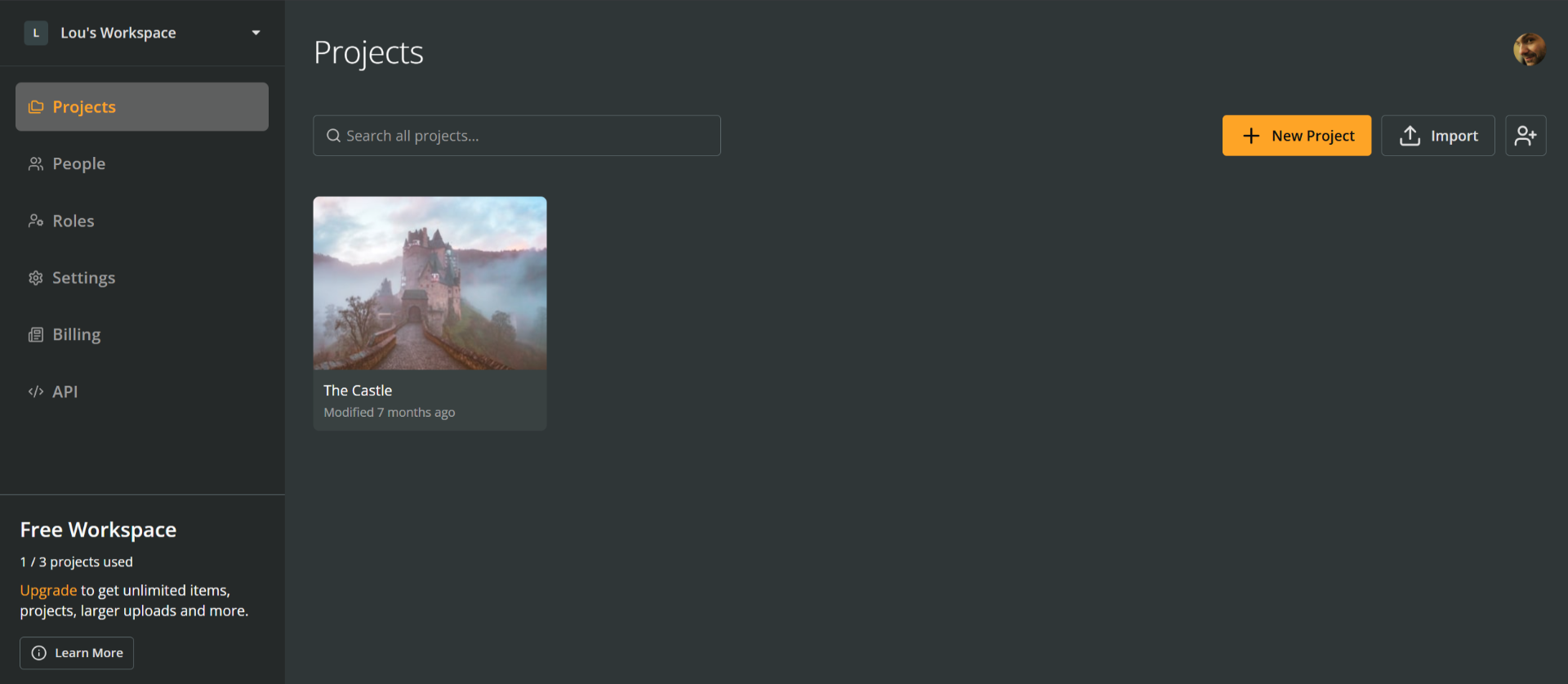
If your workspace does not have this project (its title is The Castle), you can recreate it:
- Go to the workspace's Projects section.
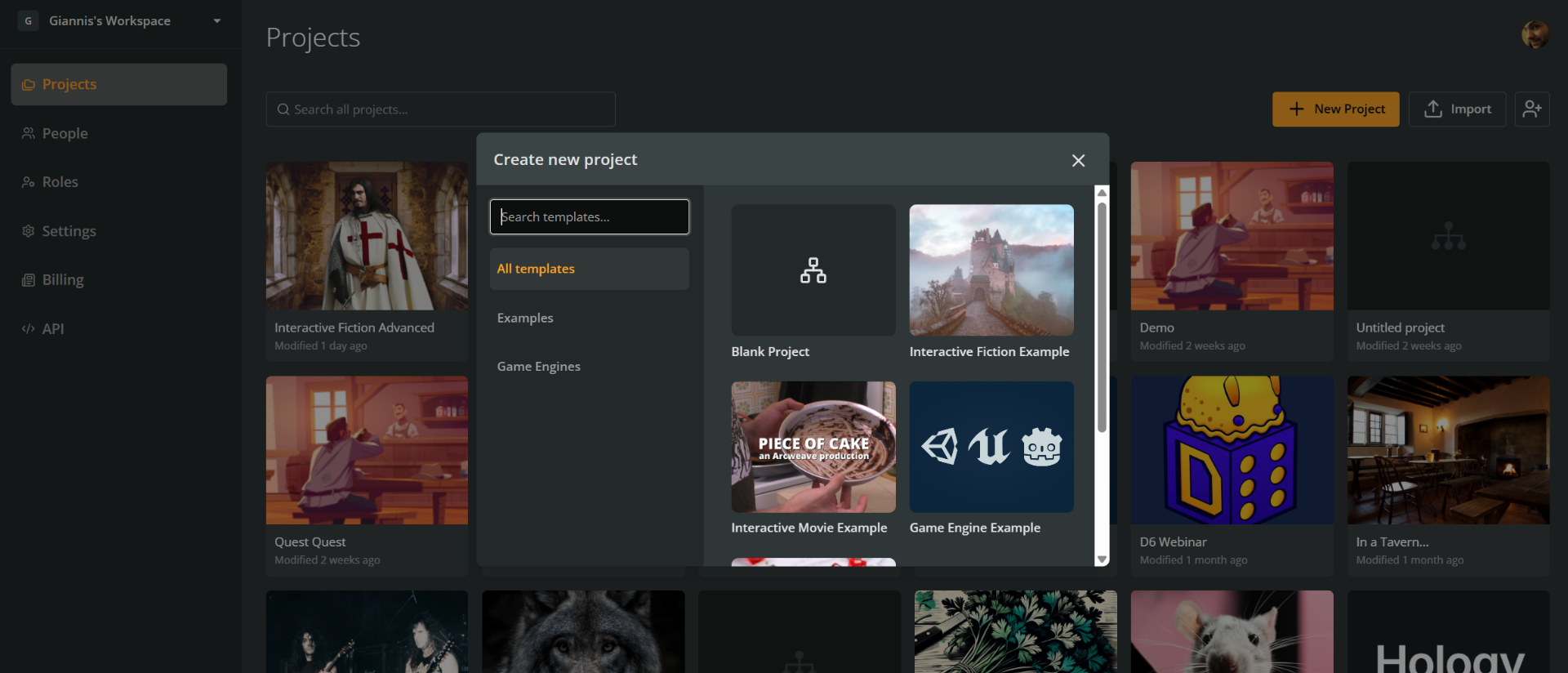
- Click the + New Project button.
- Select the Interactive Fiction Example template from the menu.
Project environment
The Arcweave interface is divided into two main areas: the Board and the Sidebar.
Current board
The Board is your main workspace.

It displays your story as a diagram, where elements (the building blocks of your narrative) are connected to each other via labeled connections.
Sidebar
The left sidebar sits alongside the current board.
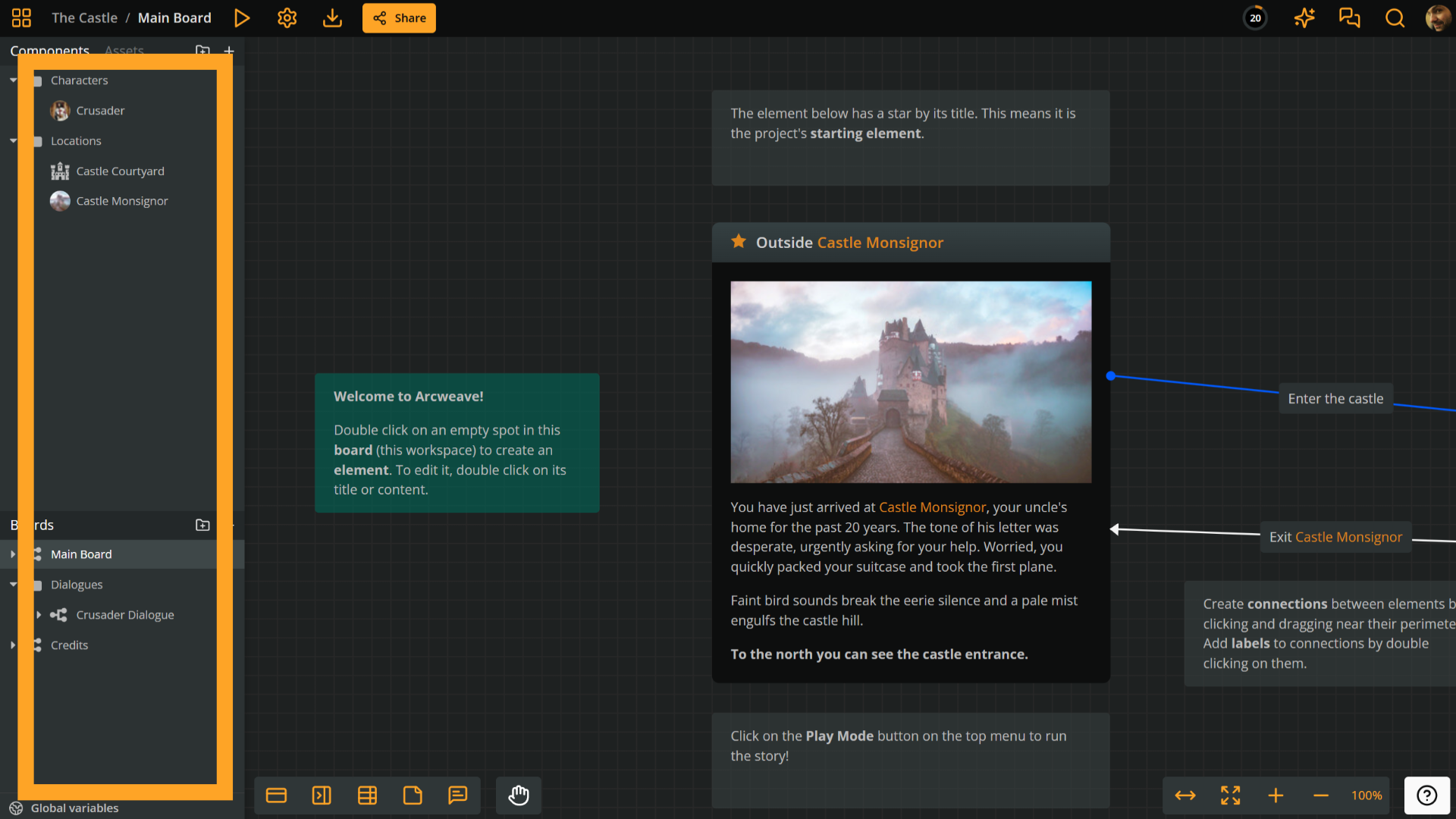
It gives you access to four key sections:
- Boards: A list of all the boards you've created in your project. Complex projects can have multiple boards to keep things organized.
- Components: Entities you create to represent anything relevant to your game: characters, locations, items, and more. Components can be created once and reused across multiple diagrams.
- Assets: A collection of all the images, audio, and videos you've uploaded to use in your project.
- Global variables: This is where you define the global variables used throughout your project (e.g., for tracking player choices or game state).
We'll cover each of these sections in detail in later tutorials. For now, it's enough to know where to find them.
Play Mode
Arcweave includes a built-in Play Mode that lets you run and test your project at any time. To enter Play Mode, click the Play icon at the top of the interface.

In Play Mode, you'll see:
- The cover image of the current element (if one has been assigned).
- The text content of the current element.
- One or more clickable choices, which correspond to the labeled connections leading out of that element.
How Play Mode maps to the board
Switching back to the Board, you can see how Play Mode elements correspond to what's on the diagram.
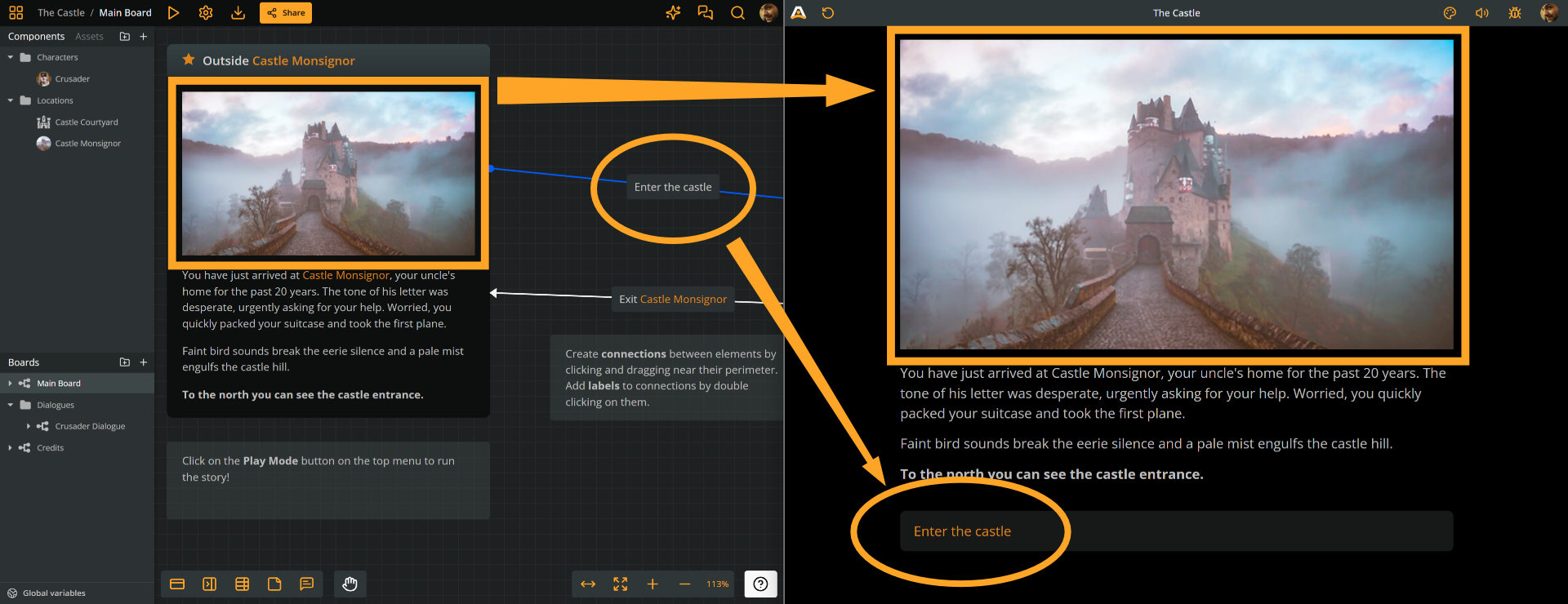
- The cover image comes from an image assigned to the element.
- The text content is authored directly inside the element.
- Each labeled connection (arrow) leading out of an element becomes a clickable choice in Play Mode.
Set Play Mode start
When you enter Play Mode, the story always begins at a designated starting element. You can identify the starting element by the star icon displayed on it. Hovering over the star icon shows a tooltip identifying the element as the Play Mode start.
A project has a single starting element, regardless of how many boards it has.
Changing the starting element
You can reassign the starting element at any time:
- Right-click on any element in the Board.
- Select Play Mode > Set Play Mode start from the context menu.
The next time you enter Play Mode, the story will begin from the newly designated element.
What's next
You now have a high-level overview of the Arcweave environment: the Board, the Sidebar, Play Mode, and how the starting element works. In the next tutorial, we'll start building things from the ground up by creating a new project from scratch.
In the meantime, feel free to explore The Castle example project on your own — play through the story, inspect the elements and connections, and poke around the Sidebar sections to get comfortable with the interface.