Unity tutorial | Part 2: Demo scene architecture
This tutorial walks you through the internal architecture of the Arcweave Unity Plugin's Demo Scene. By the end, you'll understand exactly how data flows from Arcweave through the plugin into your UI, and how user interactions drive the story forward.
Video tutorial
You can watch the video version of this tutorial below.
Scene hierarchy overview
In Unity, open the Demo Scene:
- Navigate to the Unity folder Assets > Arcweave > Demo.
- Double-click ArcweaveDemoScene.
Once the scene opens, look at the Hierarchy panel. At the root level there are three main GameObjects:
- ArcweavePlayer: Manages the project's narrative.
- @ArcweavePlayerUI: Manages the UI related to the project's narrative.
- EventSystem: Unity's event system, which handles UI input such as button clicks.
ℹ️ Both ArcweavePlayer and @ArcweavePlayerUI use the Arcweave plugin for Unity. To learn more about how the plugin works, visit its GitHub repository.
We'll start with ArcweavePlayer, the narrative brain that drives story flow, then move to @ArcweavePlayerUI, which listens to its events and updates the visuals.
ArcweavePlayer
Overview
Hierarchy
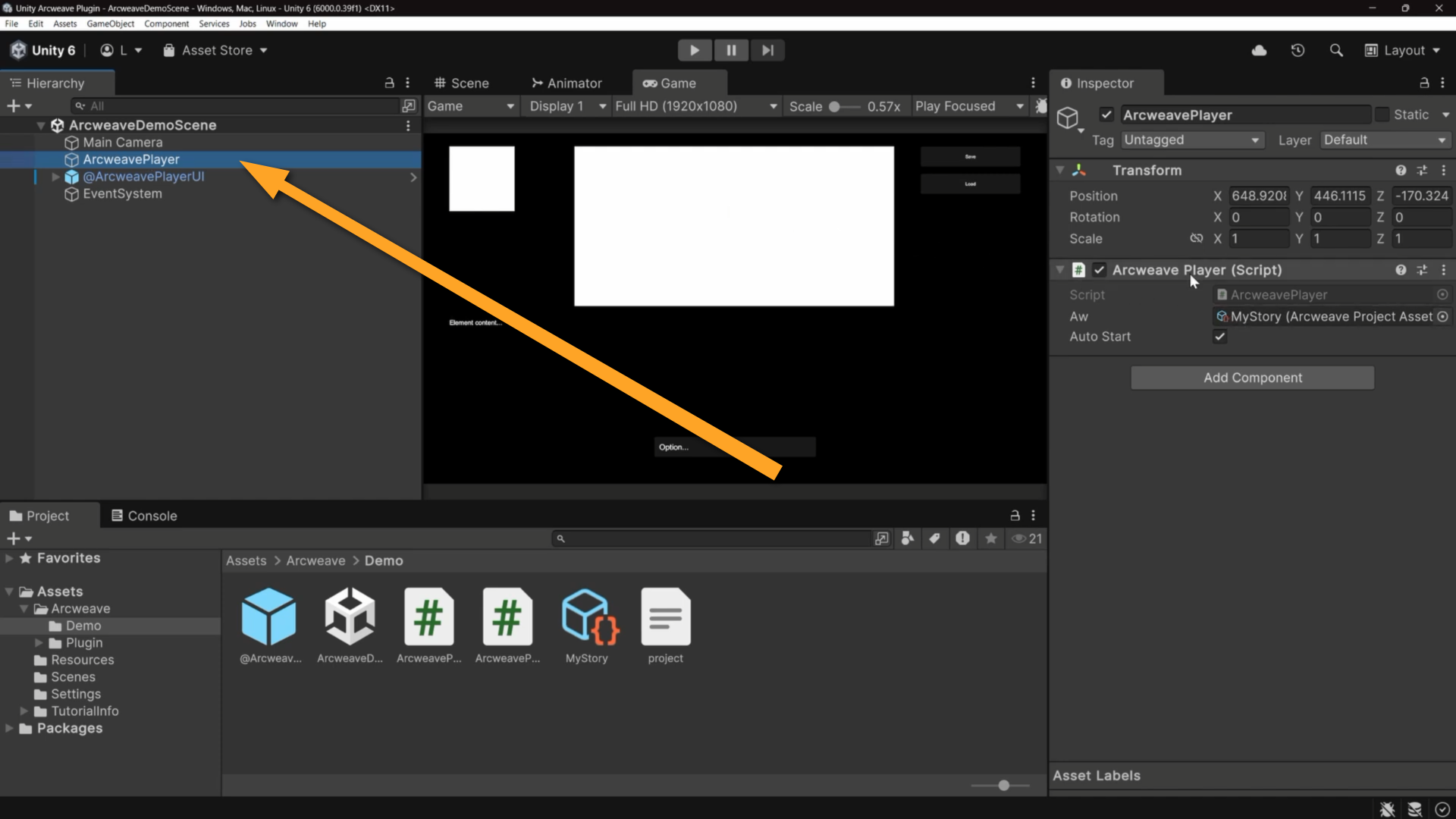
The ArcweavePlayer GameObject is the system's narrative manager. It has no child objects and no visual representation; it is purely logic.
Inspector
Selecting the ArcweavePlayer in the Hierarchy reveals a single component in the Inspector with three public fields:
- ArcweavePlayer script: The object's script; see right below.
- Aw: The
ArcweaveProjectAssetreference. This is the imported Arcweave project, i.e. the story data the player will run. - Auto Start: When checked, the narrative begins automatically when the scene loads. When unchecked, you call
PlayProject()manually, which is useful if you want to show a title screen first.
Script
The real power of the ArcweavePlayer component lies in its script. Open ArcweavePlayer.cs in your code editor to follow along.
Events
ArcweavePlayer exposes five events that form the communication bridge between narrative logic and visual presentation. The player handles only story flow; when the narrative state changes, it fires an event. ArcweavePlayerUI listens and reacts. This is a classic observer pattern.
| Event | When it fires | What it passes |
|---|---|---|
onProjectStart | Once, when the narrative begins | The Project object |
onElementEnter | Every time a new element is entered | The Element object |
onElementOptions | When the player has multiple choices | An Options object + a callback Action<int> |
onWaitInputNext | When there is only one path forward | A callback Action |
onProjectFinish | When the story reaches an endpoint | The Project object |
onElementOptions passes a callback that accepts an integer — the index of the chosen path. onWaitInputNext passes a callback without parameters, since there is no choice to make. Without these events, the UI would have no way to know when to refresh content, create buttons, or show a restart screen.
Methods
Start():
Unity's built-in method. If autoStart is true, it calls PlayProject().
PlayProject():
Initializes and starts the narrative.
- Verifies the
Awfield is assigned. - Calls
aw.Project.Initialize(), resetting all variables to defaults and all visit counts to zero. - Fires
onProjectStartif any listeners are subscribed. - Calls
Next(aw.Project.StartingElement)to jump to the first element.
Next(Path path):
Called when the player selects an option or clicks Continue:
- Calls
path.ExecuteAppendedConnectionLabels()to run any Arcscript on the connection (e.g.has_key = true,player_health -= 10). - Calls
Next(path.TargetElement)to advance to the target element.
Next(Element element):
The heart of the system:
- Stores the element as
currentElement. - Increments
currentElement.Visits. - Fires
onElementEnter. - Calls
currentElement.GetOptions()to evaluate all branch conditions and determine available paths. - Branches on the result:
- No paths → the story is over; fire
onProjectFinish. - Paths + options → fire
onElementOptionswith the choices and a callback; return and wait for user input.hasOptionsis true when there are multiple paths, or a single path with a label. - Paths, no options → a single unlabeled path (a "Continue" moment); fire
onWaitInputNextwith a callback; return and wait.
- No paths → the story is over; fire
Save() and Load():
The save system stores the current element's ID and all variable states as JSON in Unity's PlayerPrefs. Loading retrieves them, restores variable states via LoadVariables(), and calls Next(element) to jump back to the saved story point.
@ArcweavePlayerUI
Overview
Hierarchy
This GameObject holds the ArcweavePlayerUI component and all the visual UI structure underneath it.
The @ prefix is a naming convention to keep it visually distinct in the Hierarchy.
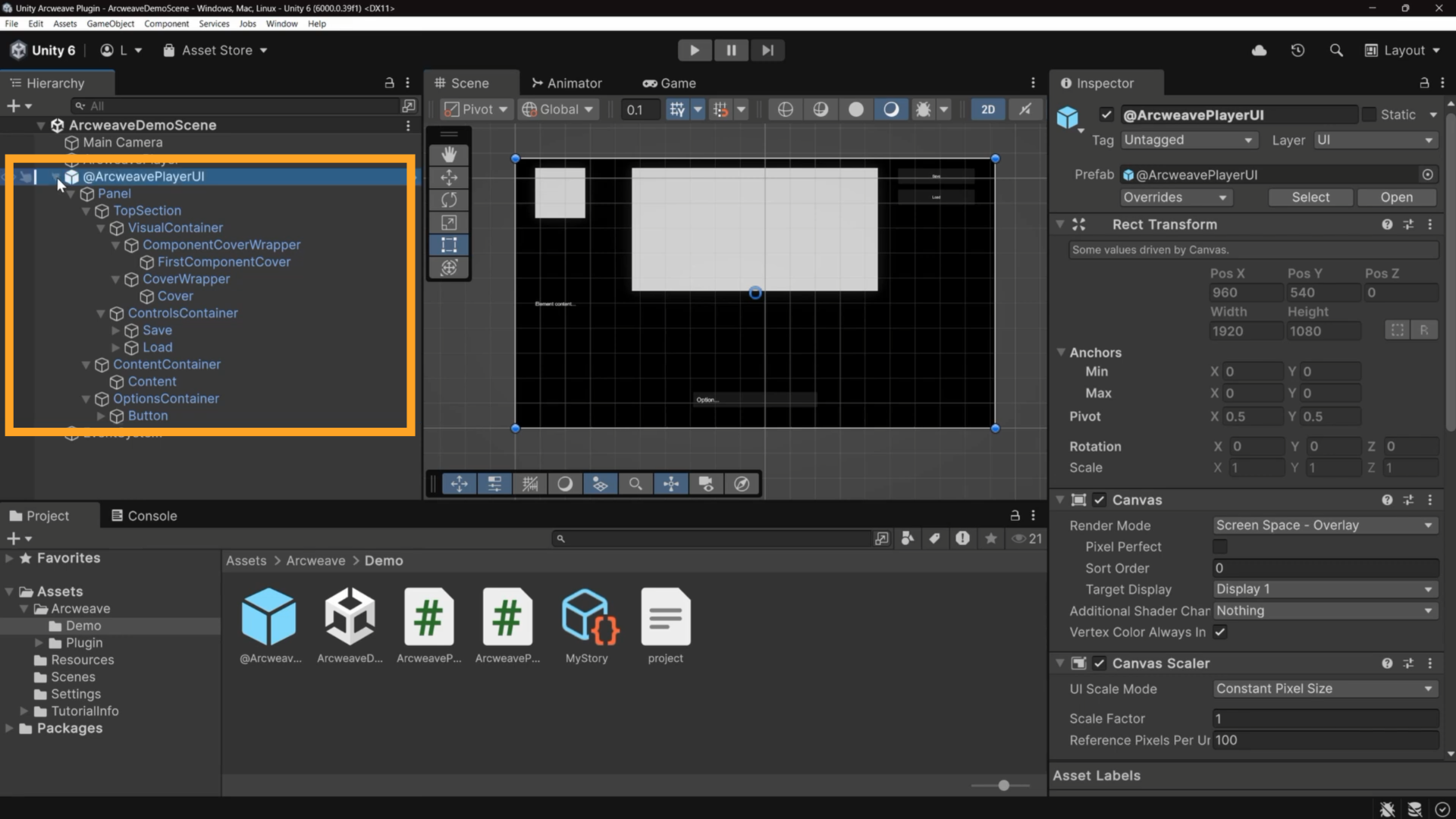
To see the UI layout clearly, switch to the Scene tab and enable 2D view from the Scene view toolbar. Zoom out with the scroll wheel if needed.
Expanding @ArcweavePlayerUI in the Hierarchy reveals the following structure under a root Panel:
- TopSection: Visual imagery and the save/load controls at the top of the screen
- VisualContainer
- ComponentCoverWrapper > FirstComponentCover: A
RawImagethat displays character portraits or entity images - CoverWrapper > Cover: A
RawImagethat displays the element's main cover image
- ComponentCoverWrapper > FirstComponentCover: A
- ControlsContainer: Save/load buttons
- Save (with a Text child)
- Load (with a Text child)
- VisualContainer
- ContentContainer
- Content: The
Textcomponent that displays dialogue or story content
- Content: The
- OptionsContainer: The interactive choice buttons area
- Button: A template button that gets cloned dynamically for each player option, with a Text child for the button label
Inspector
Select @ArcweavePlayerUI and look at the ArcweavePlayerUI component in the Inspector. Its fields are organized into sections:
- Core: The Player field references the
ArcweavePlayerGameObject. This is the critical link: it tells the UI which narrative player to listen to. - Text Display: References to the
Contenttext component, plus fallback strings for empty content, empty option labels, the continue button, and the restart button. - Images: The Cover and Component Cover fields reference the
CoverandFirstComponentCoverRawImagecomponents. - Buttons: References to the
Buttontemplate, theSavebutton, and theLoadbutton. - Animation:
- Enable Fade (checked by default)
- Crossfade Time (0.5 seconds by default) for smooth transitions
These references tell ArcweavePlayerUI exactly which UI elements to update when narrative events fire.
Script
Now that the Inspector references are wired up, select @ArcweavePlayerUI and open the script ArcweavePlayerUI.cs, to see how the component uses them at runtime. The sections below follow the script from top to bottom:
Initialization & cleanup
OnEnable(): Runs when the GameObject becomes active:
- Deactivates the button template (
buttonTemplate.gameObject.SetActive(false)). - Initializes both images to invisible (alpha 0).
- Connects the Save and Load buttons with their methods.
- Hides the Load button if no save file exists.
- Subscribes to four of the player's five events (all except
onProjectStart):onElementEnteronElementOptionsonWaitInputNextonProjectFinish
OnDisable(): Unsubscribes from all events to prevent memory leaks, when the GameObject is disabled or destroyed.
Save & load
Save() and Load() are simple wrapper methods for the UI buttons.
Save():
Calls the ArcweavePlayer's Save() method (see ArcweavePlayer > Script). It also enables the Load button, so the player knows a saved file exists.
Load():
Clears any existing player option buttons and then calls ArcweavePlayer's Load() method which jumps to the saved element. This fires the event onElementEnter (see below), which rebuilds the UI.
Event handler methods
OnElementEnter:
Fires every time a new element is entered:
- Calls
DisplayContent(e)to update the dialogue text. - Calls
DisplayImage(cover, e.GetCoverOrFirstComponentImage())to update the main cover. If the element has no cover, the first component's cover is used as a fallback. - If the element has its own cover, also shows the component cover in the
componentCoverslot; otherwise hides it.
OnElementOptions:
Fires when there are multiple choices. Loops through options.Paths and calls MakeButton() for each, passing a lambda that invokes callback(index) when clicked.
OnWaitInputNext:
Fires for single-path moments. Calls MakeButton() once with the "Continue" label.
OnProjectFinish:
Fires when the story ends. Calls MakeButton() with the "Restart" label, passing player.PlayProject as the callback.
Display & image methods
DisplayContent:
Handles the story content and how it appears on the screen:
- If the element has content, calls
e.RunContentScript()to evaluate all Arcscript and populateRuntimeContent. Skipping this would leave raw Arcscript markup visible. - Sets
content.texttoRuntimeContentor the "No Content" fallback if empty. - Fades the text in over
crossfadeTimeseconds ifenableFadeis true, or sets alpha to 1 instantly otherwise.
FadeImage:
A coroutine that handles smooth image transitions:
- If fade is enabled, the current image is visible, and the texture is changing: fade out the old image first.
- Assign the new texture, call
UpdateAspectRatio()to maintain correct proportions, then fade in. - If the texture is null, hide and clear the image.
UpdateAspectRatio:
Calculates the texture's width-to-height ratio and updates the AspectRatioFitter component so images are never stretched or squashed.
Button management
MakeButton:
Creates and displays an option button:
- Instantiates a clone of the button template, parented to the same container.
- Sets the button visible and adds it to
tempButtonsfor later cleanup. - Sets the label text.
- Fades in the button (or sets alpha to 1 instantly).
- Adds a click listener that first calls
ClearTempButtons()to destroy all existing buttons, then invokes theonClickcallback to triggerNext()in the player.
ClearTempButtons():
Destroys all GameObjects in tempButtons and clears the list, preventing old choices from accumulating on screen.
EventSystem
Unity's standard event system, required for handling UI clicks and interactions. Its input module must match the project's Active Input Handling setting; see Troubleshooting: UI buttons not responding.
Play and inspect
To observe the full flow, set up a split view in the Unity Editor with the Hierarchy, Game view, and Inspector visible simultaneously. In the Project window, select your ArcweaveProjectAsset (for example, MyStory) so you can watch the project's variables in the Inspector. The ArcweavePlayer Inspector only shows its Aw and Auto Start fields.
Click Play.

Here is what happened the moment Play was pressed:
Start()ran →autoStartis true →PlayProject()fired.aw.Project.Initialize()reset all variables (have_potion = false,healer_health = 50,wanda_health = 20).Next(StartingElement)was called →currentElement.Visitsincremented →onElementEnterfired.GetOptions()found two paths →onElementOptionsfired →MakeButton()created twoButton(Clone)GameObjects underOptionsContainer.
Click Go to Healer. The old buttons are destroyed, the callback invokes Next(path), ExecuteAppendedConnectionLabels() runs any Arcscript on that connection, and Next(targetElement) advances the story. onElementEnter fires again, the UI updates with the Healer's dialogue and a new cover image.
Continue through the story to the point where you receive a potion. Watch the Inspector: when DisplayContent() calls e.RunContentScript(), the Arcscript embedded in the element's content executes and have_potion changes from false to true.
Navigate to Wanda and examine her. Because have_potion is true, the branch condition allows the "Give her the potion" option to appear. Choosing it leads to an element whose content Arcscript (wanda_health += 50) runs when DisplayContent() calls RunContentScript(), so wanda_health updates accordingly.
Event-driven loop
Here is a summary of the game loop:
- Button clicked →
ClearTempButtons()destroys old buttons → callback invokesNext(path). ExecuteAppendedConnectionLabels()runs connection label Arcscript → variables update.Next(targetElement)advances the story →Visitsincrements →onElementEnterfires.- UI updates →
DisplayContent()andDisplayImage()refresh text and images → new buttons are created viaMakeButton().
The architecture is deliberately decoupled:
ArcweavePlayermanages story flow, evaluates conditions, and broadcasts events. It knows nothing about the UI.ArcweavePlayerUIlistens to those events and updates visuals. It makes no narrative decisions.- Variables track state across the entire playthrough.
- Arcscript drives logic through content and connection labels.
Because everything communicates through events, you can extend the system freely — add sound effects, trigger animations, or integrate with any game system — simply by subscribing to the same five events.