Basic Arcweave tutorial | Part 4: Play Mode functionalities
This part of the tutorial covers the following Play Mode features:
- Restart: Replay a story from the beginning.
- Edit in Play Mode: Edit text and reorder option buttons directly in Play Mode.
- Components: See how attached components appear in Play Mode.
- Debugger: Inspect and test variable values during a playthrough.
- Undo last choice: Step back to the previous element.
- Quickstart from any element: Start a playthrough from any element.
- Next element: Advance through linear passages without option buttons.
Video tutorial I
Watch this part of the tutorial as a video:
⚠️ This video does not reflect the latest updates to Arcweave's UI.
✅ You can play the finished Tutorial Project and explore its boards and structure.
Enter Play Mode
In your project, press Play to enter Play Mode. Alternatively, right-click an element and select Play Mode > Quickstart Play Mode from here.
Restart
To replay a story from the beginning, press Restart. It is on the left side of the Play Mode menu.
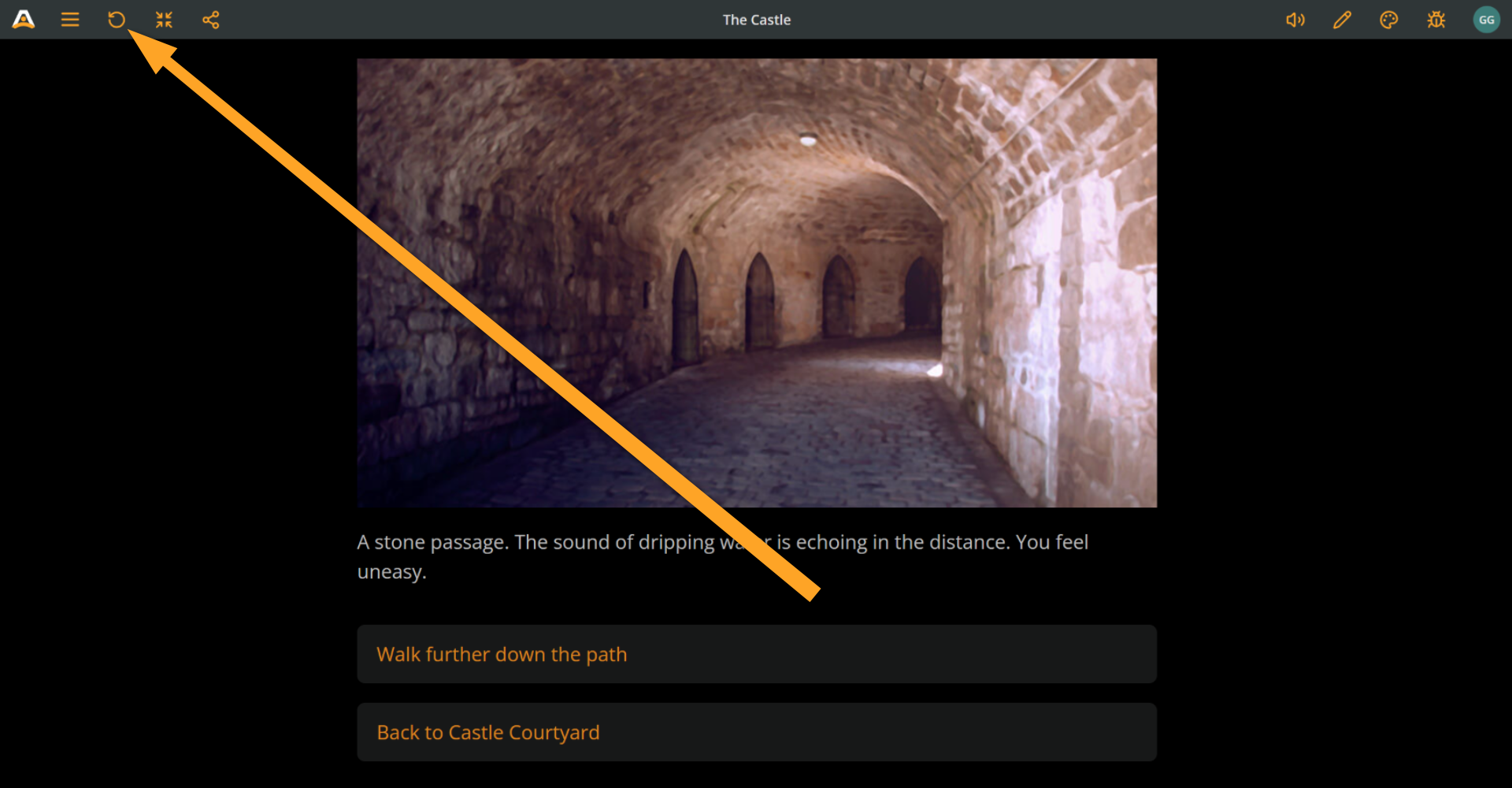
ℹ️ Restarting a story with Restart resets all global, board, and component variables and all element visits.
Edit in Play Mode
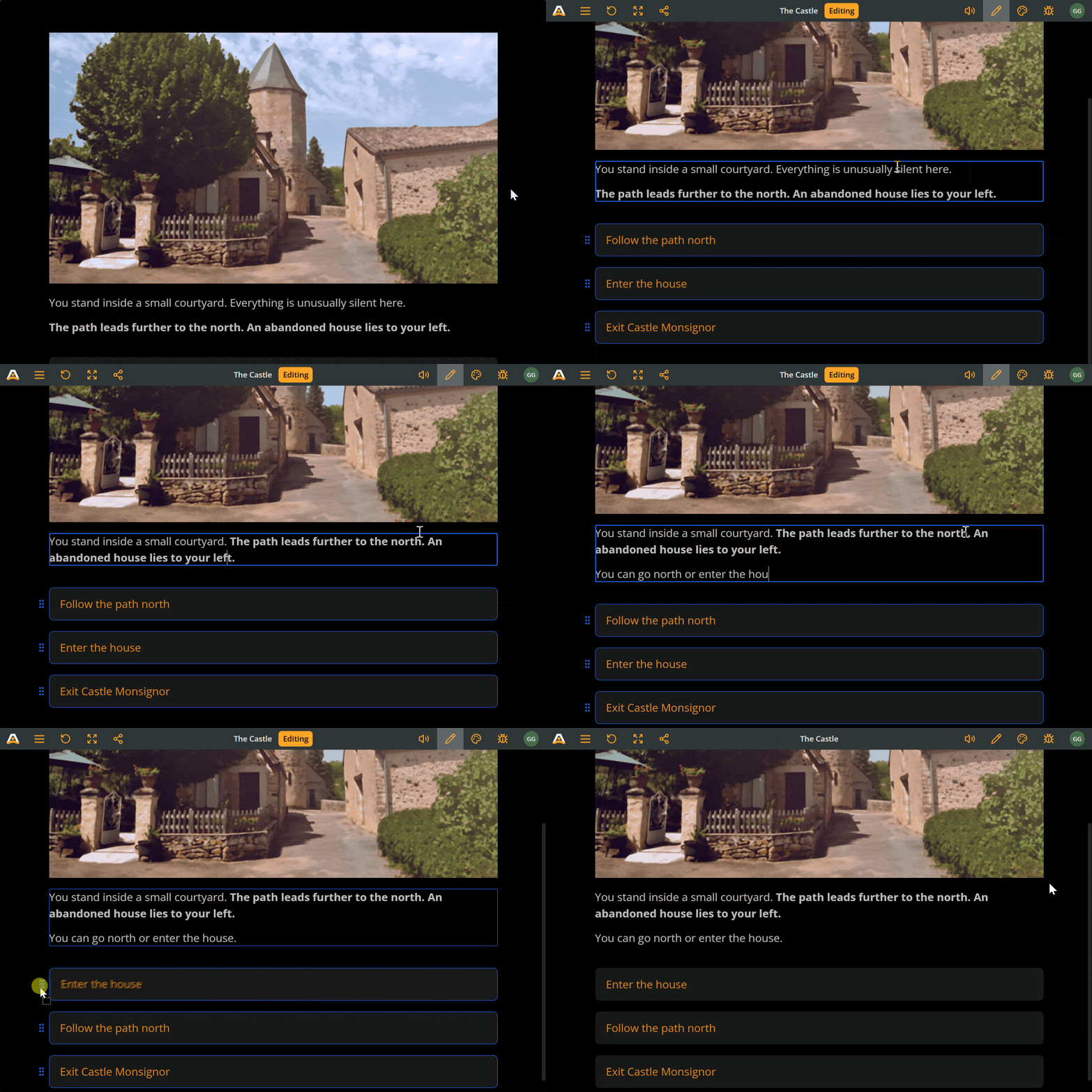
In Play Mode, click Edit content (the pencil icon in the top menu) or double-click the text content to enter edit mode.
Edit text
In edit mode, click anywhere in the element's text or in an option's label to edit it.
Press Esc or click outside the text area to stop editing.
Reorder options
In edit mode, drag an option by the grip handle on its left (or by its border) to reorder it. Changes are saved automatically.
Press Esc or click outside the text area to stop editing.
✅ For more details, see Using Play Mode.
Video tutorial II
This video covers additional Play Mode features, described in the sections below.
⚠️ This video does not reflect the latest updates to Arcweave's UI.
Components in Play Mode
The first part of the video above explains how attached components appear in Play Mode.
✅ Components are covered in the next part of this tutorial, so you can skip this section for now and return to it later.
Displaying components in Play Mode is particularly useful for dialogue-heavy projects and brings Play Mode closer to a visual novel style: you can display a background image while characters (or other components) appear separately, layered on top.
✅ For a full visual novel look, see the visual novel tutorial.
Components are not limited to characters. You can attach items, spells, weapons, clues, or any other entity your story needs, and they appear in Play Mode alongside the element's content.
If an element has no cover image, its components expand to fill the space normally reserved for the cover. When an element has multiple components, they share that space equally.
Debugger
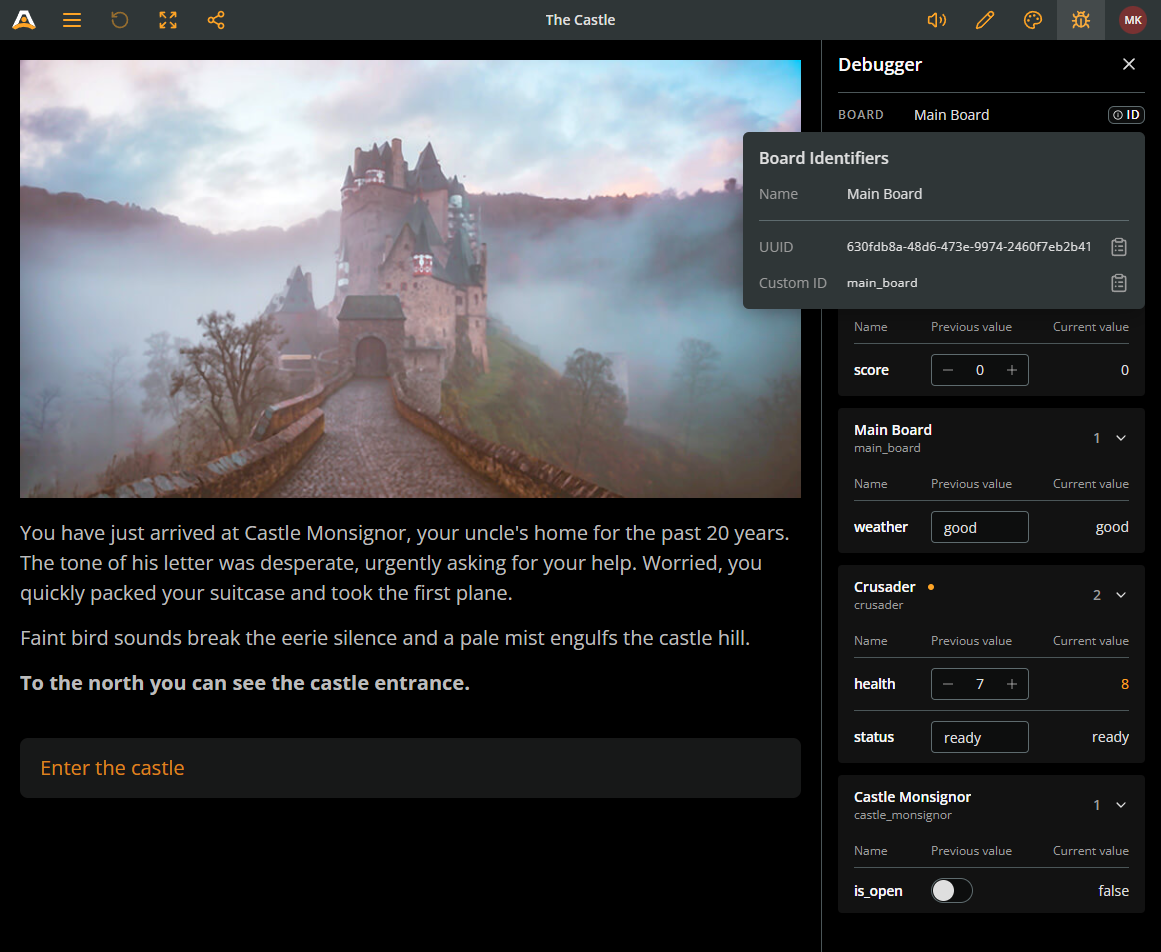
To open the Debugger, click the bug icon in the Play Mode menu.
Previous and current values
The Debugger groups your project's global, board, and component variables. Each variable is listed in a row with its name and two value columns:
- Previous value: The variable's value before the current element is rendered, that is, before any Arcscript in the element's content executes.
- Current value: The variable's value after the current element is rendered, that is, after any Arcscript in the element's content has executed.
When an element contains no Arcscript, both columns show the same value. When it contains an assignment or calculation, compare the two columns to see its exact effect.
Color indicators
The Debugger highlights a variable's value in orange when either of the following is true:
- You edited the value manually during the playthrough.
- The Previous value and Current value differ.
Test variables
The Previous value column is editable. During a playthrough, you can click any value and change it to test how different states affect an element's outcome. The element's Arcscript still runs against the value you set, so the Current value column reflects the script's effect on your manual input.
This lets you test edge cases and alternative branches without replaying the story to reach the required state.
Story navigation
Undo last choice
After making a choice, click Undo last choice in the Debugger header to return to the previous element with its saved variables, visits, and rendered content. See Undo last choice for details.
Quickstart from any element
As shown in Part 1 of this tutorial, you can set the story's starting element by right-clicking an element and choosing Play Mode > Set Play Mode start. This marks the element with a star icon and makes it the entry point each time you press Play.
Changing the starting element repeatedly to test different parts of your story can be tedious. Instead, use Quickstart Play Mode from here:
- In the board, right-click any element.
- Select Play Mode > Quickstart Play Mode from here.
This opens a new browser tab and starts the playthrough from that element, without changing your project's designated starting element. The main Play button still starts from the original starting element, which makes Quickstart ideal for testing specific scenes or branches in isolation.
ℹ️ If you started the playthrough with Quickstart Play Mode from here, Restart restarts it from that same element, regardless of the project's starting element.
Next element
When only one option is available and its labels produce no text, Play Mode shows a blinking arrow instead of an option button. Click the element's content area to continue to the next element.
Arcweave checks this after evaluating branches and label Arcscript, so multiple outgoing connections can still lead to a single available option. A label containing only variable assignments or conditional text that produces nothing in the current playthrough can still result in the arrow.
To force the creation of a button for a single option, give its path a label that produces text, such as "Continue".
ℹ️ See labels across branches for paths with several labels.
What's next
The next part of this tutorial covers components and introduces the built-in icon library you can use in your project.