# Share your project
Source: https://docs.arcweave.com/project-tools/share
Section: Project Tools
Description: Give members, guests, and visitors access to a project, share links to items, make projects public, and embed Play Mode
There are three ways to access an Arcweave project:
- [Workspace members](https://docs.arcweave.com/workspaces/roles#workspace-members) have access to all projects in the workspace.
- [Workspace guests](https://docs.arcweave.com/workspaces/roles#workspace-guests) can access the specific projects they are invited to.
- [Project visitors](https://docs.arcweave.com/workspaces/roles#project-visitors) can access a public project via its link—see [Make a project public](https://docs.arcweave.com/project-tools/share#make-a-project-public).
## Access
Context: Arcweave docs > Project Tools > Share your project > Access
For more information on these roles, see the [Roles](https://docs.arcweave.com/workspaces/roles) page in the **Workspaces** section of this documentation.
### Workspace member
Context: Arcweave docs > Project Tools > Share your project > Access > Workspace member
Workspace members automatically have access to all projects in the workspace, based on their assigned **roles** and **permissions**. See [Workspace members](https://docs.arcweave.com/workspaces/roles#workspace-members).
### Workspace guest
Context: Arcweave docs > Project Tools > Share your project > Access > Workspace guest
Users with the **Manage memberships** permission (by default, workspace owners) can share a project with people outside the workspace by assigning them the role of **project commenter** or **project editor**—see [Workspace guests](https://docs.arcweave.com/workspaces/roles#workspace-guests) > [Invite guests](https://docs.arcweave.com/workspaces/roles#invite-guests).
### Project visitor
Context: Arcweave docs > Project Tools > Share your project > Access > Project visitor
A project or just its Play Mode can be made **public**, allowing anyone with the link to access it—see [Project visitors](https://docs.arcweave.com/workspaces/roles#project-visitors).
## Share an item or board position
Context: Arcweave docs > Project Tools > Share your project > Share an item or board position
Use **Copy link** to send someone directly to a board or item in the project's current language. Recipients need access to the project's boards through one of the [roles described above](https://docs.arcweave.com/project-tools/share#access). Copying a link does not change project access; **Can play only** access does not allow someone to open items in the editor.
### Copy an item link
Context: Arcweave docs > Project Tools > Share your project > Share an item or board position > Copy an item link
1. Open the item's menu using one of the locations below.
2. Select **Copy link**. Arcweave displays **Link copied** when the URL is on your clipboard.
3. Paste the link into your message or document.
| Item | Where to find Copy link |
| ----------------------------------------------------------------------------------------------------------------------------------------------------------- | ----------------------------------------------------------------------------------------------------------------------------------------------------------------------------------------------------------------------------------- |
| [Board](https://docs.arcweave.com/project-items/boards#copy-a-board-link) | Right-click the board in the sidebar's **Boards** section. |
| [Element](https://docs.arcweave.com/project-items/elements#copy-an-element-link) | Right-click the element on the board or in the sidebar's **Boards** section. |
| [Jumper](https://docs.arcweave.com/project-items/jumpers#copy-a-jumper-link), [note](https://docs.arcweave.com/project-items/notes#copy-a-note-link), or [branch](https://docs.arcweave.com/project-items/branches#copy-a-branch-link) | Right-click the item on the board. |
| [Connection](https://docs.arcweave.com/project-items/connections#copy-a-connection-link) | Right-click the connection or its label on the board. |
| [Component](https://docs.arcweave.com/project-items/components#copy-a-component-link) | Right-click the component in the sidebar's **Components** section, open the component's **three-dot (•••)** header menu, or right-click a component reference attached to an element or included in a **Component List** attribute. |
On the board, **Copy link** is available when exactly one supported item is selected. If several items are selected, clear the selection first. Folders, unsaved drafts, comments, attributes, and variables do not have a **Copy link** action.
People with read-only access to the project's boards can also copy links. Editing actions still require the appropriate permissions.
### Open a copied link
Context: Arcweave docs > Project Tools > Share your project > Share an item or board position > Open a copied link
- An element, jumper, note, or branch link opens its board and centers the item. A jumper link takes you to the jumper itself.
- A connection link opens the connection's area on its board.
- A board link opens that board and restores its saved position and zoom.
- A component link opens the component's dialog, including when copied from an attached reference.
The link selects the language that was active when it was copied, entering [Translation Mode](https://docs.arcweave.com/project-tools/localization#main-language-translations) for a translation. If that language is no longer available, or the workspace does not support that translation, the link opens without changing the current language.
If the item has been deleted, Arcweave reports that the linked item could not be found.
### Share a board position
Context: Arcweave docs > Project Tools > Share your project > Share an item or board position > Share a board position
After a board item link opens, the browser URL contains the board's position and zoom. Copy that URL to share the current view, or refresh to return to the same view. To share the item and current language again, use its **Copy link** action. A board's **Copy link** action identifies the board; use the browser URL to share a particular position and zoom.
### Share a link from a spreadsheet
Context: Arcweave docs > Project Tools > Share your project > Share an item or board position > Share a link from a spreadsheet
You can also copy an **Open in Arcweave** hyperlink from an [XLSX export](https://docs.arcweave.com/project-tools/export#open-items-from-an-xlsx-export) to send someone to an item or its relevant dialog. Links from single-language exports select the exported language. To preserve that destination and language when sharing, copy the original hyperlink from the spreadsheet.
## Make a project public
Context: Arcweave docs > Project Tools > Share your project > Make a project public
To enable public link access to your project:
1. Open the project.
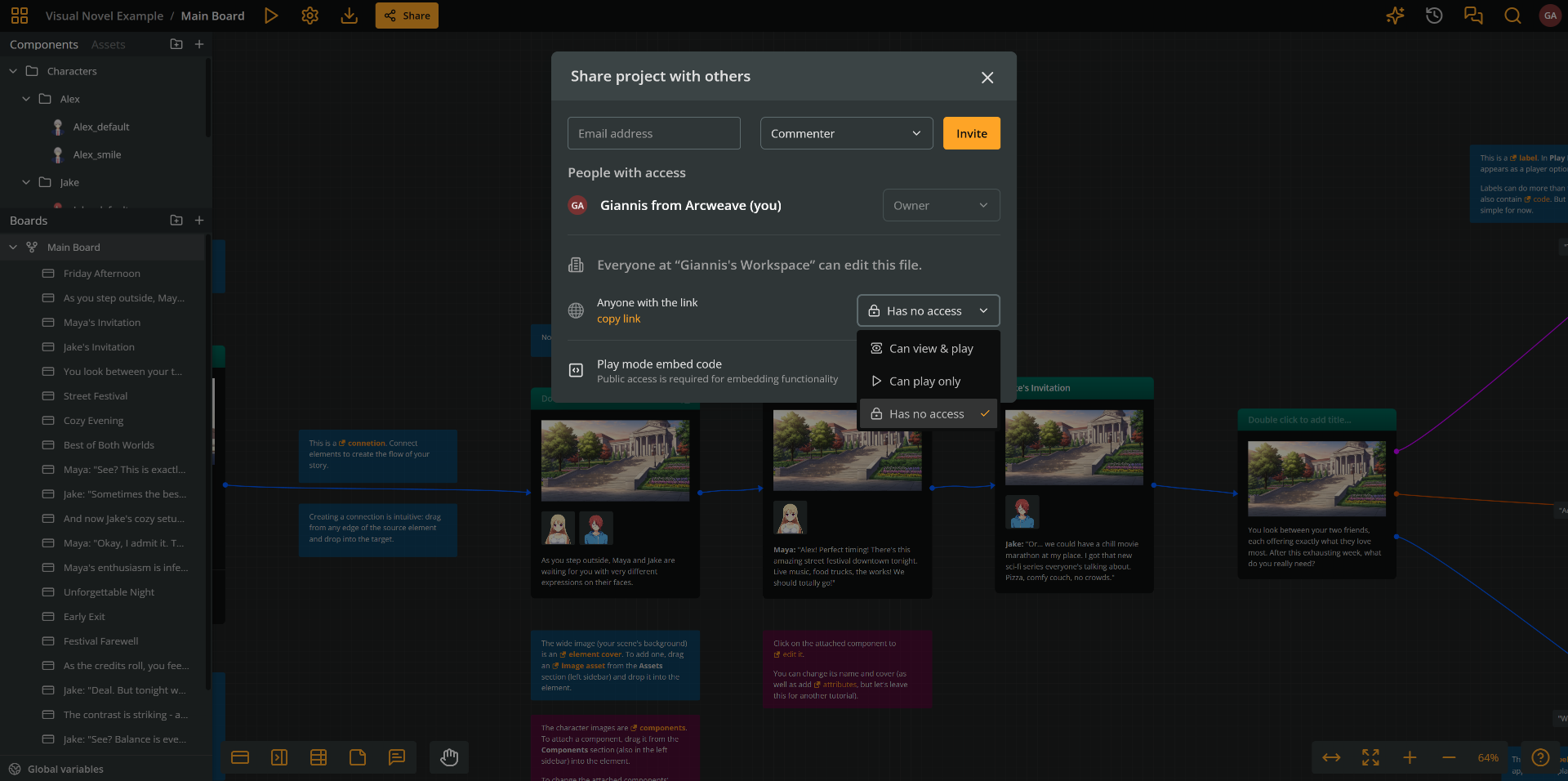
2. Click **Share** in the top menu.
3. In the Share modal, use the dropdown next to **Anyone with the link** to control public access. Select one of the following options:
- **Can view & play**: Grants access to both the project's boards and Play Mode.
- **Can play only**: Grants access only to the project's Play Mode.
- **Has no access**: Prevents any public access to the project.
4. Click **copy link**, under **Anyone with the link**, to copy the project's URL to your clipboard for sharing. With **Can play only**, the copied URL opens Play Mode.
Only owners and editors can change the public access option.
> ✅ Users accessing a project through a public link are called [project visitors](https://docs.arcweave.com/workspaces/roles#project-visitors). They do _not_ need an Arcweave account to view or play the project.
## Embed Play Mode in HTML
Context: Arcweave docs > Project Tools > Share your project > Embed Play Mode in HTML
Projects with public Play Mode provide an **HTML embed code snippet**, enabling the project to be played in its own **iframe window** on any webpage.
### Embed example
Context: Arcweave docs > Project Tools > Share your project > Embed Play Mode in HTML > Embed example
The following is a public project created by the Arcweave team:
Embedded content: https://arcweave.com/embed/MWEZebKl2g/play
The code for the above embed is the following:
```html
```
> ℹ️ This code has been customized. See [Customize embed code](https://docs.arcweave.com/project-tools/share#customize-embed-code), below.
### Copy embed code
Context: Arcweave docs > Project Tools > Share your project > Embed Play Mode in HTML > Copy embed code
To copy a project's embed code:
1. Open the project and click **Share** in the top menu.
2. Make the project or its Play Mode [public](https://docs.arcweave.com/project-tools/share#make-a-project-public).
3. Click **Get embed code** at the bottom of the Share modal.
4. In the embed dialog, click **Copy code**.
5. Paste the code from your clipboard into the body of your webpage.
> ℹ️ Only the Play Mode of a project can be embedded; the Arcweave project interface cannot.
> ⚠️ The embed window has a reduced [Play Mode menu](https://docs.arcweave.com/project-tools/play-mode/using-play-mode#play-mode-menu) with **Restart**, full screen, audio, and language controls; the language menu appears only if the project has more than one language. Other Play Mode features, such as the [Debugger](https://docs.arcweave.com/project-tools/play-mode/debugger), the [Style Editor](https://docs.arcweave.com/project-tools/play-mode/style-editor), **Edit content**, and **Share**, are not available in the embed window. The embed uses the project's saved custom CSS.
### Arcweave watermark
Context: Arcweave docs > Project Tools > Share your project > Embed Play Mode in HTML > Arcweave watermark
The embed dialog includes a **Show Arcweave watermark** checkbox.
- In [Basic](https://docs.arcweave.com/workspaces/billing-plans) workspaces, the watermark is always shown.
- In [Pro and Team](https://docs.arcweave.com/workspaces/billing-plans) workspaces, you can uncheck this option to hide the watermark from embedded Play Mode.
This option is saved with the project and applies to all of its embeds; the embed code does not change.
### Customize embed code
Context: Arcweave docs > Project Tools > Share your project > Embed Play Mode in HTML > Customize embed code
The following is the default embed code of a project:
```html
```
Replace `MWEZebKl2g` with the project's [hash](https://docs.arcweave.com/project-tools/settings#project-hash), which you can copy from **Project Settings > Properties > Project hash**.
After pasting the code into your webpage's body, you can customize it as needed:
- Adjust the embed window's dimensions by changing the `width` and `height` values.
- Use the `style` attribute for advanced CSS control.
See the previous [embed example](https://docs.arcweave.com/project-tools/share#embed-example) for such customization.
> ℹ️ The `height: 100%;` property-value pair works best on host pages that include a **parent container** with defined dimensions for the embed window, such as Itch.io.
> ✅ If your page includes a parent container for the embed window, adjust the parent's width and height and the window will expand automatically.
### Export as HTML for Itch.io
Context: Arcweave docs > Project Tools > Share your project > Embed Play Mode in HTML > Export as HTML for Itch.io
Some platforms, such as [Itch.io](https://itch.io/), require an HTML file that embeds your game directly in the browser.
Follow the steps below to create a file optimized for embedding Arcweave's Play Mode.
#### Step 1: Prepare the HTML file
Context: Arcweave docs > Project Tools > Share your project > Embed Play Mode in HTML > Export as HTML for Itch.io > Step 1: Prepare the HTML file
Open any plain-text editor and create a new file.
Paste the template below into the file. (You will replace `{HASH}` with your actual project hash in the next step.)
```html
```
#### Step 2: Insert your project hash
Context: Arcweave docs > Project Tools > Share your project > Embed Play Mode in HTML > Export as HTML for Itch.io > Step 2: Insert your project hash
You can find your [project hash](https://docs.arcweave.com/project-tools/settings#project-hash) in the **Settings** panel.
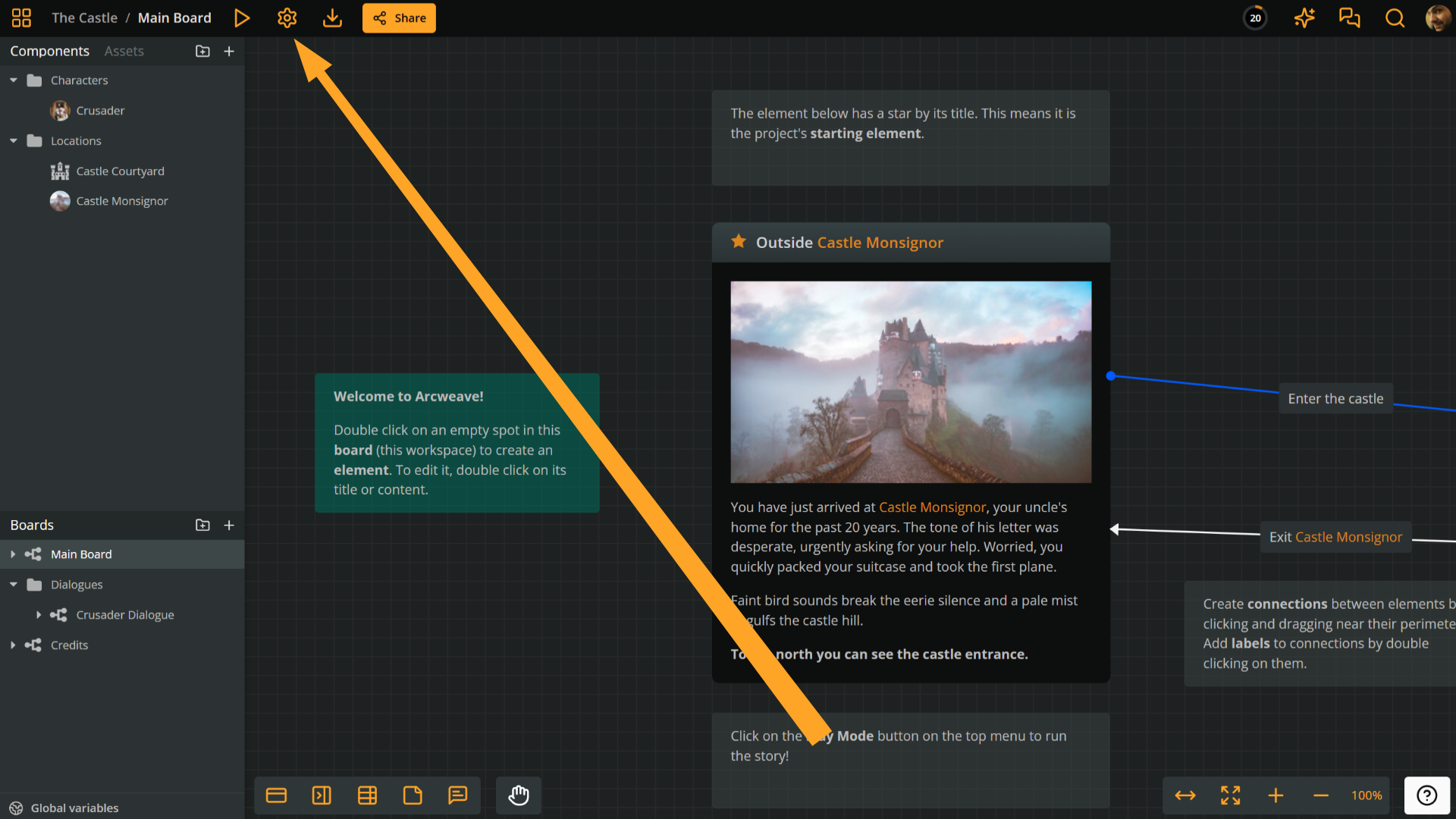
1. Click the **cog icon** on the left side of the top menu.
2. Open the **Properties** section.
3. Locate **Project hash** and click the **clipboard** icon to copy it.
Insert your hash in place of `{HASH}` within the HTML page created in the previous step.
#### Step 3: Save as HTML
Context: Arcweave docs > Project Tools > Share your project > Embed Play Mode in HTML > Export as HTML for Itch.io > Step 3: Save as HTML
Save the file with the `.html` extension.
#### Step 4: Upload to Itch.io
Context: Arcweave docs > Project Tools > Share your project > Embed Play Mode in HTML > Export as HTML for Itch.io > Step 4: Upload to Itch.io
Upload the HTML file to your Itch.io project page. Your Arcweave game will then load and play directly within the page.