# Godot Engine integration
Source: https://docs.arcweave.com/integrations/godot
Section: Integrations
Description: Install the Arcweave Godot plugin, import project data, and use its Story and Project classes from C# or GDScript
Arcweave provides a free plugin for importing your Arcweave projects into the .NET edition of [Godot Engine](https://godotengine.org/) (version 4.4 or later).
The plugin can import data from Arcweave's [JSON](https://docs.arcweave.com/integrations/json) (available to all workspaces) or fetch it using Arcweave's [REST API](https://docs.arcweave.com/rest-api/overview) (Team workspaces only).
## Tutorials
Context: Arcweave docs > Integrations > Godot Engine integration > Tutorials
For a step-by-step walkthrough and videos on this integration, see the [Godot Engine integration tutorial](https://docs.arcweave.com/tutorials/godot/overview).
## Plugin repository
Context: Arcweave docs > Integrations > Godot Engine integration > Plugin repository
You can download the Arcweave plugin for Godot Engine using [its GitHub link](https://github.com/arcweave/arcweave-godot-plugin).
## Example project
Context: Arcweave docs > Integrations > Godot Engine integration > Example project

Explore our [Godot example project](https://github.com/arcweave/arcweave-godot-example) to see Arcweave's implementation with Godot in action. The project uses Arcweave's [project template](https://docs.arcweave.com/workspaces/projects#project-templates) called **Game Engine Example**.
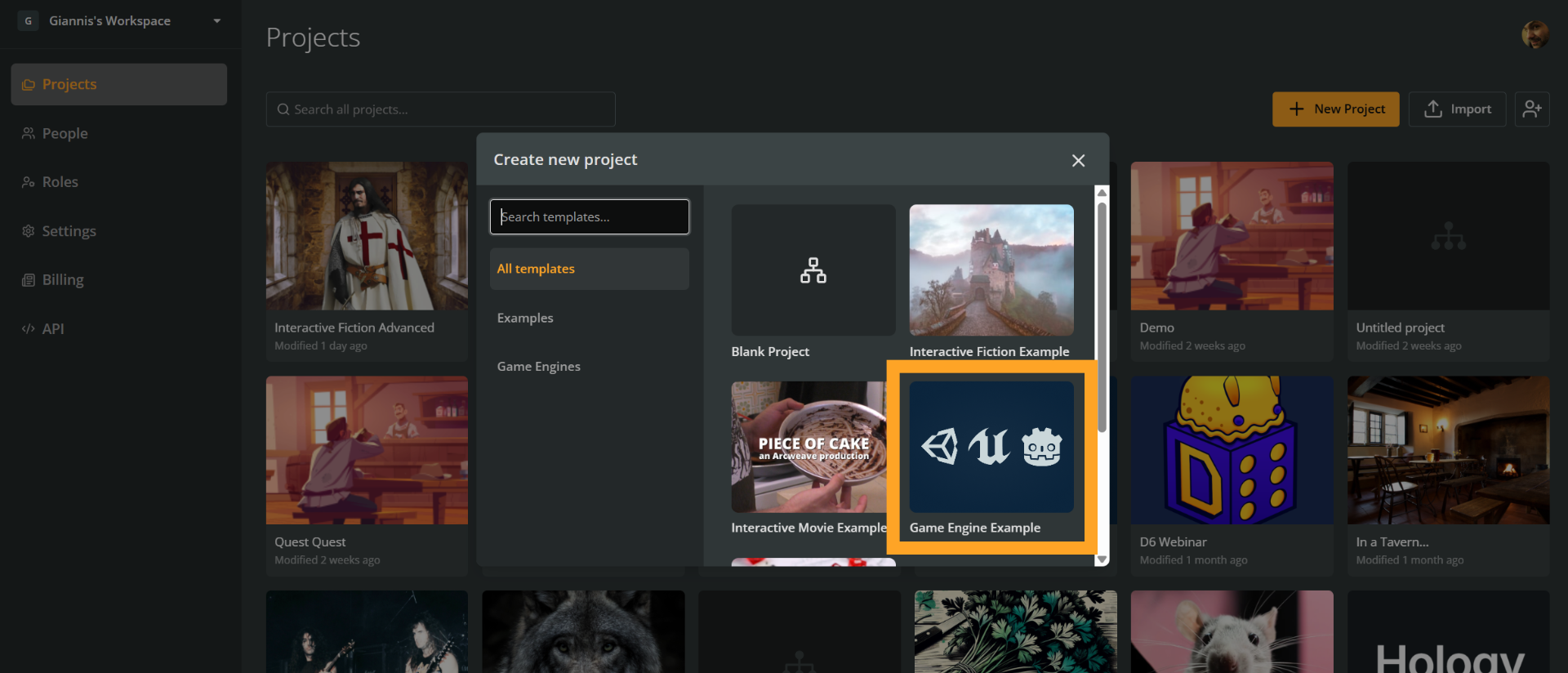
To recreate the Game Engine Example template:
1. Go to the workspace's **Projects** section.
2. Click the **+ New project** button.
3. Select a template from the menu.
## Requirements
Context: Arcweave docs > Integrations > Godot Engine integration > Requirements
- **Godot Engine**: You must use the [.NET version](https://godotengine.org/) of Godot.
- **Arcweave plugin**: Available on the [Godot Asset Library](https://godotengine.org/asset-library/asset/1912) or from the [GitHub repository](https://github.com/arcweave/arcweave-godot-plugin).
## Install & activate
Context: Arcweave docs > Integrations > Godot Engine integration > Install & activate
### Install
Context: Arcweave docs > Integrations > Godot Engine integration > Install & activate > Install
Complete the following steps to install the Arcweave plugin for Godot Engine:
1. Download the plugin from its [GitHub repository](https://github.com/arcweave/arcweave-godot-plugin).
2. Add the plugin's `addons/arcweave` folder to your Godot project's `addons` directory.
3. Reload the project.
> 👉 **Note**: If you download via "Download ZIP", you will only get the `addons` folder. To get the test project as well, clone the repo or download the full release ZIP file.
### Create C# solution
Context: Arcweave docs > Integrations > Godot Engine integration > Install & activate > Create C# solution
If you haven't already, go to `Project > Tools > C# > Create C# Solution`. This will create `.csproj` and `.sln` files in your root directory.
Then, open the `.csproj` file in a text editor and add the following after the `PropertyGroup` section's closing tag:
```xml
```
The file will now look similar to this:
```xml
net8.0
true
```
This installs the Antlr4 library required for parsing Arcscript.
### Build
Context: Arcweave docs > Integrations > Godot Engine integration > Install & activate > Build
Now, build your Godot project: click **Build** (the hammer icon at the top right of the editor, next to the Play buttons). Or press **Alt+B**.
### Activate the plugin
Context: Arcweave docs > Integrations > Godot Engine integration > Install & activate > Activate the plugin
In Godot Engine, reload your project. Then, go to `Project > Project Settings > Plugins`, find **Arcweave**, and enable it.
## Importing Arcweave project data
Context: Arcweave docs > Integrations > Godot Engine integration > Importing Arcweave project data
You can import your Arcweave project data into Godot using one of two methods:
### Folder import
Context: Arcweave docs > Integrations > Godot Engine integration > Importing Arcweave project data > Folder import
1. In Arcweave, click **Export project**.
2. Go to the **Engine** tab and select **Export for Godot**.
3. Optionally, clear **Include assets** if you only need the project data.
4. Click **Export**. Arcweave downloads a `.zip` file.
5. Extract the `project.json` file from the `.zip` file.
### API import (Team workspaces only)
Context: Arcweave docs > Integrations > Godot Engine integration > Importing Arcweave project data > API import (Team workspaces only)
1. In Arcweave, obtain your workspace's [API key](https://docs.arcweave.com/rest-api/overview#api-tokens) with **Read projects** enabled and your project's [hash](https://docs.arcweave.com/project-tools/settings#project-hash).
2. In Godot, provide this information in the plugin's interface.
## ArcweaveAsset
Context: Arcweave docs > Integrations > Godot Engine integration > ArcweaveAsset
To import your data into Godot, you must first create and initialize an **ArcweaveAsset** resource, in your Godot project. Follow the next steps:
1. In the FileSystem tab, right-click and select **New Resource**.
2. Choose **ArcweaveAsset** and give it a name.
3. In the Inspector, choose your data source:
- **Importing from JSON**: Set **Receive Method** to **File**. Under **File Settings**, set **Project File** to the extracted `project.json` file.
- **Importing from API**: Set **Receive Method** to **WebAPI**. Under **API Settings**, fill the **API Key** and **Project Hash** values.
4. Click **Initialize Arcweave Asset** to load the data onto the resource.
## Using Arcweave data
Context: Arcweave docs > Integrations > Godot Engine integration > Using Arcweave data
You can use the plugin with either a custom node or the provided `ArcweaveNode`.
### Using `ArcweaveNode`
Context: Arcweave docs > Integrations > Godot Engine integration > Using Arcweave data > Using `ArcweaveNode`
This plugin creates a new **ArcweaveNode** class (inheriting from Godot's Node), that you can use in your scenes to integrate your Arcweave Project in your game.
ArcweaveNode exposes and manages the following:
- `ArcweaveAsset`: The resource you already created and initialized.
- `Story`: The class that handles the Arcweave project and its flow. It stores all the info regarding your project and it is the way we are interacting with it.
- `APIRequest`: A child node created by ArcweaveNode that handles the connection to
the Arcweave API for requesting and retrieving the updated Arcweave project.
Add an ArcweaveNode as a child node in your scene and use the Inspector tab to connect it to your `ArcweaveAsset` resource that you created earlier, as follows:
1. Add an `ArcweaveNode` as a child in your scene.
2. In the Inspector, connect it to your `ArcweaveAsset`.
To reload the project data while the game runs, call the node's `UpdateStory()` method. It refreshes the ArcweaveAsset using its **Receive Method** (set it to **WebAPI** to fetch the latest data from the API), then updates the `Story` and emits the node's `ProjectUpdated` signal.
### Using a custom node
Context: Arcweave docs > Integrations > Godot Engine integration > Using Arcweave data > Using a custom node
Using the plugin's `ArcweaveNode` is not mandatory. You can also create your own nodes and interact with the `ArcweaveAsset`.
In order to update during runtime though, you will have to add the `APIRequest` script (`addons/arcweave/Editor/APIRequestScript.gd`) to your scene and initialize the `Story` class directly in GDScript or C#.
Examples are available on the plugin's GitHub repo:
- [GDScript: Example scene with ArcweaveNode](https://github.com/arcweave/arcweave-godot-plugin/blob/main/scripts/gd_script_scene.gd)
- [GDScript: Example scene without ArcweaveNode](https://github.com/arcweave/arcweave-godot-plugin/blob/main/scripts/gd_script_scene_no_arcweave_node.gd)
- [C#: Example scene with ArcweaveNode](https://github.com/arcweave/arcweave-godot-plugin/blob/main/scripts/CSharpScene.cs)
- [C#: ArcweaveNode script](https://github.com/arcweave/arcweave-godot-plugin/blob/main/addons/arcweave/Editor/ArcweaveNode.cs)
## Our implementation
Context: Arcweave docs > Integrations > Godot Engine integration > Our implementation
Most of our implementation, except ArcweaveAsset and some editor GDScript classes, is written in C#. This means that not all of the API is available in GDScript, because of type compatibility issues. The interpreter we are using for **Arcscript** is written in C# and uses built-in types.
## Using the plugin
Context: Arcweave docs > Integrations > Godot Engine integration > Using the plugin
Using Godot's functionality for [cross-language scripting](https://docs.godotengine.org/en/stable/tutorials/scripting/cross_language_scripting.html) you can use the plugin both from GDScript and C# Godot projects. The only limitation is that you must use the _.NET_ version of Godot Engine.
The [plugin's repo](https://github.com/arcweave/arcweave-godot-plugin) provides a simple demo of both implementations.
### Scoped variables
Context: Arcweave docs > Integrations > Godot Engine integration > Using the plugin > Scoped variables
String Field, Boolean, Integer, and Float attributes become Arcscript variables when both the attribute and its owning board or component have custom IDs. The attribute custom ID is the variable name, while the board or component custom ID is its scope:
```arcscript
health = 100
castle.health = 10
hero.health = 20
```
Unqualified names resolve global variables only. In C#, use the [Project class](https://docs.arcweave.com/integrations/godot#project-class) methods `GetScopedVariable(name, scope)` and `SetScopedVariable(name, scope, value)` for scoped values; get the project from `Story.GetProject()`. The existing `GetVariable(name)` and `SetVariable(name, value)` APIs remain global-only. `GetAllVariables()` enumerates every scope, while `SetVariableById(id, value)` applies a change using the stable Arcweave variable or attribute ID.
Variable saves and `Story.GetVariableChanges()` use stable IDs as keys so the same member name can exist in multiple scopes. If your JSON file was exported before legacy board variables were migrated to attributes, export the project again.
### C# example
Context: Arcweave docs > Integrations > Godot Engine integration > Using the plugin > C# example
**How to use the plugin in a C# Godot Project**
The main class that the user should use is the [**Story**](https://docs.arcweave.com/integrations/godot#story-class) class of the plugin. This has most of the functionality needed to traverse through a Project. Story is stored as a property inside our ArcweaveNode so our examples are based on that.
To start a Project's Story you have to initialize a Story instance with its project settings, as well as an instance of APIRequest to be able to update your project on runtime. ArcweaveNode handles that in its `_Ready` function, so if you are using this Node Type, you don't have to do it.
```csharp
public override void _Ready()
{
Dictionary projectSettings = (Dictionary)ArcweaveAsset.Get("project_settings");
Story = new Story(projectSettings);
var requestScript = GD.Load("res://addons/arcweave/Editor/APIRequestScript.gd");
ApiRequest = (Node)requestScript.New(ArcweaveAsset);
AddChild(ApiRequest);
}
```
During the initialization, the data is loaded, the starting_element is set and the Element Options are generated.
If you have a text container you can use the `Story.GetCurrentRuntimeContent()` function to get the text of the current element and set it. In our Demo project, we have a function called `Repaint()` that updates our TextContainer with the new content.
```csharp
private void Repaint()
{
TextContainer.Text = ArcweaveNode.Story.GetCurrentRuntimeContent();
}
```
You can also use `Story.GenerateCurrentOptions()` function to get the options of the current element:
```csharp
private void Repaint()
{
TextContainer.Text = ArcweaveNode.Story.GetCurrentRuntimeContent();
AddOptions();
}
private void AddOptions()
{
// Empty the previous options
foreach (var b in OptionContainer.GetChildren())
{
OptionContainer.RemoveChild(b);
}
// Retrieve the current options
Options options = ArcweaveNode.Story.GenerateCurrentOptions();
if (options.Paths != null)
{
foreach (var path in options.Paths)
{
if (path.IsValid)
{
Button button = CreateButton(path);
OptionContainer.AddChild(button);
}
}
}
}
```
To select a certain option and continue the story path, we add a signal handler for the button in `CreateButton` that we used earlier, where we select the Path that we provided using `Story.SelectPath()`. When the new path is selected, we call the repaint function to recreate our UI.
```csharp
private Button CreateButton(IPath path)
{
Button button = new Button();
button.Text = path.label;
button.Pressed += () => OptionButtonPressed(path);
return button;
}
private void OptionButtonPressed(IPath path)
{
ArcweaveNode.Story.SelectPath(path as Path);
Repaint();
}
```
### GDScript example
Context: Arcweave docs > Integrations > Godot Engine integration > Using the plugin > GDScript example
**How to use the plugin in a GDScript Godot Project**
The GDScript example below shows the custom-node setup: load the C# `Story` class, create an `APIRequest`, connect the `project_updated` signal, and initialize `story` from your ArcweaveAsset's project settings. If you use the provided `ArcweaveNode` instead, it handles this setup and exposes `arcweave_node.Story` directly.
```gdscript
# Your ArcweaveAsset resource file
var arcweave_asset: ArcweaveAsset = preload("res://resources/ArcweaveAsset.tres")
var api_request: APIRequest
var Story = load("res://addons/arcweave/Story.cs")
var story
func _ready():
api_request = APIRequest.new(arcweave_asset)
arcweave_asset.project_updated.connect(_on_project_updated)
add_child(api_request)
story = Story.new(arcweave_asset.project_settings)
func _on_project_updated(project_settings):
story.UpdateStory(project_settings)
repaint()
```
During the initialization, the data is loaded, the starting_element is set and the Element Options are generated.
If you have a text container (here, a RichTextLabel node saved as `text_window`) you can use the `story.GetCurrentRuntimeContent()` function to get the text of the current element and set it. In our Demo project, we have a function called `repaint()` that updates our TextContainer with the new content.
```gdscript
func repaint():
text_window.text = story.GetCurrentRuntimeContent()
```
You can also use `story.GenerateCurrentOptions()` function to get the options of the current element:
```gdscript
func repaint():
text_window.text = story.GetCurrentRuntimeContent()
add_options()
func add_options():
for option in options_container.get_children():
options_container.remove_child(option)
option.queue_free()
var options = story.GenerateCurrentOptions()
var paths = options.Paths
if paths != null:
for path in paths:
if path.IsValid:
var button : Button = create_button(path)
options_container.add_child(button)
```
To select a certain option and continue the story path, we add a signal handler for the button in `create_button` that we used earlier, where we select the Path that we provided using `story.SelectPath()`. When the new path is selected, we call the repaint function to recreate our UI.
```gdscript
func create_button(path):
var button : Button = Button.new()
button.text = path.label
button.pressed.connect(option_button_pressed.bind(path))
return button
func option_button_pressed(path):
story.SelectPath(path)
repaint()
```
## Story class
Context: Arcweave docs > Integrations > Godot Engine integration > Story class
### Properties
Context: Arcweave docs > Integrations > Godot Engine integration > Story class > Properties
| Property | Description |
| :-------------------------------- | :------------------------------------------------------ |
| `VariableChanges VariableChanges` | Tracks variable changes caused by the latest selection. |
### Methods
Context: Arcweave docs > Integrations > Godot Engine integration > Story class > Methods
| Method Name | Description |
| :--------------------------------------------------------------------- | :------------------------------------------------------------ |
| `Story(Dictionary projectData)` | Initializes a Story with the project data. |
| `Story UpdateStory(Dictionary projectData)` | Updates the story with new project data. |
| `void ResetStory()` | Resets variables, visits, and the current element. |
| `void SetCurrentElementById(string id)` | Sets the current element by element ID. |
| `void SetCurrentElement(Element element)` | Sets the current element. |
| `Options GenerateCurrentOptions()` | Returns the current element's options. |
| `void SelectPath(Path path)` | Selects a path/option. |
| `Project GetProject()` | Returns the project instance. |
| `Element GetCurrentElement()` | Returns the current element. |
| `string GetCurrentRuntimeContent()` | Returns the current element's runtime content. |
| `Dictionary> GetVariableChanges()` | Returns old and new values for variables changed by the path. |
| `Dictionary GetSave()` | Returns the current story state as a save dictionary. |
| `void LoadSave(Dictionary save)` | Loads a save dictionary created by `GetSave()`. |
## Project class
Context: Arcweave docs > Integrations > Godot Engine integration > Project class
### Properties
Context: Arcweave docs > Integrations > Godot Engine integration > Project class > Properties
| Property | Description |
| :----------------------------------------- | :----------------------------------- |
| `string Name` | The Project's name. |
| `Dictionary Boards` | The Boards of the Project. |
| `Dictionary Components` | The Components of the Project. |
| `Array Variables` | The global variables of the Project. |
| `Dictionary Elements` | The Elements of the Project. |
| `Dictionary Assets` | The Assets of the Project. |
| `Element StartingElement` | The starting element of the Project. |
### Methods
Context: Arcweave docs > Integrations > Godot Engine integration > Project class > Methods
| Method Name | Description |
| :----------------------------------------------------------------------------------------------------------------------------------------------------------------------------------------------------------------- | :-------------------------------------------------------------- |
| `Element ElementWithId(string id)` | Returns an element by ID, or null if it does not exist. |
| `void ResetVariables()` | Resets project variables to their default values. |
| `void ResetVisits()` | Resets all element visit counts to 0. |
| `Variable GetVariable(string name)` | Returns a global variable by name, or null. |
| `Variable GetScopedVariable(string name, string scope)` | Returns a board/component variable by name and owner custom ID. |
| `Variable GetVariableById(string id)` | Returns any variable by its stable Arcweave ID. |
| `IEnumerable GetAllVariables()` | Enumerates global, board, and component variables. |
| `void Set(Element startingElement, Dictionary boards, Dictionary components, Array variables, Dictionary elements, Dictionary assets)` | Sets the project's main data collections. |
| `Project Merge(Project project)` | Merges a new project into the current runtime state. |
| `Dictionary GetBoards()` | Returns the project's boards. |
| `bool SetVariable(string name, object value)` | Sets a global variable value. |
| `bool SetScopedVariable(string name, string scope, object value)` | Sets a board/component variable value. |
| `bool SetVariableById(string id, object value)` | Sets any variable by its stable Arcweave ID. |
| `Dictionary SaveVariables()` | Saves all scopes using stable IDs as keys. |
| `void LoadVariables(Dictionary save)` | Loads global and scoped values from a save dictionary. |